1. Įvadas
This manual provides comprehensive instructions for the MEETION BTM001 Wireless Mouse. It covers setup, operation, maintenance, and troubleshooting to ensure optimal performance and user experience. Please read this manual thoroughly before using the device.
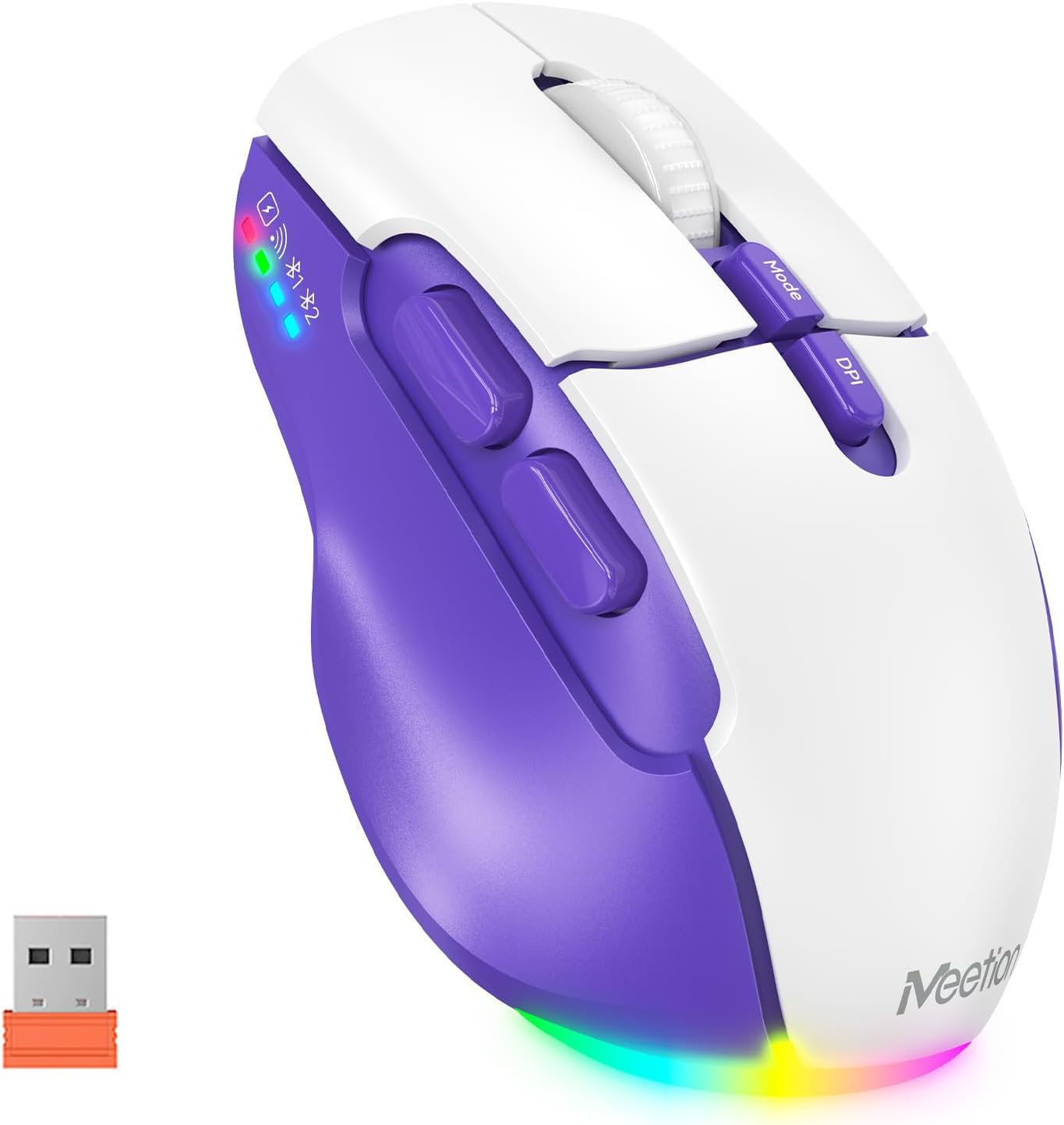
Image 1.1: The MEETION BTM001 Wireless Mouse, showcasing its purple and white design along with the included USB receiver.
2. Produktas baigtasview
The MEETION BTM001 is an ergonomic wireless mouse designed for versatile use across multiple devices. It features dual connectivity options (USB 2.4GHz and Bluetooth), adjustable DPI settings, and a rechargeable battery.
2.1 Pagrindinės savybės
- Dvigubas ryšys: Supports 2.4GHz USB wireless and dual Bluetooth (BT1, BT2) for seamless switching between up to three devices.
- Reguliuojamas DPI: Four DPI settings (800, 1200, 1600, 2400) for precise cursor control.
- Įkraunama baterija: Built-in lithium polymer battery, rechargeable via USB-C, with support for use while charging.
- Ergonomiškas dizainas: Contoured shape with supportive finger rests for comfortable extended use.
- Tylūs paspaudimai: Designed for quiet operation to minimize disturbance.
- RGB apšvietimas: Bottom lighting for aesthetic enhancement, with an option to toggle on/off.
2.2 Komponentai

Image 2.1: Detailed diagram illustrating the various buttons and ports on the MEETION BTM001 Wireless Mouse, including the Left Button, Right Button, Scroll Wheel, Forward Button, Backward Button, Mode Switching Button, DPI Speed Switch Button, Type-C Charging Port, Power Switch (ON/OFF), Tail Light Switch, and USB Receiver compartment.
- Kairysis mygtukas: Standartinė kairiojo pelės mygtuko paspaudimo funkcija.
- Dešinysis mygtukas: Standartinė dešiniojo pelės mygtuko paspaudimo funkcija.
- Slinkties ratukas: For vertical scrolling. Can be tilted right for auto-scroll mode.
- Pirmyn mygtukas: Naviguoja pirmyn web naršyklės arba file tyrinėtojai.
- Mygtukas atgal: Naviguoja atgal web naršyklės arba file tyrinėtojai.
- Režimo perjungimo mygtukas: Cycles between 2.4GHz USB, Bluetooth 1, and Bluetooth 2 connections.
- DPI Speed Switch Button: Adjusts cursor sensitivity (800/1200/1600/2400 DPI).
- C tipo įkrovimo prievadas: For recharging the mouse battery.
- Maitinimo jungiklis (ON/OFF): Turns the mouse power on or off.
- Tail Light Switch: Toggles the RGB bottom lighting on or off.
- USB imtuvas: Stores the 2.4GHz USB dongle.
3. Sąranka
The MEETION BTM001 mouse offers flexible connectivity options. Follow these steps to connect your mouse to your device.

Image 3.1: Visual guide for connecting the mouse via USB receiver or Bluetooth to various devices like laptops, desktops, tablets, and smartphones.
3.1 2.4GHz USB Wireless Connection
- Raskite USB imtuvą, esantį pelės apačioje esančiame skyriuje.
- Plug the USB receiver into an available USB-A port on your computer or device. If your device only has USB-C ports, use a suitable adapter (not included).
- Turn on the mouse using the Power Switch on the bottom.
- Press the Mode Switching Button until the indicator light for 2.4GHz (often represented by a Wi-Fi-like icon) is active.
- Pelė turėtų prisijungti automatiškai.
3.2 „Bluetooth“ ryšys (BT1 / BT2)
The mouse supports two separate Bluetooth connections, allowing you to pair with two different Bluetooth-enabled devices.
- Turn on the mouse using the Power Switch on the bottom.
- Press the Mode Switching Button to select either Bluetooth 1 (BT1) or Bluetooth 2 (BT2). The corresponding indicator light will flash.
- On your device (laptop, tablet, smartphone), go to Bluetooth settings and enable Bluetooth.
- Ieškokite new devices. The mouse should appear as "MEETION BTM001" or similar.
- Select the mouse to pair. The indicator light on the mouse will stop flashing and remain solid once connected.
- Repeat these steps for the second Bluetooth channel (BT2) if you wish to connect to another device.
3.3 Įrenginių perjungimas
To switch between connected devices (USB, BT1, BT2), simply press the Mode Switching Button on the top of the mouse. The indicator lights will show which connection is currently active.

Image 3.2: The MEETION BTM001 mouse demonstrating its ability to connect and switch between a laptop, tablet, and desktop computer using both Bluetooth and 2.4GHz USB connections.
4. Naudojimo instrukcijos
4.1 Adjusting DPI (Cursor Speed)
The mouse offers four adjustable DPI settings to control cursor sensitivity. Press the DPI greičio jungiklio mygtukas located on the top of the mouse to cycle through the settings:
- 800 DPI (Slowest)
- 1200 DPI (Standard)
- 1600 DPI (Faster)
- 2400 DPI (Fastest)

Image 4.1: Illustration of the four adjustable DPI settings (800, 1200, 1600, 2400) and the DPI button on the MEETION BTM001 mouse.
4.2 Šoniniai mygtukai
The Forward and Backward buttons on the left side of the mouse provide quick navigation in web browsers, file explorers, and other applications that support these functions.
4.3 Scroll Wheel Functions
- Vertikalus slinkimas: Rotate the scroll wheel up or down.
- Auto-Scroll Mode: Push the scroll wheel to the right to activate auto-scroll. You can adjust the scrolling speed by moving the mouse slightly up or down while in this mode. Push the scroll wheel again or click any button to exit auto-scroll.
4.4 RGB apšvietimo valdymas
The mouse features a customizable RGB backlight at its base. To toggle the lighting on or off, use the Galinių žibintų jungiklis located on the bottom of the mouse.
5. Įkrovimas ir akumuliatorius
The MEETION BTM001 mouse is equipped with a rechargeable lithium polymer battery.
5.1 Pelės įkrovimas
- Connect the included USB-C charging cable to the Type-C Charging Port on the front of the mouse.
- Kitą laido galą prijunkite prie USB maitinimo šaltinio (pvz., kompiuterio USB prievado, USB sieninio adapterio).
- Pelę galima naudoti, kol ji kraunasi.

Image 5.1: The MEETION BTM001 mouse connected to a power source via its USB-C charging cable, indicating its rechargeable capability.
5.2 Battery Saving Features
Siekiant taupyti baterijos veikimo laiką, pelė turi išmanias energijos taupymo funkcijas:
- Budėjimo režimas: After approximately 20 minutes of inactivity, the mouse will enter standby mode.
- Automatinis miego režimas: If left inactive for an extended period, the mouse will enter a deeper auto-sleep mode.
- To reactivate the mouse from standby or auto-sleep, simply move the mouse or click any button.

Image 5.2: Illustration depicting the mouse's power states: Working, Standby (after 20 minutes), Auto Sleep, and how to activate it by clicking.
6. Priežiūra
To ensure the longevity and optimal performance of your MEETION BTM001 Wireless Mouse, follow these maintenance guidelines:
- Valymas: Pelės paviršiui nuvalyti naudokite minkštą, sausą šluostę. Jei nešvarumai sunkiai įveikiami, šiek tiek pamirkykite.ampNuvalykite šluostę vandeniu arba švelniu valymo tirpalu. Venkite stiprių cheminių medžiagų ar abrazyvinių medžiagų.
- Jutiklio priežiūra: Kad užtikrintumėte tikslų sekimą, pelės apačioje esantį optinį jutiklį laikykite švarų, be dulkių ar šiukšlių.
- Saugykla: Jei ilgesnį laiką nenaudojate pelės, išjunkite ją, kad taupytumėte baterijos veikimo laiką. Laikykite ją vėsioje, sausoje vietoje, toliau nuo tiesioginių saulės spindulių ir ekstremalių temperatūrų.
- Venkite lašų: Protect the mouse from drops and impacts, which can damage internal components.
7. Problemų sprendimas
If you encounter issues with your MEETION BTM001 Wireless Mouse, refer to the following troubleshooting steps:
| Problema | Galima priežastis | Sprendimas |
|---|---|---|
| Mouse not responding/pointer not moving | Low battery; Mouse is off; Incorrect connection mode; USB receiver not connected; Bluetooth not paired. | Charge the mouse; Turn on the mouse; Press the Mode button to select the correct connection (USB, BT1, BT2); Ensure USB receiver is securely plugged in; Re-pair Bluetooth. |
| Vėluojantis arba nutrūkstantis ryšys | Trikdžiai; Atstumas nuo imtuvo / įrenginio; Išsikrovusi baterija. | Move closer to the receiver/device; Ensure no large metal objects are between mouse and receiver; Charge the mouse; Try a different USB port. |
| DPI nustatymas nesikeičia | Netinkamai paspaustas DPI mygtukas. | Ensure a firm press on the DPI Speed Switch Button. |
| RGB apšvietimas neveikia | Tail Light Switch is off. | Toggle the Tail Light Switch on the bottom of the mouse. |
| Pelė neįkraunama | Charging cable faulty; USB power source not active. | Try a different USB-C cable; Try a different USB port or wall adapter. |
8. Specifikacijos
| Funkcija | Detalė |
|---|---|
| Modelio numeris | BTM001 |
| Ryšio technologija | 2.4GHz Wireless (USB), Bluetooth 5.2/3.0 |
| Judesio aptikimo technologija | Optinis |
| DPI nustatymai | 800, 1200, 1600, 2400 |
| Baterijos tipas | Ličio polimeras (įtraukta) |
| Įkrovimo prievadas | C tipo USB |
| Ypatingos savybės | Ergonomic Design, LED Lights, Lightweight, Portable, Rechargeable |
| Prekės svoris | 6.4 uncijos (apie 181 g) |
| Pakuotės matmenys | 5.24 x 3.74 x 2.05 colio |
| Suderinamumas | Windows, macOS, Android, iOS |
9. Garantija ir palaikymas
For warranty information and customer support, please refer to the documentation included with your purchase or visit the official MEETION websvetainėje. Išsaugokite pirkimo įrodymą, jei prireiktų pateikti garantinį ieškinį.


