Įvadas
This manual provides instructions for the GEWOKLIY Mac mini Dock and Stand (Model MC50M). This device is designed to expand the connectivity and storage capabilities of your Mac mini or Mac Studio, integrating multiple ports and an M.2 SSD enclosure into a compact stand.
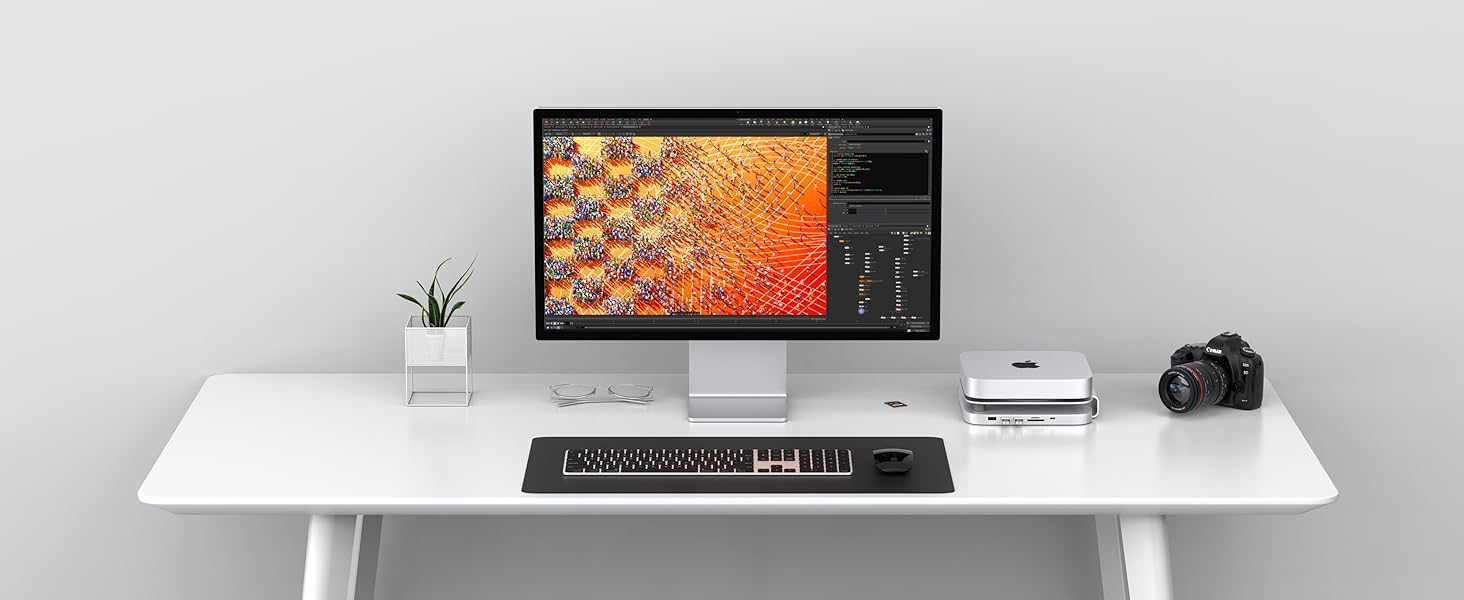
Image: The GEWOKLIY Mac mini Dock and Stand integrated into a desktop setup, enhancing workspace functionality.
Produkto savybės
- 9-in-1 Expansion Ports: Includes an NVMe/SATA M.2 SSD enclosure, one high-speed USB-C data/PD port (10 Gbps), two USB-A ports (5 Gbps), one high-speed USB-A port (10 Gbps), and Micro/SD card readers.
- Expandable Internal Storage: Features a built-in M.2 SSD enclosure compatible with 2242, 2260, and 2280 SSDs (NVMe/SATA M.2 SSD, up to 2TB, SSD not included) for data access speeds up to 10Gbps.
- Optimized Cooling Design: Integrated stand with strategically placed ventilation openings to promote airflow and heat dissipation for the connected Mac mini or Mac Studio.
- Platus suderinamumas: Designed for Mac mini M1/M2 and Mac Studio, also compatible with various devices and operating systems including Windows, Linux, macOS, Chrome OS, and Android.

Vaizdas: Viršview of the GEWOKLIY Mac mini Dock and Stand, highlighting its various ports and design.
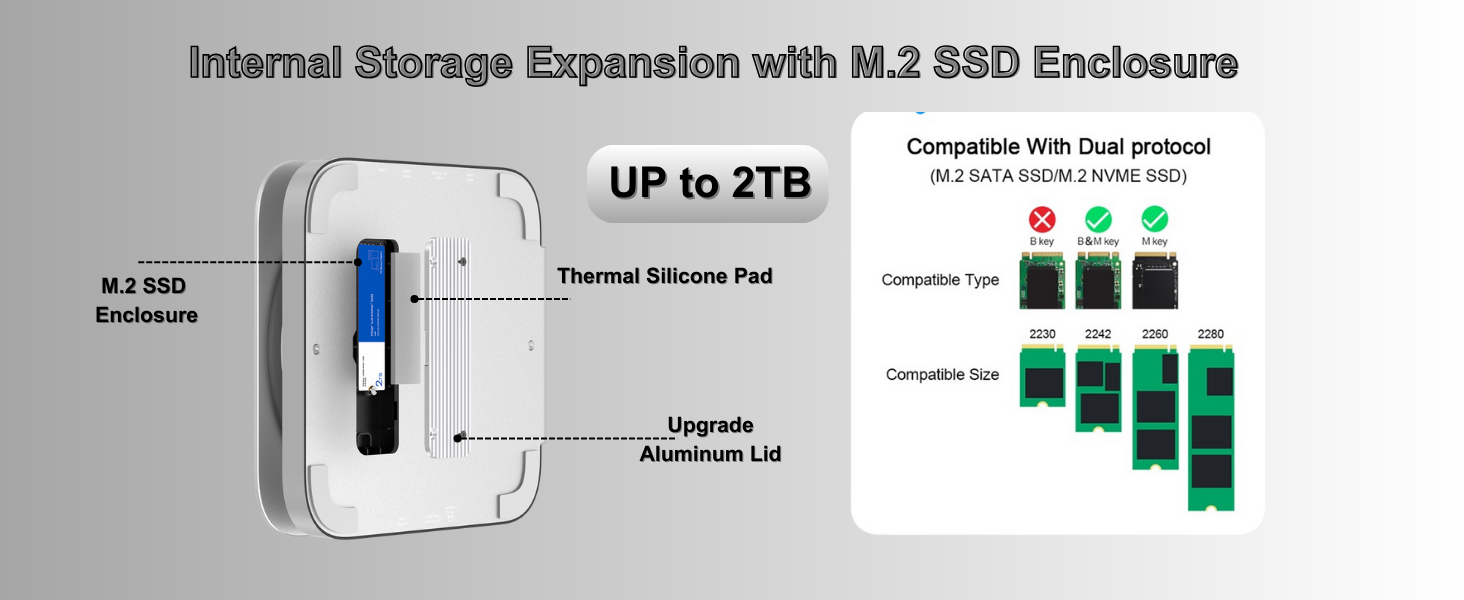
Image: Diagram illustrating the optimized cooling system of the dock, showing airflow around the Mac mini.
Pakuotės turinys
Prašome patikrinti, ar pakuotėje yra visi reikalingi daiktai:
- GEWOKLIY Mac mini Dock and Stand (MC50M)
- USB-C to USB-C Cable (for data connection to Mac mini)
- USB-C to USB-A Cable (for optional power supply)
- Vartotojo vadovas (šis dokumentas)

Image: Diagram illustrating the 9-in-1 USB-C Docking Station and its various ports and cables.
Sąrankos instrukcijos
1. Connecting the Dock to Your Mac mini/Mac Studio
- Place your Mac mini or Mac Studio securely on top of the GEWOKLIY Dock and Stand. Ensure the device is centered for optimal stability and cooling.
- Connect one end of the provided USB-C į USB-C laidas to the "Host" port on the back of the dock.
- Prijunkite kitą galą USB-C į USB-C laidas to a Thunderbolt/USB-C port on your Mac mini or Mac Studio.

Image: The GEWOKLIY Dock and Stand supporting both a Mac mini and a Mac Studio, demonstrating its design for these devices.
2. Installing an M.2 SSD (Optional)
The dock supports M.2 NVMe/SATA SSDs (2242, 2260, 2280 sizes) up to 2TB.
- Locate the M.2 SSD enclosure on the underside of the dock.
- Carefully open the enclosure lid.
- Insert your M.2 SSD into the slot, ensuring it is properly seated.
- Secure the SSD with the provided thermal silicone pad and replace the aluminum lid.
- After installation, the SSD should be recognized by your operating system. You may need to format the drive before use.

Vaizdas: Stambus planas view demonstrating the installation of an M.2 SSD into the dock's enclosure, showing compatible types and sizes.
3. Connecting External Power (Optional)
For stable operation with high-power devices or to prevent SSD disconnection issues, an external 5V power supply can be connected.
- Prijunkite pateiktą USB-C į USB-A laidas to the "5V Power" port on the back of the dock.
- Connect the USB-A end of the cable to a 5V USB power adapter (not included) and plug it into a wall outlet.
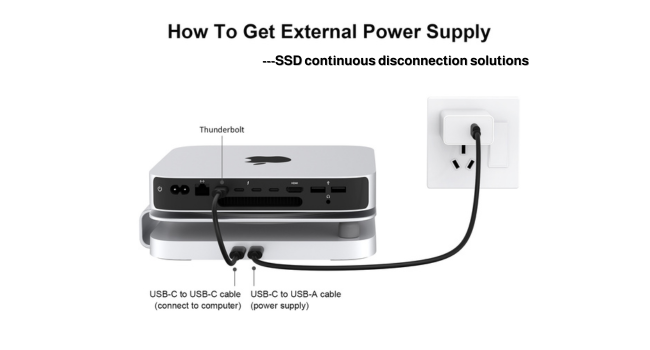
Image: Illustration detailing the connection of the USB-C to USB-C cable to the Mac mini and the USB-C to USB-A cable for external power.
Naudojimo instrukcijos
USB prievadų naudojimas
- USB-C Data/PD Port (10 Gbps): Connect high-speed USB-C devices or use for power delivery to compatible devices.
- USB-A Ports (5 Gbps & 10 Gbps): Connect USB peripherals such as keyboards, mice, external hard drives, USB flash drives, and printers.
- USB-A Port (480 Mbps): Connect standard USB 2.0 devices.
Using Card Readers
- Insert your SD or Micro SD (TF) card into the corresponding slot. The dock supports simultaneous reading and writing to both card types.
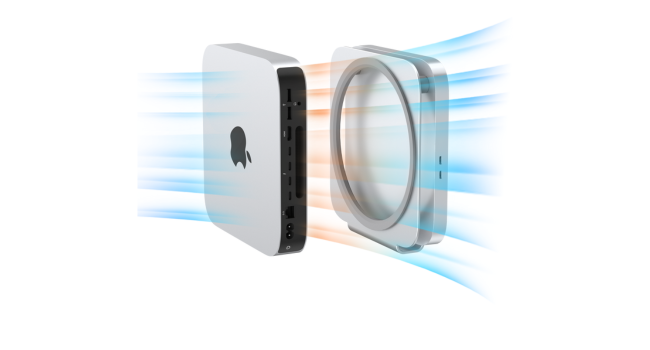
Image: Detailed diagram showing the layout and types of USB ports and card readers on the dock.
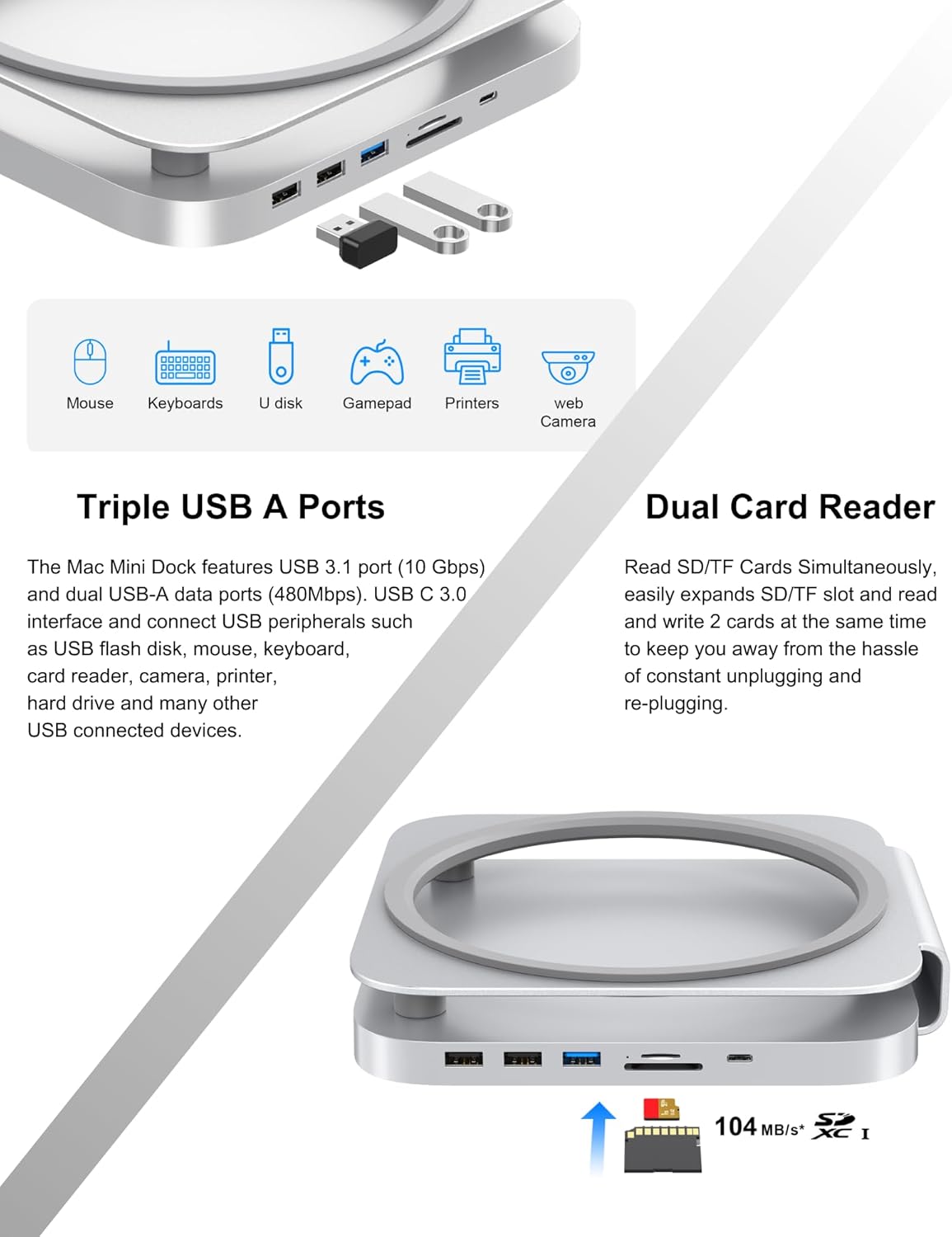
Image: Illustration of various USB peripherals (mouse, keyboard, U disk, gamepad, printer, web camera) and SD/TF cards connected to the dock's ports.
Suderinamumas
The GEWOKLIY Mac mini Dock and Stand is compatible with a range of devices and operating systems:
- Įrenginiai: Mac mini (2018/2020/2023 models), Mac Studio (2022 model), Laptops, All-in-one PCs, TVs, Projectors.
- Operacinės sistemos: macOS, Windows, Linux, Chrome OS, Android.

Image: Visual representation of the dock's compatibility with different devices (Mac mini, Mac Studio, Laptop, All-in-one PC, TV, Projector) and operating systems (Windows, macOS, Chrome OS, Linux, Android).
Priežiūra
- Laikykite įrenginį švarų ir be dulkių. Valymui naudokite minkštą, sausą šluostę.
- Avoid exposing the dock to extreme temperatures, humidity, or direct sunlight.
- Nebandykite patys ardyti ar taisyti įrenginio. Kreipkitės į kvalifikuotus techninės priežiūros darbuotojus.
Trikčių šalinimas
| Problema | Galima priežastis | Sprendimas |
|---|---|---|
| Device not recognized / No power | Loose connection; insufficient power. | Ensure the USB-C to USB-C cable is securely connected to both the dock and your Mac mini/Studio. If using high-power devices, connect an external 5V power supply as described in the Setup section. |
| SSD not detected or frequently disconnects | SSD not properly installed; insufficient power; incompatible SSD. | Verify the M.2 SSD is correctly installed and secured in its enclosure. Connect an external 5V power supply to the dock. Ensure your SSD is a compatible NVMe or SATA M.2 type. |
| Card reader not working | Card not inserted correctly; card format issue. | Reinsert the SD/TF card firmly. Check if the card is damaged or requires formatting. |
| Mažas duomenų perdavimo greitis | Using older USB standards; cable quality; system load. | Ensure you are using the 10Gbps USB-C or USB-A ports for high-speed transfers. Use the provided cables. Reduce other active processes on your computer. |
Specifikacijos
| Modelio numeris | MC50M |
| Prekės ženklas | GEWOKLIY |
| Ryšys | USB 3.1 Type C |
| USB prievadai | 1x USB-C (10Gbps Data/PD), 1x USB-A (10Gbps), 1x USB-A (5Gbps), 1x USB-A (480Mbps) |
| Kortelių skaitytuvai | SD Card Reader (5Gbps), Micro SD (TF) Card Reader (5Gbps) |
| VSD gaubtas | M.2 NVMe/SATA SSD (2242, 2260, 2280), up to 2TB, 10Gbps |
| Suderinami įrenginiai | Mac mini M1/M2, Mac Studio, Laptops, All-in-one PCs |
| Matmenys | 8.62 x 8.15 x 1.85 colio |
| Prekės svoris | 1.1 svaro (0.5 kilogramo) |
| Spalva | Sidabras |
Garantija ir palaikymas
GEWOKLIY products are covered by a manufacturer's warranty. For specific warranty details, please refer to the product packaging or contact GEWOKLIY customer support.
If you encounter any issues or have questions regarding your GEWOKLIY Mac mini Dock and Stand, please contact our customer support team through the retailer's platform or the official GEWOKLIY webpagalbos svetainę.
Gamintojas: Gewokliy