Įvadas
The Logitech Zone 305 is a wireless Bluetooth headset designed for business professionals. It offers clear audio and reliable connectivity for calls and video meetings, certified for platforms like Google Meet, Google Voice, and Zoom. This manual provides essential information for setting up, operating, and maintaining your headset.

Image: The Logitech Zone 305 wireless headset shown alongside its retail packaging.
Kas yra dėžutėje
Patikrinkite, ar pakuotėje yra visi komponentai:
- „Logitech Zone 305“ belaidės ausinės
- USB-C imtuvas
- USB-C į USB-A adapteris
- USB-C įkrovimo laidas
- Kelioninis krepšys
- Vartotojo vadovas (šis dokumentas)
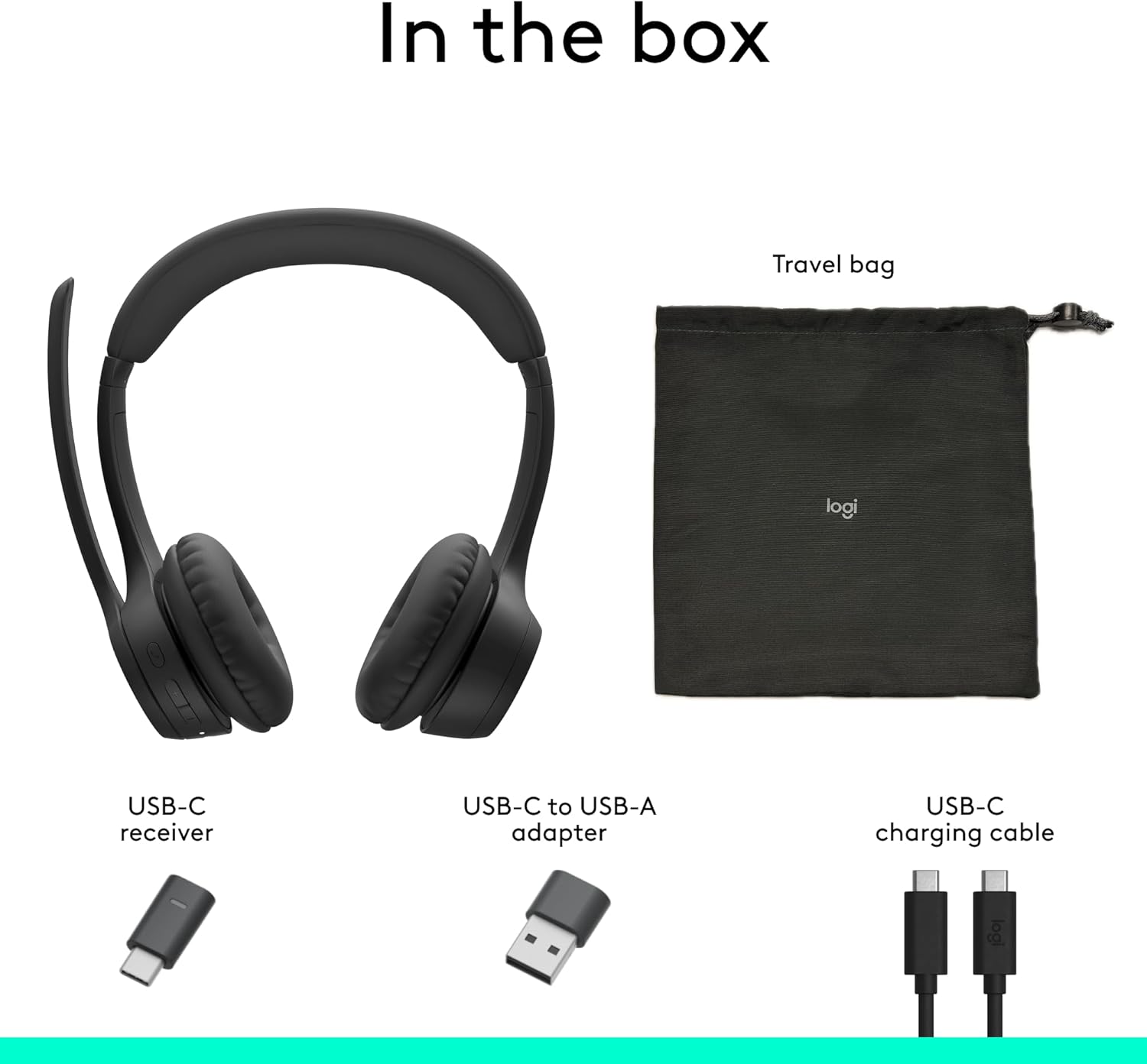
Image: A visual representation of all items included in the Logitech Zone 305 product box, including the headset, cables, and travel bag.
Sąranka
Ausinių įkrovimas
Before first use, fully charge your Zone 305 headset. Connect the USB-C charging cable to the headset's USB-C port and the other end to a power source (e.g., computer USB port, wall adapter). The LED indicator on the headset will show charging status.

Image: A detailed diagram highlighting various features of the Logitech Zone 305 headset, including the USB-C charging port.
Prijungimas per USB imtuvą
- Insert the USB-C receiver into an available USB-C port on your computer. If your computer only has USB-A ports, use the provided USB-C to USB-A adapter.
- Įjunkite „Zone 305“ ausines.
- The headset should automatically connect to the receiver. A solid LED indicator on the headset confirms a successful connection.
Prisijungimas per Bluetooth
- Įjunkite „Zone 305“ ausines.
- Press and hold the Bluetooth pairing button on the headset until the LED indicator flashes rapidly, indicating pairing mode.
- On your device (computer, smartphone, tablet), navigate to Bluetooth settings and select "Logitech Zone 305" from the list of available devices.
- Once connected, the LED indicator on the headset will turn solid.
The headset can maintain a reliable connection to two devices simultaneously with a wireless range of up to 30 meters.
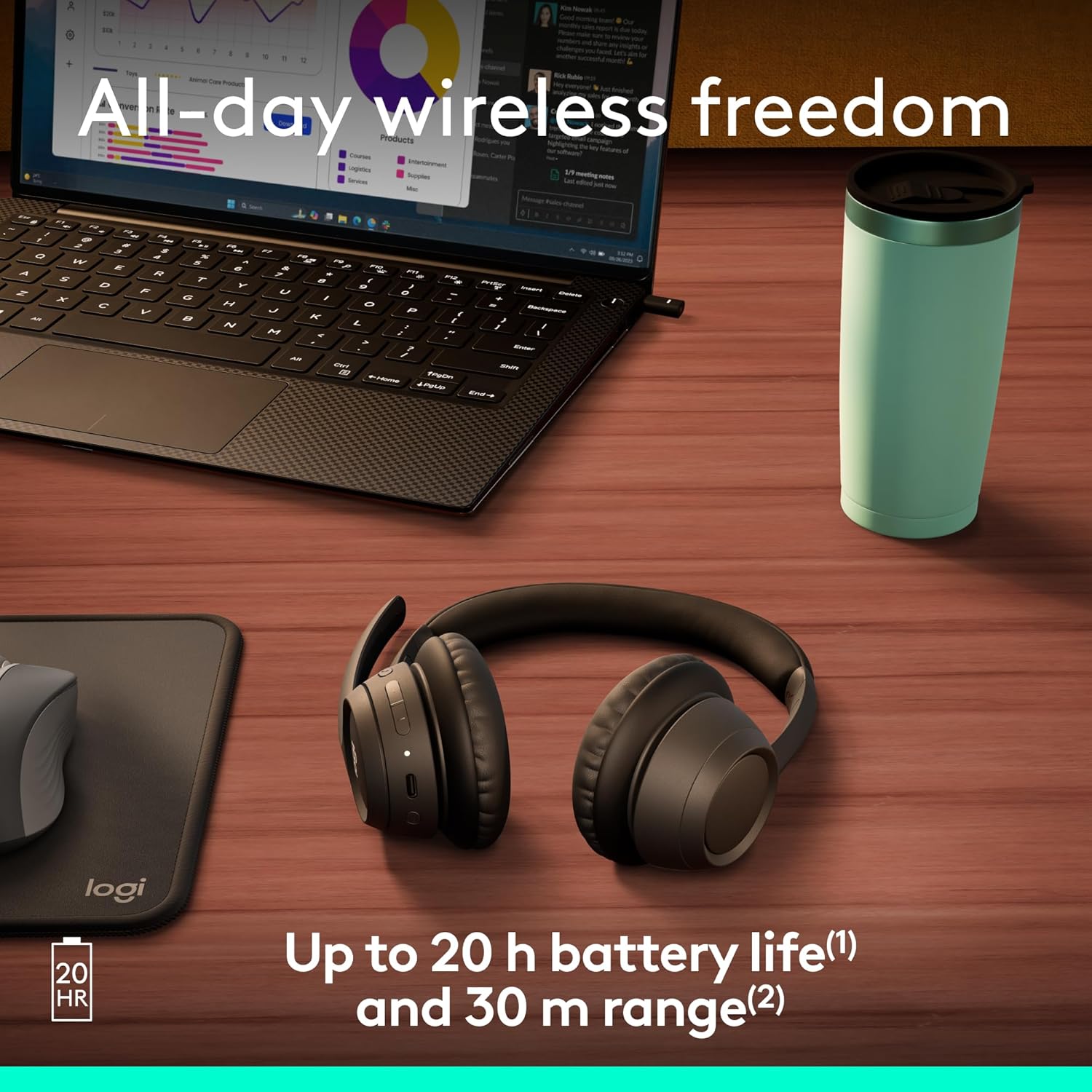
Image: The Logitech Zone 305 headset positioned on a wooden desk, illustrating its wireless capability next to a laptop.
Naudojimo instrukcijos
Pagrindiniai valdikliai
- Maitinimo įjungimas/išjungimas: Paspauskite ir palaikykite maitinimo mygtuką.
- Garsumo valdymas: Use the volume up (+) and volume down (-) buttons located on the earcup.
- Leisti / pristabdyti: Vieną kartą paspauskite daugiafunkcį mygtuką.
- Atsiliepti / Baigti skambutį: Įeinančio arba aktyvaus skambučio metu vieną kartą paspauskite daugiafunkcį mygtuką.
- Atmesti skambutį: Įeinančio skambučio metu paspauskite ir palaikykite daugiafunkcį mygtuką.
Mikrofono naudojimas
The Zone 305 features a flip-to-mute boom microphone with dual noise-canceling mics for clear voice capture.
- Nutildyti / įjungti garsą: Flip the microphone boom arm up to mute, and flip it down to unmute.
- Padėties nustatymas: For optimal voice clarity, position the microphone approximately two fingers' width from your mouth.

Vaizdas: Stambus planas view of the microphone boom on the Logitech Zone 305 headset, highlighting the dual noise-canceling microphone elements.
Compatibility and Certifications
The Zone 305 is certified for use with Google Meet, Google Voice, and Zoom, ensuring seamless integration and optimal performance with these communication platforms. It is also compatible with Windows, Mac, Chrome, Linux, iOS, iPadOS, and Android operating systems.

Image: A person wearing the Logitech Zone 305 headset, with logos indicating certification for Zoom, Google Meet, Google Voice, and Works With Chromebook.
Priežiūra
Valymas
- Nuvalykite ausines minkšta, d šluosteamp audinys.
- Nenaudokite abrazyvinių valiklių ar tirpiklių.
- Ensure the USB-C charging port is free of dust and debris.
Earpad Replacement
The earpads on the Zone 305 are replaceable to extend the product's life. Contact Logitech support for replacement parts and instructions.
Sandėliavimas
When not in use, store the headset in the provided travel bag to protect it from dust and damage.

Image: The Logitech Zone 305 headset resting on a minimalist white stand, demonstrating its lightweight design.
Trikčių šalinimas
- Nėra garso:
- Įsitikinkite, kad ausinės įjungtos ir prijungtos prie jūsų įrenginio.
- Check your device's volume settings and ensure the headset is selected as the audio output.
- Verify the headset is not muted.
- Mikrofonas neveikia:
- Įsitikinkite, kad mikrofono svirtelė yra nuleista ir nėra nutildyta.
- Check your device's sound settings to ensure the headset microphone is selected as the input device.
- Restart your communication application (e.g., Zoom, Google Meet).
- Ryšio problemos:
- Ensure the headset is within the 30-meter wireless range of your device.
- Try re-pairing the headset via Bluetooth or re-inserting the USB receiver.
- Ensure there are no strong interfering signals (e.g., other wireless devices) nearby.
- Trumpas baterijos veikimo laikas:
- Ensure the headset is fully charged before use. Battery life is up to 20 hours listening time and 16 hours talk time.
- A 5-minute quick charge provides up to 1 hour of talk time.
Specifikacijos
| Funkcija | Detalė |
|---|---|
| Modelio pavadinimas | 305 zona |
| Prekės modelio numeris | 981-001452 |
| Ryšio technologija | Belaidis ryšys („Bluetooth“) |
| belaidis diapazonas | Iki 30 metrų (100 pėdų) |
| Battery Life (Listening) | Iki 20 valandų |
| Baterijos veikimo laikas (pokalbių laikas) | Iki 16 valandų |
| Greitas įkrovimas | 5 minutes charge for 1 hour talk time |
| Mikrofono tipas | Dual noise-canceling mics on flip-to-mute boom |
| Svoris | 122 gramų (4.3 uncijos) |
| Medžiaga | Plastic (55% Post-Consumer Recycled Plastic) |
| Suderinamumas | Windows, Mac, Chrome, Linux, iOS, iPadOS, Android |
| Sertifikatai | Google Meet, Google Voice, Zoom, Works With Chromebook |
Garantija ir palaikymas
Logitech products are designed for reliability and performance. For warranty information, please refer to the warranty card included with your product or visit the official Logitech support websvetainę.
For technical assistance, frequently asked questions, and driver downloads, please visit the „Logitech“ palaikymas Websvetainę. You can also manage device usage and firmware updates via „Logitech“ sinchronizavimas.

Image: Two individuals working in an office setting, one utilizing the Logitech Zone 305 headset, illustrating its use in a business environment and manageability with Logitech Sync.


