1. Įvadas
Thank you for choosing the PUTRIMS K12 Google TV Projector. This manual provides essential information for the safe and efficient use of your new projector. Please read it thoroughly before operation and keep it for future reference.

Figure 1.1: PUTRIMS K12 Projector
2. Saugos informacija
- Nežiūrėkite tiesiai į projektoriaus objektyvą, kai lamp yra įjungtas.
- Užtikrinkite tinkamą vėdinimą, kad išvengtumėte perkaitimo.
- Projektorių laikykite atokiau nuo vandens ar kitų skysčių.
- Naudokite tik pateiktą maitinimo adapterį.
- Nestatykite projektoriaus ant nestabilių paviršių.
- Nebandykite patys ardyti ar taisyti projektoriaus. Dėl pagalbos kreipkitės į klientų aptarnavimo tarnybą.
3. Pakuotės turinys
Patikrinkite, ar pakuotėje yra visi reikalingi daiktai:
- PUTRIMS K12 projektorius
- Nuotolinio valdymo pultas
- Maitinimo laidas
- HDMI kabelis
- Projektoriaus objektyvo dangtelis
- Vartotojo vadovas (šis dokumentas)
4. Produktas baigtasview
The PUTRIMS K12 projector is designed for a versatile home theater and business experience. It features a sleek design with essential ports for connectivity.
4.1 pav.: priekis view of the K12 Projector, showing the lens and auto-focus sensors.

4.2 pav.: galinis view of the K12 Projector, highlighting HDMI, USB, and audio ports.
Video 4.1: General product overview and feature demonstration of the PUTRIMS K12 projector.
5. Sąranka
5.1 Fizinė konfigūracija
The K12 projector offers flexible installation options to suit various environments:
- Stalviršio išdėstymas: Pastatykite projektorių ant stabilaus, lygaus paviršiaus.
- Trikojo tvirtinimas: Use the M5 screw hole on the bottom to attach a tripod.
- Montavimas prie lubų: Securely mount the projector to the ceiling using a compatible mount.
- Montavimas ant sienos: Attach the projector to a wall using a suitable bracket.

Figure 5.1: Diverse installation methods for the K12 Projector.
5.2 Pradinis įjungimas
- Prijunkite maitinimo laidą prie projektoriaus ir maitinimo lizdo.
- Paspauskite maitinimo mygtuką ant projektoriaus arba nuotolinio valdymo pulto, kad jį įjungtumėte.
- Projektorius automatiškai atliks automatinį fokusavimą ir trapecinio iškraipymo korekciją.
5.3 Tinklo ryšys („Wi-Fi“)
To access online streaming services and updates, connect your projector to a WiFi network:
- Projektoriuje eikite į meniu „Nustatymai“.
- Pasirinkite „Tinklas“ arba „Wi-Fi nustatymai“.
- Įjunkite „Wi-Fi“ ir iš sąrašo pasirinkite norimą tinklą.
- Jei būsite paraginti, įveskite slaptažodį ir prisijunkite.
5.4 Bluetooth ryšys
Connect external Bluetooth speakers or headphones for enhanced audio:
- Eikite į „Nustatymai“ ir pasirinkite „Bluetooth“.
- Turn on Bluetooth and put your external device into pairing mode.
- Pasirinkite įrenginį iš sąrašo, kad jį susietumėte.
5.5 Ekrano atspindėjimas
Share content from your mobile devices or computer wirelessly:
- „iOS“ įrenginiams („Airplay“): Ensure your iOS device and the projector are connected to the same WiFi network. Open the 'iOS Cast' interface on the projector. On your iOS device, open Control Center, tap 'Screen Mirroring', and select 'K12-xxxx' from the list.
- For Android/Windows devices (Miracast): Ensure your device and the projector are connected to the same WiFi network. Open the 'Miracast' interface on the projector. On your Android/Windows device, enable screen mirroring/cast feature and select 'K12-xxxx' to connect.
6. Naudojimo instrukcijos
6.1 „Google TV“ funkcijos
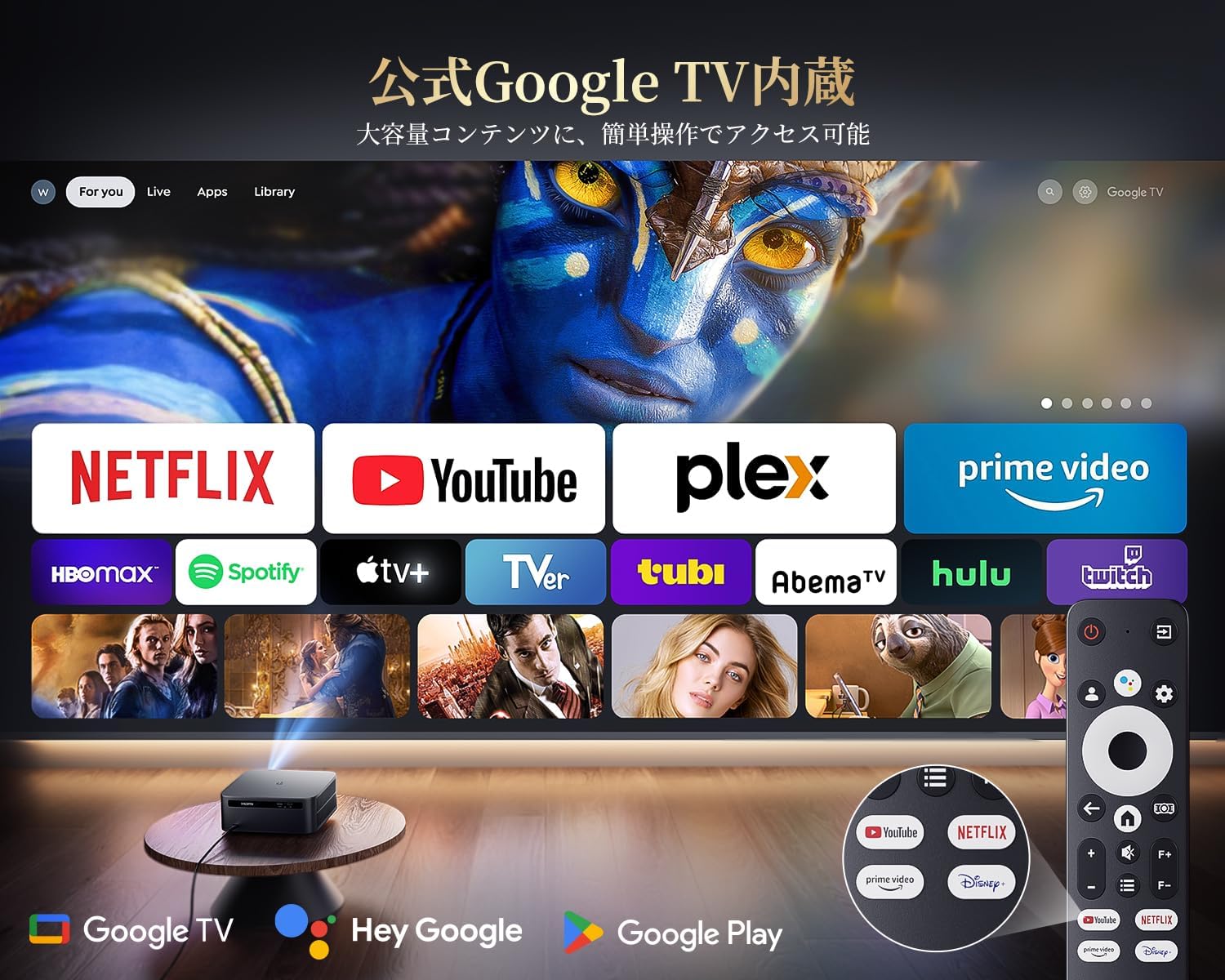
The PUTRIMS K12 comes with official Google TV, providing access to a vast library of content and applications.
- Srautinio perdavimo programos: Directly access Netflix, Disney+, YouTube, Prime Video, Hulu, and many more with a single click.
- „Google Play“ parduotuvė: Download and install over 10,000 applications and games.
- Reguliarūs atnaujinimai: The projector receives periodic updates to enhance security and stability.

Figure 6.1: Google TV interface with popular streaming applications.
6.2 Valdymas balsu
Utilize the Google Voice Assistant for convenient control of your projector and content.
- Press the voice control button on your remote.
- Speak commands such as "Open Netflix," "Play One Piece," "Tell me the weather," or "Increase volume."

Figure 6.2: Using the Google Voice Assistant with the remote control.
6.3 Vaizdo koregavimas
The K12 projector features advanced image adjustment capabilities for optimal viewing.
- Automatinis fokusavimas: The projector automatically adjusts the focus for a clear image upon startup or movement.
- Auto Keystone korekcija: It automatically corrects horizontal and vertical trapezoidal distortions, ensuring a perfectly rectangular image even from an angle.
- Priartinimo funkcija: Ekrano dydį galite reguliuoti nuo 50 % iki 100 % nejudindami projektoriaus.
- Kraštinių santykis: Palaiko 4:3 ir 16:9 formato santykius.
- Ryškumas ir kontrastas: Customize brightness and contrast settings to your preference.

Figure 6.3: Automatic focus and keystone correction in action.

Figure 6.4: Projection distances and corresponding screen sizes (100", 120", 150").
6.4 Išorinių įrenginių prijungimas
The K12 projector offers multiple connectivity options for various devices:
- HDMI ARC: Connect to soundbars, laptops, gaming consoles (Switch, PS5), or DVD players.
- USB: Play media directly from USB memory sticks.
- 3.5 mm garso prievadas: Connect to external audio systems.

Figure 6.5: Seamless connection with various external devices.
7. Priežiūra
7.1 Objektyvo valymas
To maintain optimal image quality, regularly clean the projector lens.
- Įsitikinkite, kad projektorius yra išjungtas ir atjungtas.
- Gently wipe the lens with a soft, lint-free cloth or a cotton swab.
- For stubborn smudges, use a lens cleaning solution specifically designed for optical surfaces.
- Avoid using abrasive materials or harsh chemicals that could damage the lens.
8. Problemų sprendimas
Čia pateikiami dažniausiai pasitaikančių problemų, su kuriomis galite susidurti, sprendimai:
- No image/signal: Check all cable connections (HDMI, power). Ensure the correct input source is selected on the projector.
- Neryškus vaizdas: The projector features auto-focus. If the image remains blurry, ensure the lens is clean and there are no obstructions.
- Image not rectangular: The projector has auto-keystone correction. If issues persist, ensure the projector is placed on a stable surface and try repositioning it.
- Nėra garso: Check volume settings on both the projector and connected devices. Ensure external speakers are properly connected via Bluetooth or audio cable. If using HDMI ARC, verify the connection and settings.
- „Wi-Fi“ / „Bluetooth“ ryšio problemos: Ensure the projector and your device are within range of the router/device. Restart both the projector and the router/device.
- App crashes or malfunctions (for unofficial Android TV versions): The PUTRIMS K12 has an official Google TV license, which ensures stability. If you experience issues, ensure your system is updated.
Daugiau pagalbos rasite skyriuje „Garantija ir palaikymas“.
9. Specifikacijos
| Funkcija | Aprašymas |
|---|---|
| Prekės ženklas | PUTRIMS |
| Modelis | K12 |
| Ryškumas | 1500 ANSI liumenai |
| Rezoliucija | 1080P FHD (4K Support) |
| Operacinė sistema | Official Google TV |
| Valdymas balsu | „Google Voice Assistant“. |
| Fokusas | Omnidirectional Auto Focus |
| Keystone Korekcija | Horizontal & Vertical Auto Keystone Correction |
| Padidinti | 50–100 % |
| Maksimalus ekrano dydis | 300 colių |
| WiFi | WiFi 6 |
| Bluetooth | Bluetooth 5.3 |
| Garso išvestis | 20W HIFI Speaker, 3.5mm Audio Jack |
| Įvesties prievadai | HDMI ARC, USB |
| Matmenys | 40.5 x 30.2 x 17 cm |
| Svoris | 3.31 kg |
10. Garantija ir palaikymas
PUTRIMS is committed to providing excellent customer service. Your K12 projector comes with comprehensive support:
- Aptarnavimas po pardavimo: 24 hours a day, 365 days a year.
- Techninė pagalba: Professional technical assistance is available.
- Garantija: Free exchange or 100% refund guarantee for initial defects or natural failures under normal use.
If you have any questions or require assistance, please contact PUTRIMS customer support via the official email address provided in your product packaging or on the official websvetainę.


