1. Įvadas
This manual provides essential information for the safe and efficient operation of your VISION VP-621 4K Ultra HD Multimedia Projector. Please read this manual thoroughly before using the projector and retain it for future reference.
The VISION VP-621 is a versatile smart projector featuring 4K Ultra HD support, 11000 lumens brightness, 5G WiFi, Bluetooth 5.0, Auto Focus, Wireless Miracast, and an integrated Android 9.0 operating system. It is designed for various applications including home entertainment, business presentations, and educational purposes.
2. Saugos informacija
- Neužblokuokite ventiliacijos angų. Užtikrinkite pakankamą oro cirkuliaciją aplink projektorių, kad jis neperkaistų.
- Nežiūrėkite tiesiai į projektoriaus objektyvą, kai lamp įjungtas. Ryški šviesa gali pažeisti akis.
- Padėkite projektorių ant stabilaus, lygaus paviršiaus, kad jis nenukristų.
- Projektorių saugokite nuo vandens, drėgmės ir ekstremalių temperatūrų.
- Naudokite tik prie projektorijaus pridėtą maitinimo adapterį.
- Nebandykite patys atidaryti ar taisyti projektoriaus. Visus techninės priežiūros darbus patikėkite kvalifikuotiems specialistams.
- Atjunkite projektorių nuo elektros tinklo žaibuojant arba kai jis ilgą laiką nenaudojamas.
3. Pakuotės turinys
Patikrinkite, ar pakuotėje yra visi toliau išvardyti daiktai:
- VISION VP-621 Projector
- Maitinimo laidas
- Adapteris
- Nuotolinio valdymo pultas
- AV kabelis
- Projektoriaus objektyvo dangtelis
4. Produktas baigtasview
Familiarize yourself with the main components and interfaces of your VISION VP-621 projector.

Vaizdas: Priekinė ir šoninė view of the VISION VP-621 projector, showcasindėl savo kompaktiško dizaino ir objektyvo.
4.1 Priekinis ir viršutinis skydeliai
- Projekcinis objektyvas: Išleidžia vaizdą.
- Infraraudonųjų spindulių imtuvas: Nuotolinio valdymo signalams.
- Valdymo mygtukai: Power, Navigation (OK, Up, Down, Left, Right), Back.
- Vėdinimo grotelės: For cooling the internal components.

Vaizdas: Viršus view of the projector highlighting the integrated control buttons for power and navigation.
4.2 Rear Panel and Connectivity Ports
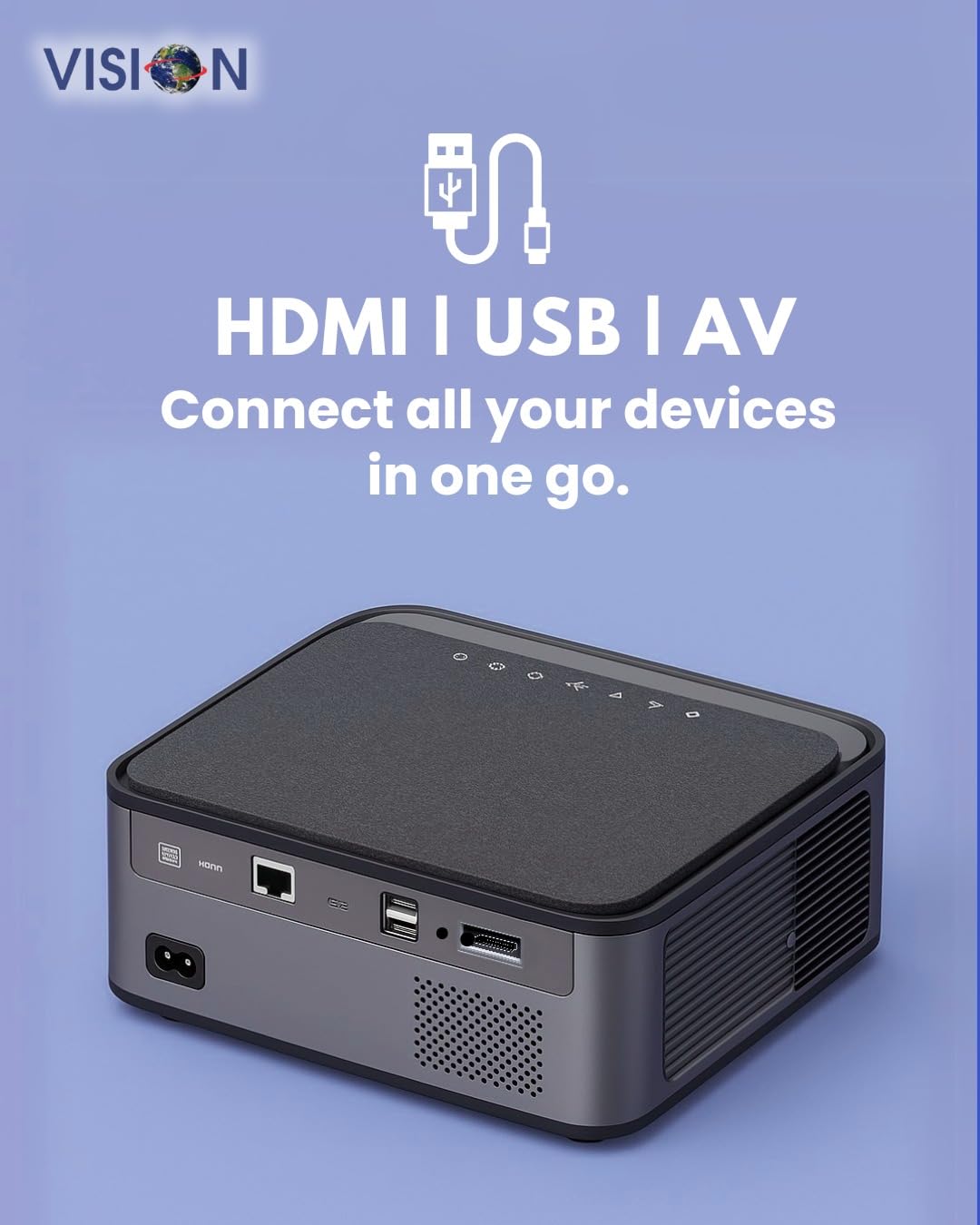
Vaizdas: Galinis view of the projector displaying the various input and output ports, including HDMI, USB, and AV.
- Maitinimo įvestis: Čia prijunkite maitinimo adapterį.
- HDMI prievadas: Connect to HDMI-enabled devices (laptops, gaming consoles, streaming sticks).
- USB prievadai (x2): Connect USB drives for media playback or external devices.
- AV įvestis: Connect to older devices using the provided AV cable.
- Garso išvestis (3.5 mm): Prijunkite išorinius garsiakalbius arba ausines.
- LAN prievadas: For wired internet connection (if available).
5. Sąranka
5.1 Projektoriaus išdėstymas
Choose a flat, stable surface for the projector. Ensure there are no obstructions in front of the lens and that the ventilation grilles are clear.

Image: A projector positioned on a desk, illustrating a typical setup environment.
5.2 Maitinimo jungtis
- Prijunkite maitinimo adapterį prie projektoriaus maitinimo įvesties prievado.
- Įkiškite maitinimo laidą į sieninį lizdą.
- Užsidegs projektoriaus maitinimo indikatoriaus lemputė.
5.3 Pradinis įjungimas
- Paspauskite maitinimo mygtuką ant projektoriaus arba nuotolinio valdymo pulto, kad jį įjungtumėte.
- The projector will boot up and display the Android 9.0 home screen.
5.4 Fokusavimo ir trapecijos koregavimas
The VISION VP-621 features automatic focus and 4D keystone correction for a clear and properly aligned image.

Image: Illustrates the projector's automatic focus and keystone correction capabilities, ensuring a sharp and aligned picture.
- Automatinis fokusavimas: The projector will automatically adjust the focus for a sharp image upon startup or movement.
- 4D Keystone korekcija: The projector automatically corrects image distortion when placed at an angle. Manual adjustments may be available in the settings menu if needed.
6. Naudojimo instrukcijos
6.1 „Android 9.0“ išmanioji operacinė sistema
The integrated Android 9.0 system allows direct access to streaming services and apps.
- Navigacija: Use the remote control's directional buttons and "OK" button to navigate the interface.
- Programos diegimas: Access the Google Play Store to download and install applications like YouTube, Netflix, and Prime Video.
- Tinklo prisijungimas: Go to Settings > Network to connect to a 5G WiFi network or a wired LAN connection.
6.2 Išorinių įrenginių prijungimas
HDMI jungtis
- Connect an HDMI cable from your device (laptop, gaming console, Fire TV Stick) to the HDMI port on the projector.
- On the projector's home screen, select the HDMI input source.
USB jungtis
- Insert a USB drive into one of the USB ports on the projector.
- The projector will typically prompt you to open the media player or file browser. If not, navigate to the file manager app on the Android home screen.
AV jungtis
- Connect the provided AV cable to the AV input port on the projector and to your external device.
- Select the AV input source on the projector.
Bluetooth 5.0 Audio Output
- Go to Settings > Bluetooth on the projector.
- Įjunkite Bluetooth ir ieškokite galimų įrenginių.
- Select your Bluetooth speaker or headphones from the list to pair and connect.
Wireless Miracast (Screen Mirroring)
Miracast allows you to wirelessly mirror the screen of your compatible smartphone, tablet, or laptop.
- On the projector's home screen, select the "Miracast" or "Screen Mirroring" application.
- On your mobile device, enable screen mirroring (often found in quick settings or display settings, named "Cast," "Smart View," "Wireless Display," etc.).
- Pasirinkite projektorių iš galimų įrenginių sąrašo, kad užmegztumėte ryšį.
7. Priežiūra
7.1 Projektoriaus valymas
- Objektyvas: Naudokite minkštą, nepūkuotą šluostę, specialiai skirtą optiniams lęšiams. Nenaudokite abrazyvinių valiklių.
- Casing: Nuvalykite projektorių casinminkštu, sausu skudurėliu. Įsisenėjusius nešvarumus šiek tiek nuvalykite.ampsudrėkinkite šluostę vandeniu ir tada nusausinkite.
- Vėdinimas: Regularly check and clean the ventilation grilles to ensure proper airflow and prevent dust buildup. Use a soft brush or compressed air.
7.2 Lamp Gyvenimas
The VISION VP-621 utilizes advanced LED technology, providing an estimated lamp life of up to 50,000 hours. This significantly reduces the need for lamp replacement compared to traditional projectors.
8. Problemų sprendimas
| Problema | Galima priežastis | Sprendimas |
|---|---|---|
| Vaizdas nerodomas |
|
|
| Neryškus vaizdas |
|
|
| Nėra garso |
|
|
| Nepavyksta prisijungti prie „Wi-Fi“. |
|
|
9. Specifikacijos
| Prekės ženklas | VIZIJA |
| Modelio pavadinimas | VP-621 AN |
| Ekrano technologija | LCD |
| Ekrano tipas | LED |
| Ryškumas | 11000 liumenų |
| Vaizdo kontrasto santykis | 18000:1 pikselių |
| Gimtoji raiška | 1920 x 1280 (Full HD) |
| Palaikoma rezoliucija | Iki 4K Ultra HD raiškos |
| Krašto santykis | 16:9, 4:3 |
| Operacinė sistema | Android 9.0 |
| Ryšio technologija | Bluetooth 5.0, HDMI, USB, Wi-Fi (5G) |
| Techninės įrangos sąsaja | Bluetooth 5, HDMI, USB 3.0 |
| Ypatingos savybės | Built-In 3D, Built-In Cooling System, Built-In Speaker, Electric Focus, Wi-Fi Ready, Auto Focus, 4D Keystone Correction, Wireless Miracast |
| Gaminio matmenys | 30 x 18 x 7 cm |
| Prekės svoris | 8 kg |
| Lamp Gyvenimas | Iki 50,000 valandų |

Image: Illustrates the projector's Full HD (1920x1080) resolution capability for crisp visuals.

Image: Highlights the projector's 11000 lumens brightness, ensuring clear visuals in various lighting conditions.
10. Garantija ir palaikymas
For warranty information and technical support, please contact the manufacturer:
- Gamintojas: Scorpio Infosolutions
- Vieta: Delhi, India
- Telefonas: +91-7982647130
- Websvetainė: visionsheen.in
Please have your product model (VP-621) and purchase details ready when contacting support.