1. Įvadas
Thank you for choosing the Tera P400 Android Barcode Scanner. This device is a high-performance, rugged mobile terminal designed for efficient data collection and management in various demanding environments such as industrial facilities, retail, logistics, and warehouses. Featuring an Android 11 operating system, a powerful octa-core processor, and a durable design, the P400 provides reliable and fast operation for your business needs.

Image: The Tera P400 Android Barcode Scanner, showcasing its robust design and integrated physical keyboard.
2. Pakuotės turinys
Patikrinkite, ar jūsų siuntinyje yra visi toliau išvardyti daiktai:
- Tera P400 Android Barcode Scanner (x1)
- Ekrano apsauga (x1)
- USB laidas (x1)
- Charging Adapter (x1)
- Rankinis dirželis (x1)
- Vartotojo vadovas (1x)

Image: A visual representation of the Tera P400 barcode scanner and its included accessories: user manual, screen protector, QC adapter, USB cable, and hand strap.
3. Pagrindinės savybės
3.1. Display and Keyboard
The P400 features a 4-inch touchscreen display for clear visuals and intuitive navigation. Complementing the touchscreen is a 26-key physical keyboard, providing tactile feedback for rapid and precise data entry, enhancing productivity and minimizing errors.

Image: Close-up of the Tera P400's 4-inch screen and 26-key physical keyboard, highlighting custom keys, power button, and dedicated scan keys.
3.2. Baterija ir įkrovimas
Equipped with a robust 5100 mAh removable battery, the P400 offers up to 300 hours of standby time and over 12 hours of continuous usage. It supports QC 3.0 fast charging, allowing for a full charge in approximately 3 hours, optimizing power efficiency and maintaining long-term battery health.
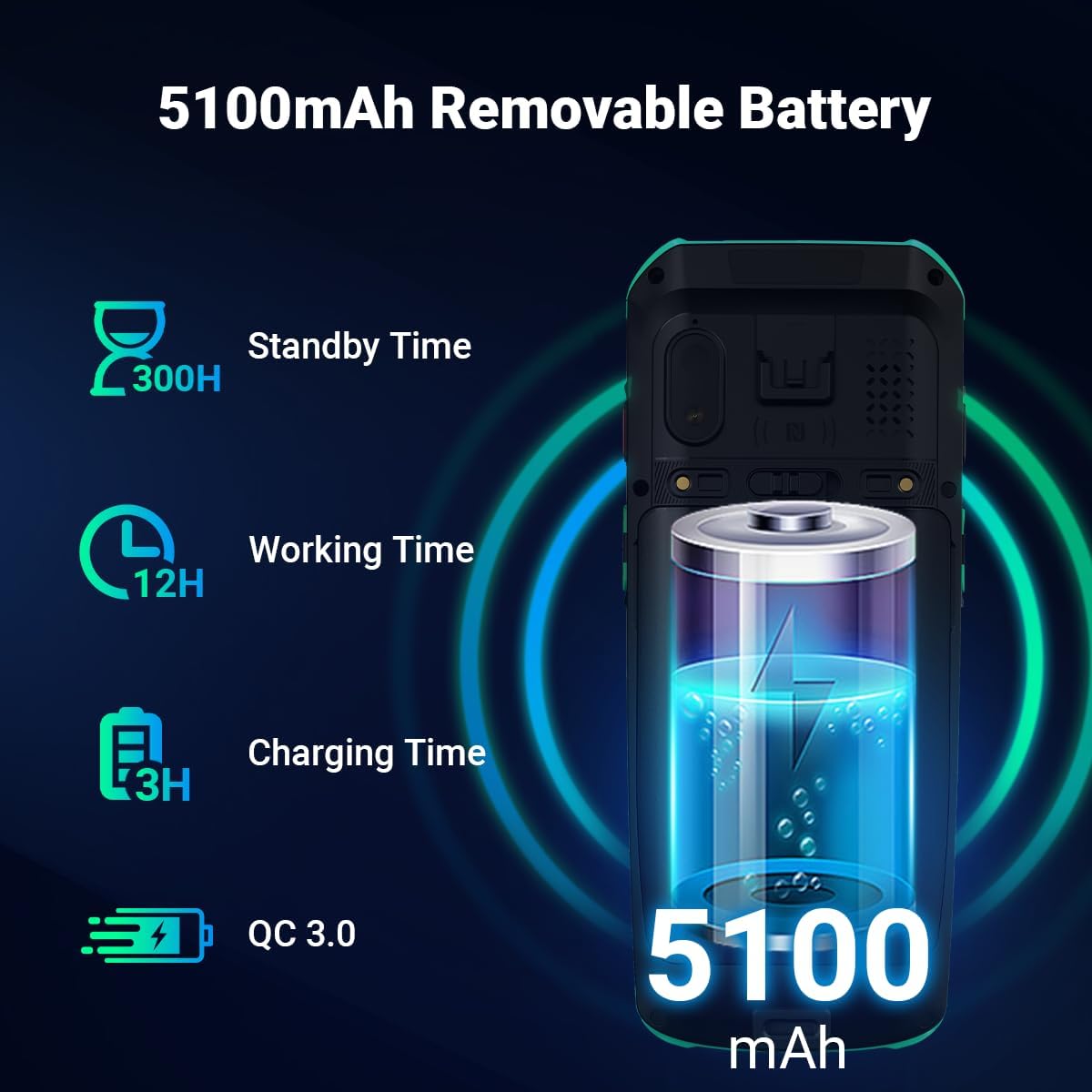
Image: Illustration of the Tera P400's 5100mAh removable battery, detailing its 300 hours standby time, 12 hours working time, and 3 hours charging time with QC 3.0 support.

Image: A visual demonstrating the QC 3.0 fast charging capability of the Tera P400, showing a charging cable connected to the device.
3.3. Našumas ir operacinė sistema
Powered by a Mediatek MT6762 octa-core Cortex-A53 2.0 GHz CPU, the P400 delivers robust performance, stable connectivity, reduced power consumption, and faster processing speeds. It runs on Android 11, providing enhanced data privacy and security features to protect sensitive information.

Image: Depiction of the Tera P400's internal components, highlighting the Android 11 operating system and the MT6762 Octa-core 2.0GHz processor.
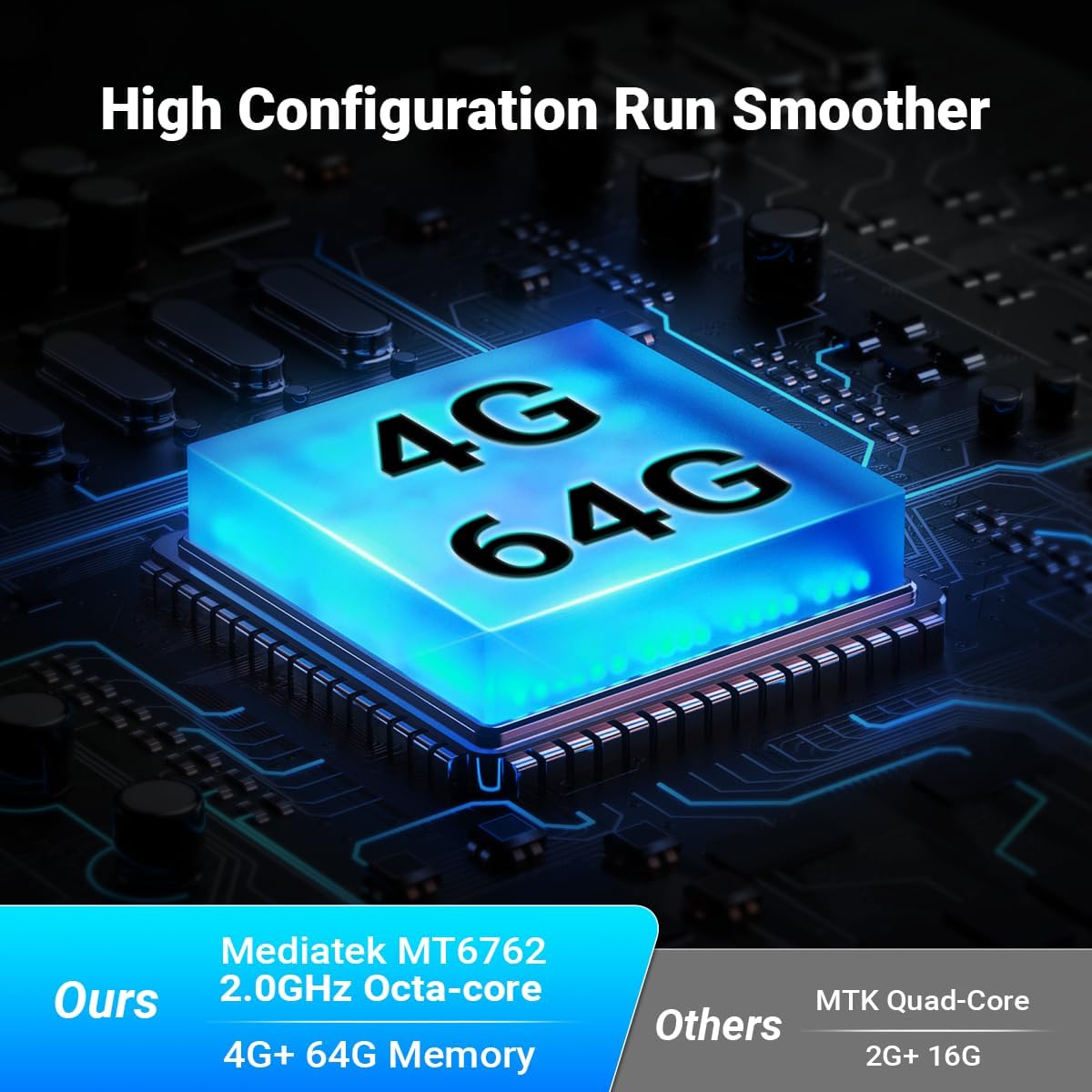
Image: A graphic illustrating the Tera P400's 4GB RAM and 64GB ROM configuration, emphasizing smoother performance compared to lower specifications.
3.4. Patvarumas ir apsauga
The P400 is IP67 certified, ensuring resistance to water, dust, and drops from up to 1.8 meters. This makes it highly suitable for diverse and challenging work environments.

Image: The Tera P400 barcode scanner shown with indicators for IP67 grade, drop resistance, water resistance, and dustproof capabilities, along with a scale showing 1.8m drop height.

Image: A visual highlighting the Gorilla Glass screen protection on the Tera P400, emphasizing its durability.
3.5. Skenavimo našumas
Equipped with the Honey-Well HS7 Scan Engine, an upgraded version of the N670X series, the P400 offers superior scanning performance. It can scan fast-moving barcodes (up to 6 m/s) and captures high-quality images under various lighting conditions. It supports multiple barcode formats, including blurred, contorted, smeared, and DPM codes.

Vaizdas: pvzamples of various barcode types (blurred, contorted, smeared, DPM) that the HS7 Scan Engine can effectively read, demonstrating its excellent scanning performance.
3.6. Ryšys ir garsas
The P400 supports NFC for convenient short-range communication. It also features a 5W loudspeaker and dual microphones with noise reduction support for clear audio communication.

Image: A close-up of the Tera P400's rear, indicating NFC support with a radiating signal icon.

Paveikslėlis: detalus view of the Tera P400's audio features, highlighting the 5W loudspeaker and dual microphones with noise reduction capabilities.
4. Sąrankos vadovas
4.1. Įrenginio įkrovimas
- Prijunkite USB laidą prie įkrovimo adapterio.
- Prijunkite įkrovimo adapterį į maitinimo lizdą.
- Connect the USB-C end of the cable to the charging port on the Tera P400.
- Užsidegs įkrovimo indikatorius. Visiškas įkrovimas trunka maždaug 3 valandos.
4.2. Inserting SIM/SD Card (Optional)
The Tera P400 supports external storage and cellular connectivity. Locate the SIM/SD card slot on the device, open the cover, and carefully insert your Nano-SIM card and/or microSD card as indicated by the slot's diagram. Ensure the cover is securely closed to maintain IP67 protection.
4.3. Pradinis įjungimas
Press and hold the power button located on the side of the device until the Tera logo appears on the screen. Follow the on-screen prompts to complete the initial setup, including language selection, Wi-Fi connection, and Google account setup.
5. Naudojimo instrukcijos
5.1. Naršymas sistemoje „Android 11“
The Tera P400 runs on Android 11, offering a familiar and intuitive user interface. Use the touchscreen for gestures such as swiping, tapping, and pinching. The physical keyboard provides quick access to numbers, letters, and function keys for efficient data input.
5.2. Brūkšninių kodų nuskaitymas
Norėdami nuskaityti brūkšninį kodą:
- Atidarykite nuskaitymo programą savo įrenginyje.
- Nukreipkite skaitytuvo langelį į brūkšninį kodą, kurį norite nuskaityti.
- Press one of the dedicated scan keys (located on the side or front of the device).
- Ensure the red aiming beam or illumination covers the entire barcode.
- A successful scan will typically be indicated by an audible beep and/or a visual confirmation on the screen.

Image: A visual representation of the Tera P400 scanning various barcode formats, demonstrating its capability to read multiple types of codes.
5.3. Using the Physical Keyboard
The 26-key physical keyboard allows for rapid and accurate data entry, especially useful in environments where gloves are worn or precise input is required. Familiarize yourself with the layout, including numeric keys, alphabet keys, and function keys (F1-F6) which can be customized for specific application shortcuts.
6. Priežiūra
6.1. Prietaiso valymas
To maintain optimal performance and appearance, regularly clean your Tera P400. Use a soft, lint-free cloth slightly dampened with water or a mild, non-abrasive cleaning solution. Avoid using harsh chemicals, solvents, or abrasive materials that could damage the device's surface or screen. Ensure the charging port and scanner window are free of dust and debris.
6.2. Akumuliatoriaus priežiūra
Norėdami pailginti baterijos veikimo laiką:
- Venkite dažnai visiškai iškrauti akumuliatorių.
- Nelaikykite prietaiso ekstremaliose temperatūrose.
- If storing the device for an extended period, charge the battery to about 50% before storage.
6.3. Programinės įrangos atnaujinimai
Regularly check for and install software updates to ensure your device has the latest features, security patches, and performance improvements. Updates can typically be found in the device's settings under "System" or "About phone".
7. Problemų sprendimas
| Problema | Galima priežastis | Sprendimas |
|---|---|---|
| Įrenginys neįsijungia | Žemas akumuliatoriaus lygis; sistemos gedimas | Charge the device for at least 30 minutes; Perform a forced restart by holding the power button for 10-15 seconds. |
| Brūkšninis kodas nenuskaitomas | Barcode damaged/unreadable; Incorrect scanning angle; Scanner lens dirty; Application issue | Try scanning a different barcode; Adjust scanning distance/angle; Clean the scanner lens; Restart the scanning application or device. |
| Lėtas veikimas | Too many apps running; Low storage space | Close unnecessary applications; Clear cache; Free up storage space by deleting unused files/apps. |
| „Wi-Fi“ / „Bluetooth“ ryšio problemos | Incorrect settings; Interference | Toggle Wi-Fi/Bluetooth off and on; Restart the device; Check network settings; Move closer to the access point. |
8. Specifikacijos
| Funkcija | Detalė |
|---|---|
| Modelis | 400 p |
| Operacinė sistema | Android 11 |
| CPU | Mediatek MT6762, 8-Core Cortex-A53, 2.0 GHz |
| Atmintis | 4 GB RAM + 64 GB ROM |
| Ekranas | 4 colių jutiklinis ekranas |
| Klaviatūra | 26-key Physical Keyboard |
| Brūkšninio kodo variklis | Honey-Well HS7 Scan Engine |
| Baterija | 5100 mAh (nuimamas) |
| Įkrovimas | QC 3.0 Fast Charging |
| Apsaugos įvertinimas | IP67 |
| Atsparumas kritimui | Iki 1.8 metrų |
| Ryšys | Bluetooth, USB, NFC, WLAN, 2G/3G/4G |
| Matmenys | 20.1 x 12.3 x 5.5 cm |
| Svoris | 420 gramų |
9. Garantija ir palaikymas
Tera is committed to providing high-quality products and excellent customer service. As one of the top players in the PDA industry, Tera offers comprehensive support for its products. For any inquiries, technical assistance, or warranty claims, please refer to the contact information provided with your purchase or visit the official Tera website. Tera provides lifelong customer support for its products.
Norėdami gauti daugiau informacijos, apsilankykite Tera Store on Amazon.


