Įvadas
The Logitech Signature M550 mouse is designed for enhanced comfort and productivity, featuring SmartWheel scrolling for versatile navigation. It offers seamless wireless connectivity and silent clicks, making it suitable for various computing environments. This manual provides instructions for setting up, operating, maintaining, and troubleshooting your Signature M550 mouse.
Pagrindinės savybės
- „SmartWheel“ slinktis: Provides both line-by-line precision and super-fast scrolling, automatically switching modes based on your scrolling speed.
- Ergonomiškas dizainas: Contoured shape with a soft thumb area and rubber side grips for comfortable use over extended periods.
- „SilentTouch“ technologija: Reduces click noise by over 90% compared to standard Logitech mice, creating a quieter workspace.
- Dvigubas ryšys: Connects via Bluetooth Low Energy or the Logi Bolt USB receiver, offering a reliable wireless connection up to 10 meters.
- Kelių platformų suderinamumas: Works with Windows, macOS, Linux, iPadOS, Android, and is Works With Chromebook Certified.
- Pailgintas akumuliatoriaus veikimo laikas: Up to 24 months of battery life with the included AA battery.
- Programuojami mygtukai: Features 3 programmable buttons for customized functionality.
Sąranka
Follow these steps to set up your Logitech Signature M550 mouse:
- Įdėkite bateriją: Open the battery compartment on the underside of the mouse and insert the included AA battery, ensuring correct polarity.
- Maitinimas: Įjunkite pelę naudodami įjungimo / išjungimo jungiklį, esantį apačioje.
- Pasirinkite ryšio būdą:
- „Logi Bolt“ USB imtuvas: Plug the Logi Bolt USB receiver into an available USB port on your computer. The mouse should connect automatically.
- Bluetooth:
- Press and hold the Easy-Switch button on the bottom of the mouse until the LED light starts blinking rapidly, indicating pairing mode.
- On your computer or device, go to Bluetooth settings and select "Logitech M550" from the list of available devices to pair.
- Įdiegti programinę įrangą (neprivaloma): For advanced customization of buttons and SmartWheel settings, download and install the Logitech Options+ software from the official Logitech websvetainę.

Figure 1: Connect via Bluetooth or Logi Bolt USB Receiver.
Naudojimo instrukcijos
The Logitech Signature M550 mouse is designed for intuitive use. Here are some key operational aspects:
- „SmartWheel“ slinktis: The scroll wheel automatically switches between line-by-line precision and hyper-fast scrolling. Scroll slowly for precise control, or flick the wheel for rapid navigation through long documents or web puslapių.
- Left and Right Clicks: Standard left and right click functionality. The SilentTouch technology ensures minimal noise during clicks.
- Programuojami mygtukai: The mouse features additional buttons that can be customized using the Logitech Options+ software. This allows you to assign specific functions, shortcuts, or gestures to these buttons for increased productivity.
- Kelių įrenginių perjungimas: If you have paired the mouse with multiple devices using Bluetooth, use the Easy-Switch button on the bottom of the mouse to quickly switch between connected devices.
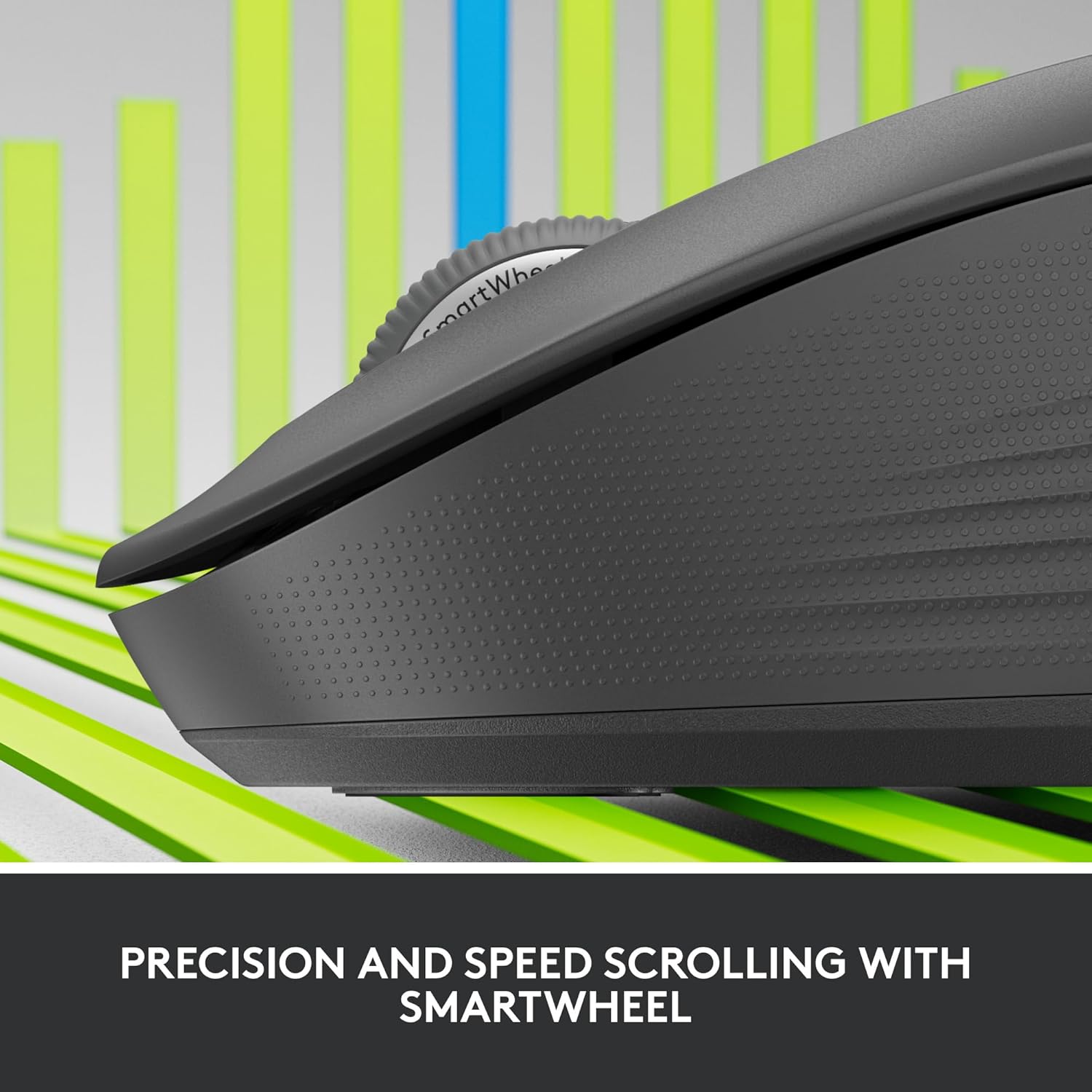
Figure 2: Precision and Speed Scrolling with SmartWheel.

Figure 3: Experience 90% Less Clicking Noise.
Priežiūra
- Valymas: Šiek tiek naudokite minkštą, be pūkelių šluostę dampened with water or an electronics cleaner to wipe the surface of the mouse. Avoid using harsh chemicals or abrasive materials.
- Baterijos keitimas: The mouse uses one AA battery. When the battery indicator light (if present) signals low power, or if performance degrades, replace the battery. The battery compartment is located on the underside of the mouse.
- Saugykla: When not in use for extended periods, turn off the mouse to conserve battery life. Store in a cool, dry place away from direct sunlight.
Trikčių šalinimas
| Problema | Galimas sprendimas |
|---|---|
| Pelė nereaguoja |
|
| Žymeklio judėjimas yra netolygus arba trūkčiojantis |
|
| Nepavyksta prisijungti per Bluetooth |
|
Specifikacijos
| Funkcija | Detalė |
|---|---|
| Modelis | M550 |
| Ryšio technologija | Wireless (Bluetooth Low Energy, Logi Bolt USB Receiver) |
| Belaidžio ryšio veikimo atstumas | Iki 10 metrų (32.81 pėdų) |
| Judesio aptikimas | Optinis |
| Judėjimo skiriamoji geba (DPI) | 4000 dpi |
| Mygtukai | 3 Button(s), 3 Programmable Button(s) |
| Slinkties ratukas | Yes (SmartWheel) |
| Baterijos tipas | 1 x AA (įtraukta) |
| Baterijos veikimo laikas | Iki 24 mėnesių |
| Spalva | Grafitas |
| Prekės svoris | 4.6 uncijos |
| Pakuotės matmenys | 6.89 x 4.65 x 2.52 colio |
| Suderinamumas | Windows, macOS, Linux, iPadOS, Android, Works With Chromebook Certified |

Figure 4: Key features and specifications of the Logitech Signature M550 mouse.

Figure 5: The perfect fit for your hand, illustrating M550 and M550 L sizes.
Garantija ir palaikymas
Dėl garantijos informacijos ir techninės pagalbos kreipkitės į oficialią „Logitech“ svetainę. websvetainėje arba susisiekite su „Logitech“ klientų aptarnavimo tarnyba. Išsaugokite pirkimo įrodymą garantiniams reikalavimams.
„Logitech“ palaikymas Websvetainė: support.logi.com


