1. Įvadas
The Canon PIXMA TS3750i is a compact, affordable, and user-friendly multifunction inkjet printer designed for home and small office use. It offers versatile functionalities including printing, copying, and scanning. This printer supports wireless connectivity, enabling convenient operation from various devices, and features borderless photo printing. It is also compatible with the PIXMA Print Plan for automated ink delivery.
2. Saugos informacija
Prieš naudodami spausdintuvą, perskaitykite visas saugos instrukcijas, kad užtikrintumėte saugų ir tinkamą veikimą. Išsaugokite šį vadovą ateičiai.
- Nestatykite spausdintuvo nestabiliose vietose.
- Keep the printer away from water or moisture.
- Naudokite tik prie spausdintuvo pridėtą maitinimo laidą.
- Do not attempt to disassemble or modify the printer.
- Prieš valydami spausdintuvą arba jei jis ilgesnį laiką nebus naudojamas, atjunkite jį nuo elektros lizdo.
3. Pakuotės turinys
Patikrinkite, ar jūsų pakuotėje yra visi šie daiktai:
- „Canon PIXMA TS3750i“ spausdintuvas
- Inkjet Cartridges (initial set)
- Maitinimo kabelis
- Setup CD-ROM (for Windows only)
- Vadovėliai ir kiti dokumentai
4. Sąranka
4.1 Išpakavimas ir įdėjimas
- Išimkite spausdintuvą iš pakuotės ir nuimkite visas apsaugines juostas bei pakavimo medžiagas.
- Pastatykite spausdintuvą ant stabilaus, lygaus paviršiaus, palikdami pakankamai vietos aplink jį vėdinimui ir veikimui.
4.2 Maitinimo jungtis
- Connect the supplied power cable to the printer's power input.
- Kitą maitinimo laido galą prijunkite prie sieninio lizdo.
- Norėdami įjungti spausdintuvą, paspauskite maitinimo mygtuką.
4.3 Rašalo kasetės įdėjimas
- Open the printer's top cover to access the cartridge holder.
- Nuimkite apsauginę juostelę nuo rašalo kasečių.
- Insert the color and black ink cartridges into their respective slots until they click into place.
- Uždarykite viršutinį dangtį.
4.4 Popieriaus įdėjimas
- Atidarykite popieriaus laikiklį ir ištraukite popieriaus išvesties dėklą.
- Load paper (e.g., A4, photo paper) into the rear paper tray, ensuring it is aligned with the paper guides.
- Adjust the paper guides to fit the width of the paper.
4.5 Programinė įranga ir belaidžio ryšio sąranka
For initial setup and to enable wireless printing, follow these steps:
- Kompiuteriniam kompiuteriui: Insert the Setup CD-ROM (Windows only) and follow the on-screen instructions to install drivers and software.
- For PC/Mac/Mobile: Apsilankykite „Canon“. website for your region and download the latest drivers and the Canon PRINT Inkjet/SELPHY app.
- Follow the instructions within the software or app to connect the printer to your Wi-Fi network. The printer supports one-touch wireless connectivity for easier setup.
- For mobile devices, ensure your device is connected to the same Wi-Fi network as the printer.
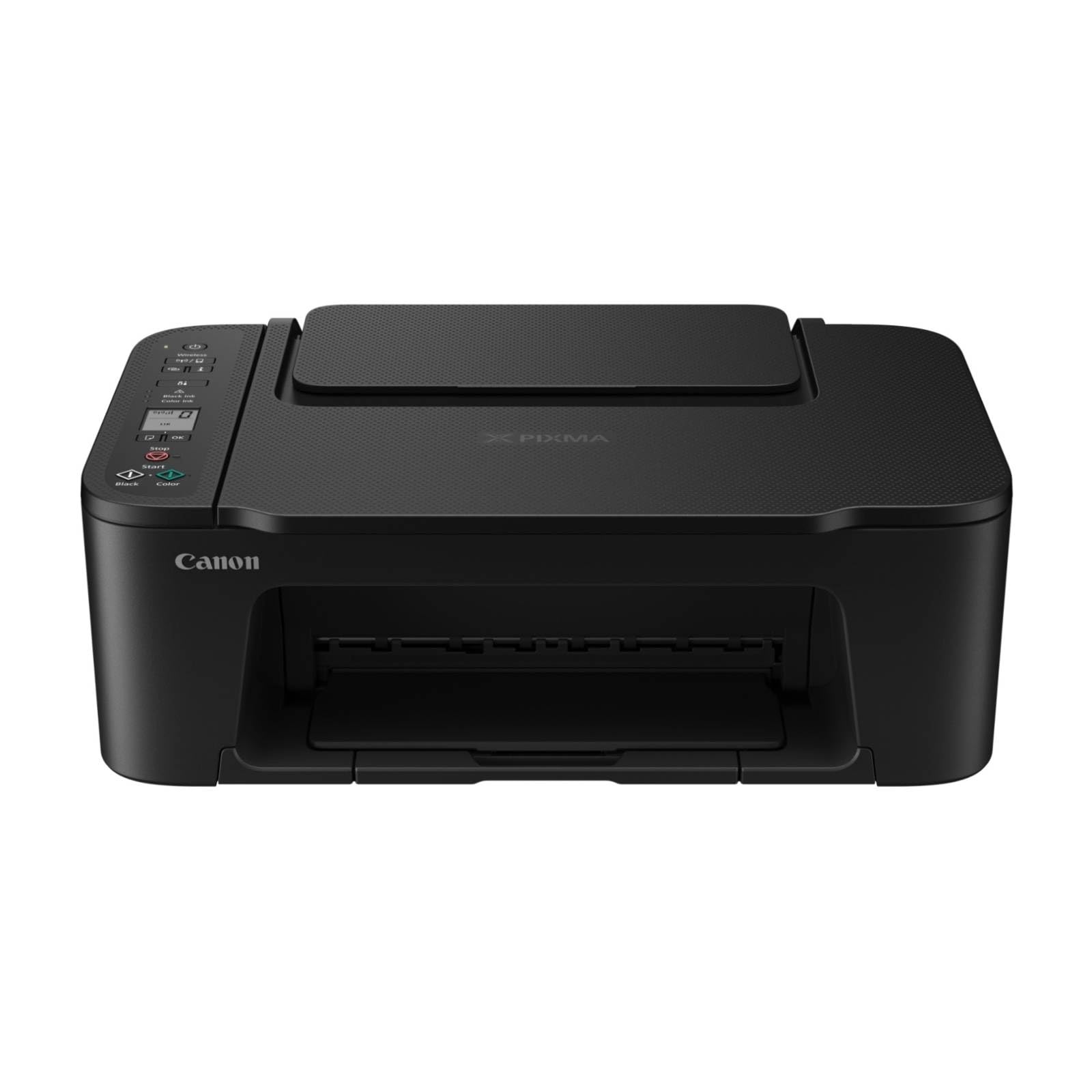
1 pav.: priekis view of the Canon PIXMA TS3750i printer, showing its compact design and control panel.
5. Naudojimo instrukcijos
5.1 Dokumentų ir nuotraukų spausdinimas
- Įsitikinkite, kad spausdintuvas įjungtas ir prijungtas prie jūsų įrenginio (per „Wi-Fi“ arba USB).
- Load the appropriate paper type and size into the rear paper tray.
- Atidarykite dokumentą arba nuotrauką, kurią norite spausdinti, savo kompiuteryje arba mobiliajame įrenginyje.
- Pasirinkite spausdinimo parinktį iš savo programos.
- In the print dialog, select the Canon PIXMA TS3750i as your printer. Adjust settings such as paper size, media type, print quality, and borderless printing (for photos up to 12.7 x 18 cm).
- Spustelėkite „Spausdinti“.
5.2 Dokumentų kopijavimas
- Pakelkite skaitytuvo dangtį.
- Padėkite dokumentą skaitytuvo stiklu skenerio puse žemyn, sulygiuodami jį su lygiavimo žyme.
- Švelniai uždarykite skaitytuvo dangtį.
- On the printer's control panel, press the Black button for a monochrome copy or the Color button for a color copy.
- To make multiple copies (up to 20), press the desired copy button repeatedly for the number of copies needed.
5.3 Dokumentų ir nuotraukų nuskaitymas
- Ensure the printer is connected to your computer or mobile device.
- Padėkite dokumentą arba nuotrauką ant skaitytuvo stiklo skaitytuvu žemyn.
- On your computer, open the scanning software (e.g., Canon IJ Scan Utility) or on your mobile device, open the Canon PRINT Inkjet/SELPHY app.
- Select the scan option and adjust settings such as document type, resolution, and destination folder.
- Initiate the scan. The scanned image will be saved to your specified location.
5.4 Mobile Printing and Scanning
The Canon PIXMA TS3750i supports printing and scanning directly from smartphones and tablets using the Canon PRINT Inkjet/SELPHY app or Apple AirPrint. Ensure your mobile device and printer are connected to the same Wi-Fi network.
- Canon PRINT Inkjet/SELPHY App: Download and install the app from your device's app store. Use the app to select photos or documents for printing, or to initiate scans directly to your mobile device.
- „Apple AirPrint“: For iOS devices, you can print directly from AirPrint-enabled applications without installing additional drivers. Select the print option from the app and choose your PIXMA TS3750i printer.
- Wi-Fi PictBridge: Connect directly to compatible cameras for photo printing.
6. Priežiūra
6.1 Spausdintuvo valymas
- Išorė: Nuvalykite spausdintuvo išorę minkšta,amp, nepūkuota šluoste. Nenaudokite abrazyvinių valiklių ar tirpiklių.
- Skaitytuvo stiklas: Gently clean the scanner glass with a soft, lint-free cloth moistened with a small amount of glass cleaner. Ensure no residue is left behind.
- Spausdinimo galvutė: If print quality declines (e.g., streaks, faded colors), perform a print head cleaning from the printer's utility software on your computer or through the Canon PRINT Inkjet/SELPHY app.
6.2 Rašalo kasečių keitimas
- When an ink cartridge is low or empty, a message will appear on the printer's display or in the software.
- Open the printer's top cover. The cartridge holder will move to the replacement position.
- Paspauskite tuščią kasetę žemyn, kad ją atlaisvintumėte, tada ištraukite.
- Unpack the new Canon genuine ink cartridge and remove the protective tape.
- Insert the new cartridge into the correct slot until it clicks firmly into place.
- Uždarykite viršutinį dangtį. Spausdintuvas atliks inicijavimo procesą.
6.3 Įstrigusio popieriaus išėmimas
- If a paper jam occurs, an error message will appear.
- Išjunkite spausdintuvą ir atjunkite maitinimo laidą.
- Carefully open the printer covers (top cover, rear cover if applicable) to locate the jammed paper.
- Gently pull the jammed paper out in the direction of the paper path. Avoid tearing the paper.
- Įsitikinkite, kad pašalinti visi suplyšę popieriaus gabalėliai.
- Uždarykite visus dangčius, prijunkite maitinimo laidą ir įjunkite spausdintuvą.
7. Problemų sprendimas
Refer to the following common issues and their solutions. For more detailed troubleshooting, consult the Canon support websvetainę.
- Printer is not turning on: Įsitikinkite, kad maitinimo laidas yra tvirtai prijungtas prie spausdintuvo ir veikiančio elektros lizdo.
- Cannot print:
- Check if the printer is powered on and connected to your device (Wi-Fi or USB).
- Verify that ink cartridges are installed correctly and have sufficient ink.
- Ensure paper is loaded correctly in the paper tray.
- Restart your computer/mobile device and the printer.
- Check printer drivers and software for updates.
- Prasta spausdinimo kokybė:
- Perform a print head cleaning and nozzle check from the printer utility.
- Įsitikinkite, kad naudojate originalias „Canon“ rašalo kasetes.
- Check print settings for appropriate paper type and print quality.
- Belaidžio ryšio problemos:
- Ensure the printer and your device are on the same Wi-Fi network.
- Restart your wireless router, printer, and device.
- Re-run the wireless setup process.
- Check for any firewall settings blocking communication.
- Popieriaus strigtis: Follow the instructions in Section 6.3 to clear any jammed paper.
8. Specifikacijos
| Modelio pavadinimas | PIXMA TS3750i |
| Spausdinimo technologija | Rašalinis |
| Funkcijos | Spausdinti, kopijuoti, nuskaityti |
| Ryšio technologija | USB, Wi-Fi |
| Maksimalus spausdinimo greitis (vienspalvis) | 7.7 ppm |
| Maksimalus spausdinimo greitis (spalvotas) | 4 ppm |
| Spausdintuvo išvestis | Spalva |
| Dvipusis spausdinimas | Taip |
| Maksimalus laikmenos dydis | A4 |
| Lapo dydžio palaikymas | A4, A5, B5, Custom (Width 89 mm - 215.9 mm, Length 127 mm - 676 mm) |
| Maksimali įvesties talpa | 60 XNUMX lapų |
| Skaitytuvo tipas | Plokščiasis |
| Max Copies per Run | 20 |
| Suderinami įrenginiai | Nešiojamieji kompiuteriai, asmeniniai kompiuteriai, išmanieji telefonai, planšetiniai kompiuteriai |
| Ypatingos savybės | Borderless printing, Lightweight, Auto Power On, Display screen |
| Gaminio matmenys (D x P x A) | 32.7 x 43.5 x 14.5 cm |
| Produkto svoris | 4.19 kg |
| Energijos suvartojimas | 9 vatų |
9. Garantija ir palaikymas
This Canon PIXMA TS3750i printer comes with a standard manufacturer's warranty. Please refer to the warranty card included in your package for specific terms and conditions, including warranty period and coverage details.
For technical support, product registration, driver downloads, and additional troubleshooting resources, please visit the official Canon support website for your region. You can also find contact information for customer service there.
- Palaikymas internetu: www.canon.com/support (Please replace with your regional Canon support link)
- Produkto registracija: Registering your product helps Canon provide you with better service and support.


