1. Įvadas
This manual provides detailed instructions for the HOU Keyboard Case designed for the iPad Pro 13-inch M5/M4 models. Please read this manual carefully before use to ensure proper operation and to maximize the product's lifespan.
1.1 Suderinamumas
This keyboard case is specifically designed for the iPad Pro 13-inch M5/M4 (2025 models). Compatible iPad models include: A2925, A2926, A3007.
Important: This case is NOT compatible with iPad Air 13 (M2) 2024 (models A2898, A2899, A2900) or iPad Pro 12.9-inch (2017-2022) (6th/5th/4th/3rd/2nd/1st generation).
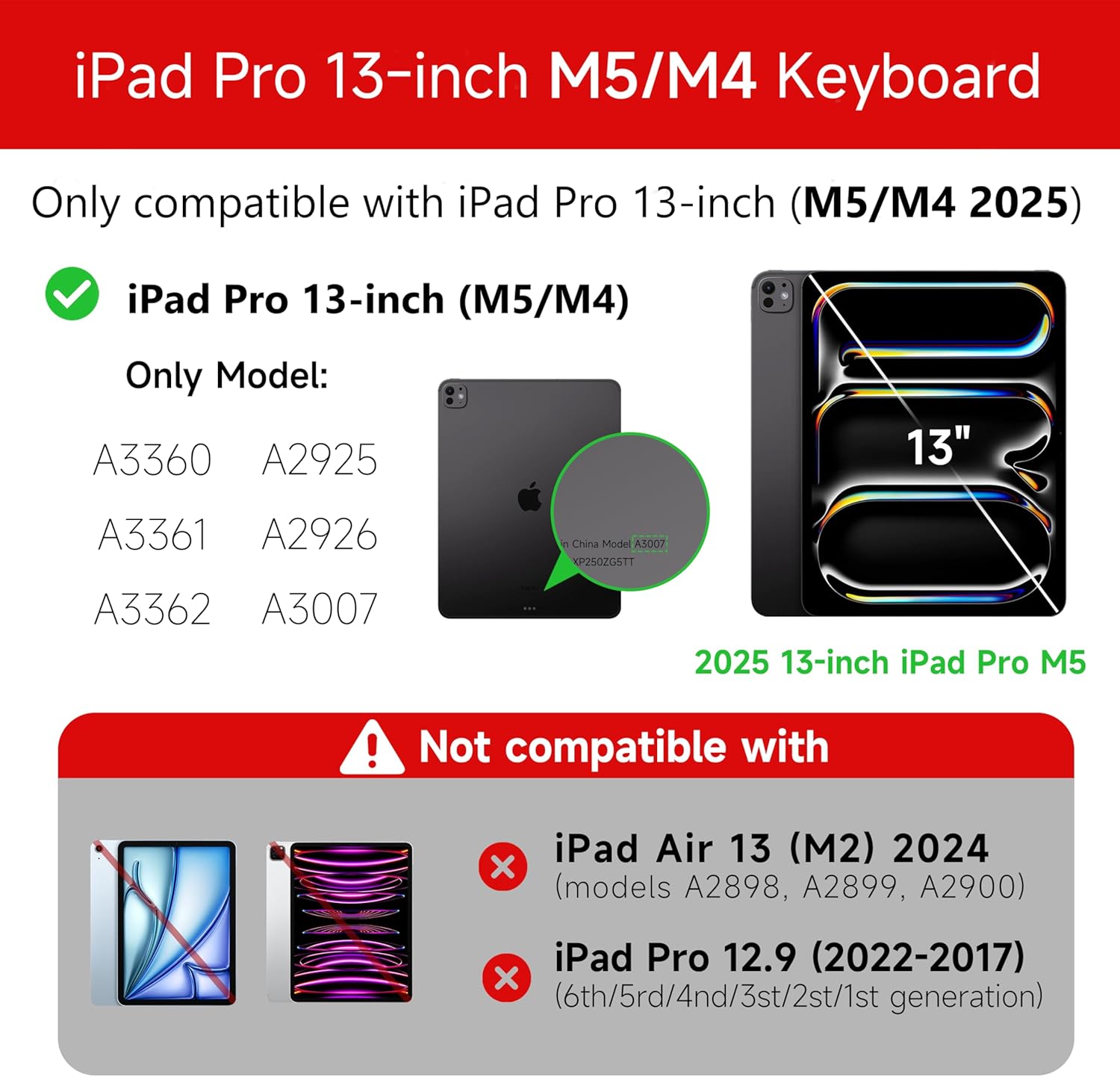
Figure 1: Compatibility details for the HOU iPad Pro 13-inch Keyboard Case.
2. Sąranka
2.1 Klaviatūros įkrovimas
Before initial use, fully charge the keyboard. Connect the provided USB-C cable to the charging port on the keyboard and to a power source. The charging indicator light will show the charging status.
- Įkrovimo prievadas: C tipas
- Įkrovimo laikas: Approximately <2 hours
- Baterijos talpa: 500 mAh
2.2 „iPad Pro“ prijungimas
The keyboard case features a magnetic design for secure attachment. Align your iPad Pro 13-inch with the magnetic back panel of the case. The strong magnets will securely hold your iPad in place, providing stability.

Figure 2: Magnetic attachment for secure iPad placement.
2.3 Bluetooth ryšys
To connect the keyboard to your iPad Pro via Bluetooth:
- Įsitikinkite, kad klaviatūra yra įkrauta ir įjungta.
- Savo „iPad“ įrenginyje eikite į Nustatymai > Bluetooth ir įjunkite „Bluetooth“.
- Klaviatūroje paspauskite ir palaikykite Fn + Control + R for 3 seconds until the indicator light flashes, indicating pairing mode.
- On your iPad, select the keyboard from the list of available devices (e.g., "HOU Keyboard").
- Prijungus, klaviatūros indikatoriaus lemputė nustos mirksėti.
After the initial connection, the keyboard should automatically reconnect to your iPad when both devices are powered on and Bluetooth is enabled.
3. Naudojimo instrukcijos
3.1 Reguliuojamas Viewing kampai
The keyboard case features a floating design that allows for angle adjustment up to 135 degrees. The keyboard base opens at a 45-degree angle, providing enhanced stability for various viewing and typing positions.
3 pav.: Reguliuojamas viewing angle up to 135 degrees.
3.2 Foninio apšvietimo funkcija
The keyboard features an adaptive backlight with 7 different colors and 3 adjustable brightness levels. This allows for comfortable typing in various lighting conditions, including low-light environments.

Figure 4: Keyboard backlight in use for typing at night.
3.3 Daugiafunkcis jutiklinis skydelis
The integrated multi-touch trackpad supports full-area press and various swipe gestures, transforming your iPad into a laptop-like experience. It provides responsive controls for scrolling, dragging, input, and media control.
Adjusting Trackpad Sensitivity: You can adjust the trackpad sensitivity directly from your iPad's settings to match your personal preference.
- Eikite į Nustatymai savo iPad.
- Eikite į Prieinamumas.
- Find and adjust Stebėjimo jautrumas.

Figure 5: Multi-touch trackpad functionality and sensitivity adjustment.
3.4 spartieji klavišai
The keyboard includes a series of shortcut keys to boost productivity. Refer to the keyboard layout for specific functions.
4. Priežiūra
The exterior of the keyboard case is made from a semi-silicone material, which is wear-resistant and designed to resist fingerprints and stains, making it easy to clean.
- To clean, gently wipe the surface with a soft, damp audinys.
- Venkite naudoti stiprias chemines medžiagas ar abrazyvines medžiagas, nes jos gali pažeisti apdailą.
- Ensure the charging port and keys are free from dust and debris.
5. Problemų sprendimas
5.1 Klaviatūra neprisijungia per „Bluetooth“
- Įsitikinkite, kad klaviatūra yra visiškai įkrauta.
- Įsitikinkite, kad jūsų „iPad“ įrenginyje įjungtas „Bluetooth“.
- Re-enter pairing mode on the keyboard by pressing and holding Fn + Control + R 3 sekundes.
- Forget the device in your iPad's Bluetooth settings and attempt to pair again.
- Iš naujo paleiskite ir „iPad“, ir klaviatūrą.
5.2 Trackpad Lag or Unresponsiveness
- This can sometimes occur due to Bluetooth connectivity. Try turning the keyboard off and then back on.
- Ensure there are no obstructions between the keyboard and the iPad that might interfere with the Bluetooth signal.
- Check for any available iPadOS updates, as software improvements can sometimes resolve connectivity issues.
5.3 Neveikia foninis apšvietimas
- Įsitikinkite, kad klaviatūros akumuliatorius yra pakankamai įkrautas.
- Check the keyboard's function keys for backlight control (usually a dedicated key or Fn combination).
6. Specifikacijos
| Funkcija | Detalė |
|---|---|
| Prekės ženklas | HOU |
| Suderinami įrenginiai | 2025 (M4/M5) iPad Pro 13-inch (A2925/A2926/A3007) |
| Ryšio technologija | Bluetooth 5.2 |
| Klaviatūros aprašymas | Multi-functional with Trackpad |
| Rekomenduojamas naudojimas | Asmeninis |
| Ypatingos savybės | Trackpad, Backlit, Hot Keys & Media Keys, Rechargeable, Lightweight |
| Spalva | Baltas |
| Foninio apšvietimo spalvos | 7 RGB spalvos |
| Gaminio matmenys (I x P x A) | 32 x 24.2 x 2.7 cm |
| Medžiaga | Aluminum, Metal, ABS, Polyurethane (PU), Semi-silicone |
| Prekės svoris | 1.1 kilogramo |
| Maitinimo šaltinis | Maitinamas baterijomis |
| Baterijos talpa | ~ 500 mAh |
| Veikimo srovė | <10mA |
| Budėjimo laikas | ≥ 30 dienų |
| Veikimo atstumas | ≤10 m |
7. Parama
For any questions or further assistance, please contact the seller directly through your Amazon account:
- Prisijunkite prie savo „Amazon“ paskyros.
- Go to "Order History".
- Locate your order for the HOU iPad Pro 13-inch Keyboard Case.
- Click on "Contact Seller".


