1. Produktas baigtasview
The EWEADN G61 is a 60% compact wireless mechanical keyboard designed for versatility and ergonomic comfort. It features a retro typewriter style with round keycaps and offers three connection modes: Bluetooth 5.0, 2.4GHz wireless, and USB-C wired. The keyboard is equipped with red mechanical switches for a responsive typing experience and includes white backlighting with multiple effects.
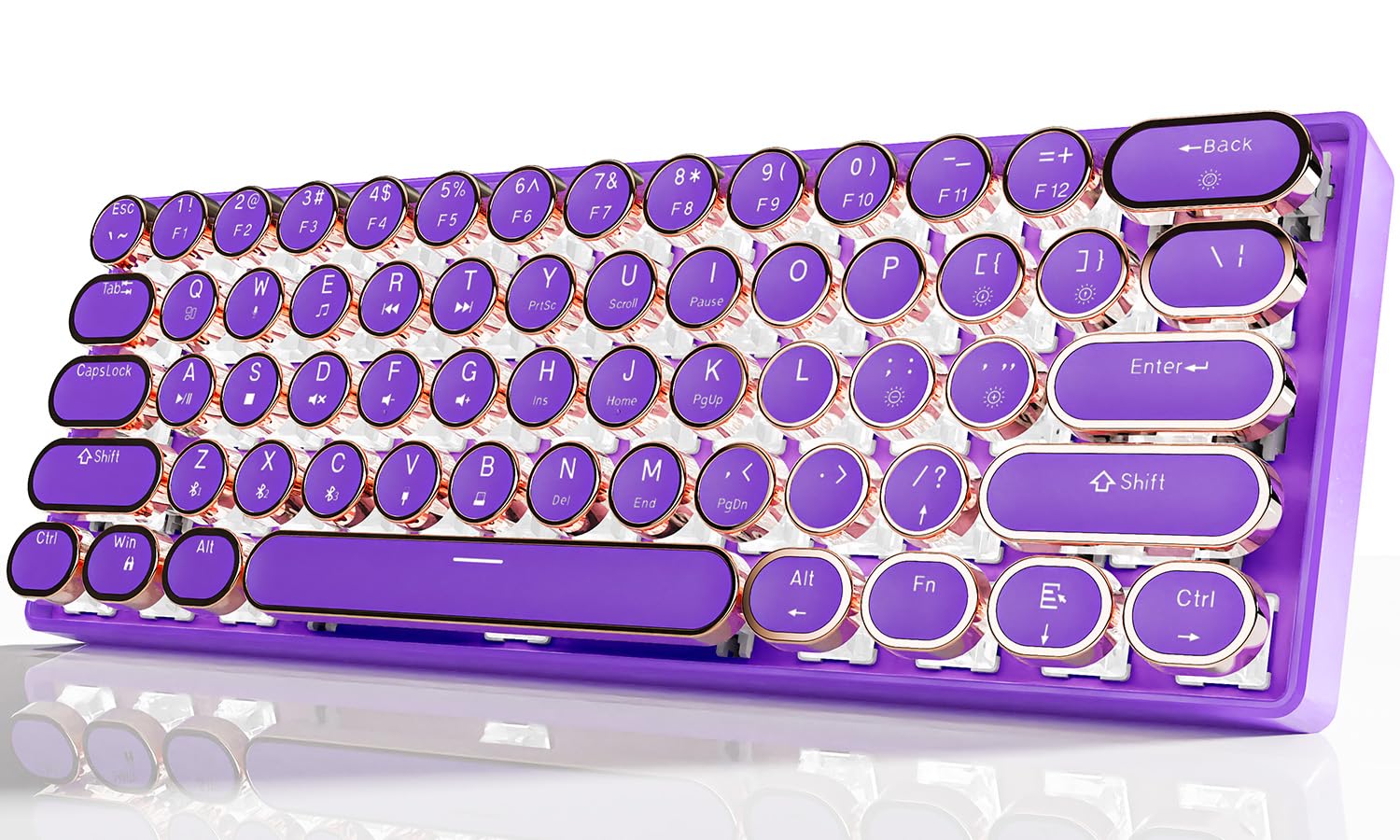
Image 1.1: EWEADN G61 Wireless Mechanical Typewriter Keyboard in purple, showcasing its compact design and round keycaps.
This keyboard supports connection to up to 5 devices simultaneously, allowing seamless switching between various platforms like tablets, laptops, and smartphones. Its metal panel construction ensures durability, while the anti-ghosting technology provides accurate input for both typing and gaming.
2. Kas yra dėžutėje
- EWEADN G61 Wireless Mechanical Typewriter Keyboard
- USB laidas (laidiniam prijungimui ir įkrovimui)
- 2.4GHz USB Receiver (typically stored in the keyboard)
- Vartotojo vadovas (šis dokumentas)
3. Specifikacijos
| Modelis | G61 |
| Ryšio technologija | „Bluetooth 5.0“, 2.4 GHz belaidis ryšys, USB-C laidinis ryšys |
| Rakto jungiklio tipas | Red Mechanical Switches (Linear, 3-PIN, 45±10gf Operating Force, 2.0±0.6mm Pre-Travel) |
| Klaviatūros dangtelio stilius | Retro Typewriter Style Round Keycaps |
| Foninis apšvietimas | White Backlight with 19 effects, 5 brightness levels, 5 breathing speeds |
| Anti-Ghosting | Full-key Anti-ghosting |
| Baterija | 1 Lithium Ion battery (included), 2000 mAh |
| Suderinami įrenginiai | PC, Mac laptops, Tablets, Desktop computers, Gaming Consoles, Smart TVs, Smartphones |
| Operacinės sistemos | Windows 7/8/10/XP/Vista, Linux, Mac OS |
| Medžiaga | Aluminum Alloy (panel), Acrylonitrile Butadiene Styrene (ABS) |
| Prekės svoris | 1.6 svaro |
| Matmenys | 13 x 5.8 x 2.3 colio |

3.1 paveikslėlis: Stambus planas view of the G61 keyboard's red mechanical switch mechanism.
4. Sąrankos instrukcijos
4.1 Klaviatūros įkrovimas
Before first use, fully charge the keyboard using the provided USB-C cable. Connect one end to the keyboard's USB-C port and the other end to a USB power source (e.g., computer, wall adapter).

Image 4.1: The USB-C charging port located on the keyboard.
4.2 Ryšio režimai
The G61 keyboard supports three connection modes: Bluetooth, 2.4GHz wireless, and USB-C wired. You can connect up to 5 devices simultaneously and switch between them.

Image 4.2: Visual representation of the three connection modes: Bluetooth, 2.4G Wireless, and Type-C Wired.
4.2.1 2.4 GHz belaidis režimas
- Suraskite 2.4 GHz USB imtuvą, kuris paprastai laikomas klaviatūros skyriuje.
- Prijunkite USB imtuvą prie laisvo kompiuterio ar įrenginio USB prievado.
- Paspauskite Fn+B on the keyboard to switch to 2.4GHz wireless mode. The keyboard should connect automatically.

Image 4.3: Illustration of plugging in the 2.4GHz USB receiver.
4.2.2 Bluetooth Mode (BT1, BT2, BT3)
- Įsitikinkite, kad klaviatūra įjungta.
- Paspauskite Fn+Z, Fn + X, arba Fn + C to select one of the three Bluetooth channels (BT1, BT2, BT3). The corresponding key's backlight will flash, indicating pairing mode.
- On your device (computer, tablet, phone), go to Bluetooth settings and search for "G61 Keyboard" or a similar name.
- Select the keyboard to pair. Once connected, the key's backlight will stop flashing.
- Norėdami perjungti susietus „Bluetooth“ įrenginius, paspauskite Fn + Z/X/C norimam kanalui.
4.2.3 USB-C laidinis režimas
- Prijunkite pateiktą USB-C laidą prie klaviatūros USB-C prievado.
- Kitą laido galą prijunkite prie kompiuterio USB prievado.
- The keyboard will automatically switch to wired mode. Press Fn + V to ensure wired mode is active.
- No drivers or software installation is required for wired mode.
5. Naudojimo instrukcijos
5.1 Foninio apšvietimo valdymas
The G61 keyboard features white backlighting with various effects and adjustable brightness.
- Fn + Delete: Cycle through 19 different lighting effects.
- Fn + {[/: Decrease backlight brightness (5 levels).
- Fn + }/]: Increase backlight brightness (5 levels).
- Fn + ;/:: Decrease breathing speed (5 levels).
- Fn + '/": Increase breathing speed (5 levels).
- Fn + Spacebar (hold for 3 seconds): Reset lighting effects to default.

Image 5.1: Diagram showing key combinations for backlight control.
5.2 Funkciniai klavišai (Fn deriniai)
The keyboard utilizes Fn key combinations for various functions due to its compact 60% layout.
| Funkcija | Raktų derinys |
| Switch Window | Fn + Q |
| Leisti / pristabdyti | fn + A |
| Switch Window | Fn + W |
| Leisti / pristabdyti | Fn + S |
| Multimedija | Fn + E |
| Nutildyti | Fn + D |
| Ankstesnė daina | Fn + R. |
| Apimtis - | Fn + F |
| Kita daina | Fn + T |
| Tomas + | Fn + G |
| Rodyklių klavišai | Fn + Right Alt, Fn + /, Fn + Menu, Fn + Ctrl (Specific combinations may vary, refer to keyboard legends) |

Image 5.2: A visual guide to common Fn key combinations for multimedia and system control.
6. Priežiūra
- Valymas: Klaviatūros paviršiui nuvalyti naudokite minkštą, sausą šluostę. Gilesniam valymui naudokite suslėgtą orą, kad pašalintumėte dulkes ir šiukšles iš tarpų tarp klavišų dangtelių. Venkite naudoti stiprias chemines medžiagas ar abrazyvines medžiagas.
- Klaviatūros dangtelio nuėmimas: Keycaps can be carefully removed for cleaning or replacement using a keycap puller (not included). Gently pull straight up to avoid damaging the switch.
- Saugykla: Klaviatūrą laikykite vėsioje, sausoje vietoje, apsaugotoje nuo tiesioginių saulės spindulių ir ekstremalių temperatūrų.
- Akumuliatoriaus priežiūra: Norėdami pailginti baterijos veikimo laiką, venkite dažnai visiškai iškrauti klaviatūrą. Įkraukite ją, kai baterijos indikatorius rodo mažą įkrovą.
7. Problemų sprendimas
7.1 Ryšio problemos
- Keyboard not connecting (Wireless/Bluetooth):
- Įsitikinkite, kad klaviatūra įkrauta.
- Verify the correct mode is selected (Fn + B for 2.4GHz, Fn + Z/X/C for Bluetooth).
- For 2.4GHz, ensure the USB receiver is securely plugged in. Try a different USB port.
- For Bluetooth, ensure your device's Bluetooth is enabled and the keyboard is in pairing mode. Remove previous pairings and re-pair if necessary.
- Pabandykite iš naujo paleisti klaviatūrą ir prijungtą įrenginį.
- Dažni atjungimai:
- Ensure the keyboard is within the effective range of your device (typically up to 10 meters for Bluetooth/2.4GHz).
- Sumažinkite trukdžius iš kitų belaidžių įrenginių („Wi-Fi“ maršrutizatorių, kitų „Bluetooth“ įrenginių).
- Įsitikinkite, kad klaviatūros akumuliatorius yra pakankamai įkrautas.
- If using 2.4GHz, try moving the USB receiver closer to the keyboard or using a USB extension cable.
7.2 Keys Not Responding / Input Lag
- Check if the keyboard is properly connected in your chosen mode.
- Įsitikinkite, kad akumuliatorius įkrautas.
- Try switching to wired mode to rule out wireless interference.
- Nuvalykite visas šiukšles ar dulkes nuo po pažeistais klavišų dangteliais.
7.3 Neveikia foninis apšvietimas
- Įsitikinkite, kad klaviatūra įjungta ir įkrauta.
- Reguliuokite ryškumą naudodami Fn + }/].
- Try resetting the lighting effects by holding Fn + tarpo klavišas 3 sekundes.
Video 7.1: A demonstration of the G61 keyboard's RGB lighting and mechanical switches. This video shows the keyboard's aesthetic features and responsiveness.
8. Garantija ir palaikymas
The EWEADN G61 keyboard comes with a manufacturer's warranty. For specific warranty details, please refer to the product packaging or contact the seller directly.
8.1 Susisiekimas su palaikymo tarnyba
If you encounter any issues or have questions not covered in this manual, please contact the seller or manufacturer for assistance. You can typically find contact information on the product's purchase page or through the seller's store on the platform where you purchased the item.

Image 8.1: Guide on how to contact customer support through the online marketplace.


