Įvadas
The Diivoo WiFi Sprinkler Timer is a smart irrigation solution designed to automate your watering needs. This 3-zone timer offers remote control via the HomGar app, compatibility with voice assistants like Alexa and Google, and flexible scheduling options including timed irrigation, misting, and rain delay functions. It allows for independent programming of up to 18 watering schedules across its three outlets, providing customized watering for different areas of your property.
Produkto savybės
- Nuotolinis ir balso valdymas: Control your sprinkler timer from anywhere using the HomGar app (2.4 GHz WiFi required). Compatible with Amazon Alexa and Google Assistant for convenient voice commands.
- Misting Irrigation Mode: Ideal for misting systems, outdoor dusting, and cooling. Set intermittent cycles with adjustable mist time and frequency (1 to 60 minutes duration and interval).
- Timed Irrigation Mode: Automate watering with scheduled programs. Choose from daily, odd/even day, or custom schedules.
- 3 Outlets and 18 Individual Programs: Manage up to three distinct watering zones. Each valve can be programmed with up to 6 different schedules, totaling 18 independent programs for tailored irrigation.
- Rain Delay and Manual Watering: Pause scheduled watering for 24, 48, or 72 hours during rainy periods to conserve water. Manually activate watering via the app or directly on the valve unit for immediate needs.
Pakuotės turinys
Prašome įsitikinti, kad yra visi daiktai:
- Diivoo WiFi Sprinkler Timer (3-Zone Unit)
- WiFi Gateway/Hub
- Aluminum Alloy Filter
- Thread Seal Tape (Teflon Tape)
- 2 Sealing Washers
- Vartotojo vadovas (šis dokumentas)
Sąranka ir diegimas
1. Nuotėkio prevencija
To ensure a watertight connection and prevent leaks, it is crucial to properly install the included thread seal tape (Teflon tape) and sealing washers.

This image illustrates the importance of applying Teflon tape to the faucet threads before connecting the timer. The left side shows a connection without tape, indicating potential leaks, while the right side shows a properly sealed connection with tape, preventing leakage.
- Wrap the provided Teflon tape around the threads of your outdoor faucet. Ensure several layers are applied for a secure seal.
- Insert the sealing washers into the timer's inlet connection.
- Carefully screw the Diivoo WiFi Sprinkler Timer onto the prepared faucet. Tighten firmly by hand, avoiding overtightening.
2. Connecting to Your Mobile Device (2.4GHz WiFi Only)
Follow these steps to connect your Diivoo Smart Water Timer to the HomGar app and your home WiFi network.

This image provides a visual guide for the initial setup process, from downloading the app to connecting the device and creating a watering plan.
- Download HomGar App & Log in: Ieškokite "HomGar" in your mobile device's app store (iOS or Android) and download it. Create an account or log in if you already have one.
- Power the Wi-Fi Hub & Water Timer: Plug in the WiFi gateway/hub to a power outlet. Ensure batteries are correctly installed in the water timer unit.
- Add Wi-Fi Hub & 3-ZONE Water Timer: Open the HomGar app, tap the "+" icon to add a new device. Follow the in-app instructions to add the WiFi Hub first, then proceed to add the 3-Zone Water Timer. Ensure your phone is connected to a 2.4GHz WiFi network during this process.
- Connect the Water Timer & Add Your Plan: Once the timer is successfully added, you can begin setting up your watering schedules and plans within the app.
Naudojimo instrukcijos
1. Laistymo režimų supratimas
The Diivoo timer supports two primary watering modes: Irrigation and Mist.

This image visually differentiates between the standard irrigation mode and the misting mode, highlighting their typical applications and scheduling parameters.
- Drėkinimo režimas: Standard watering for lawns, gardens, and plants. You set a start time and a duration.
- Rūko režimas: Designed for fine misting, suitable for cooling or specific plant needs. You set a start time, mist duration, and interval between misting cycles.
2. Setting Up Watering Schedules (Timed Irrigation)
You can create up to 6 independent watering schedules for each of the three zones, totaling 18 programs.

This image demonstrates the versatility of the 3-zone timer, showing different watering plans (A-F) for various parts of a property at different times.

This image details the flexible scheduling options, including custom day selection and automatic odd/even day watering.
- Open the HomGar app and select the Diivoo Sprinkler Timer.
- Navigate to the desired zone (Zone 1, 2, or 3) you wish to program.
- Tap to add a new watering schedule.
- Select the watering mode: Drėkinimas or Rūkas.
- Nustatykite Pradžios laikas for the watering cycle.
- Už Drėkinimo režimas, nustatykite Trukmė (e.g., 10 minutes).
- Už Rūko režimas, nustatykite Mist Time (e.g., 10 seconds) and Intervalas (pvz., 30 sekundžių).
- Pasirinkite Dažnis: Daily, Every Odd Day, Every Even Day, or Customize specific days of the week.
- Save the schedule. Repeat for other zones or additional schedules as needed.
3. Rankinis laistymas
You can initiate watering instantly, outside of your programmed schedules.

This image demonstrates the manual watering feature, allowing users to activate watering directly from the app for a specified duration.
- Per programą: In the HomGar app, select the desired zone and choose "Manual Mode." Set the desired watering duration (from 1 minute to 12 hours) and confirm.
- Via Buttons: The physical buttons on the timer correspond to Zones 1, 2, and 3 (from left to right). Press a button to activate manual watering for that zone for 10 minutes. Press again to turn off manual watering.
4. Lietaus uždelsimo funkcija
Temporarily pause your watering schedule to avoid overwatering during rainy periods.

This image displays the rain delay feature within the app, allowing users to postpone watering for set durations to conserve water.
- In the HomGar app, navigate to the timer settings.
- Select the "Rain Delay" option.
- Choose the desired delay duration: 24 hours, 48 hours, or 72 hours.
- Confirm your selection. Watering will automatically resume after the delay period.
5. Balso valdymo integravimas
Control your Diivoo timer using Amazon Alexa or Google Assistant.
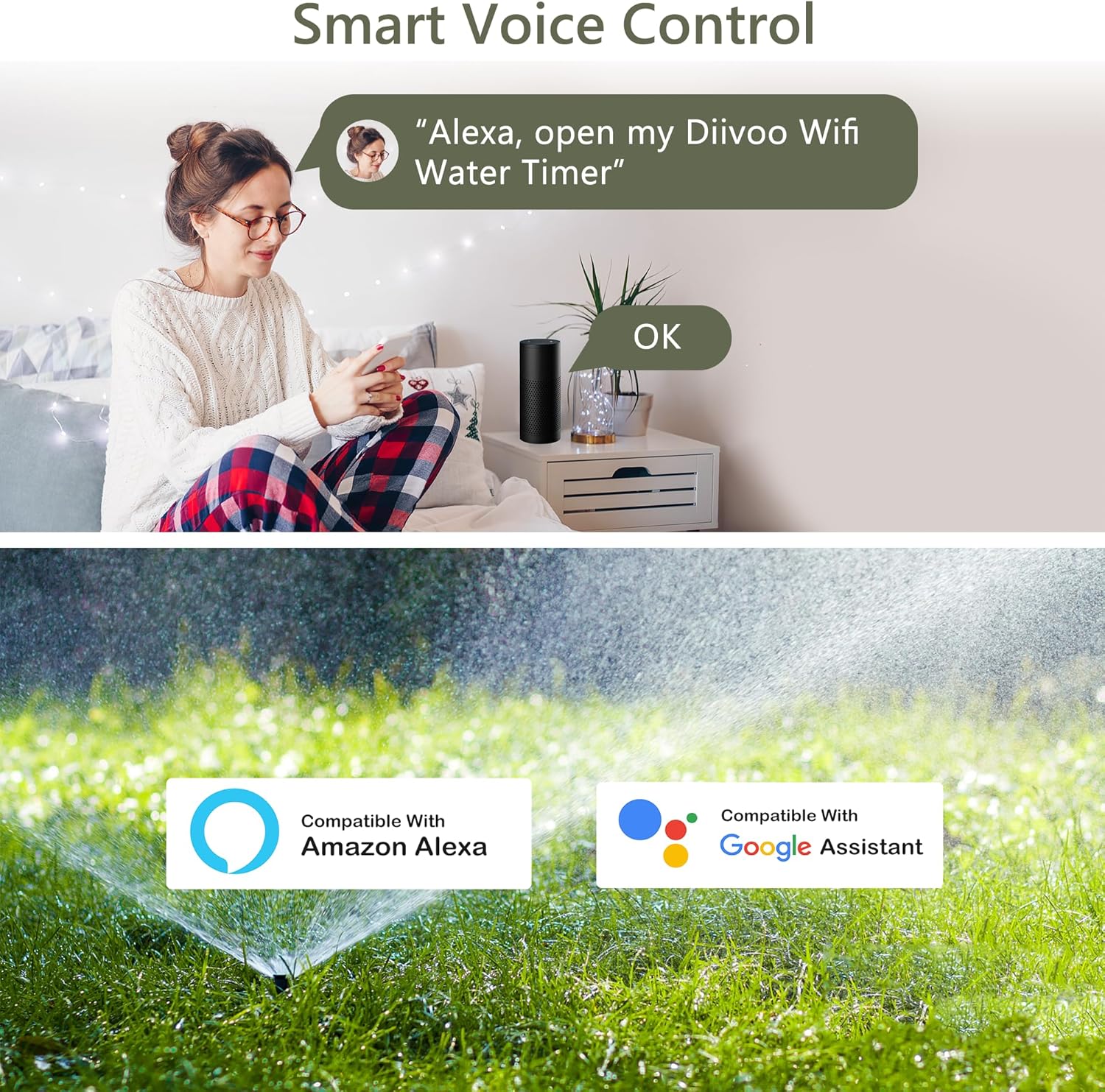
This image demonstrates the voice control capability, showing a user issuing a command to Alexa to open the Diivoo WiFi Water Timer, along with compatibility logos for Amazon Alexa and Google Assistant.
- Ensure your Diivoo timer is connected to the HomGar app and your WiFi network.
- Link your HomGar account with your Alexa or Google Home app.
- Naudokite tokias komandas kaip:
- "Alexa, open my Diivoo WiFi Water Timer."
- "Hey Google, turn on Zone 1."
- "Alexa, turn off the sprinkler."
Priežiūra
- Baterijos keitimas: The timer operates on batteries (type not specified in input, assume standard AA/AAA). Replace batteries when the low battery indicator appears in the app or on the device. Ensure the battery cover's rubber ring is properly seated to maintain moisture isolation.
- Valymas: Periodiškai valykite laikmačio išorę minkšta,amp šluoste. Nenaudokite abrazyvinių valiklių ir nemerkite įrenginio į vandenį.
- Filtro priežiūra: The aluminum alloy filter helps prevent debris from entering the timer. Periodically inspect and clean the filter to ensure optimal water flow.
- Žieminimas: In freezing climates, disconnect the timer from the faucet and store it indoors to prevent damage from ice expansion.
Trikčių šalinimas
| Problema | Galima priežastis | Sprendimas |
|---|---|---|
| Timer not connecting to WiFi. | Incorrect WiFi band (only 2.4GHz supported); weak signal; incorrect password. | Ensure your router is broadcasting a 2.4GHz network. Move the WiFi hub closer to the router. Double-check WiFi password. |
| Vandens nutekėjimas iš jungčių. | Improper installation of Teflon tape or sealing washers; loose connection. | Re-apply Teflon tape to faucet threads. Ensure sealing washers are correctly seated. Tighten connections firmly. |
| Laikmatis nelaisto pagal grafiką. | Low batteries; rain delay active; incorrect schedule settings; valve obstruction. | Check battery level and replace if low. Verify if rain delay is active in the app. Review schedule settings for accuracy. Check for debris in the valve. |
| Nėra vandens srauto. | Faucet turned off; clogged filter; low water pressure. | Ensure the faucet is fully open. Clean the aluminum alloy filter. Verify adequate household water pressure (not intended for pressurized tanks or drip irrigation systems). |
Specifikacijos
- Prekinis ženklas: Diivoo
- Modelio numeris: DI-WT11W-USGN-A303-2
- Spalva: Žalia
- Gaminio matmenys: 26.5 x 18.1 x 7.2 cm
- Prekės svoris: 240.4 g
- Medžiaga: Akrilnitrilo butadieno stirenas, plastikas
- Nustatymų skaičius: 18 individual programs (6 per zone)
- „WiFi“ suderinamumas: Tik 2.4 GHz WiFi
- Vandens slėgis: Designed for standard household water pressure. Not for pressurized tanks or drip irrigation systems.
Garantija ir palaikymas
Diivoo is committed to providing high-quality products and customer satisfaction.
- Grąžinimo politika: This product is eligible for a refund or replacement within 30 days of purchase. Please refer to your retailer's specific return policy for details.
- Klientų aptarnavimas: Our team of experts is available to assist you. For professional customer support, please contact us via email or phone. Support is typically available 5 days a week.
- Gamintojas: Zhuhai Tessan Power Technology Co., Ltd.
For the latest support information and contact details, please visit the official Diivoo websvetainėje arba žr. kontaktinę informaciją, pateiktą ant produkto pakuotės.