1. Įvadas
Thank you for choosing the Hakimonoe AX901 Wi-Fi 6 USB Adapter. This device is designed to provide your PC, laptop, or desktop with high-speed, stable wireless connectivity using the latest Wi-Fi 6 (802.11ax) technology. This manual will guide you through the installation, operation, and troubleshooting of your new adapter.

Image: The Hakimonoe AX901 Wi-Fi 6 USB Adapter, a compact black dongle with a blue LED indicator.
2. Pakuotės turinys
Prašome patikrinti, ar pakuotėje yra visi reikalingi daiktai:
- 1 x Hakimonoe AX901 AX900Mbps WiFi USB Adapter
- 1 x Naudotojo vadovas (šis dokumentas)
3. Pagrindinės savybės
- Didelės spartos „Wi-Fi 6“ (802.11ax): Experience up to 900Mbps transmission speed for lag-free streaming, gaming, and online meetings.
- Dviejų juostų technologija: Supports seamless switching between 5/5.8GHz (up to 600Mbps) and 2.4GHz (up to 286Mbps) for optimal performance.
- Built-in Driver: Plug-and-play functionality for Windows 11, 10, and 7. The driver automatically pops up for installation upon first insertion.
- Patobulintas saugumas: Features WPA3 encryption, the latest security protocol, for robust personal password safety.
- Reduced Latency & Congestion: Incorporates MU-MIMO and OFDMA technologies to transmit multiple data streams simultaneously, improving network efficiency and throughput.
- Compact Design with High-Gain Antenna: Tiny form factor (4x1.9x1cm) with a built-in high-gain antenna ensures strong and stable Wi-Fi signals without blocking adjacent USB ports.

Image: Diagram illustrating Wi-Fi 6 dual-band capabilities, showing 600Mbps on 5GHz and 286Mbps on 2.4GHz, along with features like WPA3, MU-MIMO, and OFDMA.

Image: An illustration showing the Hakimonoe AX901 adapter providing strong Wi-Fi signal coverage throughout a home, highlighting its built-in high-gain antenna.

Image: A comparison diagram showing how MU-MIMO technology with the AX901 adapter improves data transmission efficiency compared to traditional adapters, allowing multiple devices to receive data simultaneously.
4. Specifikacijos
| Atributas | Vertė |
|---|---|
| Modelio numeris | AX901 |
| Techninės įrangos sąsaja | USB 2.0, 802.11 ac/b/g/n |
| Duomenų nuorodos protokolas | USB, IEEE802.11b/g/n/a/ax |
| Duomenų perdavimo sparta | 900 Megabits Per Second (Max) |
| Suderinami įrenginiai | Any Wireless Wi-Fi Router, PC / Laptop / Desktop / Computer with Windows 11/10/7 OS |
| Gaminio matmenys | 1.57 x 0.75 x 0.39 colio (4 x 1.9 x 1 cm) |
| Prekės svoris | 0.176 uncijos (5 gramų) |
| Spalva | Juoda |
5. Sąrankos vadovas
The Hakimonoe AX901 features a built-in driver for easy installation on compatible Windows systems.
- Disable Built-in Wi-Fi (Recommended): Before inserting the adapter, it is recommended to disable your PC's existing built-in Wi-Fi device to avoid potential conflicts. This can usually be done through Device Manager or Network Settings.
- Įdėkite adapterį: Plug the AX901 USB adapter into an available USB port on your PC. For best recognition and performance, it is recommended to use a USB port on the back of a desktop computer.
- Automatinis tvarkyklių diegimas: Upon insertion, the built-in driver software will automatically pop up. Follow the on-screen prompts to install the driver.
- Iš naujo paleiskite kompiuterį: After the driver installation is complete, restart your computer to ensure the changes take effect.
- Prisijunkite prie „Wi-Fi“: Once restarted, your computer should recognize the new Wi-Fi adapter. You can now connect to your desired Wi-Fi network through your operating system's network settings.
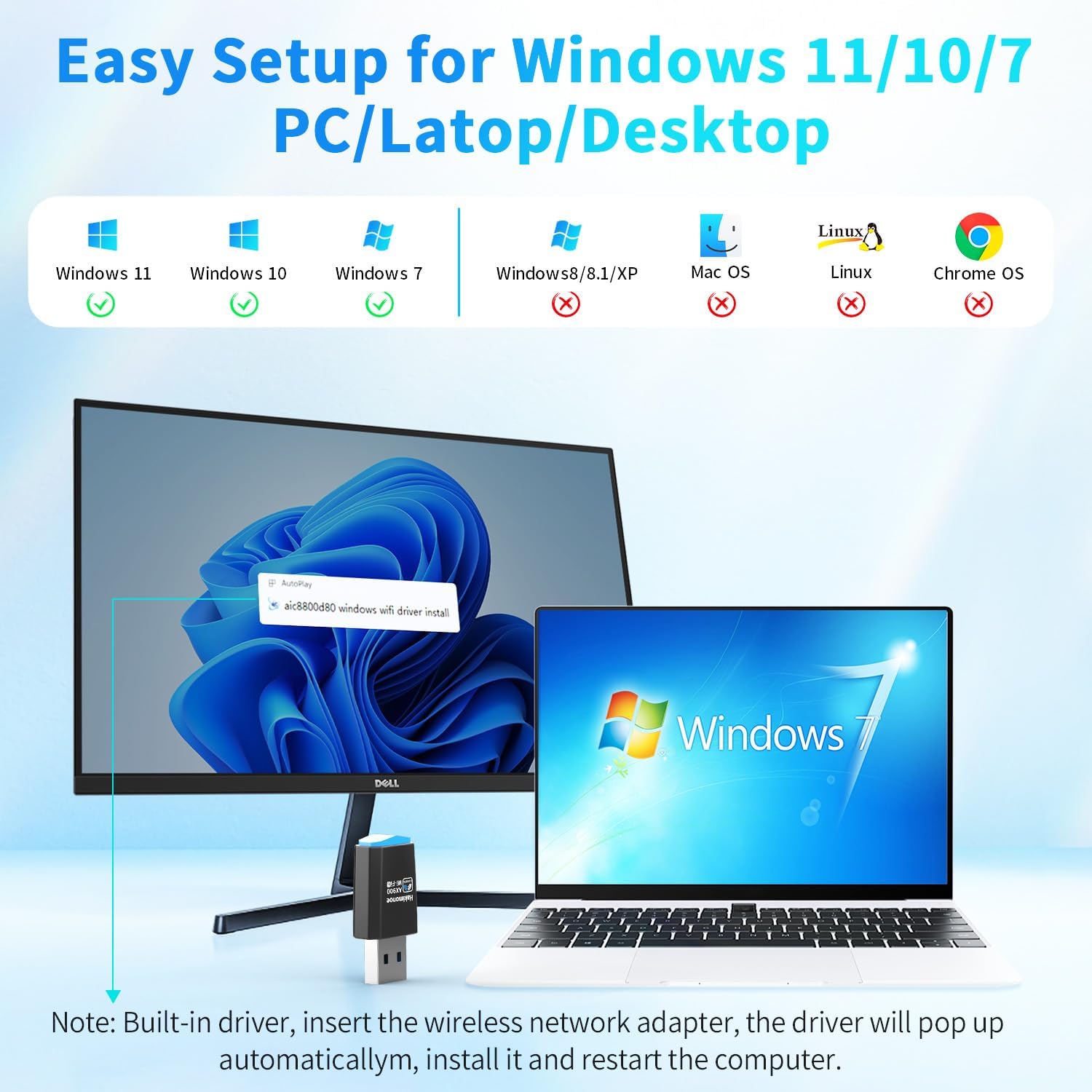
Image: A visual guide demonstrating the plug-and-play setup process for the Hakimonoe AX901 adapter on Windows 11, 10, and 7, showing the automatic driver installation prompt.
6. Adapterio valdymas
Once installed, the Hakimonoe AX901 operates like any standard wireless adapter. Your operating system will manage the connection to available Wi-Fi networks.
- Prisijungimas prie tinklo: Access your computer's network settings (usually found in the system tray or Control Panel/Settings) to view available Wi-Fi networks. Select your desired network and enter the password if prompted.
- Dual Band Usage: The adapter will automatically select the optimal band (2.4GHz or 5/5.8GHz) based on your router's capabilities and network conditions. For higher speeds and less interference, connect to the 5GHz band if available. The 2.4GHz band offers wider coverage.
- Hotspot Function: If your operating system supports it, you can use the adapter to create a Wi-Fi hotspot, sharing your internet connection with other devices. Refer to your Windows operating system's documentation for instructions on setting up a mobile hotspot.

Image: Three panels illustrating different use cases for the Hakimonoe AX901 adapter: extending Wi-Fi to a desktop PC, providing wireless connectivity for a laptop, and enabling a Wi-Fi hotspot function for mobile devices.
7. Priežiūra
To ensure the longevity and optimal performance of your Hakimonoe AX901 USB Adapter, follow these simple maintenance guidelines:
- Laikyti švarų: Periodiškai nuvalykite adapterį minkštu, sausu skudurėliu, kad pašalintumėte dulkes ir šiukšles. Nenaudokite skystų valiklių.
- Apsaugokite nuo fizinės žalos: Avoid dropping the adapter or exposing it to excessive force. When not in use, consider removing it from the USB port and storing it in a safe place.
- Venkite ekstremalių sąlygų: Nelaikykite adapterio ekstremalioje temperatūroje, drėgmėje ar tiesioginiuose saulės spinduliuose.
- Tinkamas pašalinimas: Always safely eject the USB device from your operating system before physically removing it from the port to prevent data corruption or damage to the adapter.
8. Problemų sprendimas
If you encounter issues with your Hakimonoe AX901 Wi-Fi 6 USB Adapter, please refer to the following troubleshooting steps:
- Adapteris neatpažintas:
- Try plugging the adapter into a different USB port on your PC, preferably a back USB port on a desktop.
- Ensure your PC's built-in Wi-Fi device is disabled to prevent conflicts. Press "Win+X" and go to "Device Manager" to disable it.
- Vairuotojo problemos:
- If the driver did not install automatically or is not working correctly, uninstall the current driver from Device Manager. Then, unplug the adapter, restart your PC, and plug the adapter back in to trigger a fresh installation.
- Intermittent Connection or Slow Speed:
- Ensure the adapter is plugged into a stable USB port.
- Check for physical obstructions between the adapter and your Wi-Fi router.
- Try connecting to the 5GHz band if your router supports it, as it generally offers higher speeds and less interference.
- Atnaujinkite savo maršrutizatoriaus programinę-aparatinę įrangą.
- Nėra interneto prieigos:
- Įsitikinkite, kad jūsų maršrutizatorius turi aktyvų interneto ryšį.
- Įsitikinkite, kad įvedėte teisingą „Wi-Fi“ slaptažodį.
- Paleiskite iš naujo kompiuterį ir „Wi-Fi“ maršrutizatorių.

Image: A graphic outlining common troubleshooting steps for the AX901 Wi-Fi 6 USB Adapter, including trying different USB ports, disabling built-in Wi-Fi, checking and reinstalling drivers, and restarting the PC.
If these steps do not resolve the issue, please refer to the official User Guide (PDF) or Troubleshooting Guide (PDF) available online, or contact customer support.
Papildomi ištekliai:
9. Garantija ir palaikymas
Hakimonoe is committed to providing high-quality products and excellent after-sales service. For specific warranty information regarding your AX901 Wi-Fi 6 USB Adapter, please refer to the warranty card included with your product or the product listing on the retailer's websvetainę.
For technical support, product inquiries, or assistance with any issues not covered in this manual, please contact Hakimonoe customer service through the contact information provided on the product packaging or the official Hakimonoe websvetainę.


