1. Įvadas
This manual provides detailed instructions for the setup, operation, and maintenance of your seenda SK73-3 Wireless Keyboard and Mouse Combo. This combo features a full-size keyboard with rounded keycaps and an ergonomic mouse, both connecting via a single 2-in-1 USB-A/Type-C receiver. It is designed for broad compatibility with Windows and Mac OS systems.
2. Pakuotės turinys
- Belaidė klaviatūra
- Belaidė pelė
- 2-in-1 USB-A & Type-C Receiver (stored inside the mouse)
- Vartotojo vadovas
3. Sąranka
3.1 Akumuliatoriaus įdėjimas
- Open the battery compartment on the back of the keyboard. Insert one AAA battery, ensuring correct polarity.
- Open the battery compartment on the back of the mouse. Insert one AA battery, ensuring correct polarity. The 2-in-1 USB-A/Type-C receiver is stored in this compartment.
- Close both battery compartments securely.

Figure 3.1: Battery installation for the keyboard and mouse. The 2-in-1 receiver is located in the mouse's battery compartment.
3.2 Imtuvo prijungimas
- Remove the 2-in-1 USB-A/Type-C receiver from the mouse's battery compartment.
- Insert the receiver fully into an available USB-A or Type-C port on your computer. Ensure the port completely covers the receiver for proper connection.
- Turn on the keyboard and mouse using their respective power switches. The devices are plug-and-play and should connect automatically.

Figure 3.2: Proper insertion of the 2-in-1 USB-A/Type-C receiver into a computer port.
3.3 System Layout Switching
The keyboard supports both Windows and Mac OS layouts. To switch between layouts:
- Už Windows layout: Press the Laimėk raktas.
- Už Mac OS layout: Press the OS raktas.
The upper indicator light will illuminate green to confirm the switch.
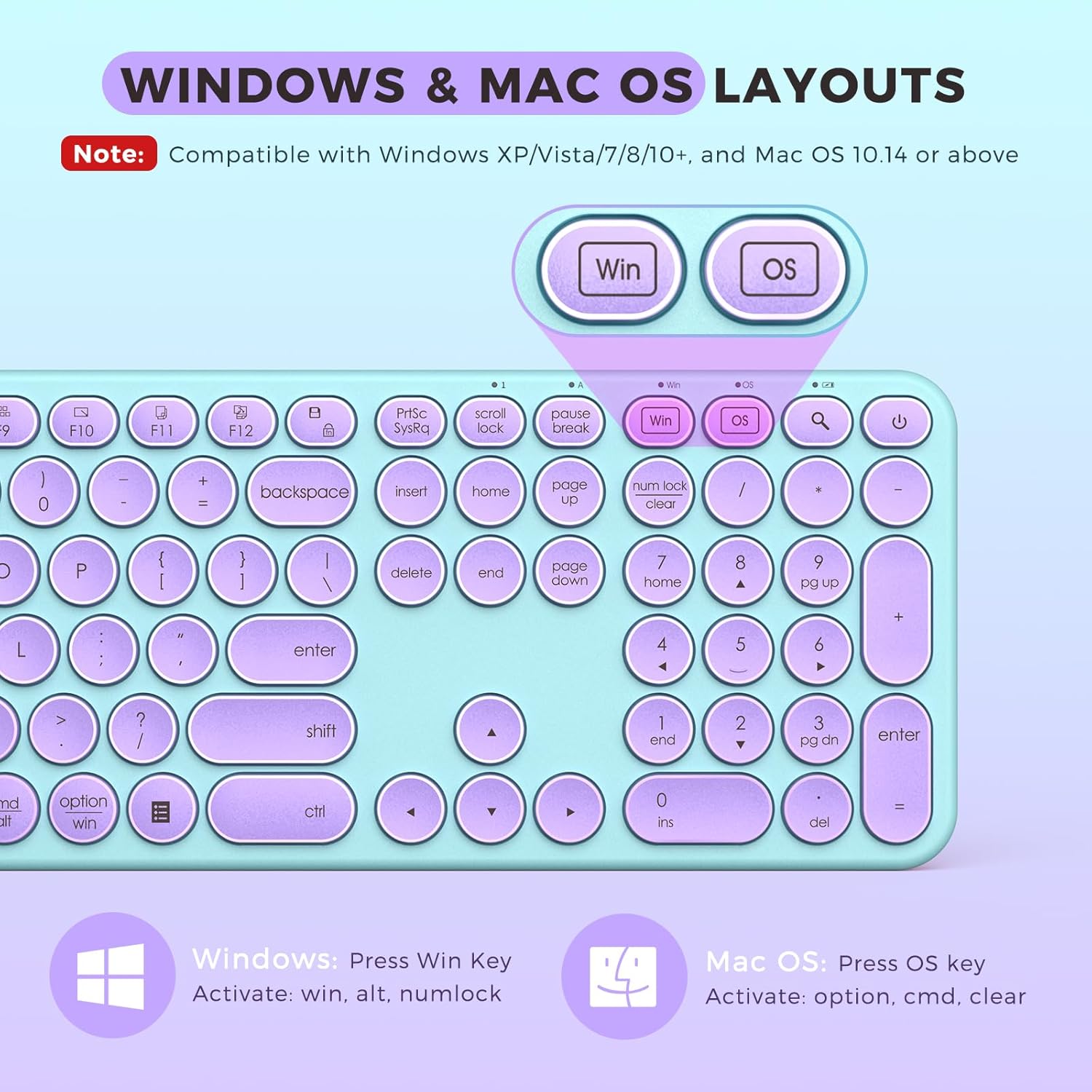
Figure 3.3: Keyboard keys for switching between Windows and Mac OS layouts.
Video 3.1: Demonstration of connecting the USB/Type C receiver and switching between system layouts.
4. Naudojimo instrukcijos
4.1 Klaviatūros naudojimas
The keyboard features responsive, rounded keycaps designed for comfortable and precise typing. Each keystroke is intended to be fluid and accurate.

Figure 4.1: The retro rounded keycaps provide a distinct typing experience.
4.2 Pelės naudojimas
The ergonomic mouse has a curved surface for comfortable grip and smooth, quick clicking. It is designed to promote correct posture during use.

Figure 4.2: The ergonomic design of the keyboard and mouse promotes comfort during use.
4.3 funkcinių klavišų
The keyboard includes dedicated function keys (F1-F12) for quick access to various system controls:
- F1: Nutildyti
- F2: Sumažinti garsumą
- F3: Padidinti garsumą
- F4: Ankstesnis takelis
- F5: Leisti / pristabdyti
- F6: Kitas takelis
- F7: Ryškumas sumažintas
- F8: Ryškumas aukštyn
- F9: Programų sąrašas
- F10: Pradžia
- F11: Kopijuoti
- F12: Įklijuoti
- Additional keys for Save/Fn Lock, Search, and Turn Off Screen.

4.3 pav. Baigtaview of keyboard function keys and their shortcuts.
5. Priežiūra
5.1 Akumuliatoriaus keitimas
When the keyboard or mouse performance degrades (e.g., unresponsive keys, mouse lag), it may be time to replace the batteries. Follow the battery installation steps in Section 3.1.
5.2 Valymas
To keep your keyboard clean and prevent dust or debris from accumulating between keys, utilize the provided silicone keyboard cover. For general cleaning, gently wipe the surfaces with a soft, damp audinys. Venkite stiprių cheminių medžiagų.
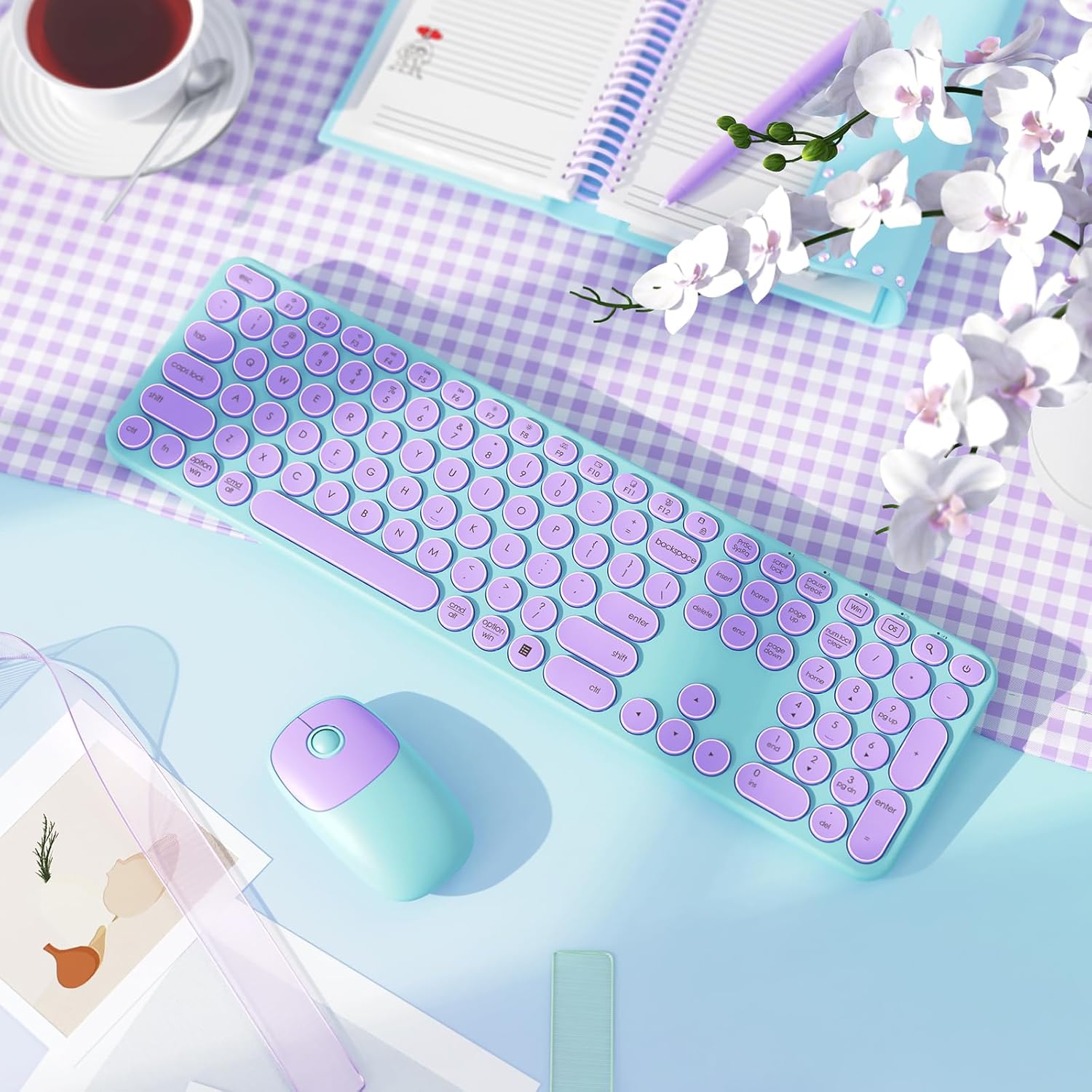
Figure 5.1: The silicone keyboard cover helps protect against dust and spills.
6. Problemų sprendimas
6.1 Re-pairing Keyboard with Receiver
- Unplug the receiver from your device.
- Restart the keyboard switch to "ON".
- Press and hold the "esc" key and "+/=" key at the same time for about 3-5 seconds. Release your hand when the power indicator lights up red.
- Put the keyboard close to the port of the device (within 20cm).
- Insert the receiver fully into the USB-A or Type-C port within 20 seconds. The red light will turn off, indicating successful pairing.
- If connection fails, repeat the operation 2 times.
6.2 Re-pairing Mouse with Receiver
- Unplug the receiver from your device.
- Restart the mouse switch to "ON".
- Press and hold the left button + scroll wheel + right button at the same time for about 5-8 seconds. Release your hand, and the indicator light at the bottom of the mouse will light up red.
- Put the mouse close to the port of the device (within 20cm).
- Insert the receiver fully into the USB-A or Type-C port within 20 seconds. The pairing is successful.
- If connection fails, repeat the operation 2 times.

Figure 6.1: Detailed steps for re-pairing the keyboard and mouse.
6.3 Bendros problemos
- Unresponsive or Lagging Device: Check battery levels and replace if necessary. Ensure the receiver is fully inserted into the USB port. Try re-pairing the device as per instructions above.
- Neteisinga rakto išvestis: Verify that the correct system layout (Windows or Mac OS) is selected on the keyboard.
7. Specifikacijos
| Funkcija | Detalė |
|---|---|
| Gaminio matmenys | 17 x 5 x 1.8 colio |
| Prekės svoris | 1.63 svaro |
| Prekės modelio numeris | SK73-3 |
| Prekės ženklas | seenda |
| Spalva | Purple Green |
| Ryšio technologija | USB A/C |
| Ypatinga funkcija | Full Size, Ergonomic, Round Key |
| Suderinami įrenginiai | Computer, Laptop, Desktop, PC, MacBook Pro, MacBook Air |
| Klaviatūros baterija | 1x AAA (nepridedama) |
| Pelės baterija | 1x AA (į komplektą neįeina) |
| Budėjimo laikas | Up to 90 days (with auto-sleep mode) |
8. Garantija ir palaikymas
For warranty information and customer support, please refer to the product packaging or contact seenda customer service directly. Keep your purchase receipt for any warranty claims.
Manufacturer: seenda


