1. Įvadas
This manual provides detailed instructions for the setup, operation, and maintenance of your OFFNOVA TSC-2043PB Bluetooth Thermal Label Printer. Please read this manual thoroughly before using the device to ensure proper functionality and to extend the product's lifespan. This printer is designed for various labeling tasks, including address labels, shipping labels, product tags, and more, compatible with both mobile devices and computers.
2. Pakuotės turinys
Patikrinkite, ar pakuotėje yra visi reikalingi daiktai:
- 1 x OFFNOVA TSC-2043PB Label Maker
- 1 x Roll of 200 Labels (70mm x 40mm)
- 1 x USB-C laidas
- 1 x naudojimo instrukcija
3. Produktas baigtasview
The OFFNOVA TSC-2043PB is a portable thermal label printer featuring Bluetooth and USB connectivity. It offers high-resolution printing at 203 DPI and supports label widths from 0.78 inches to 3.14 inches (20-80mm). The device is equipped with a 2500mAh rechargeable battery for extended use.
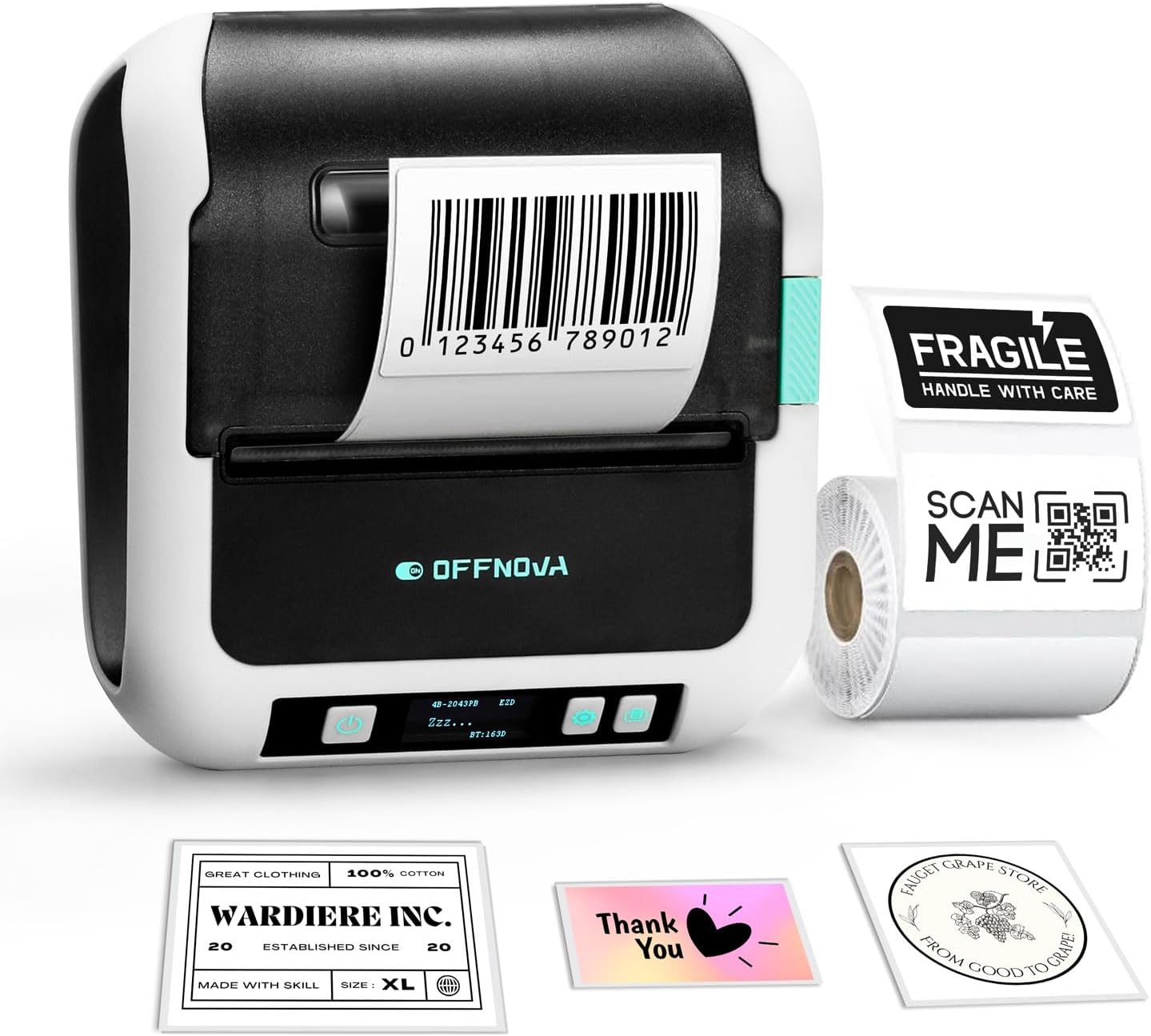
Image 3.1: OFFNOVA TSC-2043PB Label Maker. The printer is shown with a barcode label being printed, alongside various sample labels like 'Fragile', 'Thank You', and 'Wardrobe Inc.'.

Image 3.2: Close-up of the printer's digital display. The display shows '4B-2043PB', 'ZZZ...', 'EZD', and 'BT:163D', indicating model information and Bluetooth status.
Pagrindinės funkcijos:
- Stable Bluetooth Connectivity: For wireless printing from iOS and Android devices.
- Didelės spartos spausdinimas: Up to 70mm/s.
- Ilgas baterijos veikimo laikas: 2500 mAh įkraunama baterija.
- Wide Label Support: Compatible with labels from 0.78" to 3.14" (20-80mm) width.
- Didelė raiška: 203 DPI for clear text and barcodes.
- Universalus pritaikymas: Suitable for home, office, and small business use.
4. Sąranka
4.1 Etikečių įkėlimas
Follow these steps to properly load label paper into your printer:
- Step 1: Unlock and Adjust Baffle. Unlock and adjust the baffle width to accommodate the label paper's width.
- Step 2: Insert Label Paper. Put the label paper roll into the printer compartment. Ensure the labels face upwards.
- Step 3: Lock Baffle. Lock and secure the baffle to hold the label roll in place.
- Step 4: Close Cover and Power On. Close the printer cover, then turn on the power. The printer will automatically calibrate the label.
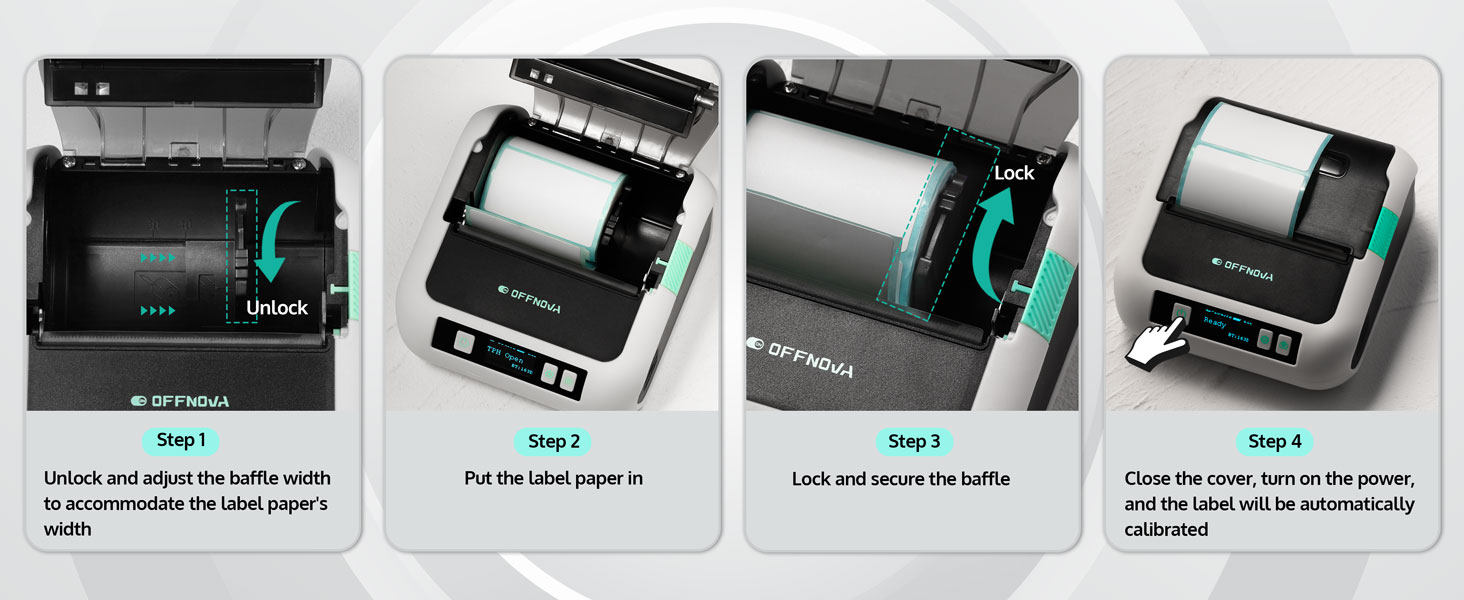
Image 4.1: Visual guide for loading labels. Shows unlocking, inserting, locking, and automatic calibration steps.
4.2 Mobile Device Setup (iOS/Android)
To print from your smartphone or tablet, follow these steps:
- 1 veiksmas: atsisiųskite programą. Download the "4Barcode" app from your device's app store.
- Step 2: Power On and Enable Bluetooth. Turn on the OFFNOVA label maker and ensure Bluetooth is enabled on your mobile device.
- Step 3: Connect and Print. Open the "4Barcode" app, connect to your printer via Bluetooth, customize your label content, and initiate printing.

Image 4.2: The label maker connected to a smartphone via Bluetooth and a laptop via USB-C, illustrating its compatibility.
4.3 PC/Mac Setup
To print from your computer, follow these steps:
- Step 1: Download Driver. Visit the official OFFNOVA website and download the correct driver for your computer's operating system (Windows or macOS).
- Step 2: Connect via USB. Prijunkite spausdintuvą prie kompiuterio naudodami pridėtą USB-C laidą.
- Step 3: Select and Print. Customize your label content using your preferred software, select the '2043PB' model as your printer, and begin printing.
5. Naudojimo instrukcijos
5.1 Using the 4Barcode App
The 4Barcode app provides extensive features for label design and printing:
- Ready-to-Use Templates: Access a variety of pre-designed templates for different label types.
- Barcode/QR Code Generators: Easily create and print barcodes and QR codes.
- Icons and Batch Printing: Add various icons to your labels and print multiple labels efficiently.
- Voice Input and OCR Recognition: Utilize advanced input methods for convenience.

Image 5.1: Screenshot of the 4Barcode app interface, showing various design options and templates for creating labels.
5.2 Label Printing Guidelines
The printer supports a range of label sizes to accommodate various needs:
- Etiketės plotis: From 0.78 inches (20mm) to 3.14 inches (80mm).
- Programos: Suitable for barcode labels, file folder labels, logo labels, address labels, price labels, and asset identification.
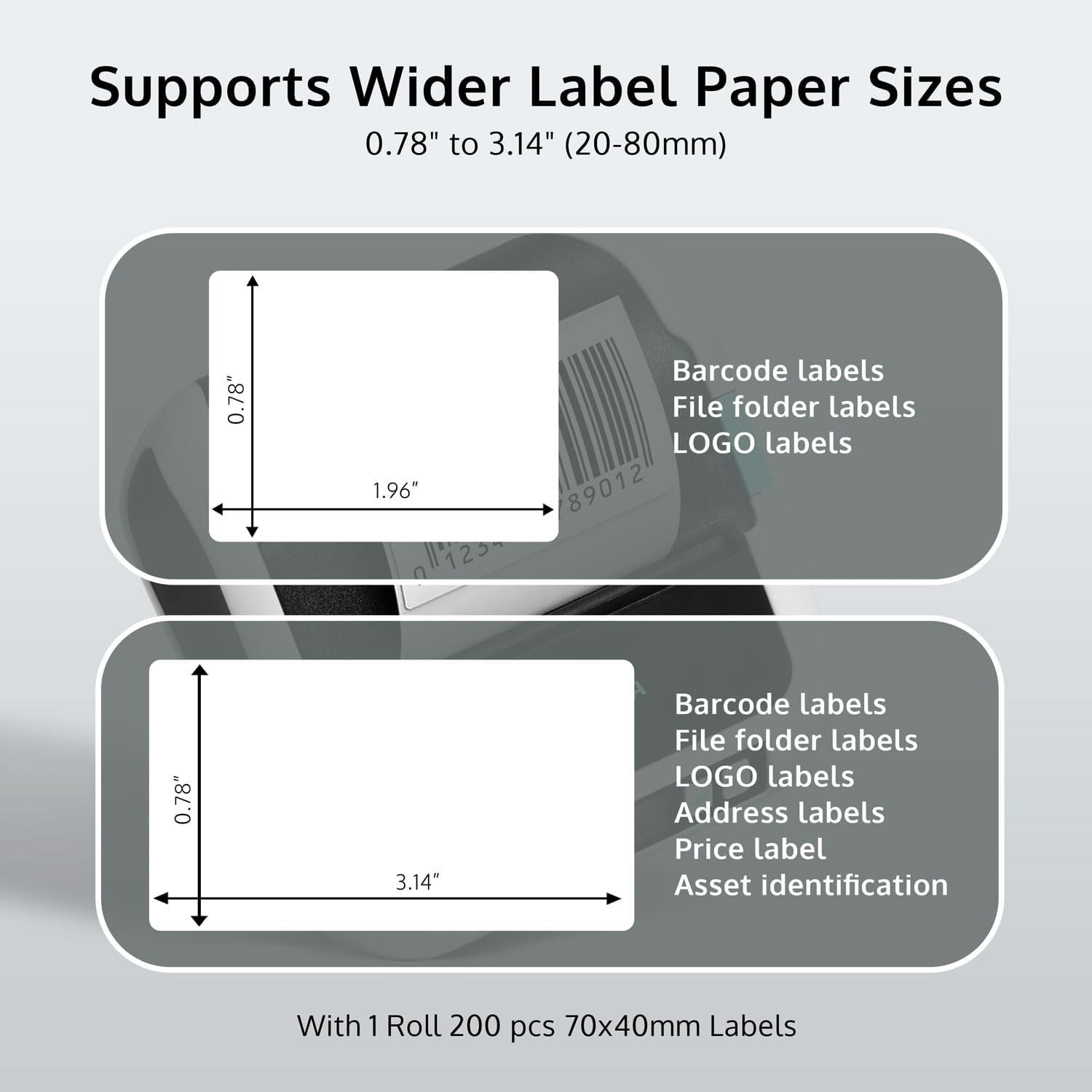
Image 5.2: Diagram illustrating the supported label paper sizes, specifically 0.78" x 1.96" and 0.78" x 3.14", along with examples of their uses.
6. Priežiūra
Regular maintenance ensures optimal performance and longevity of your label maker:
- Spausdinimo galvutės valymas: Lengvai naudokite minkštą, nepūkuotą audinį dampened with isopropyl alcohol to gently wipe the print head. Ensure the printer is off and cooled down before cleaning.
- Volelio valymas: Use a similar cloth to clean the rubber roller to prevent paper jams and ensure smooth feeding.
- Dulkių šalinimas: Keep the printer free from dust and debris. Use compressed air if necessary.
- Saugykla: Spausdintuvą laikykite vėsioje, sausoje vietoje, apsaugotoje nuo tiesioginių saulės spindulių ir ekstremalių temperatūrų.
- Akumuliatoriaus priežiūra: Norėdami optimalaus akumuliatoriaus veikimo laiko, venkite dažnai visiškai jį iškrauti. Reguliariai įkraukite spausdintuvą, ypač jei jis bus ilgesnį laiką nenaudojamas.
7. Problemų sprendimas
If you encounter issues with your OFFNOVA TSC-2043PB, refer to the following common problems and solutions:
| Problema | Galima priežastis | Sprendimas |
|---|---|---|
| Spausdintuvas neįsijungia | Išsikrovęs akumuliatorius; netinkamai paspaustas maitinimo mygtukas | Charge the printer using the USB-C cable; Press and hold the power button for a few seconds. |
| Nepavyksta prisijungti per Bluetooth | Bluetooth not enabled; Printer not discoverable; App issue | Ensure Bluetooth is on for both printer and device; Restart both devices; Reinstall the 4Barcode app. |
| Prasta spausdinimo kokybė | Dirty print head; Low battery; Incorrect label type | Clean the print head (see Maintenance); Charge the printer; Ensure you are using thermal labels. |
| Paper jam / "Paper Out" error | Improper label loading; Debris in paper path; Sensor issue | Re-load labels correctly, ensuring they are aligned; Clean the paper path; Turn the printer off and on again to reset. |
| Printer not recognized by PC/Mac | Driver not installed; USB cable issue | Install the correct driver from the OFFNOVA website; Try a different USB-C cable or port. |
8. Specifikacijos
Detailed technical specifications for the OFFNOVA TSC-2043PB Label Maker:
| Funkcija | Detalė |
|---|---|
| Modelio numeris | TSC-2043PB |
| Gaminio matmenys | 4.5 "D x 4.5" P x 2" A |
| Prekės svoris | 1.25 svaro (0.57 kilogramo) |
| Ryšio technologija | Bluetooth, USB (USB Type C) |
| Spausdinimo technologija | Šiluminis |
| Didžiausia spausdinimo raiška | 203 DPI (taškų colyje) |
| Maksimalus spausdinimo greitis | 70mm/s (Monochrome) |
| Maksimalus laikmenos dydis | 76 mm (3.14 colio) |
| Sheet Size (Width) | 25.4–76 mm (0.78–3.14 coliai) |
| Maksimali įvesties lapo talpa | 300 |
| Suderinami įrenginiai | Nešiojamieji kompiuteriai, asmeniniai kompiuteriai, išmanieji telefonai, planšetiniai kompiuteriai |
| Ypatingos savybės | Bluetooth, Lightweight, Portable |
| Maitinimo šaltinis | 2500 XNUMX mAh įkraunama baterija |
9. Garantija ir palaikymas
The OFFNOVA TSC-2043PB Label Maker comes with a 1 metų garantija nuo įsigijimo datos. Ši garantija taikoma gamybos defektams ir gedimams įprasto naudojimo metu.
For technical support, warranty claims, or any questions regarding your product, please contact OFFNOVA customer service through their official website or the contact information provided in your product packaging. When contacting support, please have your model number (TSC-2043PB) and purchase details ready.


