1. Įvadas
The Vretti K2 is a portable thermal label printer designed for various labeling needs in home, office, and business environments. It offers inkless printing, Bluetooth connectivity for mobile devices (Android and iOS), and a compact design for ease of use. This manual provides detailed instructions for setup, operation, maintenance, and troubleshooting to ensure optimal performance of your device.
2. Pakuotės turinys
Prieš pradėdami, patikrinkite, ar pakuotėje yra visi reikalingi daiktai:
- Vretti K2 Label Maker x1
- C tipo kabelis x1
- 50x30mm Paper Rolls x1 (pre-installed inside the machine)
- Vartotojo vadovas x1
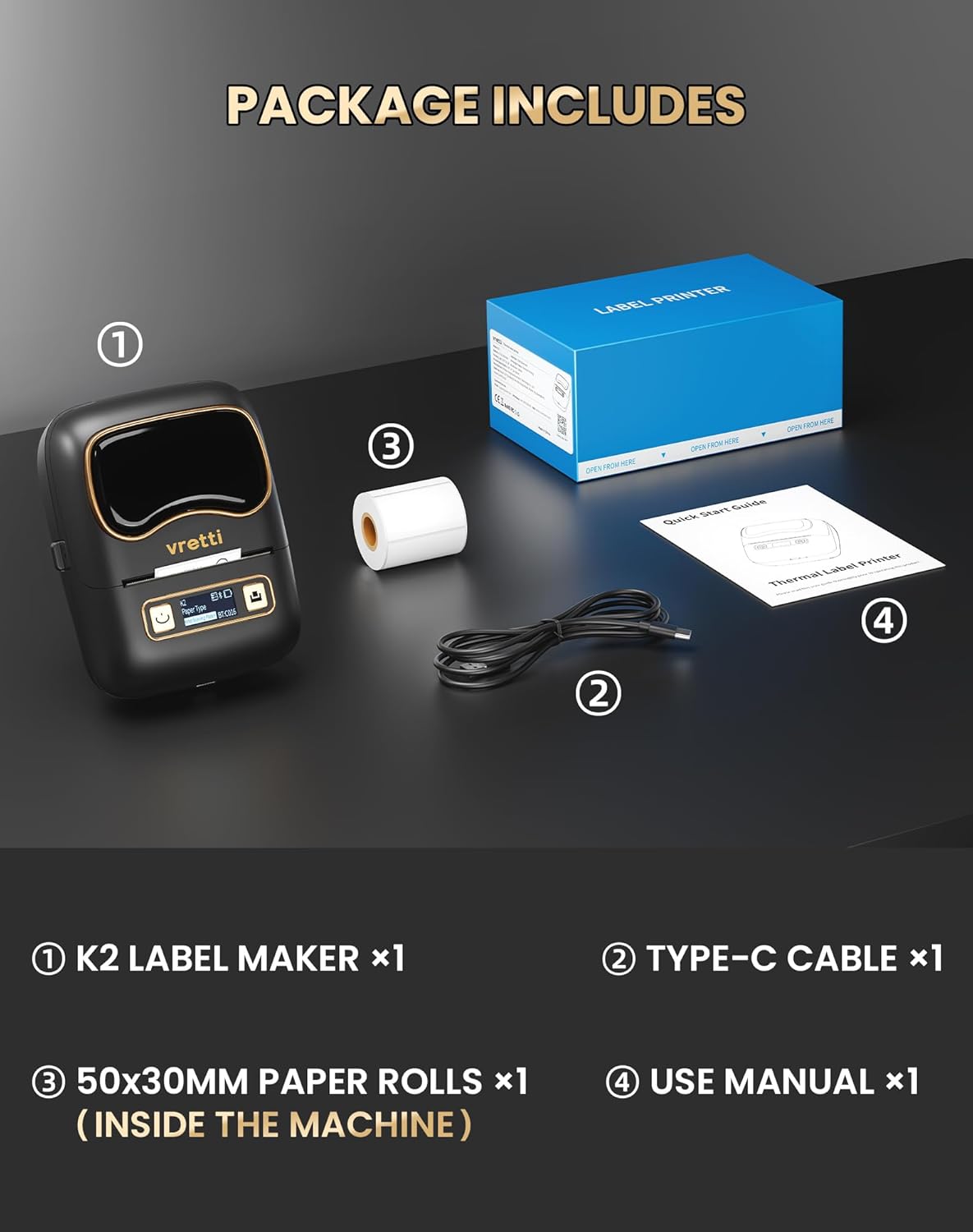
Image: Contents of the Vretti K2 label printer package, including the printer, USB-C cable, a roll of labels, and the user manual.
3. Specifikacijos
| Funkcija | Specifikacija |
|---|---|
| Modelio pavadinimas | K2 |
| Spausdinimo technologija | Šiluminis |
| Ryšio technologija | Bluetooth, USB |
| Suderinami įrenginiai | Nešiojamasis kompiuteris, asmeninis kompiuteris, išmanusis telefonas, planšetinis kompiuteris |
| Max Print Resolution (DPI) | 203 dpi |
| Spausdinimo greitis | 9 mm/s |
| Maksimali lapų talpa | 100 |
| Palaikomas etiketės plotis | 20-50 mm |
| Baterijos talpa | 1500 mAh |
| Įkrovimo sąsaja | C tipo USB |
| Matmenys (I x P x A) | 15.7 x 9.5 x 6.4 cm (4.53 x 3.54 x 2.44 colio) |
| Svoris | 0.49 svaro |

Vaizdas: Viršview of Vretti K2 features including no ink needed, Bluetooth connectivity, lightweight, 1500mAh battery, wireless printing, high resolution, 9mm/s fast printing, and USB Type-C.
4. Sąranka
4.1 Spausdintuvo įkrovimas
Before first use, fully charge the Vretti K2 printer using the provided Type-C cable. Connect the cable to the printer's charging port and a compatible USB power adapter (not included). The charging indicator light will show the charging status.
4.2 Etikečių įkėlimas
- Open the printer cover by gently pressing the release button or sliding the cover open, depending on the model.
- Insert the label roll into the paper compartment, ensuring the labels face upwards and the roll is properly aligned.
- Pull a small portion of the label paper out past the print head.
- Saugiai uždarykite spausdintuvo dangtį.
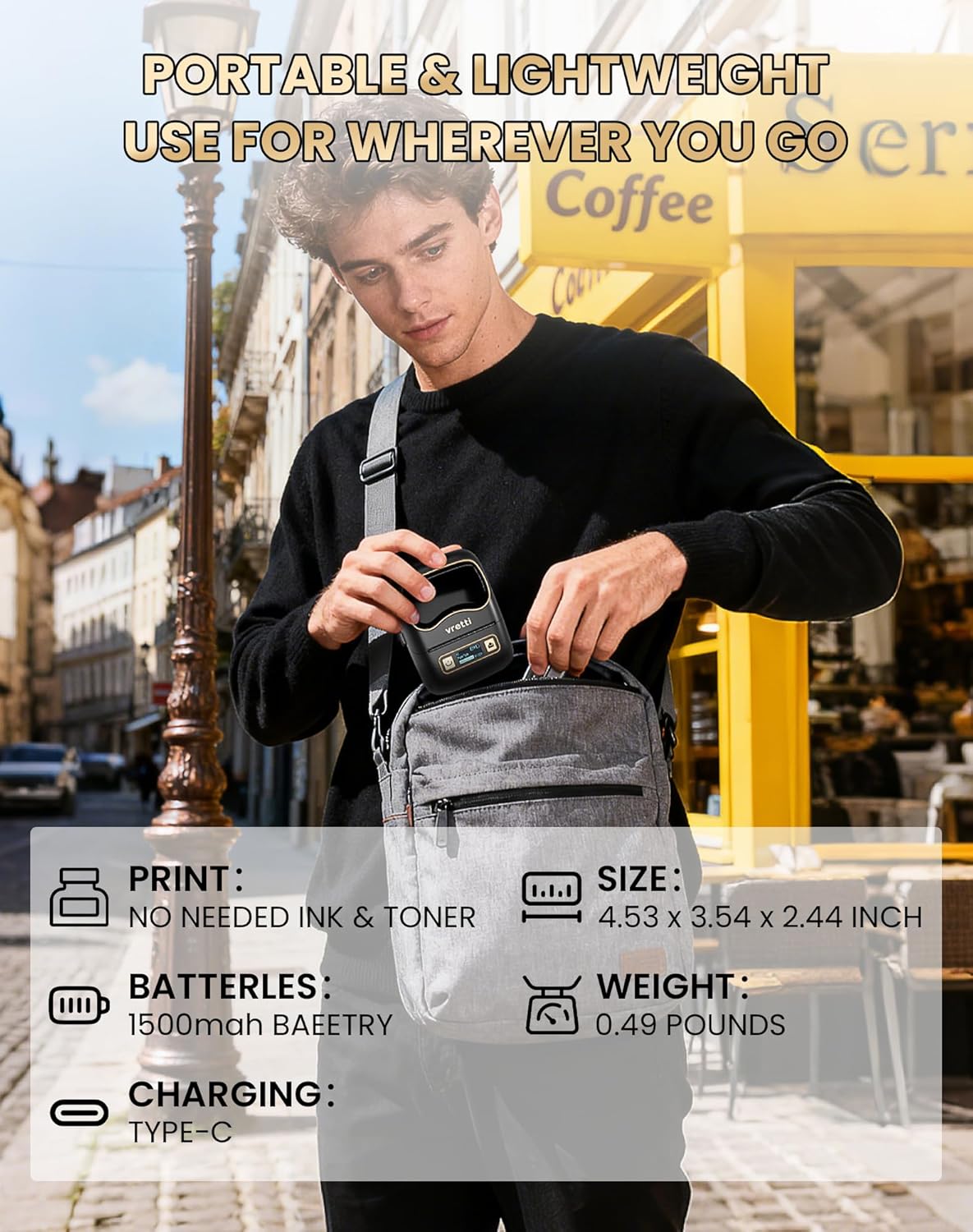
Image: The Vretti K2 printer with various label sizes (20-50mm width) shown, demonstrating how different label rolls fit into the printer.
4.3 Programėlės atsisiuntimas ir įdiegimas
The Vretti K2 printer operates with the XeasyLabel mobile application. Download the app from your device's app store:
- „Android“ įrenginiams: Ieškokite "XeasyLabel" on the Google Play Store.
- „iOS“ įrenginiams: Ieškokite "XeasyLabel" on the Apple App Store.
Įdiekite programą išmaniajame telefone ar planšetiniame kompiuteryje.

Image: The Vretti K2 printer next to a smartphone displaying the XEasyLabel app interface, highlighting Bluetooth 5.0 connectivity and app download options for Android and iOS.
4.4 Bluetooth ryšys
- Ensure your Vretti K2 printer is powered on.
- Įjunkite „Bluetooth“ savo mobiliajame įrenginyje.
- Open the XeasyLabel application.
- Within the app, navigate to the device connection section.
- Select your Vretti K2 printer (usually identified as "K2" or a similar name) from the list of available devices to establish a Bluetooth connection.

Image: A three-step guide showing how to connect the Vretti K2 printer via Bluetooth and begin editing and printing labels using the XEasyLabel app on a smartphone.
5. Naudojimo instrukcijos
5.1 Etikečių kūrimas ir spausdinimas
- After connecting your printer via Bluetooth, open the XeasyLabel app.
- Select a template or create a new label design. The app offers various fonts, icons, frames, and intelligent features like scanning and image recognition.
- Customize your label with text, images, barcodes, or serial numbers.
- Preview savo etiketę, kad ji atrodytų taip, kaip pageidaujate.
- Tap the print button in the app. The printer will automatically detect the label size and print without requiring ink or toner.
5.2 Taikymo scenarijai
The Vretti K2 printer is versatile and suitable for a wide range of applications:
- Biuras: File labels, lamp labels, memo labels, visitor labels.
- Verslas: Address labels, product labels, price labels, gift labels.
- Pagrindinis puslapis: Toy labels, food labels, drug labels, general organization labels.
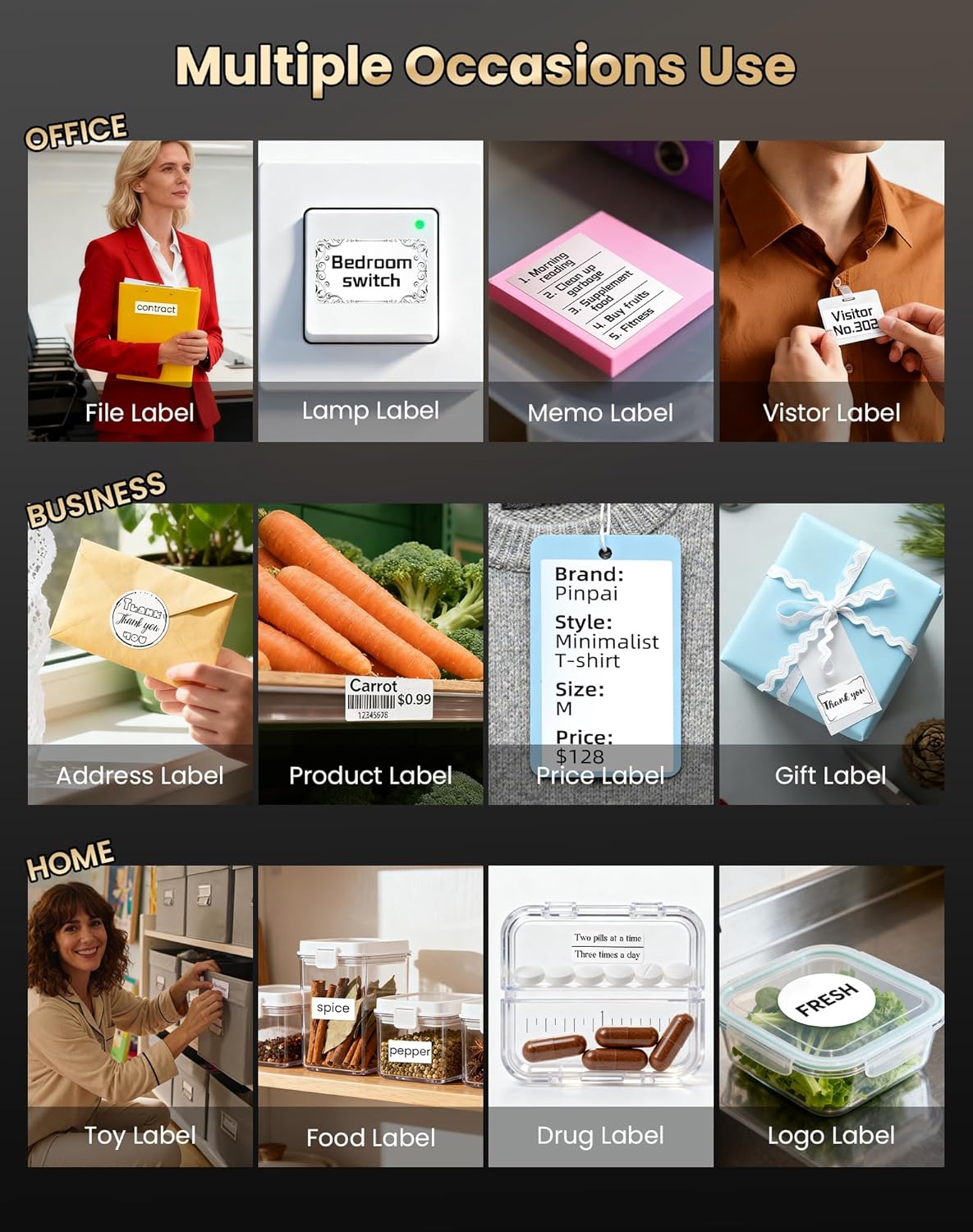
Vaizdas: pvzamples of Vretti K2 label printer use in office, business, and home settings, showing various label types like file, product, and food labels.

Paveikslėlis: Tolesnis pavyzdysamples of Vretti K2 label printer applications, including clothing tags, food containers, and cable labeling, demonstrating its versatility.
6. Priežiūra
6.1 Spausdinimo galvutės valymas
To maintain print quality, regularly clean the print head. Use a cotton swab lightly dampsuvilgytą izopropilo alkoholiu. Švelniai nuvalykite spausdinimo galvutės paviršių. Prieš naudodami įsitikinkite, kad spausdintuvas išjungtas ir visiškai sausas.
6.2 Akumuliatoriaus priežiūra
- Venkite dažnai visiškai iškrauti akumuliatorių.
- Reguliariai kraukite spausdintuvą, net jei jo nenaudojate, kad pailgintumėte baterijos veikimo laiką.
- Kai spausdintuvo ilgesnį laiką nenaudojate, laikykite jį vėsioje, sausoje vietoje.
7. Problemų sprendimas
If you encounter issues with your Vretti K2 printer, refer to the following common problems and solutions:
- Spausdintuvas neprisijungia per „Bluetooth“:
- Ensure the printer is powered on and within range of your mobile device.
- Patikrinkite, ar jūsų įrenginyje įjungtas „Bluetooth“ ryšys.
- Iš naujo paleiskite spausdintuvą ir mobilųjį įrenginį.
- Check if the XeasyLabel app has Bluetooth permissions enabled.
- Prasta spausdinimo kokybė:
- Išvalykite spausdinimo galvutę, kaip aprašyta skyriuje „Priežiūra“.
- Įsitikinkite, kad naudojate aukštos kokybės termines etiketes.
- Check the label roll for proper installation and ensure it is not damaged.
- Etiketės netinkamai tiekiamos:
- Ensure the label roll is inserted correctly and aligned.
- Patikrinkite, ar popieriaus kelyje nėra kliūčių.
- Make sure the label type selected in the app matches the physical labels.
- Spausdintuvas neįsijungia:
- Charge the printer for at least 30 minutes.
- Išbandykite kitą USB-C laidą ir maitinimo adapterį.
For further assistance, consult the XeasyLabel app's help section or contact customer support.
8. Garantija ir palaikymas
8.1 Informacija apie garantiją
The Vretti K2 Thermal Label Printer comes with a standard manufacturer's warranty. Please refer to the warranty card included in your package or contact Vretti customer service for specific details regarding warranty duration and coverage.
8.2 Pagalba klientams
If you require technical support, have questions about your product, or need assistance with warranty claims, please contact Vretti customer support through their official websvetainėje arba kontaktinę informaciją, pateiktą jūsų produkto dokumentuose.


