1. Įvadas
The TobenONE USB-C Docking Station (Model: XYY-PD100CL) is a versatile 16-in-1 solution designed to expand the connectivity of your USB-C enabled laptop. It provides comprehensive port expansion, multi-monitor support, high-speed data transfer, and power delivery, enhancing productivity for both professionals and students.

Image: The TobenONE USB-C Docking Station, showcasing its compact design alongside a laptop and the included 100W GaN III charger.
2. Pagrindinės savybės
- Visuotinis suderinamumas: Seamlessly works with Windows 10+ and Chromebook devices featuring USB-C DisplayPort Alt Mode, Thunderbolt 4/3, and USB4. Compatible with HP, Dell, and Lenovo laptops. (Note: Not recommended for Mac users.)
- 16 viename jungiamumas: Offers extensive port options including dual HDMI, one DisplayPort, multiple USB-C and USB-A ports, 2.5Gbps Ethernet, 100W Power Delivery, and SD/TF card slots.
- Blazing-Fast Data Transfer: Equipped with 10Gbps USB-C and USB-A ports, enabling data transfers up to 20 times faster than traditional USB 2.0.
- 2.5Gbps Ethernet: Provides stable and high-speed internet connectivity, ideal for video calls, streaming, and large file parsisiuntimai.
- 100W PD įkrovimas: Features a robust 100W GaN power supply to keep your laptop charged during intensive work sessions, eliminating the need for a separate charger.
- Įspūdingi vaizdai: Supports up to 4K@60Hz resolution for dual or triple monitor setups. A single display can achieve 8K@30Hz or 4K@120Hz for razor-sharp clarity.
- Sleek Cooling Stand Design: Ergonomically designed to elevate your laptop, promoting better airflow and heat dissipation.
3. Pakuotės turinys
Prašome patikrinti, ar pakuotėje yra visi reikalingi daiktai:
- TobenONE USB-C Docking Station (Model: XYY-PD100CL)
- 100 W galios adapteris
- 60CM (1.96 Feet) USB-C Cable

Image: The package includes the UDS041W Laptop Dock Stand, a 100W Power Adapter, and a 60CM USB-C Cable.
4. Sąrankos vadovas
Follow these steps to set up your TobenONE USB-C Docking Station:
- Prijunkite maitinimą: Plug the 100W power adapter into the DC-IN port on the docking station, then connect the adapter to a wall outlet.
- Prijungimas prie nešiojamojo kompiuterio: Use the provided 60CM USB-C cable to connect the "HOST" USB-C port on the docking station to your laptop's USB-C port. Ensure your laptop supports USB-C DisplayPort Alt Mode, Thunderbolt 4/3, or USB4.
- Prijungti ekranus:
- For single display: Connect your monitor to either HDMI 1, HDMI 2, or DisplayPort.
- For dual or triple displays: Connect your monitors to the available HDMI 1, HDMI 2, and DisplayPort outputs.

Image: A laptop connected to two external 4K monitors, demonstrating a dual display setup for enhanced productivity.
- Prijunkite išorinius įrenginius: Plug your USB devices (keyboard, mouse, external drives, etc.) into the available USB 3.0, USB 3.2 (10Gbps), or USB-C (10Gbps) ports.

Paveikslėlis: detalus view of the docking station's rear and side ports, including Ethernet, HDMI, DisplayPort, various USB types, SD/MicroSD slots, audio, and power button.

Image: An external hard drive connected to one of the 10Gbps USB ports, highlighting the high-speed data transfer capabilities.
- Prijunkite Ethernet: For a stable wired internet connection, plug an Ethernet cable into the 2.5Gbps Ethernet port on the docking station.
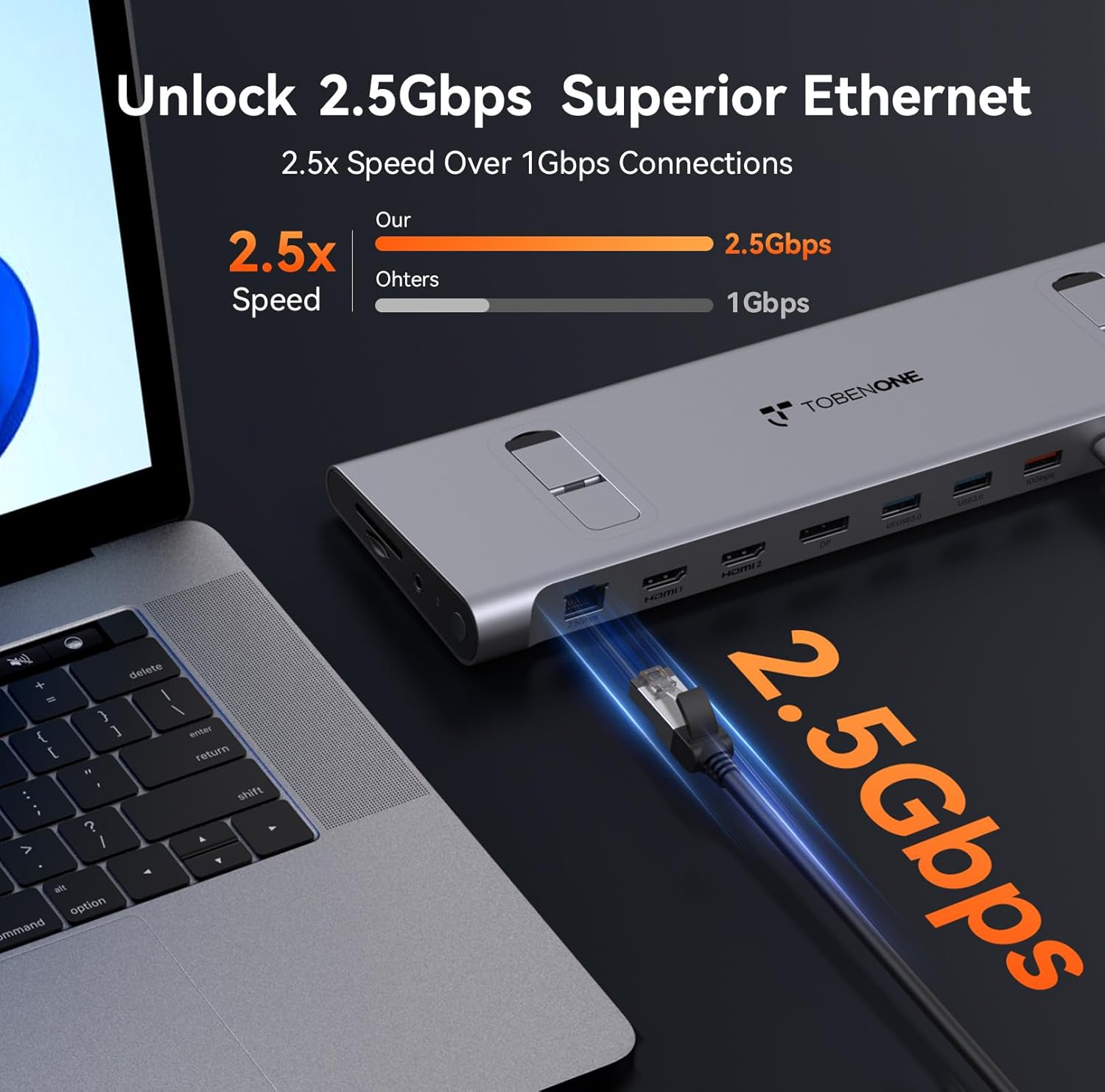
Image: An Ethernet cable connected to the 2.5Gbps Ethernet port on the docking station, ensuring a fast and reliable network connection.
- Insert SD/TF Cards: If needed, insert your SD or MicroSD cards into the dedicated slots on the side of the docking station.
- Garso jungtis: Connect headphones or speakers to the 3.5mm audio port for audio output.
- Maitinimas: Press the power button on the side of the docking station to turn it on.
5. Naudojimo instrukcijos
Display Configuration (Windows/Chromebook)
The docking station supports various display configurations. Your laptop's capabilities (e.g., Thunderbolt 4/DP 1.4 with DSC vs. DP 1.2) will determine the maximum resolution and refresh rates.
| Sąsajos standartas | Thunderbolt 4/DP 1.4 (support DSC) | DP 1.2 | ||||
|---|---|---|---|---|---|---|
| HDMI1 | HDMI2 | DP | HDMI1 | HDMI2 | DP | |
| Vienas ekranas | 8K@30Hz | 8K@30Hz | 8K@30Hz | 4K@30Hz | 4K@30Hz | 4K@30Hz |
| 4K@60Hz | 4K@60Hz | 4K@60Hz | 1080P@60Hz | 1080P@60Hz | 1080P@60Hz | |
| Dvigubas ekranas | 4K@60Hz | 1080P@60Hz | ||||
| 4K@60Hz | 4K@60Hz | 1080P@60Hz | 1080P@60Hz | |||
| Trigubas ekranas | 4K@60Hz | 1080P@60Hz | ||||
Table: This table outlines the supported display resolutions and refresh rates for single, dual, and triple monitor setups, depending on your laptop's DisplayPort interface standard.
Laptop Placement and Cooling
The docking station is designed to function as a sleek cooling stand. Place your laptop directly on top of the docking station, aligning it with the integrated supports. This ergonomic design helps improve airflow and prevent overheating during extended use.

Image: A laptop positioned on the docking station, illustrating how the design facilitates airflow for efficient cooling.
6. Priežiūra
- Keep the docking station clean by wiping it with a soft, dry cloth. Avoid using abrasive cleaners or solvents.
- Užtikrinkite tinkamą vėdinimą aplink prietaisą, kad išvengtumėte perkaitimo.
- Nenaudojamą įkrovimo stotelę laikykite vėsioje, sausoje vietoje.
- Atsargiai elkitės su laidais ir jungtimis, kad nepažeistumėte jų.
7. Problemų sprendimas
Dažnos problemos ir sprendimai:
- Nėra ekrano išvesties:
- Ensure the docking station is powered on and properly connected to your laptop's USB-C port.
- Verify that your laptop's USB-C port supports DisplayPort Alt Mode, Thunderbolt 3/4, or USB4.
- Check all display cables (HDMI, DisplayPort) for secure connections.
- Pabandykite atnaujinti nešiojamojo kompiuterio grafikos tvarkykles.
- Confirm your laptop supports Display Stream Compression (DSC) for higher resolutions (e.g., 8K@30Hz or 4K@120Hz single display).
- Nėra maitinimo į nešiojamąjį kompiuterį:
- Ensure the 100W power adapter is securely connected to the docking station and a working power outlet.
- Verify the USB-C cable connecting the dock to your laptop is capable of power delivery.
- Neatpažinti USB įrenginiai:
- Prijunkite USB įrenginį prie kito doko stoties prievado.
- Įsitikinkite, kad įkrovimo stotelė įjungta.
- Pabandykite prijungti įrenginį tiesiai prie nešiojamojo kompiuterio, kad įsitikintumėte, jog jis veikia nepriklausomai.
- Ethernet ryšio problemos:
- Patikrinkite Ethernet kabelio jungtį su įkrovimo stotele ir maršrutizatoriumi / modemu.
- Patikrinkite tinklo nustatymus savo nešiojamajame kompiuteryje.
8. Specifikacijos
| Atributas | Detalė |
|---|---|
| Modelio numeris | XYY-PD100CL |
| Gaminio matmenys | 11.81 colio ilgio x 3.14 colių pločio x 0.86 colio aukščio |
| Prekės svoris | 2.27 svaro |
| Iš viso USB prievadų | 6 (including 10Gbps USB-A and USB-C) |
| Iš viso HDMI prievadų | 2 |
| DisplayPort | 1 |
| Ethernet prievadas | 2.5 Gbps |
| Maitinimo tiekimas | 100W (Input), 87W (Output) |
| Kortelių skaitytuvas | SD/TF lizdai |
| Garso prievadas | 3.5 mm garsas |
| Suderinami įrenginiai | Supports full-featured USB-C, USB4, and Thunderbolt 3 / Thunderbolt 4 systems running Windows 10 / 11 & ChromeOS 100 or newer (e.g., HP ProBook/EliteBook/Spectre x360, Dell XPS/Latitude, Lenovo ThinkPad/IdeaPad/Yoga, Microsoft Surface Pro/Go/Book/Laptop, LG Gram). |
9. Garantija ir palaikymas
TobenONE is committed to providing professional office connectivity solutions. For any questions, technical support, or warranty inquiries regarding your docking station, please refer to the official TobenONE websvetainėje arba susisiekite tiesiogiai su jų klientų aptarnavimo tarnyba. Išsaugokite pirkimo kvitą garantiniams reikalavimams.
Visit the official TobenONE Store: TobenONE Amazon Store


