Svarbi saugos informacija
Please read all instructions carefully before using this monitor. Keep this manual for future reference.
- Saugokite monitorių nuo lietaus ar drėgmės, kad išvengtumėte gaisro ar elektros smūgio pavojaus.
- Neatidarykite monitoriaus c.asing. Viduje nėra dalių, kurias galėtų aptarnauti vartotojas. Visus techninės priežiūros darbus patikėkite kvalifikuotiems darbuotojams.
- Užtikrinkite tinkamą vėdinimą aplink monitorių. Neužblokuokite ventiliacijos angų.
- Naudokite tik gamintojo pateiktą maitinimo adapterį ir laidus.
- Jei monitorius ilgesnį laiką nebus naudojamas, atjunkite maitinimo kištuką nuo lizdo.
Pakuotės turinys
Patikrinkite, ar pakuotėje yra visi reikalingi daiktai:
- GIGABYTE MO32U Monitor
- Maitinimo kabelis
- HDMI 2.1 kabelis
- DP cable (DisplayPort cable)
- USB cable (USB Type-A to Type-B upstream cable)
- Greito paleidimo vadovas / Naudotojo vadovas (šis dokumentas)
Sąranka
1. Stovo surinkimas
Carefully remove the monitor and stand components from the packaging. Attach the stand neck to the monitor panel, ensuring it clicks securely into place. Then, attach the base to the stand neck and tighten the screws if necessary. The stand allows for height adjustment (up to 130mm) and tilt (-5° to +21°).
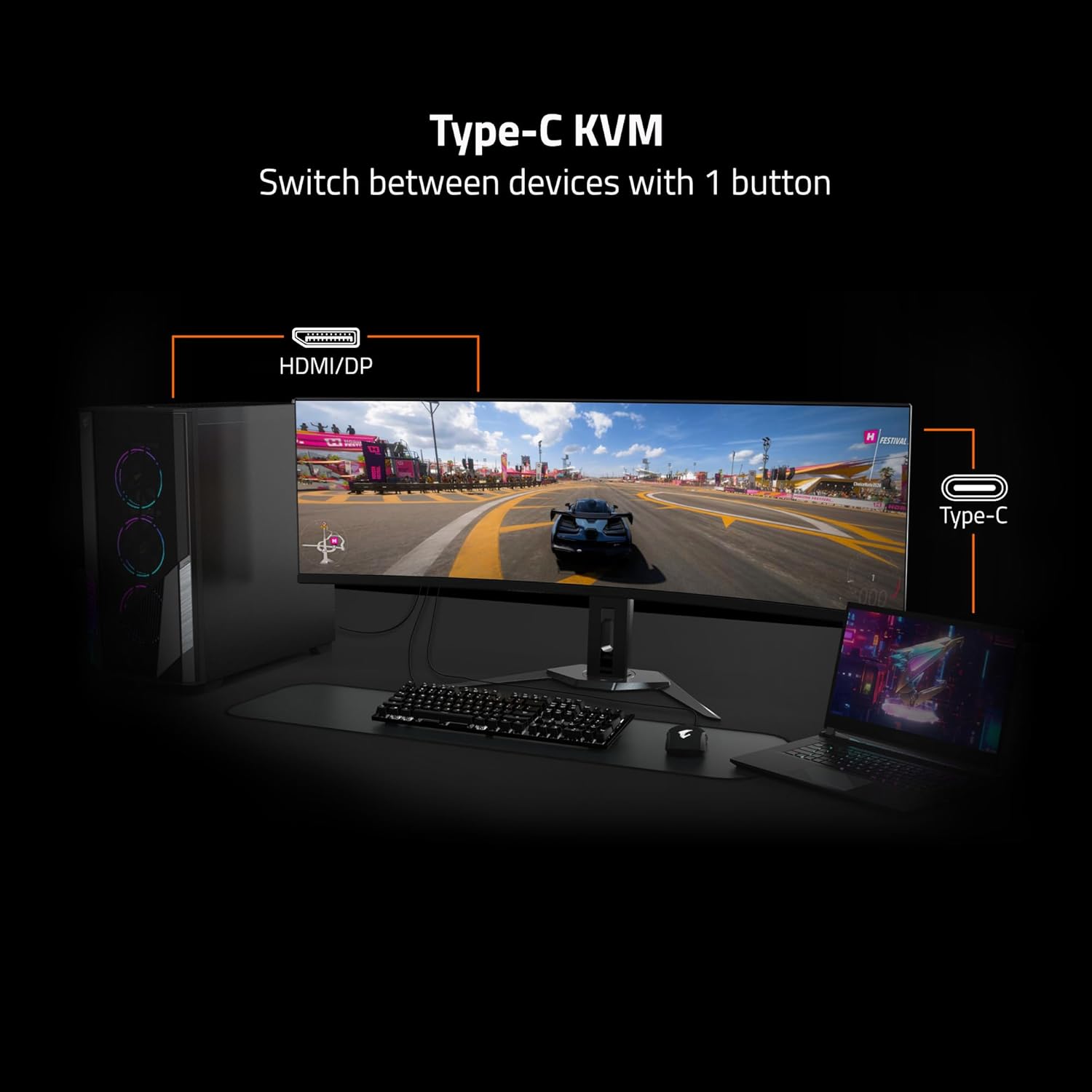
Image: Adjustable Stand and VESA Wall Mount points.
2. VESA Wall Mount Installation
The monitor supports VESA 100x100mm mounting. If using a VESA compatible wall mount or arm, remove the stand from the monitor. Secure the VESA mount to the monitor using appropriate screws (not included) according to the mount manufacturer's instructions. Refer to the image above for VESA mount point location.
3. Monitoriaus prijungimas
Connect the necessary cables to the corresponding ports on the back of the monitor and to your computer or other devices. Ensure all connections are secure.
- Galia: Prijunkite maitinimo kabelį prie monitoriaus ir maitinimo lizdo.
- Vaizdo įvestis: Use the provided HDMI 2.1 or DisplayPort 1.4 cables to connect to your graphics card. The monitor also supports USB Type-C for video input.
- USB aukštyn: Connect the USB upstream cable (USB Type-A to Type-B) from your computer to the monitor's USB 3.0 Upstream port to enable the monitor's USB downstream ports and KVM functionality.
- USB pasroviui: Connect USB devices (keyboard, mouse, USB drives) to the USB 3.0 Downstream ports.
- Ausinių lizdas: Prijunkite ausines arba išorinius garsiakalbius.

Image: I/O Ports diagram on the back of the monitor.
Monitoriaus valdymas
1. Maitinimo įjungimas/išjungimas
Press the power button, usually located on the back or bottom of the monitor, to turn the monitor on or off. The power indicator light will illuminate when the monitor is on.
3. KVM Functionality
The GIGABYTE MO32U features a built-in KVM (Keyboard, Video, Mouse) switch, allowing you to control multiple devices (e.g., a desktop PC and a laptop) with a single set of keyboard and mouse connected to the monitor. To use KVM, ensure both devices are connected to the monitor via video inputs (HDMI/DP and Type-C) and the USB upstream cable is connected to the primary device. You can switch between devices using a dedicated KVM button or through the OSD menu.

Image: Type-C KVM setup for switching between devices.
4. Ekrano nustatymai ir funkcijos
The MO32U monitor offers advanced display features for an optimized viewpatirtis:
- Rezoliucija ir atnaujinimo dažnis: Enjoy a 4K UHD (3840x2160) resolution with a 165Hz refresh rate for smooth visuals.
- Atsakymo laikas: Experience ultra-fast 0.03ms GTG (Gray-to-Gray) response time, minimizing motion blur.
- AMD FreeSync Premium Pro: Sinchronizuoja monitoriaus atnaujinimo dažnį su GPU kadrų dažniu, kad būtų išvengta ekrano plyšinėjimo ir mirgėjimo.
- QD-OLED Panel: Delivers vibrant colors, deep blacks, and high contrast (1.5M:1) with 99% DCI-P3 color gamut and 10-bit color depth.
- VESA DisplayHDR True Black 400: Provides enhanced contrast and color accuracy for HDR content.
- VESA ClearMR 9000: Ensures high motion clarity.
- Akių priežiūros ypatybės: Includes Flicker-Free and Low Blue Light technologies, certified by Eyesafe, to reduce eye strain during prolonged use.

Image: Key display features and certifications.

Image: Visual comparison of 0.03ms/165Hz performance versus 5ms/60Hz.
5. GIGABYTE OLED Care
The monitor incorporates GIGABYTE OLED Care, an AI-based algorithm designed to minimize the risk of OLED burn-in issues. This suite of technologies operates in the background with minimal user interference. OLED Care includes various adjustable settings within the OSD menu to help protect the panel and extend its lifespan.
Priežiūra
Tinkama priežiūra užtikrina monitoriaus ilgaamžiškumą ir optimalų veikimą.
- Ekrano valymas: Švelniai nuvalykite ekraną minkštu, nepūkuotu skudurėliu. Jei dėmės sunkiai įveikiamos, švelniai nuvalykiteampNuvalykite šluostę vandeniu arba neabrazyviniu ekrano valikliu. Nepurkškite skysčio tiesiai ant ekrano.
- C valymasasing: Monitorių nuvalykite minkštu, sausu skudurėliu.asing. Venkite naudoti stiprius ploviklius ar abrazyvinius valiklius.
- OLED priežiūra: Allow the monitor to perform its automatic OLED Care functions. Avoid prolonged display of static images at high brightness settings.
Trikčių šalinimas
Jei kyla problemų dėl monitoriaus, žr. šiuos dažniausiai pasitaikančius sprendimus:
- Nėra galios: Įsitikinkite, kad maitinimo laidas yra tvirtai prijungtas prie monitoriaus ir veikiančio maitinimo lizdo. Patikrinkite, ar šviečia maitinimo indikatoriaus lemputė.
- Nėra signalo: Verify that the video cables (HDMI, DisplayPort, USB-C) are correctly connected to both the monitor and your source device. Ensure the correct input source is selected in the monitor's OSD menu.
- Mirgantis arba iškreiptas vaizdas: Check cable connections. Ensure your graphics card drivers are up to date. Try adjusting the refresh rate in your operating system's display settings.
- Vaizdo išlaikymas / išdeginimas: While OLED Care minimizes this risk, prolonged static images can contribute. Utilize OLED Care features and avoid displaying static content for extended periods.
- KVM Not Switching: Ensure the USB upstream cable is connected to the active source device and that the KVM function is properly configured in the OSD menu.
If the problem persists after trying these steps, contact GIGABYTE customer support.
Specifikacijos
| Funkcija | Detalė |
|---|---|
| Prekės ženklas | GIGABITAS |
| Modelio numeris | MO32U |
| Ekrano dydis | 32 colių |
| Ekrano tipas | QD OLED |
| Rezoliucija | 4K UHD (3840 2160 x XNUMX XNUMX) |
| Atnaujinimo dažnis | 165 Hz |
| Reagavimo laikas | 0.03 Milliseconds GTG |
| Krašto santykis | 16:9 |
| Kontrasto santykis | 1.5M:1 |
| Ryškumas | 1000 Candela per Square Meter (Peak) |
| Spalvų gama | 99% DCI-P3 |
| Viewing kampas | 178 laipsnių |
| Ryšys | 2x HDMI 2.1, 1x DisplayPort 1.4, 1x USB Type-C, 1x USB 3.0 Upstream, 3x USB 3.0 Downstream, 1x Earphone Jack |
| Adaptyvusis sinchronizavimas | AMD FreeSync Premium Pro |
| HDR palaikymas | VESA DisplayHDR True Black 400 |
| KVM | Yes, Type-C KVM |
| Montavimo tipas | VESA 100x100mm, Height Adjustable Stand |
| Energijos suvartojimas | 54 vatų |
| Spalva | Juoda |
Informacija apie garantiją
This GIGABYTE MO32U monitor comes with a 3 metų gamintojo garantija. For detailed terms and conditions, please refer to the warranty card included in your product packaging or visit the official GIGABYTE websvetainę.
Palaikymas
For technical assistance, troubleshooting beyond this manual, or warranty claims, please contact GIGABYTE customer support. You can find contact information and additional resources on the official GIGABYTE websvetainę.
Internetiniai ištekliai: Visit the GIGABYTE support page for drivers, FAQs, and further documentation.


