1. Įvadas
This manual provides essential information for the safe and efficient operation of your Next YE-65GFSG8-QLED 65-inch UHD 4K Google QLED TV. Please read this manual thoroughly before using the television and retain it for future reference. Your new television combines QLED display technology with the Google TV operating system, offering a high-quality viewing experience and smart features.
2. Svarbi saugos informacija
Always follow these basic safety precautions when operating your television:
- Maitinimo šaltinis: Įsitikinkite, kad televizorius prijungtas prie maitinimo šaltinio, kurio įtampa nurodytatage asortimentas.
- Vėdinimas: Neužblokuokite ventiliacijos angų. Palikite pakankamai vietos aplink televizorių tinkamam oro cirkuliavimui.
- Vanduo ir drėgmė: Saugokite televizorių nuo lietaus ar drėgmės. Nestatykite ant televizoriaus daiktų, pripildytų skysčių, pavyzdžiui, vazų.
- Valymas: Prieš valydami atjunkite televizorių nuo maitinimo lizdo. Naudokite minkštą, sausą šluostę. Nenaudokite skystų ar aerozolinių valiklių.
- Vieta: Pastatykite televizorių ant stabilaus, lygaus paviršiaus. Venkite jo tiesioginiuose saulės spinduliuose arba šalia šilumos šaltinių.
- Žaibas: Žaibuojant arba ilgą laiką nenaudojant televizoriaus, atjunkite jį nuo maitinimo lizdo ir atjunkite anteną.
- Aptarnavimas: Nemėginkite patys aptarnauti šio gaminio. Visą techninę priežiūrą patikėkite kvalifikuotam aptarnavimo personalui.
3. Pakuotės turinys
Verify that all items are present in your TV package:
- Next YE-65GFSG8-QLED 65-inch UHD 4K Google QLED TV
- Nuotolinio valdymo pultas
- Maitinimo kabelis
- Televizoriaus stovas (2 dalys) ir varžtai
- Vartotojo vadovas (šis dokumentas)
- Greitos pradžios vadovas
4. Sąranka
4.1 Fizinis įrengimas
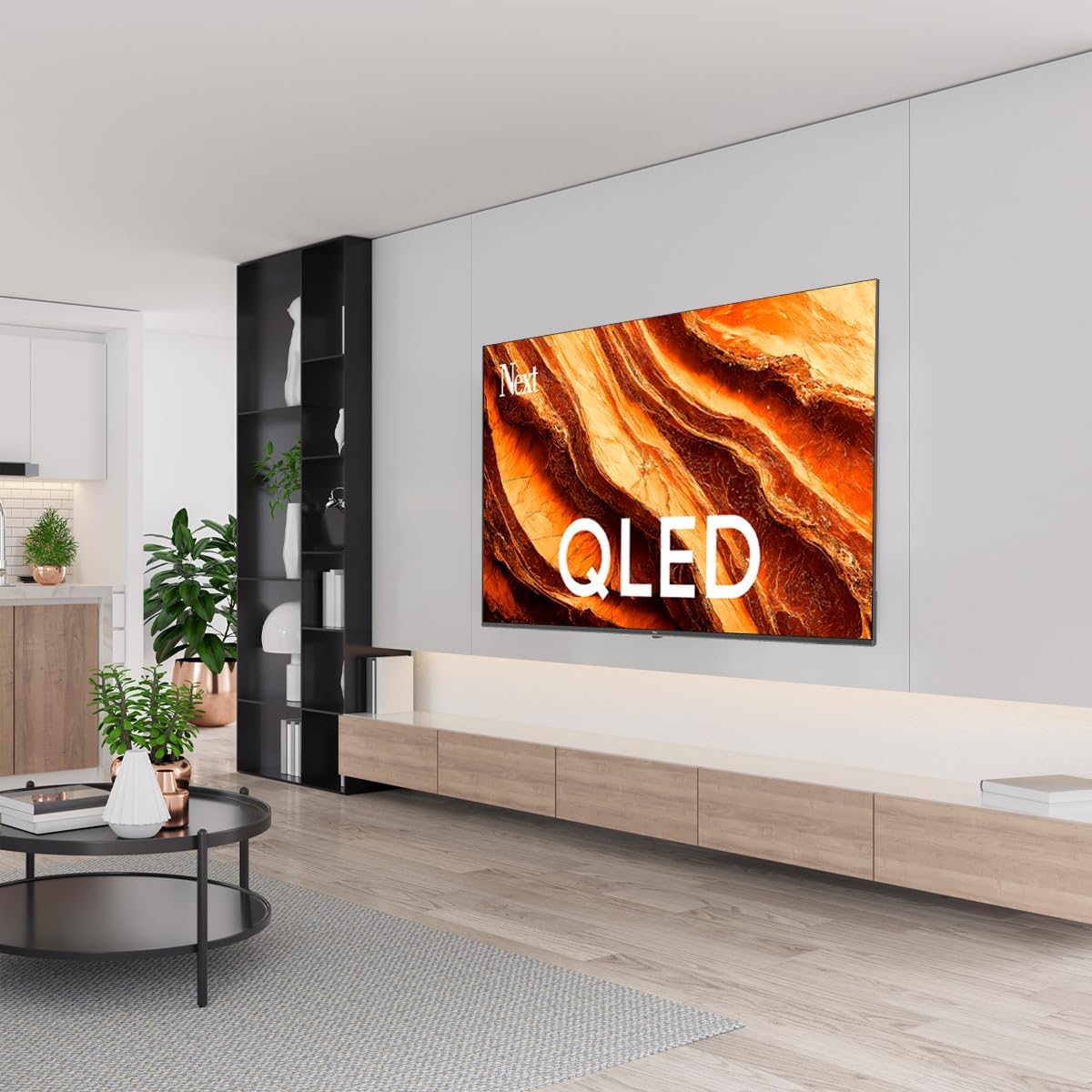
You can install your TV on a stand or mount it on a wall. Ensure the TV is placed on a stable surface or securely mounted.

Vaizdas: TV Dimensions. This image illustrates the physical dimensions of the 65-inch television, including its width, height, and diagonal screen size of 164 cm (65 inches).
Stovo montavimas:
- Atsargiai padėkite televizorių ekranu žemyn ant minkšto, lygaus paviršiaus, kad nepažeistumėte ekrano.
- Attach the two stand pieces to the designated slots on the bottom of the TV.
- Pritvirtinkite stovus pridedamais varžtais.
- Atsargiai pakelkite televizorių į vertikalią padėtį ant stabilaus paviršiaus.
Montavimas ant sienos:
For wall mounting, use a VESA-compatible wall mount kit (sold separately) that matches the TV's VESA pattern. Follow the instructions provided with your wall mount kit. It is recommended to have professional assistance for wall mounting.
4.2 Išorinių įrenginių prijungimas
Prijunkite išorinius įrenginius prie atitinkamų prievadų televizoriaus gale.
Vaizdas: Rear Panel Connections. This image displays the various input and output ports located on the back of the television, including HDMI, USB, DVB-S, DVB-T, CI Module, Mini AV-IN, Optical Out, and Ethernet.
- HDMI (ARC): Connect Blu-ray players, game consoles, or other HDMI devices. HDMI 1 supports Audio Return Channel (ARC).
- USB (2 vnt.): Prijunkite USB atmintines, kad galėtumėte atkurti medijos failus.
- DVB-S / DVB-T: Connect satellite (DVB-S) or terrestrial (DVB-T) antenna cables.
- CI Module: Insert a Common Interface (CI) module for encrypted digital channels.
- Mini AV įvestis: Connect older devices using an AV adapter cable.
- Optinis išėjimas: Connect to an external audio system for digital audio output.
- Ethernet: Prijunkite Ethernet kabelį laidiniam interneto ryšiui.
- Galia: Prijunkite maitinimo laidą prie televizoriaus, o tada – prie sieninio lizdo.
4.3 Pradinis įjungimas ir pirmoji sąranka
- After connecting all cables, plug the power cord into an electrical outlet.
- Paspauskite maitinimo mygtuką nuotolinio valdymo pulte arba televizoriuje.
- The TV will guide you through the initial setup process, which includes:
- Kalbos pasirinkimas
- Prisijungimas prie „Wi-Fi“ arba „Ethernet“.
- Signing in with your Google Account (required for Google TV features)
- Sutinku su sąlygomis ir nuostatomis
- Channel scanning (for DVB-S/T)
- Vykdykite ekrane pateikiamus nurodymus, kad užbaigtumėte sąranką.
5. Televizoriaus valdymas
5.1 Nuotolinio valdymo pulto funkcijos
The remote control allows you to navigate the TV's features. Familiarize yourself with its buttons:
- Galia: Įjungia arba išjungia televizorių.
- „Google“ padėjėjas: Aktyvuoja balso komandas.
- Navigacijos skydelis (aukštyn / žemyn / kairėn / dešinėn / gerai): Naršo meniu ir pasirenka parinktis.
- Atgal: Grįžta į ankstesnį ekraną.
- Pagrindinis puslapis: Pasiekia „Google TV“ pagrindinį ekraną.
- Tūris +/-: Reguliuoja garsumo lygį.
- Kanalas +/-: Keičia televizijos kanalus.
- Įvestis: Pasirenka įvesties šaltinius (HDMI, AV ir kt.).
- Programėlės mygtukai: Tiesioginė prieiga prie populiarių transliacijos programų.
5.2 Navigating Google TV Interface
Google TV organizes your entertainment with a personalized home screen. Content from your apps is brought together and organized for easy discovery.

Vaizdas: Google TV Interface. This image shows the main Google TV home screen with various streaming app icons and content recommendations, demonstrating the user interface.
- Pagrindinis ekranas: Rodo suasmenintas rekomendacijas, įdiegtas programas ir greitą prieigą prie turinio.
- Skirtukas „Jums“: Provides tailored content suggestions based on your viewįpročius.
- Tiesioginio transliacijos skirtukas: Accesses live TV channels from integrated services.
- Programėlių skirtukas: Shows all installed applications. You can download more from the Google Play Store.
- Bibliotekos skirtukas: Accesses your purchased or rented content from Google Play.
5.3 Vaizdo ir garso nustatymai
Norėdami reguliuoti vaizdo ir garso nustatymus:
- Paspauskite Nustatymai button (usually a gear icon) on your remote.
- Eikite į Ekranas ir garsas.
- Vaizdo nustatymai: Adjust brightness, contrast, color, sharpness, and select picture modes (e.g., Standard, Vivid, Movie, Game). Your QLED TV offers enhanced color saturation.
- Garso nustatymai: Adjust bass, treble, balance, and select sound modes (e.g., Standard, Music, Movie, Speech).

Vaizdas: QLED Color Saturation. This image visually demonstrates the high color saturation achieved with QLED technology, showing a vibrant and rich color display.

Vaizdas: HDR (High Dynamic Range). This image illustrates the visual impact of HDR, showcasing improved contrast and color detail in a scene when HDR is enabled versus when it is off.
5.4 Tinklo nustatymai
To connect your TV to the internet:
- Paspauskite Nustatymai nuotolinio valdymo pulto mygtuką.
- Eikite į Tinklas ir internetas.
- Pasirinkite Wi-Fi to connect to a wireless network or ensure Ethernet is connected for a wired connection.
- „Wi-Fi“ atveju pasirinkite savo tinklą iš sąrašo ir įveskite slaptažodį.
6. Priežiūra
6.1 Televizoriaus valymas
- Prieš valydami visada atjunkite televizorių nuo elektros tinklo.
- Minkšta, sausa, nepūkuota šluoste švelniai nuvalykite ekraną ir televizoriaus korpusą.
- Įsisenėjusioms dėmėms lengvai nuvalykiteampen the cloth with water or a specialized screen cleaner (ensure it's safe for TV screens). Never spray cleaner directly onto the screen.
- Nenaudokite abrazyvinių valiklių, vaškų ar tirpiklių.
6.2 Programinės įrangos naujiniai
Your TV may receive software updates to improve performance and add new features. It is recommended to keep your TV's software updated.
- Įsitikinkite, kad jūsų televizorius prijungtas prie interneto.
- Paspauskite Nustatymai nuotolinio valdymo pulto mygtuką.
- Eikite į Sistema > Apie > Sistemos atnaujinimas.
- Pasirinkite Patikrinkite, ar nėra naujinimų.
- Vykdykite ekrane pateikiamus nurodymus, kad atsisiųstumėte ir įdiegtumėte visus galimus naujinimus.
7. Problemų sprendimas
Jei kyla problemų dėl televizoriaus, žr. toliau pateiktas dažniausiai pasitaikančias problemas ir sprendimus:
| Problema | Galima priežastis / sprendimas |
|---|---|
| Nėra galios | Check if the power cord is securely plugged into the TV and the wall outlet. Ensure the outlet is working. |
| Nėra vaizdo, bet yra garsas | Check the input source. Ensure the connected device is turned on and functioning correctly. |
| Nėra garso, bet vaizdas yra | Check the volume level and mute status. Verify audio cable connections for external devices. Check TV sound settings. |
| Nuotolinio valdymo pultas neveikia | Pakeiskite baterijas. Įsitikinkite, kad tarp nuotolinio valdymo pulto ir televizoriaus IR jutiklio nėra jokių kliūčių. |
| Nepavyksta prisijungti prie „Wi-Fi“. | Ensure your Wi-Fi router is on and within range. Re-enter the Wi-Fi password carefully. Try restarting the TV and router. |
| Programėlės veikia lėtai arba užstringa | Close unused apps. Clear app cache (Settings > Apps > See all apps > [App Name] > Clear cache). Ensure a stable internet connection. |
Jei problema išlieka ir išbandžius šiuos sprendimus, susisiekite su klientų aptarnavimo tarnyba.
8. Specifikacijos
Technical specifications for the Next YE-65GFSG8-QLED 65-inch UHD 4K Google QLED TV:
- Prekinis ženklas: Kitas
- Modelio metai: 2025
- Rezoliucija: 4K (3840 x 2160)
- Ekrano technologija: QLED
- Ekrano dydis: 65 colio (165 cm)
- Kraštinių santykis: 16:9
- Atnaujinimo dažnis: 60 Hz
- Pagrindinės funkcijos: Berėmis dizainas
- Ryšys: Bluetooth, Ethernet, HDMI (ARC), USB (2x), Wi-Fi
- Gaminio matmenys: 27.8 cm gylio x 144.6 cm pločio x 88.9 cm aukščio
- Svoris: 16.3 kilogramo
- Operacinė sistema: Google TV
- Įtraukti komponentai: Nuotolinio valdymo pultas
- Kilmės šalis: Turkija
9. Garantija ir palaikymas
Your Next YE-65GFSG8-QLED TV comes with a manufacturer's warranty. Please refer to the warranty card included in your package for specific terms and conditions, including the warranty period and coverage details.
For technical support, service requests, or further assistance, please contact Next customer service. Contact information can typically be found on the manufacturer's websvetainėje arba garantijos dokumentuose.
- Palaikymas internetu: Visit the official Next website for FAQs, troubleshooting guides, and support contact details.
- Aptarnavimo centrai: For hardware issues, locate an authorized service center near you.


