1. Įvadas
Thank you for choosing the Tibuta Android 13 Tablet. This manual provides essential information to help you set up, operate, and maintain your device. Please read this manual carefully before using your tablet to ensure optimal performance and longevity.
2. Kas yra dėžutėje
Išpakuodami patikrinkite, ar yra visi šie daiktai:
- Tibuta Android 13 Tablet
- Įkroviklis
- USB kabelis
- Naudotojo vadovas (šis dokumentas)
- Garantijos kortelė
3. Produktas baigtasview
Familiarize yourself with the physical components of your Tibuta tablet.

Figure 3.1: Tablet Components (Side View)
This image illustrates the location of the power button, Type-C port, volume controls, Micro SD card slot, camera, reset button, headphone jack, and speakers on the tablet's exterior.

Figure 3.2: Tablet Components (Front and Back View)
Šis paveikslėlis pateikia išsamų view of the tablet, highlighting the speaker, front camera, reset button, volume controls, power button, 3.5mm headphone jack, rear camera, SD card slot, and Type-C port. It also shows the included power adapter and Type-C cable.
4. Sąranka
4.1 Pradinis įkrovimas
Before first use, fully charge your tablet using the provided charger and USB cable. Connect the Type-C cable to the tablet's Type-C port and the charger to a power outlet. The battery indicator on the screen will show charging progress.
4.2 Maitinimo įjungimas/išjungimas
- Norėdami įjungti: Press and hold the Power button (refer to Figure 3.1 or 3.2) until the screen lights up.
- Norėdami išjungti: Paspauskite ir palaikykite maitinimo mygtuką, kol pasirodys meniu. Pasirinkite „Išjungti“ ir patvirtinkite.
- Norėdami paleisti iš naujo: From the same menu, select 'Restart'.
4.3 Pradinė konfigūracija
Upon first power-on, follow the on-screen prompts to set up your tablet. This includes selecting your language, connecting to a Wi-Fi network, and signing in with your Google account. A Google account is required to download apps from the Google Play Store.
4.4 Micro SD kortelės įdėjimas
To expand storage, insert a Micro SD card (up to 1TB, not included) into the Micro SD card slot (refer to Figure 3.1 or 3.2). Ensure the tablet is powered off before inserting or removing the card.
5. Naudojimo instrukcijos
5.1 Pagrindinė navigacija
The tablet features a sensitive touchscreen. Use standard Android gestures:
- Bakstelėkite: Pasirinkite elementą arba atidarykite programėlę.
- Perbraukimas: Slinkite per puslapius arba sąrašus.
- Žiupsnelis: Priartinkite arba atitolinkite vaizdus ir web puslapių.
- Ilgas paspaudimas: Pasiekite kontekstinius meniu arba perkelkite piktogramas.
5.2 Prisijungimas prie „Wi-Fi“.
Eikite į Nustatymai > Tinklas ir internetas > „Wi-Fi“. Turn on Wi-Fi, select your desired network, and enter the password if prompted. The tablet supports 2.4G and 5G Wi-Fi (802.11ac, 802.11b, 802.11g, 802.11n).
5.3 Bluetooth poravimas
To connect Bluetooth devices (e.g., headphones, keyboard, mouse):
- Eikite į Nustatymai> Prijungti įrenginiai> Ryšio nuostatos> „Bluetooth“.
- Įjunkite Bluetooth.
- Įsitikinkite, kad jūsų „Bluetooth“ įrenginys veikia susiejimo režimu.
- Select your device from the list and follow any on-screen instructions to complete pairing.
5.4 Kameros naudojimas
The tablet is equipped with a 5MP front camera and an 8MP rear camera. Open the Camera app to capture photos and videos. The rear camera features PDAF Phase Auto-focus and an LED flash.

Figure 5.1: Camera and Split-Screen Functionality
This image demonstrates the tablet's dual camera capabilities for capturing moments and its split-screen feature for multitasking, such as video calls while viewdokumentus.
5.5 Padalintojo ekrano funkcija
The Android 13 operating system supports split-screen mode, allowing you to use two applications simultaneously. To activate, open an app, then swipe up from the bottom of the screen to access recent apps. Long-press the app icon at the top of the window and select 'Split screen'. Choose a second app to open alongside it.
5.6 Customization and Personalization
Android 13 offers extensive customization options. You can personalize your tablet by changing wallpapers, adding widgets to your home screen, and organizing app icons to suit your preferences.
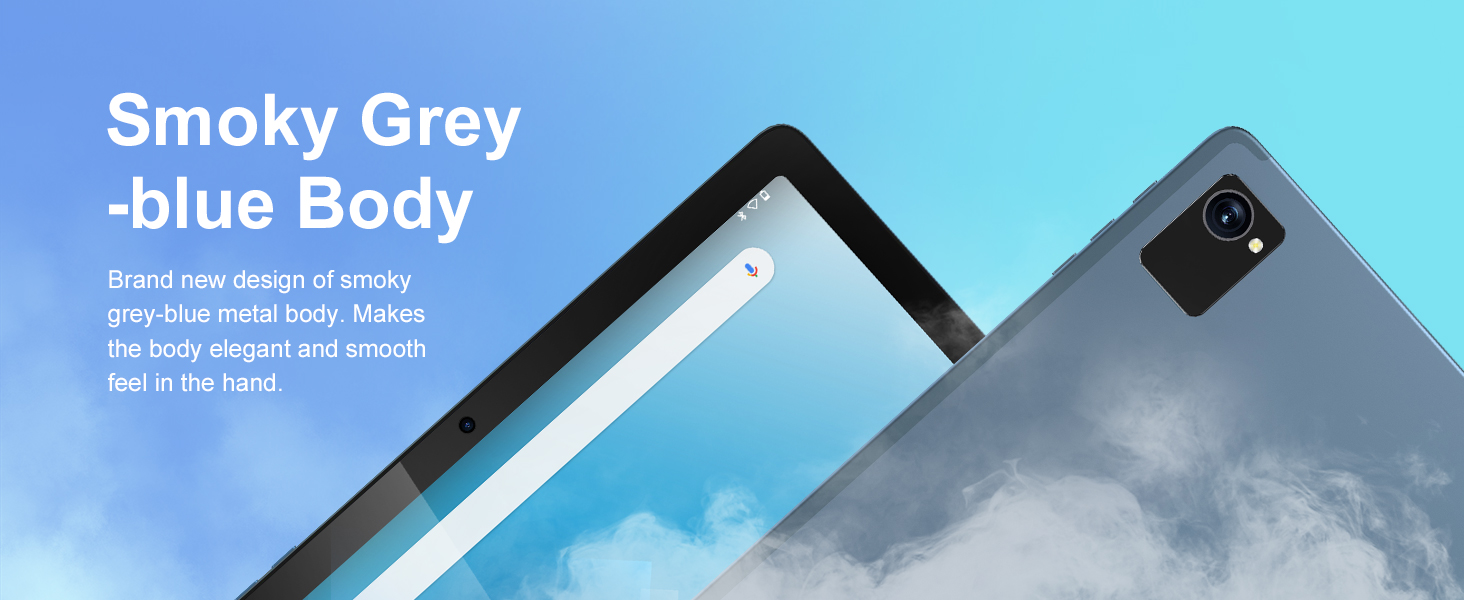
Figure 5.2: Customizable Interface
This image highlights the ability to customize widgets and change app icons, allowing users to personalize their tablet experience.
5.7 Eye Protection Mode
To reduce eye strain, especially during prolonged use, activate the eye protection mode. This feature reduces the amount of blue light emitted by the screen. You can usually find this option in the Quick Settings panel or under Nustatymai > Ekranas.
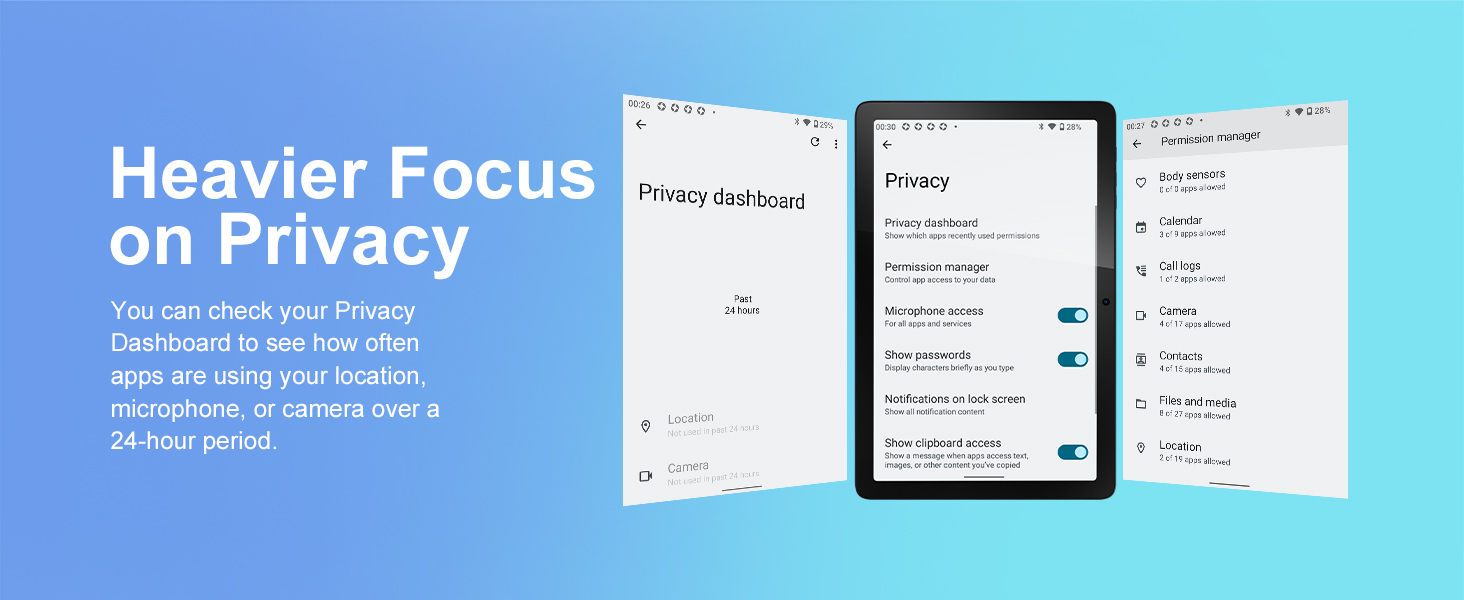
Figure 5.3: Eye Protection Feature
This image demonstrates the tablet's eye protection mode, which reduces blue light to prevent discomfort during extended viewing.
5.8 Belaidė projekcija
The tablet supports wireless projection, allowing you to cast your screen to compatible larger display devices such as smart TVs or projectors. This is ideal for presentations or sharing media with others.
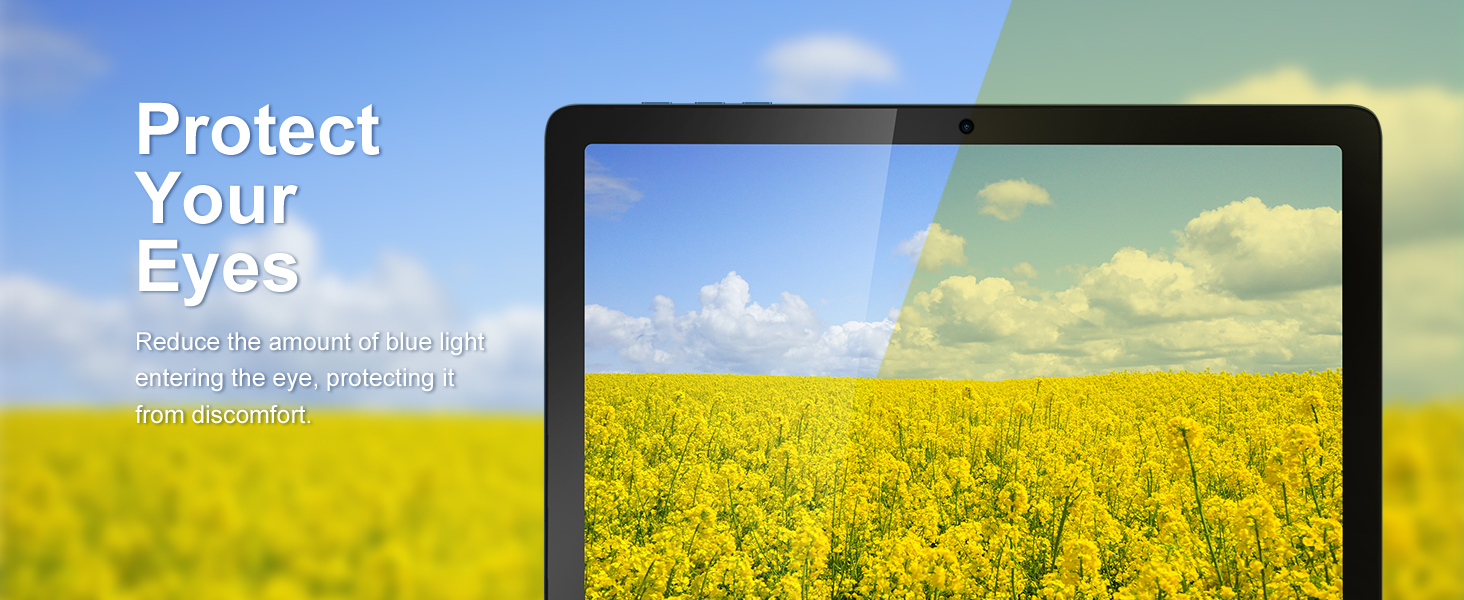
Figure 5.4: Wireless Projection in Use
This image depicts the tablet's wireless projection capability, enabling users to connect to larger screens for shared viewišgyvenimų.
5.9 GPS funkcionalumas
The tablet includes GPS for navigation and location-based services. Ensure location services are enabled in Nustatymai> Vieta for optimal performance with mapping applications.

5.5 pav.: GPS navigacija
This image shows the tablet utilizing GPS for navigation, displaying a map with a highlighted route.
5.10 Media Consumption and Gaming
The 10.1-inch IPS HD display (1280x800 pixels) and Octa-Core processor provide a smooth experience for watching videos and playing games. The tablet supports Widevine L1 for high-definition streaming content. The Mali-G52 MC2 GPU enhances gaming performance.

Figure 5.6: Enhanced Gaming Experience
This image highlights the tablet's improved gaming performance, featuring gyroscope motion control and a Mali-G72 GPU for a responsive gaming experience.
6. Priežiūra
6.1 Prietaiso valymas
Planšetinio kompiuterio ekraną ir korpusą valykite minkštu, nepūkuotu audiniu. Venkite naudoti stiprias chemines medžiagas ar abrazyvines medžiagas, kurios gali pažeisti paviršius.
6.2 Akumuliatoriaus priežiūra
The tablet is equipped with a 7000mAh battery, providing approximately 8 hours of average use. To prolong battery life:
- Venkite ekstremalių temperatūrų.
- Neleiskite baterijai dažnai visiškai išsikrauti.
- Use the provided charger.
- Sureguliuokite ekrano ryškumą iki patogaus lygio.
6.3 Programinės įrangos naujiniai
Your tablet runs on Android 13. Periodically check for system updates in Nustatymai > Sistema > Sistemos naujinimas to ensure you have the latest features and security patches.
6.4 Saugojimo valdymas
The tablet comes with 64GB of internal storage (ROM) and 4GB of RAM. You can expand storage up to 1TB using a Micro SD card. Regularly manage your fileir pašalinkite nenaudojamas programas, kad išlaikytumėte optimalų našumą.
7. Problemų sprendimas
Čia pateikiami dažniausiai pasitaikančių problemų, su kuriomis galite susidurti, sprendimai:
- Įrenginys neįsijungia: Ensure the battery is charged. If not, connect the charger and wait a few minutes before attempting to power on again.
- Lėtas veikimas: Close unused applications, clear cache, or restart the tablet. Consider freeing up storage space.
- „Wi-Fi“ ryšio problemos: Check if Wi-Fi is enabled. Restart your router and the tablet. Ensure you are within range of the Wi-Fi signal.
- Programėlės stringa: Ensure apps are updated to their latest versions. Clear the app's cache or data in Nustatymai > ProgramosJei problema išlieka, pašalinkite programėlę ir įdiekite ją iš naujo.
- Ekranas nereaguoja: Atlikite priverstinį paleidimą iš naujo, palaikydami maitinimo mygtuką maždaug 10–15 sekundžių.
8. Specifikacijos
Detailed technical specifications for the Tibuta Android 13 Tablet (Model A20 8GB+64GB):
| Funkcija | Specifikacija |
|---|---|
| Prekės ženklas | Tibuta |
| Modelio pavadinimas | A20 |
| Modelio numeris | 8GB + 64GB |
| Operacinė sistema | Android 13 |
| Procesoriaus prekės ženklas | MediaTek Octa-Core |
| Procesoriaus greitis | 1.3 GHz |
| Ekrano dydis | 10.1 colių |
| Ekrano raiška | 1280 x 800 pikselių (IPS HD) |
| RAM | 4 GB |
| Sandėliavimo talpa | 64 GB (Expandable up to 1TB via Micro SD) |
| Grafikos mikroschemų rinkinio prekės ženklas | PowerVR |
| GPU | Mali-G52 MC2 |
| Ryšys | Bluetooth, Wi-Fi (802.11ac, 802.11b, 802.11g, 802.11n) |
| Belaidė technologija | 2.4GHz + 5GHz Wi-Fi, Bluetooth 4.2 |
| Jungties tipas | C tipo USB |
| Baterijos veikimo laikas (vidutinis) | 8 valandos |
| Prekės matmenys (I x P x A) | 24.8 x 16.7 x 1.2 centimetro |
| Prekės svoris | 538.8 gramų |
| Priekinė kamera | 5 MP |
| Galinė kamera | 8 MP |
9. Garantija ir palaikymas
9.1 Gamintojo garantija
The Tibuta Android 13 Tablet comes with a 1-year manufacturer's warranty. Please refer to the included Warranty Card for detailed terms and conditions.
9.2 Pagalba klientams
If you encounter any issues not covered in this manual or require further assistance, please contact Tibuta customer support. Contact information can typically be found on the manufacturer's websvetainėje arba garantijos kortelėje.


