1. Įvadas
The CENMATE 4-Bay Hard Drive Enclosure (Model 804PM6G) provides a reliable external storage solution for both 2.5-inch and 3.5-inch SATA HDDs and SSDs. This enclosure supports a maximum capacity of 80TB (20TB per drive bay) and offers high-speed data transfer via USB 3.0 and eSATA interfaces. Designed for ease of use, it features tool-less installation for 3.5-inch drives and wide compatibility with Windows, Mac OS, and Linux operating systems. Please note that this model does not support RAID configurations.

1.1 vaizdas: priekis view of the CENMATE 4-Bay Hard Drive Enclosure, showcasing the four drive bays with blue LED indicators.
2. Pakuotės turinys
Patikrinkite, ar jūsų siuntinyje yra visi toliau išvardyti daiktai:
- 1 x CENMATE 4-Bay Hard Drive Enclosure
- 1 x USB 3.0 Cable (USB-A to USB-B)
- 1 x USB-C Cable (USB-C to USB-B)
- 1 x eSATA kabelis
- 1 x Maitinimo adapteris (12 V nuolatinė srovė)
- 1 x Screws and Screw Driver (for 2.5-inch drives)
- 1 x Naudotojo vadovas (šis dokumentas)
3. Produkto ypatybės
- 4 skyrių dizainas: Supports up to four 2.5-inch or 3.5-inch SATA I/II/III HDDs/SSDs.
- Didelė talpa: Total storage capacity up to 80TB (20TB per drive bay).
- Didelės spartos ryšys: USB 3.0 (up to 5Gbps) and eSATA interfaces for fast data transfer.
- Greitojo keitimo palaikymas: Allows drives to be added or removed without powering down the enclosure.
- Platus suderinamumas: Compatible with Windows 7 and above, Mac OS 9.1 and above, and Linux.
- Efektyvus aušinimas: Built-in fan and aluminum-alloy housing for optimal heat dissipation.
- Stabilus maitinimo šaltinis: Includes a DC 12V power adapter for reliable operation.
- Tool-less Installation: Easy installation for 3.5-inch hard drives.

Image 3.1: Diagram illustrating the 80TB maximum capacity of the enclosure, supporting 2.5-inch and 3.5-inch SATA HDD/SSD.

Image 3.2: Visual representation of the enclosure's 5Gbps data transfer speed via USB 3.0, connected to a desktop setup.
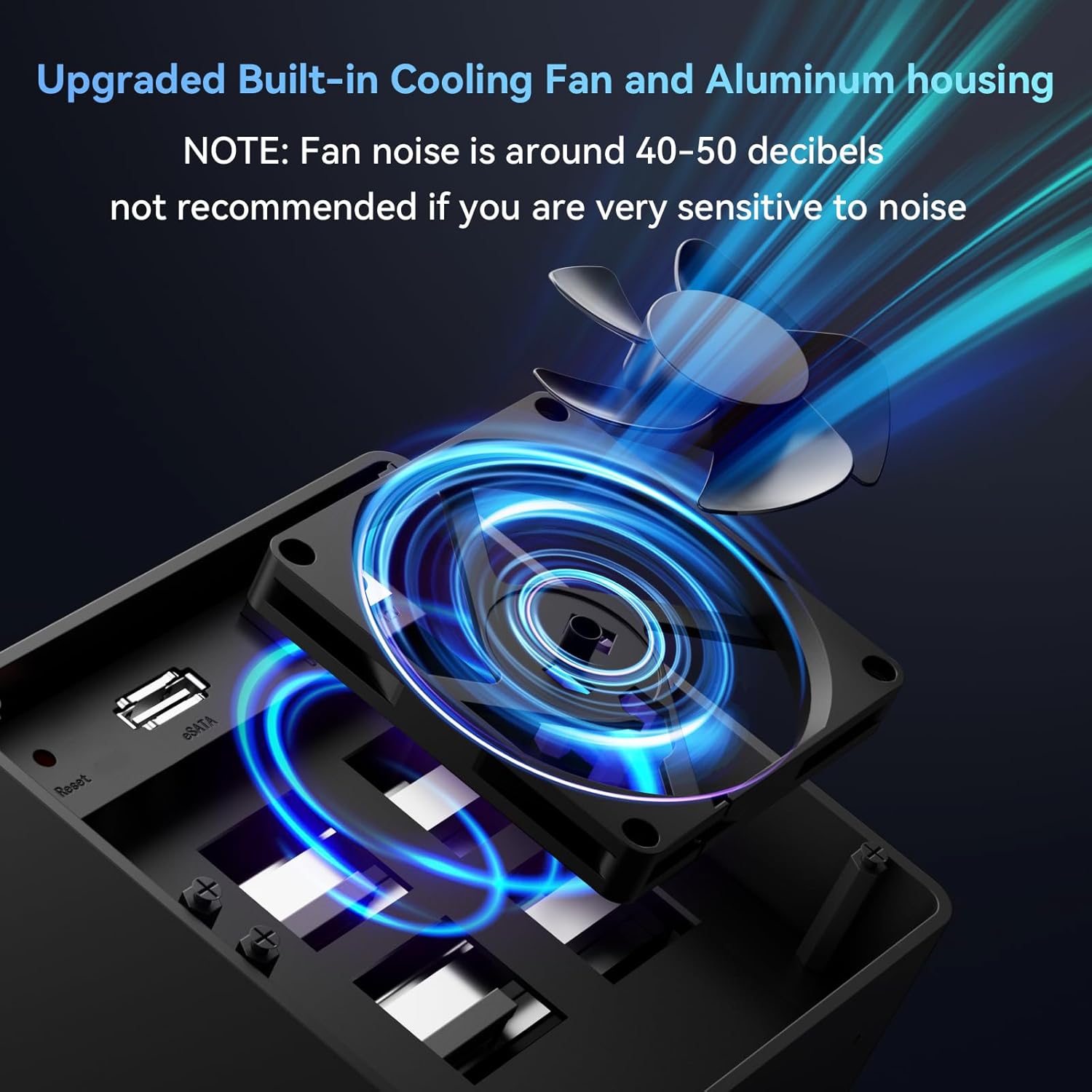
3.3 paveikslėlis: Stambus planas view of the enclosure's built-in cooling fan and aluminum housing, designed for heat dissipation. Note: Fan noise is approximately 40-50 decibels.
4. Specifikacijos
| Modelis | 804PM6G |
| Medžiaga | Aliuminis, Plastikas |
| Išorinė sąsaja | USB 3.0 (USB-A/C), eSATA |
| Maksimalus perdavimo greitis | 5 Gbps (USB 3.0) |
| Palaikomi įrenginiai | 2.5 colio / 3.5 colio SATA HDD / SSD |
| Maksimali talpa | 80 TB (20 TB vienam diskui) |
| OS palaikymas | Windows 7 and above, Mac OS 9.1 and above, Linux |
| Karštas keitimas | Palaikoma |
| Maitinimo šaltinis | DC 12V maitinimo adapteris |
| Gaminio matmenys | 20.2 x 13.2 x 14.6 cm |
| Prekės svoris | 1.37 kg |
5. Sąranka
5.1 Kietųjų diskų įdiegimas
- Paruoškite korpusą: Įsitikinkite, kad korpusas yra išjungtas ir atjungtas nuo kompiuterio.
- Open a Drive Bay: Gently press the release button or lever on the front of a drive bay to open it.
- Install 3.5-inch HDD: For 3.5-inch drives, slide the drive into the bay until it clicks into place. The enclosure supports tool-less installation for these drives.
- Install 2.5-inch HDD/SSD: For 2.5-inch drives, secure the drive to the provided drive tray using the included screws and screwdriver. Then, slide the tray with the drive into the bay until it clicks.
- Uždarykite įlanką: Close the drive bay door securely.
- Pakartokite: Repeat the process for any additional drives you wish to install.

Image 5.1: Illustration of the screwless installation feature for 3.5-inch drives and the non-slip feet on the enclosure's base.
5.2 Connecting the Enclosure to Your Computer
- Prijunkite duomenų kabelį:
- USB 3.0: Connect one end of the USB 3.0 cable (USB-A or USB-C) to the corresponding port on the enclosure and the other end to an available USB 3.0 port on your computer.
- eSATA: Alternatively, connect one end of the eSATA cable to the eSATA port on the enclosure and the other end to an available eSATA port on your computer.
- Prijunkite maitinimo adapterį: Connect the DC 12V power adapter to the power input port on the enclosure, then plug the adapter into a power outlet.

Image 5.2: The enclosure connected to a laptop, highlighting the DC 12V power supply connection for stable operation.
5.3 Įjungimas
Press the power button on the back of the enclosure. The LED indicators on the front panel will illuminate, indicating that the drives are powered on and ready for use. Your operating system should detect the new drives automatically.
If the drives are new or unformatted, you may need to initialize and format them through your operating system's disk management utility before they can be used.
6. Operacija
6.1 Karštojo keitimo diskai
The CENMATE 4-Bay Enclosure supports hot-swapping. This feature allows you to remove or insert drives while the enclosure is powered on and connected to your computer, without needing to shut down the system. Ensure that no data transfer is actively occurring to or from the drive you intend to remove to prevent data loss.
6.2 Duomenų perdavimas
Utilize the USB 3.0 or eSATA connection for optimal data transfer speeds. USB 3.0 offers speeds up to 5Gbps, significantly faster than USB 2.0. The actual transfer speed may vary depending on your computer's hardware, operating system, and the performance of the installed hard drives.
6.3 Suderinamumas
The enclosure is compatible with a wide range of operating systems and devices:
- Operacinės sistemos: „Windows 7“ ir naujesnės versijos, „Mac OS 9.1“ ir naujesnės versijos, „Linux“.
- Įrenginiai: Desktop computers, Laptops.

Image 6.1: Diagram illustrating the plug-and-play functionality and wide compatibility with laptops, PCs, and operating systems including Windows, Mac OS, and Linux.
7. Priežiūra
7.1 Valymas
To maintain optimal performance and longevity, regularly clean the exterior of the enclosure with a soft, dry cloth. Avoid using liquid cleaners or solvents, as they may damage the finish or internal components. Ensure the fan vents are free from dust accumulation to prevent overheating.
7.2 Ventiliatoriaus veikimas
The built-in fan helps dissipate heat from the hard drives. While the fan is designed for efficient cooling, it produces a noise level of approximately 40-50 decibels. If you are sensitive to noise, consider the placement of the enclosure. Ensure the fan is not obstructed to allow for proper airflow.
8. Problemų sprendimas
- Enclosure not detected by computer:
- Įsitikinkite, kad maitinimo adapteris yra tvirtai prijungtas ir korpusas įjungtas.
- Verify that the USB or eSATA data cable is firmly connected to both the enclosure and the computer.
- Pabandykite prijungti prie kito kompiuterio USB arba eSATA prievado.
- Test with a different data cable if available.
- Hard drives not appearing in "My Computer" or "Finder":
- For new drives, they may need to be initialized and formatted. Access Disk Management (Windows) or Disk Utility (Mac OS) to prepare the drives.
- Ensure drives are properly seated in their bays.
- Check the drive's health by connecting it directly to a computer if possible.
- Mažas duomenų perdavimo greitis:
- Ensure you are using a USB 3.0 port on your computer and the provided USB 3.0 cable.
- Verify that your computer's drivers for USB 3.0 or eSATA are up to date.
- The performance of the installed hard drives can affect transfer speeds.
- Korpuso perkaitimas:
- Įsitikinkite, kad talpykla yra gerai vėdinamoje vietoje.
- Check that the fan vents are not obstructed by dust or other objects.
9. Garantija ir palaikymas
CENMATE provides technical support for this product. If you encounter any issues or have questions regarding the CENMATE 4-Bay Hard Drive Enclosure, please do not hesitate to contact our customer support team. We aim to reply and resolve your problem within 24 hours.
For support, please refer to the contact information provided on the CENMATE official websvetainėje arba pirkimo dokumentuose.


