1. Įvadas
This manual provides detailed instructions for the Amazon Basics Pro Series Triple Mode Ergonomic Mouse. This device offers versatile connectivity options, high precision, and an ergonomic design for comfortable use. Please read this manual thoroughly before operating the mouse to ensure proper functionality and to maximize your user experience.
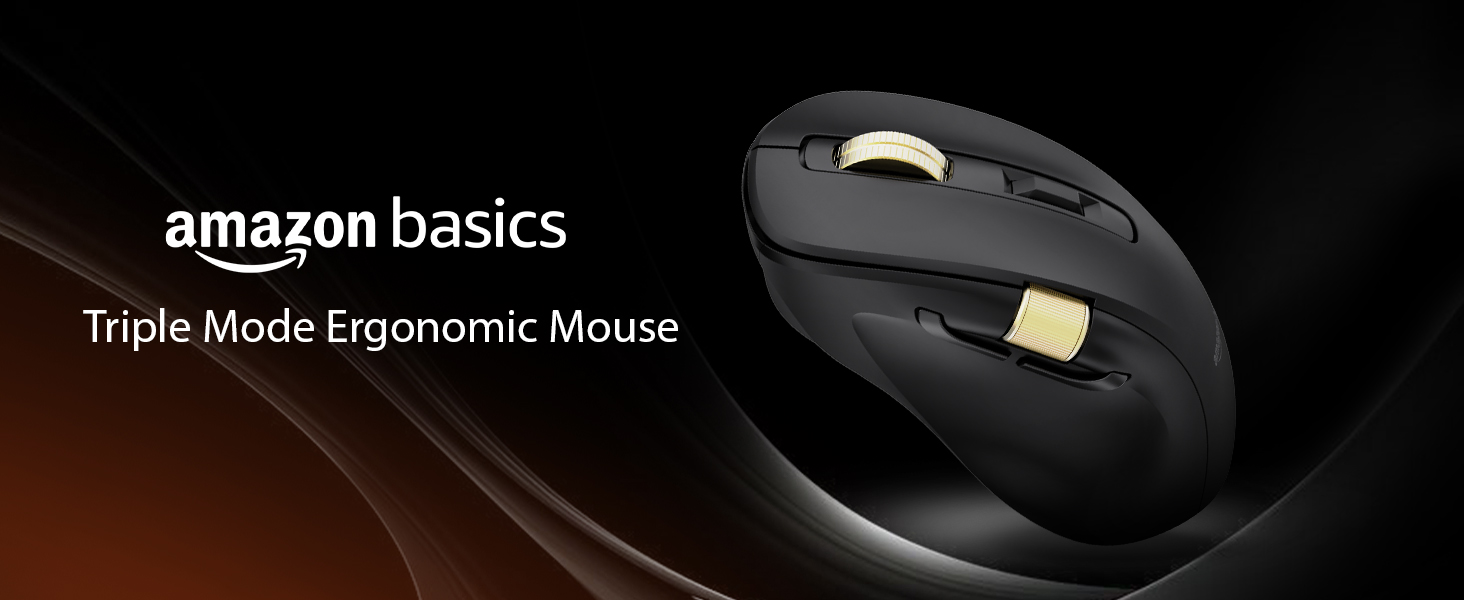
Image 1.1: The Amazon Basics Pro Series Triple Mode Ergonomic Mouse, showcasing savo elegantišku dizainu.
2. Pakuotės turinys
Patikrinkite, ar pakuotėje yra visi reikalingi daiktai:
- Amazon Basics Pro Series Triple Mode Ergonomic Mouse
- USB-C Charging Cable (1.8M)
- 2.4G USB imtuvas
- Vartotojo vadovas (šis dokumentas)
3. Produktas baigtasview
Familiarize yourself with the various components of your ergonomic mouse.

3.1 paveikslėlis: Iš viršaus į apačią view of the mouse, highlighting its ergonomic shape and controls.
Pagrindiniai komponentai:
- Kairysis paspaudimo mygtukas: Standartinė pelės funkcija.
- Dešinysis pelės mygtuko paspaudimas: Standartinė pelės funkcija.
- Scroll Wheel (Vertical): Vertikalaus slinkimo ir vidurinio pelės mygtuko paspaudimo funkcijai.
- DPI reguliavimo mygtukas: Perjungia DPI nustatymus.
- Pirmyn mygtukas: Naviguoja pirmyn web naršyklės arba file tyrinėtojai.
- Mygtukas atgal: Naviguoja atgal web naršyklės arba file tyrinėtojai.
- Šoninis slinkties ratukas: Dual-function for volume control and horizontal scrolling.
- Režimo jungiklis: Selects between 2.4G, Bluetooth (BT1/BT2), and USB wired modes.
- RGB Backlighting Switch: Toggles dynamic lighting modes or turns off for battery saving.
- USB-C įkrovimo prievadas: Skirta vidinei baterijai įkrauti.

Image 3.2: Illustration of the mouse's contoured shape and the dual-function side scroll wheel.
4. Sąranka
4.1. Pelės įkrovimas
Before first use, fully charge the mouse. A red light indicates low battery and charging in progress.
- Connect the provided USB-C charging cable to the mouse's USB-C port.
- Kitą laido galą prijunkite prie USB maitinimo šaltinio (pvz., kompiuterio USB prievado, USB sieninio adapterio).
- Užsidegs įkrovimo indikatorius. Kai prietaisas bus visiškai įkrautas, indikatorius gali pakeisti spalvą arba užgesti.
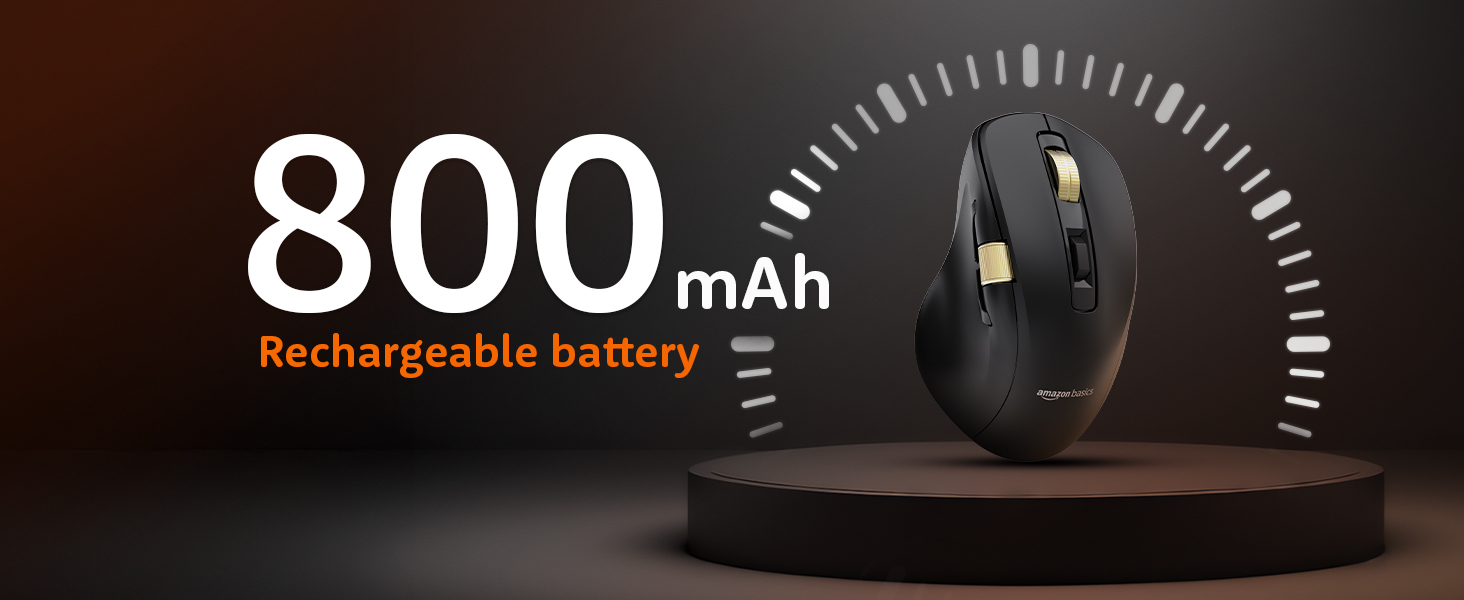
Image 4.1: The mouse features an 800mAh rechargeable battery, charged via USB-C.
4.2. Prisijungimas 2.4G belaidžiu režimu
This mode provides a stable and fast wireless connection using the included USB receiver.
- Locate the 2.4G USB receiver, typically stored in a compartment on the underside of the mouse.
- Prijunkite 2.4G USB imtuvą prie laisvo kompiuterio USB prievado.
- Set the mode switch on the underside of the mouse to the '2.4G' position.
- The mouse should automatically connect to your computer. An LED indicator will confirm the active mode.
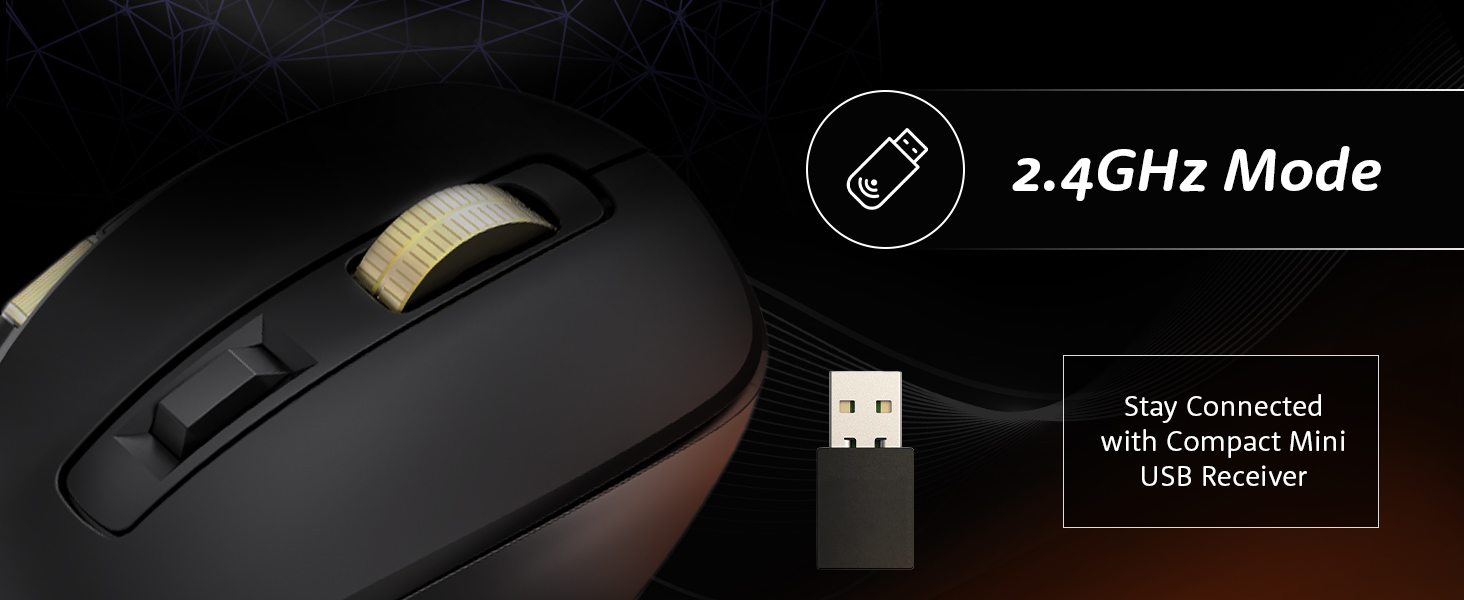
Image 4.2: Connecting the mouse using the 2.4GHz USB receiver.
4.3. Prisijungimas per „Bluetooth“ režimą
The mouse supports dual Bluetooth connections (BT1 and BT2).
- Set the mode switch on the underside of the mouse to either 'BT1' or 'BT2' position.
- The LED indicator for the selected Bluetooth channel will flash, indicating pairing mode.
- Kompiuteryje arba įrenginyje atidarykite „Bluetooth“ nustatymus ir ieškokite naujų įrenginių.
- Select "Amazon Basics Mouse" (or similar name) from the list of available devices to pair.
- Kai įrenginys bus susietas, LED indikatorius nustos mirksėti ir liks šviesti.
- To switch between BT1 and BT2, simply move the mode switch to the desired channel.
Image 4.3: Effortless pairing with Bluetooth-enabled devices.
4.4. Connecting via USB Wired Mode
For a direct and reliable connection, use the USB wired mode.
- Connect the provided USB-C charging cable to the mouse's USB-C port.
- Kitą laido galą prijunkite prie kompiuterio USB prievado.
- Set the mode switch on the underside of the mouse to the 'USB' or 'Wired' position.
- The mouse will function immediately as a wired device.
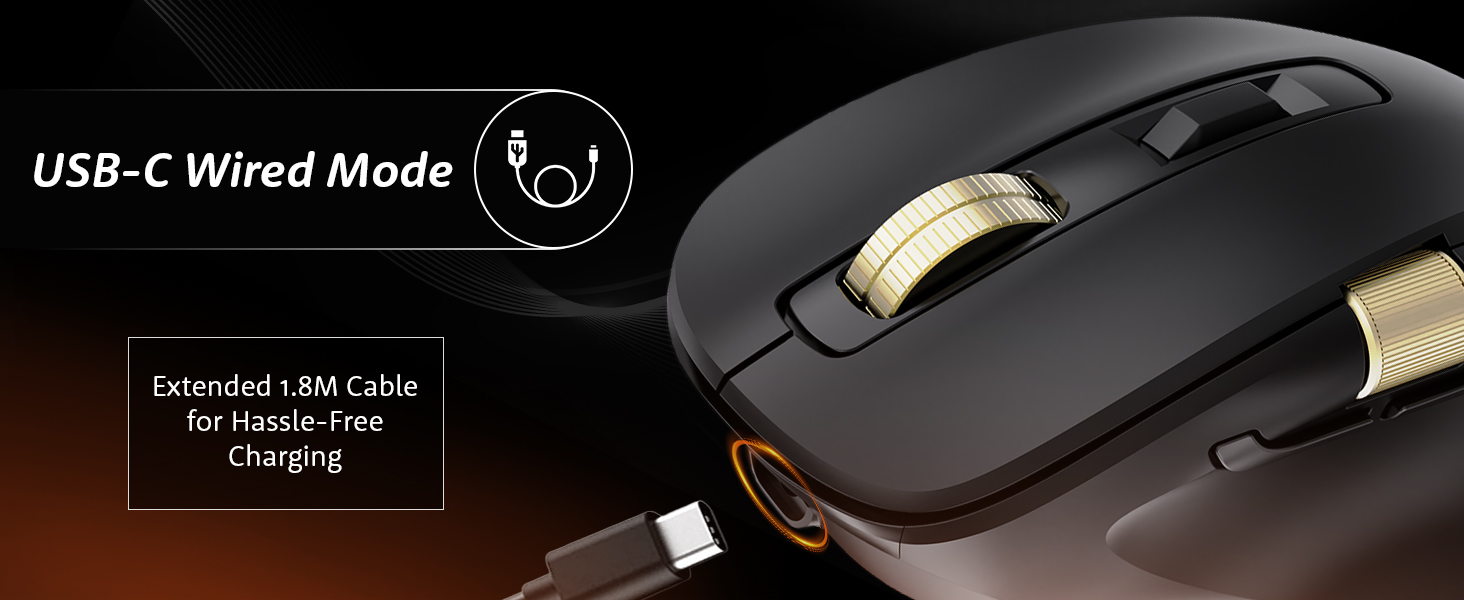
Image 4.4: The mouse connected via its USB-C cable for wired operation and charging.
5. Naudojimo instrukcijos
5.1. DPI reguliavimas
Adjust the mouse sensitivity (DPI) to suit your preference and task requirements.
- Paspauskite DPI reguliavimo mygtukas (located behind the vertical scroll wheel) to cycle through available DPI settings.
- The mouse supports DPI settings from 800 to 5000. With the companion application, DPI can be adjusted up to 8000.
- Polling rates are 1000Hz in wired/2.4G modes and 125Hz in Bluetooth mode.
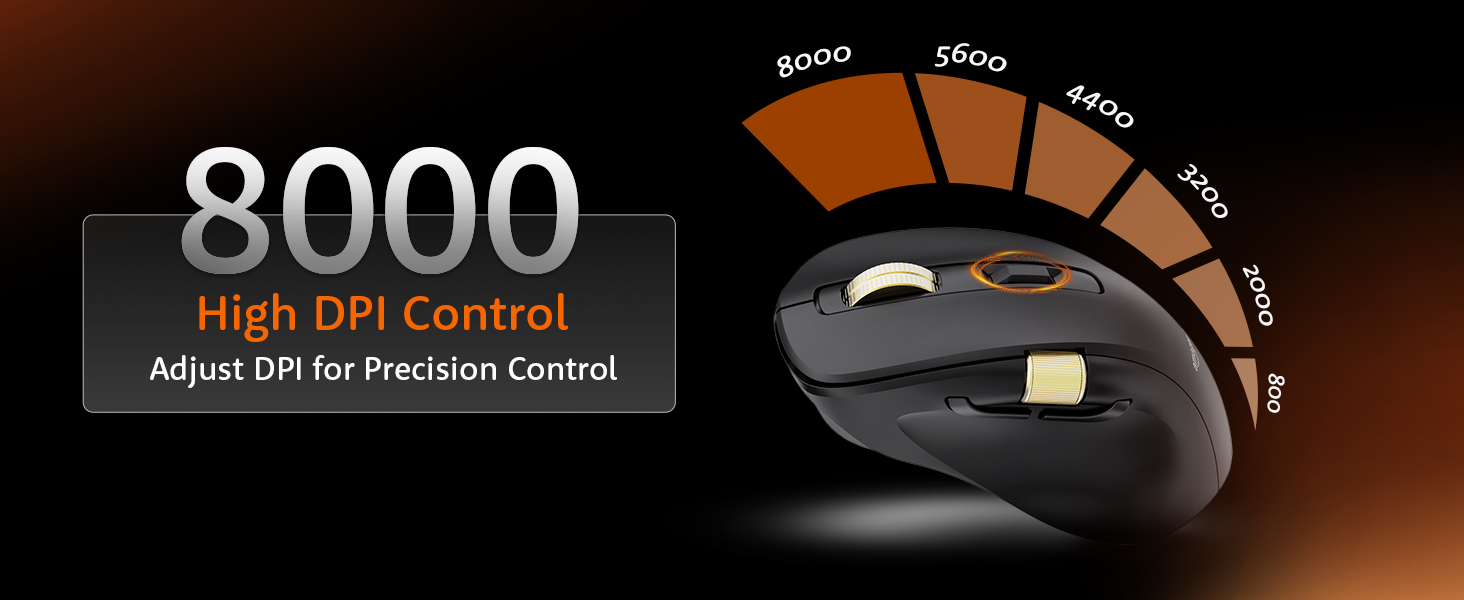
Image 5.1: Adjusting DPI for precision control, with settings up to 8000.
5.2. RGB foninio apšvietimo valdymas
Customize or disable the RGB backlighting.
- Naudokite RGB Backlighting Switch on the underside of the mouse to toggle dynamic lighting.
- You can choose between various lighting modes or turn off the lighting to conserve battery life.
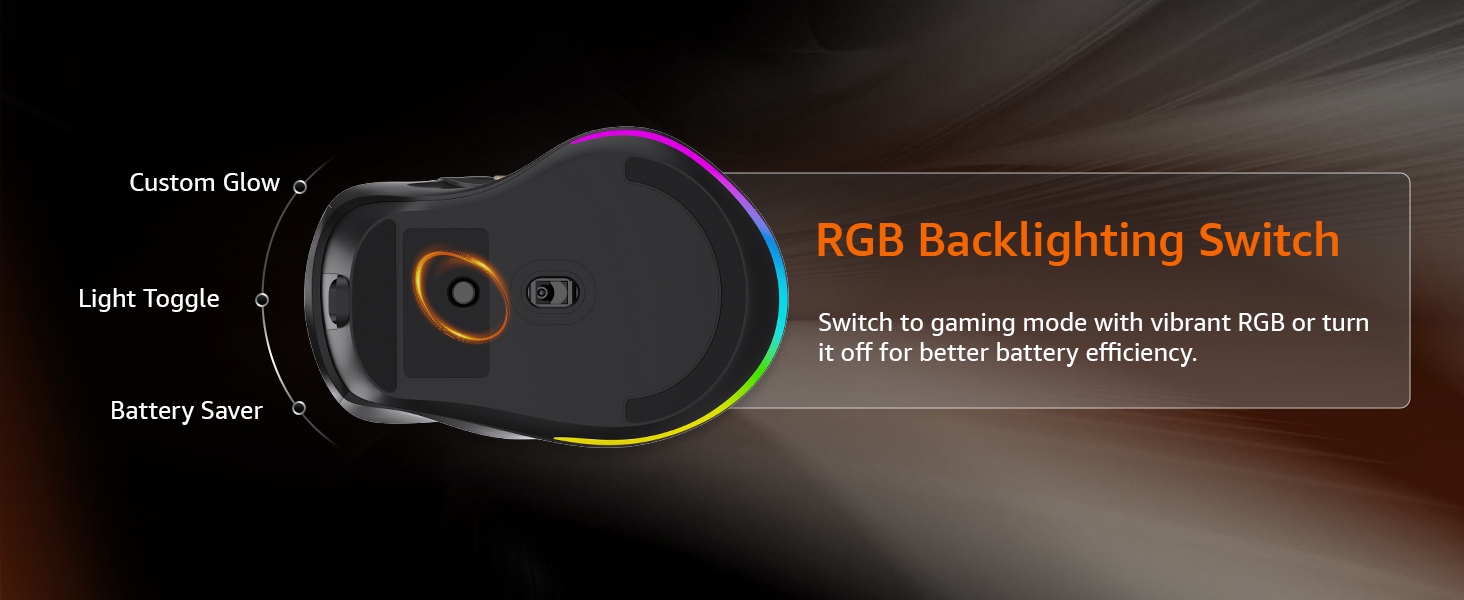
Image 5.2: The RGB backlighting switch allows optimization for performance or battery saving.
5.3. Side Scroll Wheel Functionality
The side scroll wheel offers dual functions for enhanced control.
- Garsumo valdymas: Scroll the wheel to adjust system volume.
- Horizontalus slinkimas: In applications like Excel, web browsers, or email clients, the side scroll wheel enables horizontal scrolling.
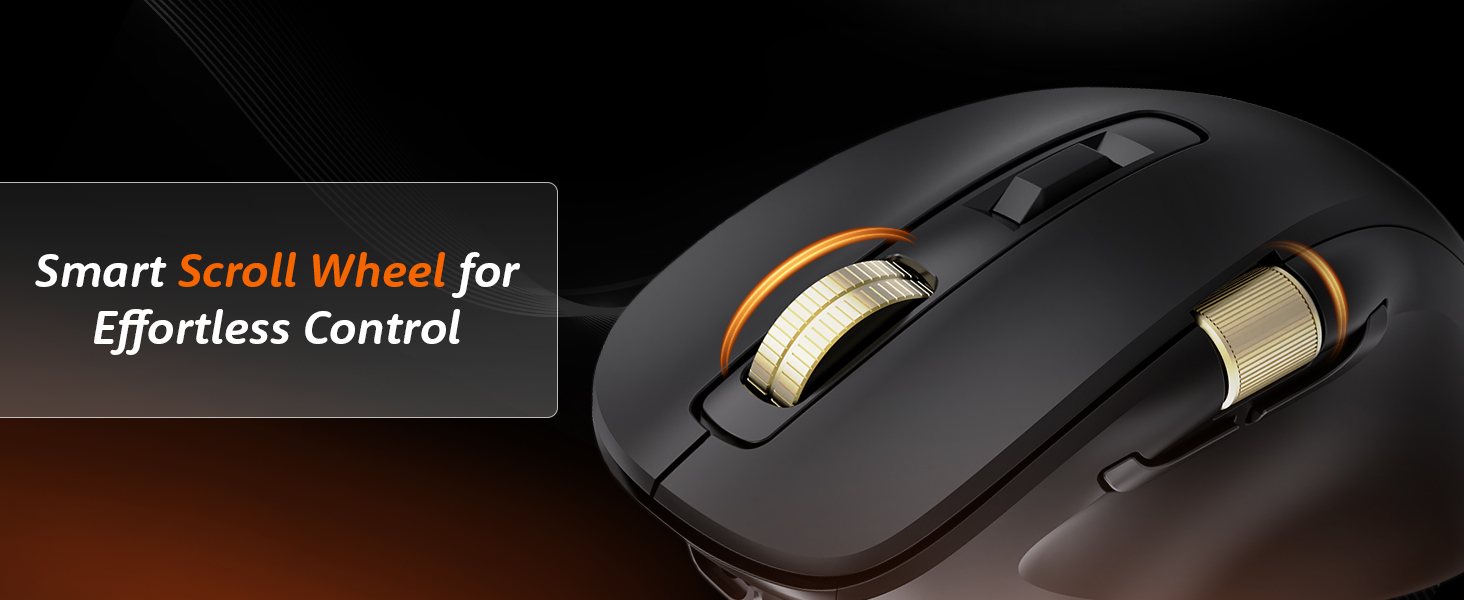
Image 5.3: The smart scroll wheel provides effortless control for various functions.
5.4. Programuojami klavišai
The mouse features 7 programmable keys, including the forward and backward buttons, which can be customized using the dedicated software (if available).
- The Pirmyn mygtukas ir Mygtukas Atgal (located on the side) provide quick navigation.
- Žiūrėkite gamintojo website for software downloads and instructions on customizing key functions.
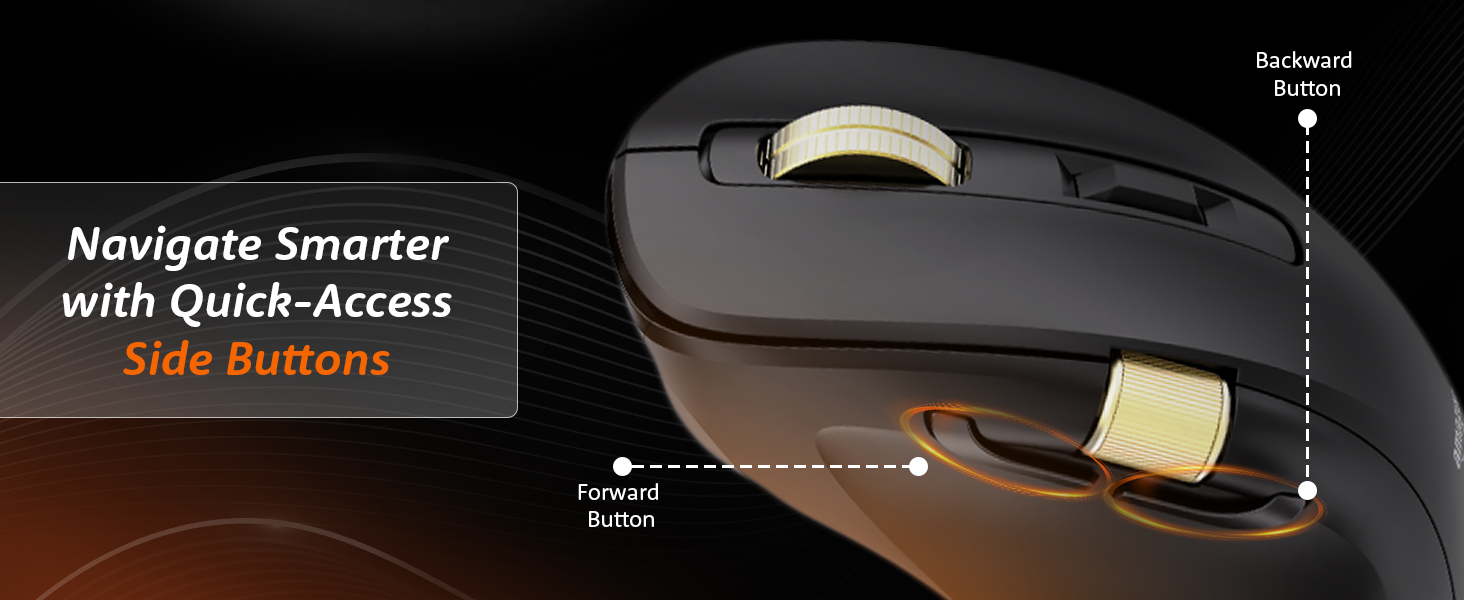
Image 5.4: Quick-access side buttons for smarter navigation.
6. Priežiūra
6.1. Valymas
Norint išlaikyti optimalų našumą ir išvaizdą:
- Disconnect the mouse from all power sources and devices before cleaning.
- Pelės paviršių nuvalykite minkštu, sausu, nepūkuotu skudurėliu.
- Esant sunkiai įsisenėjusiems nešvarumams, švelniai dampNuvalykite šluostę vandeniu arba švelniu valymo tirpalu. Venkite stiprių cheminių medžiagų ar abrazyvinių medžiagų.
- Neleiskite drėgmei patekti į jokias angas.
6.2. Akumuliatoriaus priežiūra
The mouse features a built-in rechargeable 800mAh lithium-ion battery.
- Kad pailgintumėte akumuliatoriaus tarnavimo laiką, venkite jo dažnai visiškai iškrauti.
- Recharge the mouse when the low battery indicator appears.
- Kai ilgesnį laiką nenaudojate pelės, laikykite ją vėsioje, sausoje vietoje.
7. Problemų sprendimas
Jei kyla problemų dėl pelės, žr. šias dažniausiai pasitaikančias problemas ir sprendimus:
| Problema | Galima priežastis | Sprendimas |
|---|---|---|
| Pelė nereaguoja | Low battery, incorrect mode, connection issue | Charge the mouse. Ensure the mode switch is set correctly (2.4G, BT1/BT2, or USB). Re-pair Bluetooth or re-insert 2.4G receiver. |
| Vėluojantis arba nutrūkstantis ryšys | Trikdžiai, atstumas, išsikrovusi baterija | Move closer to the receiver/device. Ensure no strong interference sources (e.g., Wi-Fi routers). Charge the mouse. Try a different USB port. |
| DPI reguliavimas neveikia | Button malfunction, software conflict | Ensure the mouse is powered on. Restart your computer. If using custom software, check its settings. |
| RGB apšvietimas neveikia | Lighting switch off, low battery | Toggle the RGB Backlighting Switch. Charge the mouse. |
| Side scroll wheel not functioning | Application specific, driver issue | Ensure the application supports horizontal scrolling or volume control via mouse. Restart the application or computer. Check for updated mouse drivers. |
8. Specifikacijos
Technical details for the Amazon Basics Pro Series Triple Mode Ergonomic Mouse:
| Funkcija | Detalė |
|---|---|
| Prekės ženklas | „Amazon“ pagrindai |
| Modelis | Pro Series Triple Mode Ergonomic Mouse (DPI 8000) |
| Ryšys | 2.4G Wireless, Bluetooth (BT1/BT2), USB Wired |
| DPI diapazonas | 800 - 5000 (up to 8000 with app) |
| Apklausos rodiklis | 1000 Hz (laidinis / 2.4 G), 125 Hz („Bluetooth“) |
| Programuojami klavišai | 7 |
| Baterijos tipas | Integruotas 800 mAh ličio jonų akumuliatorius |
| Įkrovimo prievadas | USB-C |
| Vidutinis baterijos veikimo laikas | 35 valandų |
| Spalva | Juoda |
| Matmenys (IxPxH) | 11.7 x 7.5 x 0.1 cm |
| Prekės svoris | 107 g |
| Ypatingos savybės | Ergonomic Design, Portable, Rechargeable, Wireless, RGB Backlit, Side Scroll Wheel |
9. Garantija ir palaikymas
Informacijos apie garantiją ir klientų aptarnavimą ieškokite prie pirkinio pridėtoje dokumentacijoje arba apsilankykite oficialioje „Amazon Basics“ svetainėje. websvetainėje. Išsaugokite pirkimo įrodymą garantiniams reikalavimams.
Gamintojas: YAS Co Ltd.
Importuotojas / Pakuotojas: Your Accessories Store, B-36, 3rd Floor, Mayapuri Industrial Area, Phase 1, New Delhi - 110064, India
Dėl papildomos pagalbos kreipkitės į „Amazon“ klientų aptarnavimo tarnybą.


