1. Įvadas
This manual provides essential information for the safe and effective operation of your GROVIEW Native 1080P Bluetooth Projector. Please read it thoroughly before use and retain it for future reference. This projector is designed to deliver a high-quality visual experience for home theater, gaming, and presentations.
2. Saugos informacija
- Maitinimas: Naudokite tik nurodytą maitinimo adapterį. Įsitikinkite, kad įtampatage atitinka jūsų vietinį maitinimo šaltinį.
- Vėdinimas: Neužblokuokite ventiliacijos angų. Užtikrinkite pakankamą oro cirkuliaciją aplink projektorių, kad jis neperkaistų.
- Šiluma: Projektorius lamp generates heat. Avoid touching the lens or vents during operation.
- Drėgmė: Neleiskite projektoriui iškristi lietui, drėgmei ir nemerkite jo į vandenį.
- Valymas: Prieš valydami atjunkite maitinimą. Naudokite minkštą, sausą šluostę. Nenaudokite skystų ar aerozolinių valiklių.
- Vieta: Projektorių pastatykite ant stabilaus, lygaus paviršiaus. Venkite jo tiesioginiuose saulės spinduliuose arba šalia šilumos šaltinių.
- Akių apsauga: Nežiūrėkite tiesiai į projektoriaus objektyvą, kai lamp įjungtas, nes ryški šviesa gali sukelti akių nuovargį arba pažeidimus.
3. Pakuotės turinys
Patikrinkite, ar pakuotėje yra visi reikalingi daiktai:
- GROVIEW Mini projektorius
- Vartotojo vadovas
- Nuotolinio valdymo pultas
- HDMI kabelis
- Valymo rinkinys
4. Produktas baigtasview
4.1 Projektoriaus komponentai
Familiarize yourself with the main parts of your projector.

4.2 Įvesties / išvesties prievadai
The projector features various ports for connecting external devices.

- HDMI prievadas: Connects to devices such as laptops, gaming consoles (PS5, Xbox), TV sticks, and Blu-ray players.
- USB prievadai (USB1, USB2): Skirta USB atmintinėms prijungti medijos atkūrimui files.
- Garso išvestis (3.5 mm): Prijungiama prie išorinių garsiakalbių arba ausinių.
- Maitinimo įvestis: Prijungia maitinimo adapterį.
5. Sąranka
5.1 Pradinis išdėstymas
Place the projector on a stable surface. Ensure the projector lens is facing the projection surface (wall or screen). For optimal image quality, position the projector perpendicular to the screen.
5.2 Maitinimo jungtis
- Prijunkite maitinimo adapterį prie projektoriaus maitinimo įvesties prievado.
- Įjunkite maitinimo adapterį į maitinimo lizdą.
- Užsidegs projektoriaus maitinimo indikatoriaus lemputė.
6. Naudojimo instrukcijos
6.1 Maitinimo įjungimas/išjungimas
- Maitinimas: Paspauskite projektoriaus arba nuotolinio valdymo pulto maitinimo mygtuką. Projektorius įsijungs iramp įsijungs.
- Išjungti: Press the power button again. Confirm shutdown if prompted. Allow the fan to run briefly to cool down the lamp before completely disconnecting power.
6.2 Meniu naršymas
Use the arrow buttons on the projector or remote control to navigate through the on-screen menu. The 'OK' or 'Enter' button confirms selections, and the 'Back' or 'Exit' button returns to the previous menu.
7. Ryšys
7.1 HDMI jungtis
Connect your HDMI-enabled device (e.g., laptop, game console, streaming stick) to the projector's HDMI port using the provided HDMI cable. Select the corresponding HDMI input source from the projector's input menu.
7.2 USB medijos atkūrimas
Insert a USB flash drive into one of the projector's USB ports. Navigate to the media player function in the projector's menu to browse and play supported video, audio, or image files.
7.3 Bluetooth Connection (Audio)
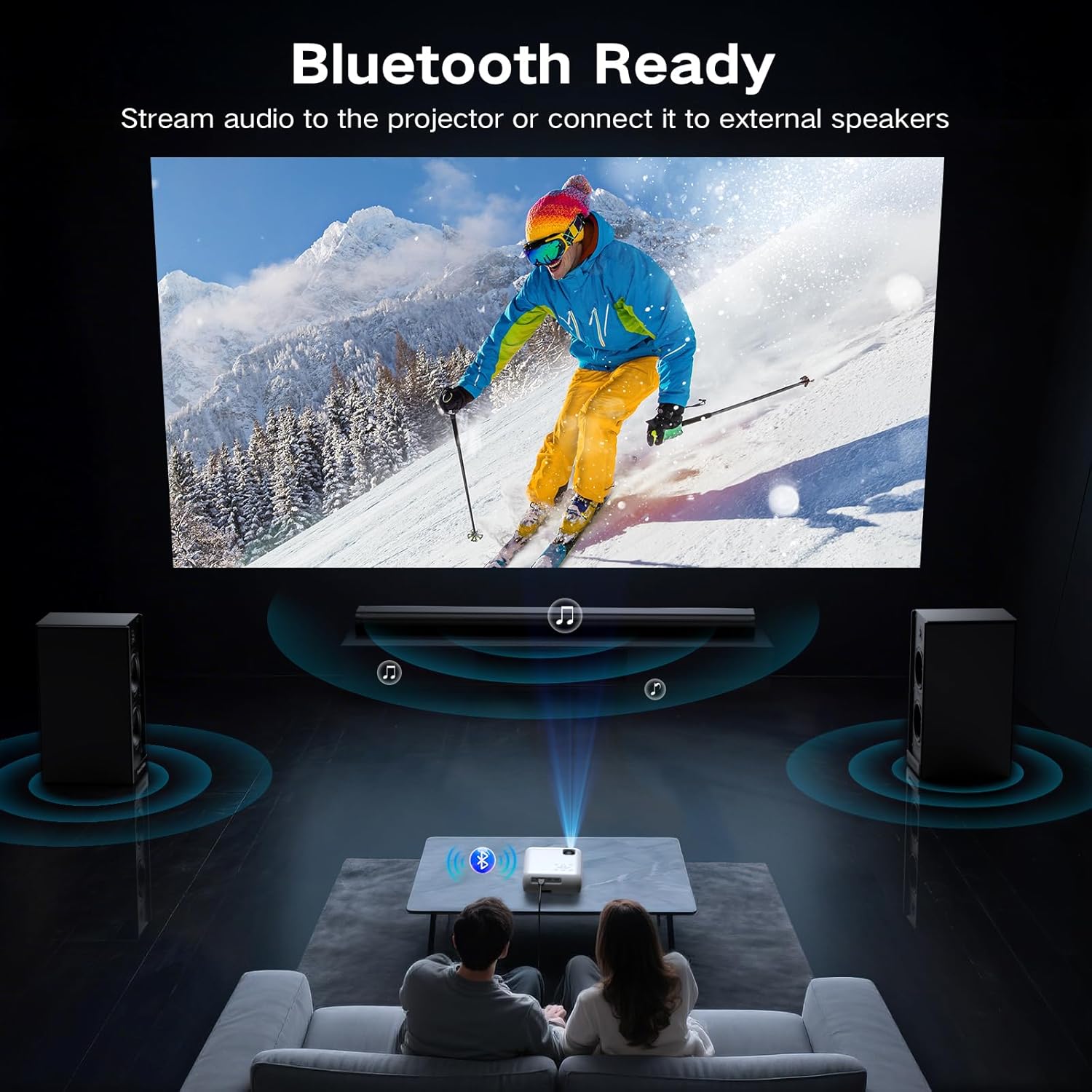
The projector supports Bluetooth 5.0 for connecting to external Bluetooth speakers or headphones. This allows for enhanced audio output.

- Įjunkite „Bluetooth“ savo išoriniame garso įrenginyje ir nustatykite jį į susiejimo režimą.
- Projektoriuje eikite į „Bluetooth“ nustatymų meniu.
- Iš galimų įrenginių sąrašo pasirinkite savo garso įrenginį, kurį norite susieti.
7.4 Smartphone Connection
To connect a smartphone, an additional adapter (not included) is required:
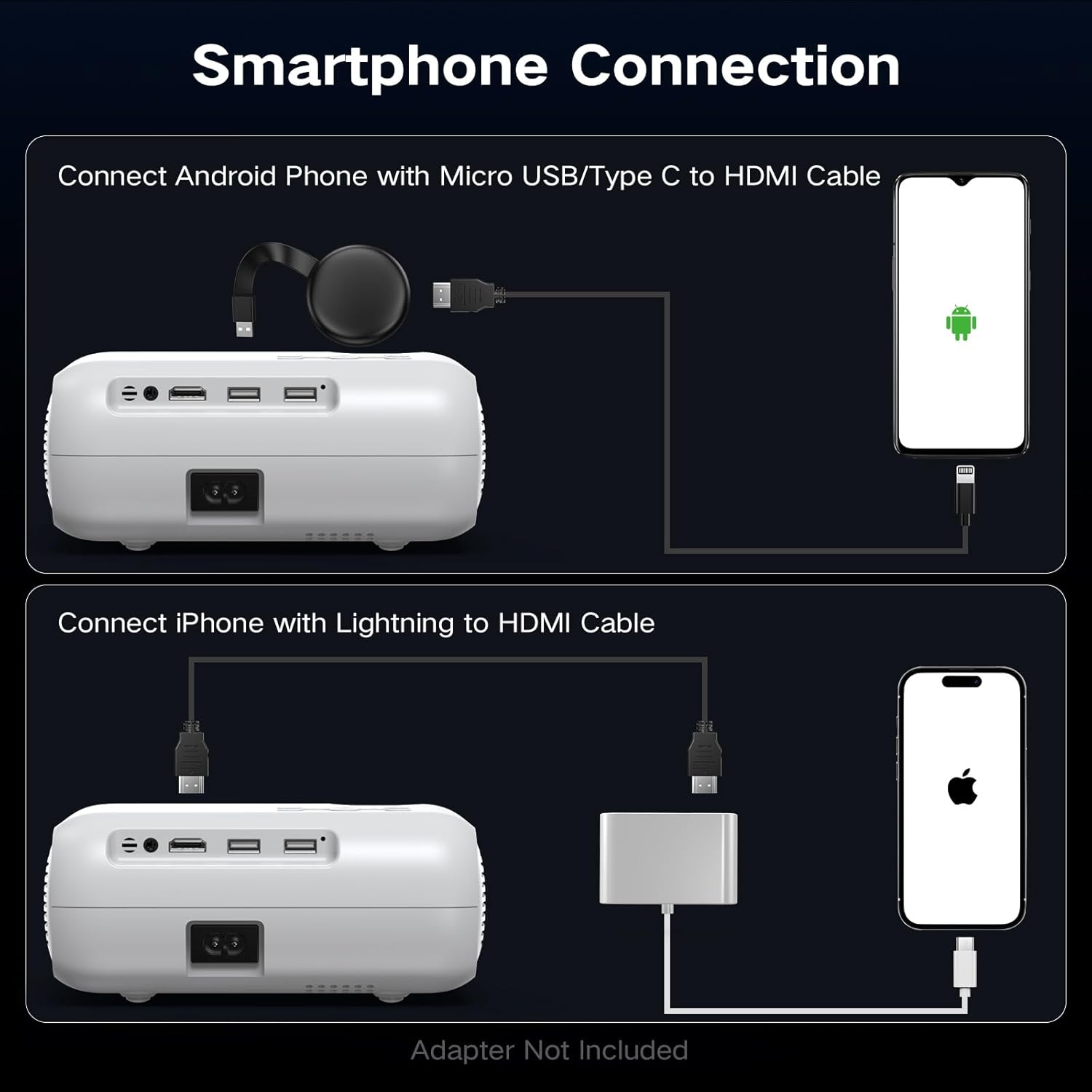
- „Android“ telefonams: Use a Micro USB/Type C to HDMI cable.
- iPhone telefonams: Use a Lightning to HDMI cable.
Connect the adapter to your phone and then to the projector's HDMI port. Select the HDMI input source.
8. Vaizdo koregavimas
8.1 Fokuso reguliavimas
Rotate the focus ring on the projector lens until the projected image appears sharp and clear. This is a manual adjustment.
8.2 Digital Vertical Keystone Correction
The projector features digital vertical keystone correction to adjust image distortion when the projector is not perfectly perpendicular to the screen. This helps achieve a rectangular image.
Access the keystone settings in the projector's menu and use the arrow buttons to adjust the vertical angle until the image is properly aligned.
8.3 Mastelio keitimo funkcija
The projector includes a digital zoom function, allowing you to reduce the size of the projected image without moving the projector. Access this feature in the display settings menu.
9. Garso nustatymai
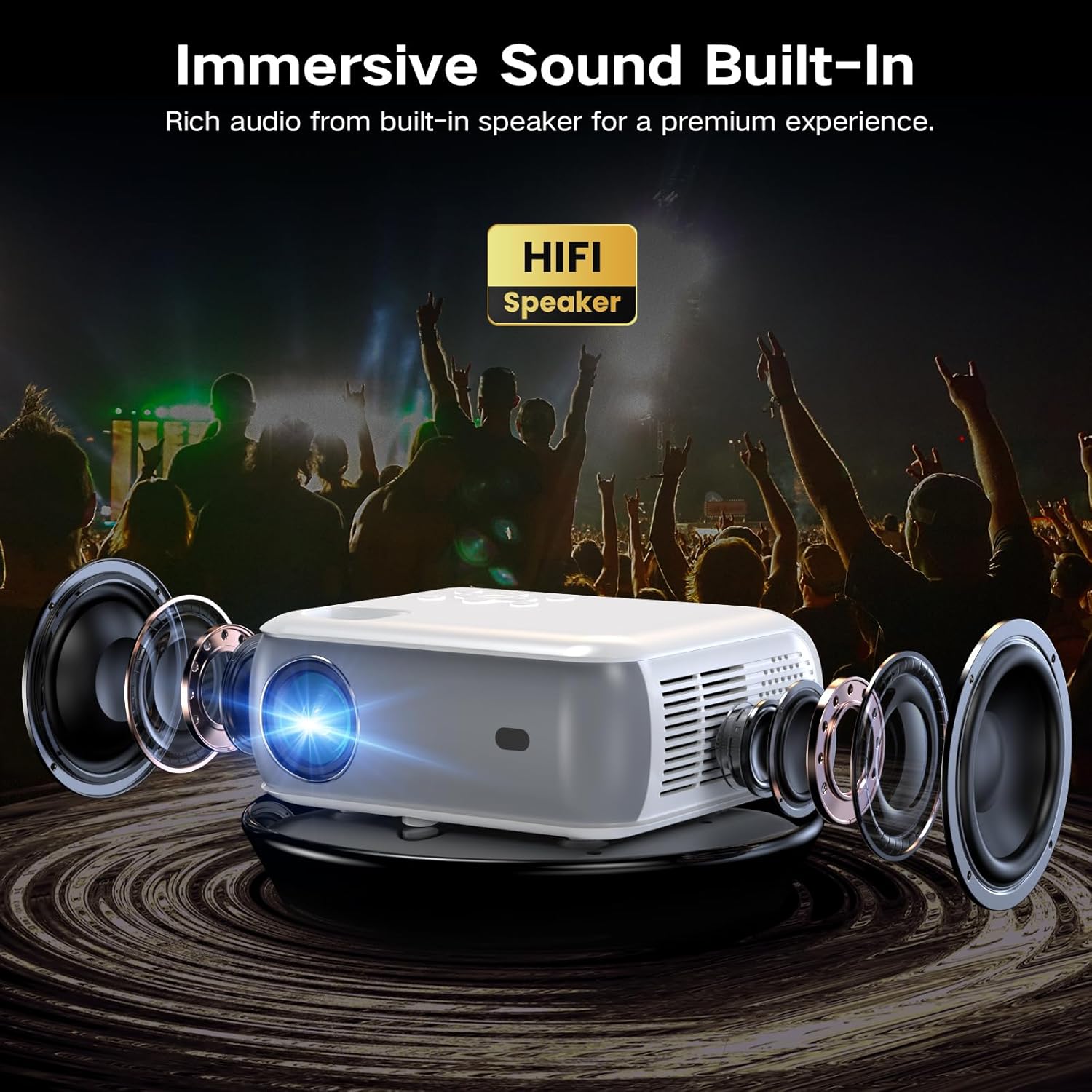
The projector has built-in HiFi stereo speakers for direct audio output. You can adjust the volume using the remote control or the projector's control panel. For a more immersive experience, connect external speakers via the 3.5mm audio out port or Bluetooth (see Section 7.3).
10. Priežiūra
10.1 Objektyvo valymas
Use a soft, lint-free cloth specifically designed for optical lenses. Gently wipe the lens in a circular motion. Avoid using abrasive materials or harsh chemicals.
10.2 Projektoriaus korpuso valymas
Projektoriaus išorę nuvalykite minkšta, sausa šluoste. Įsisenėjusioms dėmėms šiek tiek nuvalykite.amp galima naudoti sausą šluostę, o po to – sausą. Įsitikinkite, kad į ventiliacijos angas nepatenka skysčio.
10.3 Air Filter Cleaning (if applicable)
Refer to the specific model's design for air filter maintenance. If an accessible air filter is present, clean it regularly to ensure proper ventilation and prevent dust buildup.
10.4 Saugykla
Kai projektorius ilgesnį laiką nenaudojamas, jį laikykite vėsioje, sausoje ir be dulkių aplinkoje. Kad išvengtumėte pažeidimų, naudokite originalią pakuotę arba apsauginį dėklą.
11. Problemų sprendimas
| Problema | Galima priežastis | Sprendimas |
|---|---|---|
| Neprojektuojamas vaizdas | Power not connected; Incorrect input source; Device not connected properly | Check power cable; Select correct HDMI/USB input; Ensure source device is on and connected. |
| Vaizdas neryškus | Focus not adjusted; Projector too far/close; Lens dirty | Adjust the focus ring; Reposition projector; Clean the lens. |
| Vaizdas iškraipytas (trapecijos formos) | Projector not perpendicular to screen; Keystone not adjusted | Adjust Digital Vertical Keystone Correction in settings. Try to position the projector as straight as possible. |
| Nėra garso | Volume too low; Muted; Incorrect audio output selected; Bluetooth not paired | Increase volume; Unmute; Check audio settings; Re-pair Bluetooth device. |
| Ventiliatoriaus triukšmas yra garsus | Normal operation; Blocked vents | Ensure proper ventilation; Fan noise is typical for projectors. |
| Nuotolinio valdymo pultas neveikia | Batteries low/dead; Obstruction between remote and projector | Replace batteries; Ensure clear line of sight to the IR receiver. |
12. Specifikacijos
| Funkcija | Specifikacija |
|---|---|
| Prekės ženklas | Groview |
| Modelis | Native 1080P Bluetooth projektorius |
| Ekrano raiška | 1920 x 1080 (natūrali 1080P) |
| Ryškumas | 400 ANSI liumenai |
| Ryšio technologija | HDMI, USB, Bluetooth 5.0 |
| Ypatingos savybės | Digital Keystone Correction, Two-way Bluetooth, Zoom |
| Rekomenduojami naudojimo būdai | Home Cinema, Gaming, Business, Education |
| Gaminio matmenys | 7.13 x 6.33 x 3.15 colio |
| Prekės svoris | 1.9 svaro |
| Integruotas garsiakalbis | Yes (HiFi Stereo) |
| Maksimalus ekrano dydis | Iki 200 colių |
13. Garantija ir palaikymas
The GROVIEW Native 1080P Bluetooth Projector comes with a 2-year customer service and replacement policy. For any technical assistance, warranty claims, or support inquiries, please contact GROVIEW customer service through the retailer where the product was purchased or visit the official GROVIEW websvetainė kontaktinei informacijai.
Prašome išsaugoti pirkimo įrodymą garantijos galiojimui.


