1. Saugos informacija
Please read all instructions carefully before using the printer. Keep this manual for future reference.
- Saugokite spausdintuvą nuo vandens ar drėgmės.
- Venkite spausdintuvo laikymo tiesioginiuose saulės spinduliuose arba šalia šilumos šaltinių.
- Naudokite tik pateiktą maitinimo adapterį.
- Do not attempt to disassemble or repair the printer yourself. Contact customer support if service is required.
- Užtikrinkite tinkamą vėdinimą aplink spausdintuvą darbo metu.
2. Produktas baigtasview
The Bewinner Portable 58mm Thermal Receipt Printer is designed for efficient and reliable receipt printing in various environments such as restaurants, takeaways, supermarkets, and convenience stores. It features dual USB and Bluetooth connectivity and operates inklessly.
2.1 Pakuotės turinys
Patikrinkite, ar pakuotėje yra visi reikalingi daiktai:
- 1 x Receipt Printer
- 1 x Power Supply Cord (US Plug)
- 1 x Printing Paper Roll
- 1x USB laidas
- 1 x Vartotojo vadovas

2.1 pav. Pakuotės turinys
2.2 Spausdintuvo komponentai
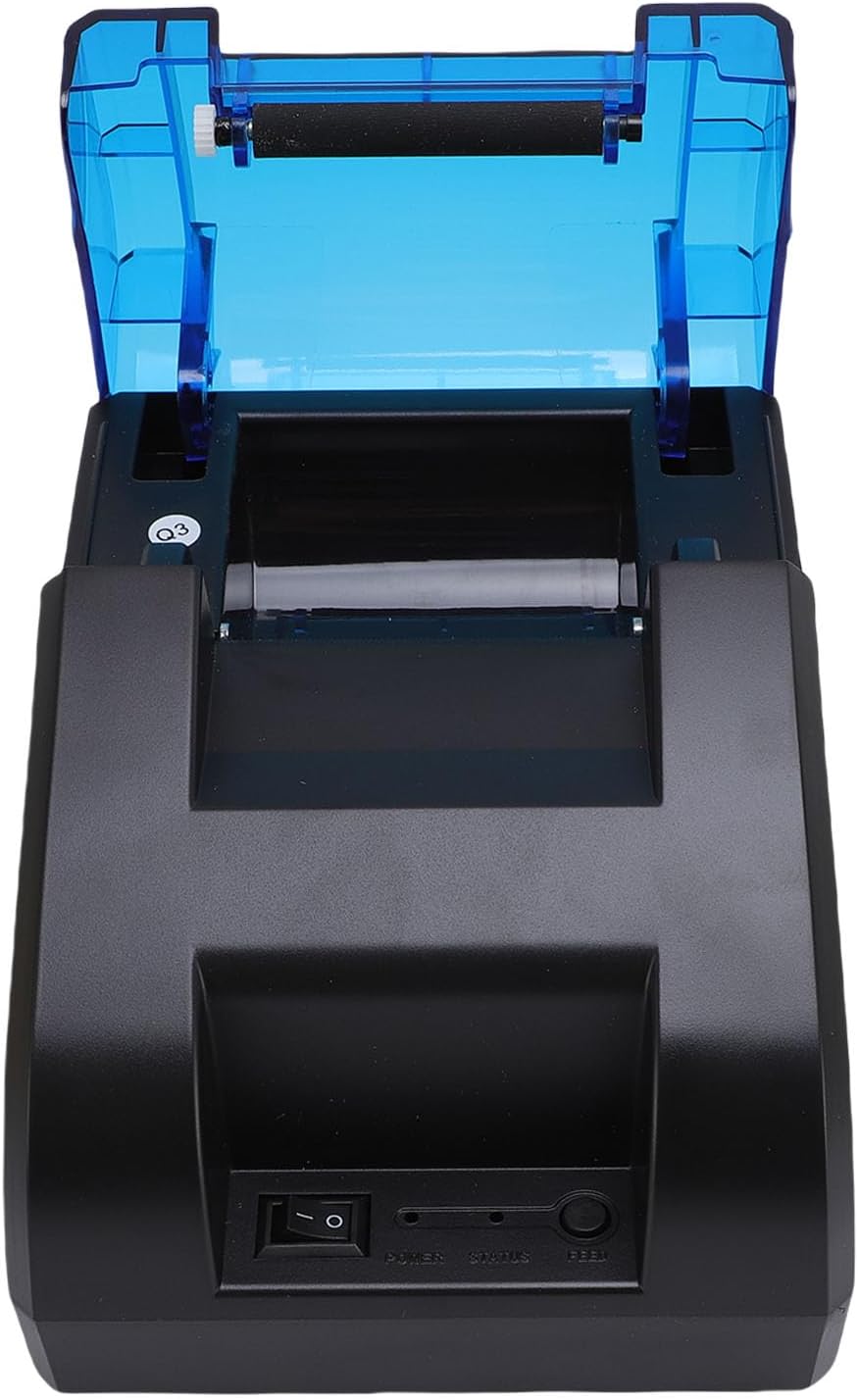
Familiarize yourself with the main parts of the printer:
2.2 paveikslas: viršuje View (Power Switch, Status Indicator, Feed Button)
2.3 pav.: galinis View (USB Port, Power Port)
3. Sąranka
3.1 Popieriaus ritinio montavimas
- Open the top cover of the printer by pressing the release button or lifting the cover firmly.
- Įdėkite terminio popieriaus ritinėlį į skyrių, užtikrindami, kad popierius būtų tiekiamas iš apačios, o priekinis kraštas būtų tiesus.
- Ištraukite nedidelį kiekį popieriaus už pjovimo krašto.
- Tvirtai uždarykite viršutinį dangtelį, kol jis spragtelėdamas užsifiksuos vietoje.

Figure 3.1: Paper Roll Compartment
3.2 Maitinimo jungtis
- Connect the power supply cord to the power port on the rear of the printer.
- Plug the other end of the power supply cord into a standard electrical outlet.
- Flip the power switch (located on the front of the printer) to the 'ON' position. The power indicator light should illuminate.
4. Ryšys
The printer supports both USB and Bluetooth connections for versatile use with various devices.
4.1 USB jungtis
- Įsitikinkite, kad spausdintuvas įjungtas.
- Connect one end of the provided USB cable to the USB port on the rear of the printer.
- Connect the other end of the USB cable to an available USB port on your computer or POS system.
- Install the necessary printer drivers on your computer. Refer to the driver installation guide (if provided separately) or the manufacturer's webkonkrečias instrukcijas.
4.2 Bluetooth ryšys
The printer can connect to up to 7 Android phones simultaneously and one additional phone for maximum convenience.
- Įsitikinkite, kad spausdintuvas įjungtas ir yra jūsų įrenginio diapazone.
- On your mobile device or computer, enable Bluetooth.
- Ieškokite available Bluetooth devices. The printer will typically appear as a device named 'POS Printer' or similar.
- Select the printer from the list to pair. If prompted for a PIN, enter '0000' or '1234'.
- Once paired, you can select the printer within your application for printing.

4.1 pav.: „Bluetooth“ ryšio pavyzdysample
5. Operacija
5.1 Pagrindinis spausdinimas
After connecting the printer via USB or Bluetooth and installing any necessary drivers or applications, you can initiate printing from your software. The printer supports ESC/POS commands for various printing functions.
- Tiekimo mygtukas: Press the 'FEED' button on the front of the printer to advance the paper manually.
- Būsenos indikatorius: The status light indicates the printer's current state (e.g., solid blue for ready, flashing for error).

Figure 5.1: High-Performance Print Head and Inkless Operation
5.2 Supported Receipt Types
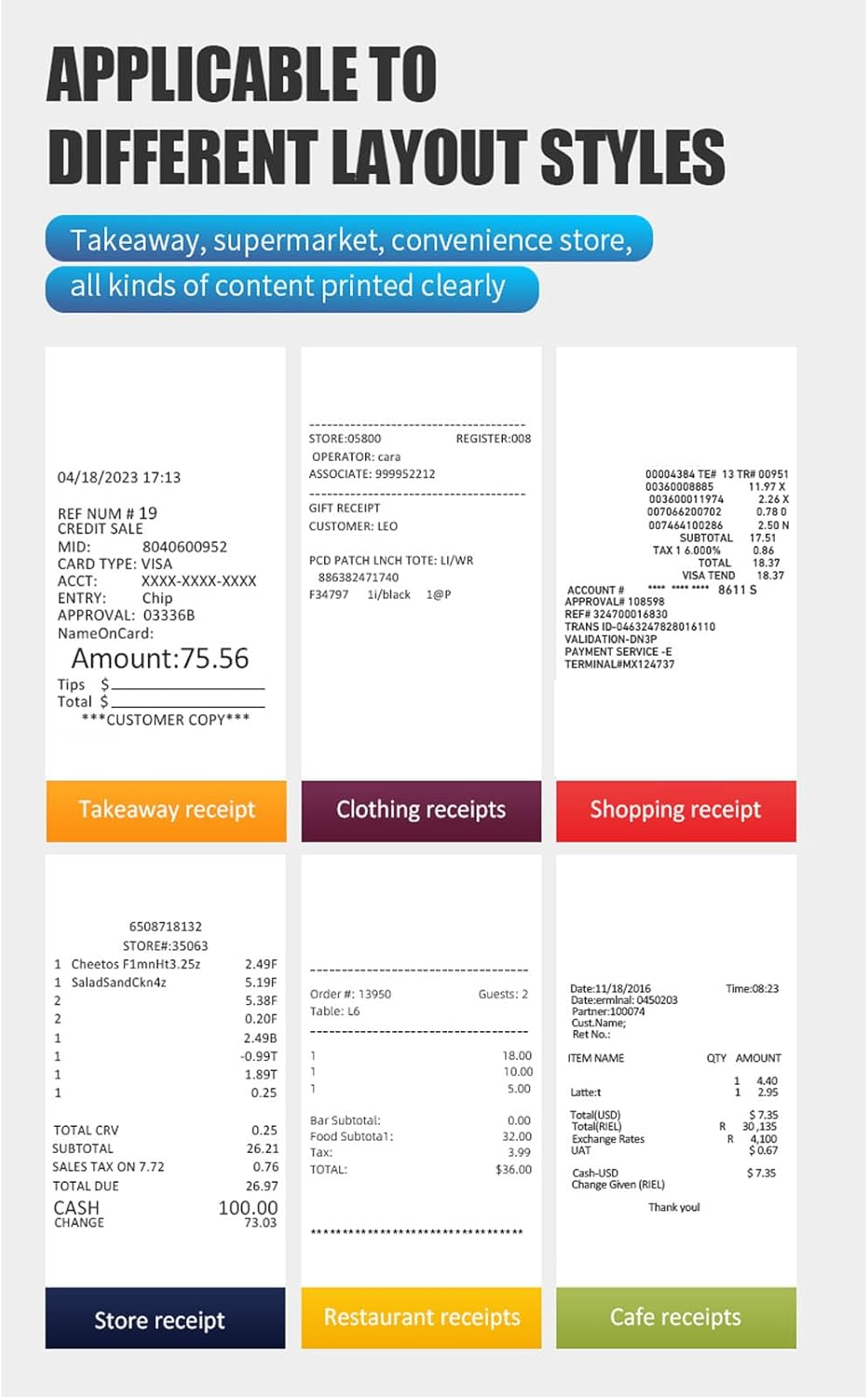
The printer is capable of printing various receipt layouts clearly, making it suitable for diverse business needs.

5.2 pav. Pvzample of a Printed Receipt
6. Priežiūra
6.1 Spausdintuvo valymas
Reguliarus valymas padeda išlaikyti spausdinimo kokybę ir pailgina spausdintuvo tarnavimo laiką.
- Prieš valydami išjunkite spausdintuvą ir atjunkite maitinimo laidą.
- Lengvai naudokite minkštą, nepūkuotą audinį dampSpausdintuvo išorę valykite vandeniu arba izopropilo alkoholiu.
- Gently wipe the print head with a cotton swab dampsuvilgytas izopropilo alkoholiu. Prieš naudojimą leiskite jam visiškai išdžiūti.
- Iš popieriaus skyriaus pašalinkite visas popieriaus dulkes ar šiukšles.
6.2 Popieriaus ritinėlio keitimas
Follow the steps outlined in Section 3.1 for paper roll installation when the current roll runs out.
7. Problemų sprendimas
Jei kyla problemų dėl spausdintuvo, žr. toliau pateiktas dažniausiai pasitaikančias problemas ir sprendimus:
| Problema | Galima priežastis | Sprendimas |
|---|---|---|
| Spausdintuvas neįsijungia | Power cord not connected, power outlet faulty, power switch off | Check power connections, try a different outlet, ensure power switch is ON. |
| Spausdintuvas neprisijungia per „Bluetooth“ | Bluetooth off on device, printer not in pairing mode, incorrect PIN | Ensure Bluetooth is enabled, restart printer, re-attempt pairing with correct PIN. |
| No printing or blank pages | Paper installed incorrectly, paper roll empty, print head dirty, driver issue | Reinstall paper correctly, replace paper roll, clean print head, reinstall drivers. |
| Prasta spausdinimo kokybė | Low quality paper, dirty print head, print density settings | Use recommended thermal paper, clean print head, adjust print density in software. |
| Popieriaus strigtis | Incorrect paper loading, foreign object | Išjunkite spausdintuvą, atidarykite dangtį, atsargiai išimkite įstrigusį popierių ir įsitikinkite, kad nėra jokių kliūčių. |
If the problem persists after trying these solutions, please contact Bewinner customer support.
8. Specifikacijos
Detailed technical specifications for the Bewinner Portable 58mm Thermal Receipt Printer:
- Prekės modelio numeris: Bewinnerm4f6ydgk7q-12
- Gaminio matmenys: 6.69 x 5.12 x 4.72 colio
- Prekės svoris: 1.19 svaro
- Sąsaja: USB, BT
- Spausdinimo komanda: ESC, POS command
- Spausdinimo greitis: 70 mm/s
- Rezoliucija: 203DPI (8 points/mm)
- TPH Reliability: 50 km
- Logotipo palaikymas: Download and print logo
- Spausdinimo tankis: 384 taškai / eilutė
- Simbolių dydis: ANK, font A: 1.5x3.0mm (12x24 dots); font B: 1.1x2.1mm (9x17 dots) Chinese; Traditional Chinese: 3.0x3.0mm (24x24 dots)
- 1D brūkšniniai kodai: UPC A / UPC E / JAN13 (EAN13) / JAN8 (EAN8) / CODE39 / ITF / CODABAR / CODE93 / CODE128
- 2D brūkšniniai kodai: QR Code, PDF417
- Operacinės sistemos palaikymas: For Windows, for Linux, for OS X, for OPOS, for Android
- Spausdinimo plotis: apytiksliai 48 mm / 1.89 colio
- Popieriaus ritinio skersmuo: ≤50 mm
- Popieriaus plotis: ≤58 mm
- Maitinimo įvestis: DC 5V/2A
9. Garantija ir palaikymas
For warranty information, technical support, or service inquiries, please refer to the documentation included with your purchase or contact Bewinner customer support directly. Keep your purchase receipt as proof of purchase.


