1. Įvadas
The Hitron CODA56 is a Multi-Gigabit DOCSIS 3.1 Cable Modem designed to deliver high-speed internet access. This modem supports internet plans up to 2.5 Gbps, making it suitable for demanding online activities such as 4K streaming, online gaming, and video conferencing. It utilizes DOCSIS 3.1 technology for enhanced performance and efficiency. Please note that the CODA56 is a modem only and does not include built-in WiFi or routing capabilities; a separate WiFi router is required.
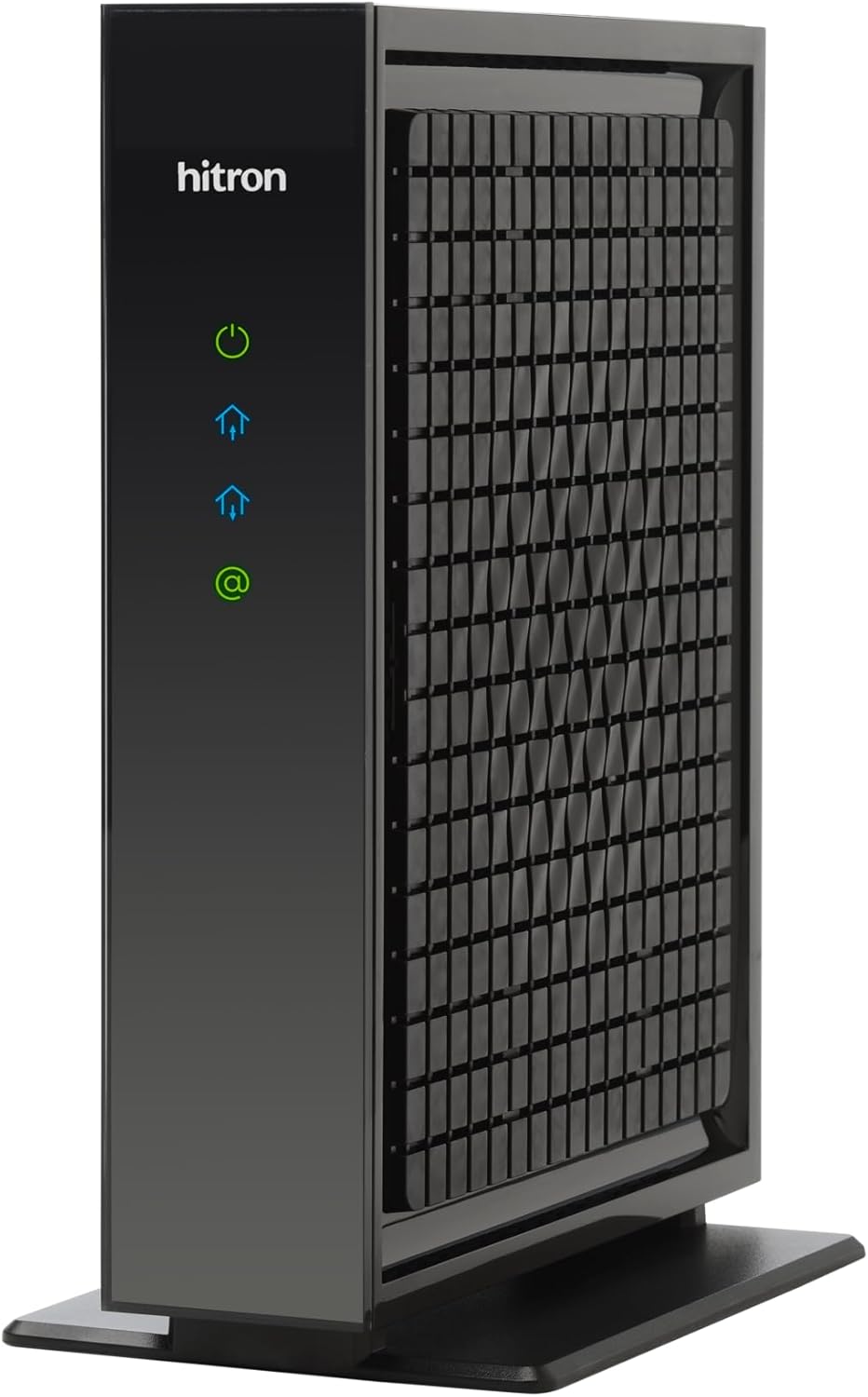
Priekyje view of the Hitron CODA56 modem, showcasing its sleek black design and LED indicators for power, internet activity, and connection status.
2. Pakuotės turinys
Verify that all items are present in your CODA56 modem package:
- Hitron CODA56 DOCSIS 3.1 Cable Modem
- Maitinimo šaltinis
- 2.5 Gbps Ethernet Cable
- Kabas kabelis

An illustration detailing the components included with the Hitron CODA56 modem, such as the modem itself, power supply, Ethernet cable, and coax cable. It also lists necessary additional items like a separate WiFi router and cable internet service.
3. Sąranka ir diegimas
3.1 Kontrolinis sąrašas prieš įdiegiant
- Cable Internet Service: Ensure you have an active cable internet subscription (DOCSIS). This modem is not compatible with fiber, DSL, satellite, or fixed wireless internet.
- Compatible Internet Plan: The CODA56 is designed for internet plans 1 Gbps and faster. Confirm your plan with your Internet Service Provider (ISP).
- Separate WiFi Router: A separate WiFi router or mesh system is required as this modem does not have built-in WiFi. For full 2.5 Gbps performance, your router should have a 2.5 Gbps Ethernet WAN/LAN port.
- ISP Compatibility: Confirm that your ISP (e.g., Xfinity, Spectrum, Cox) supports the Hitron CODA56 modem.
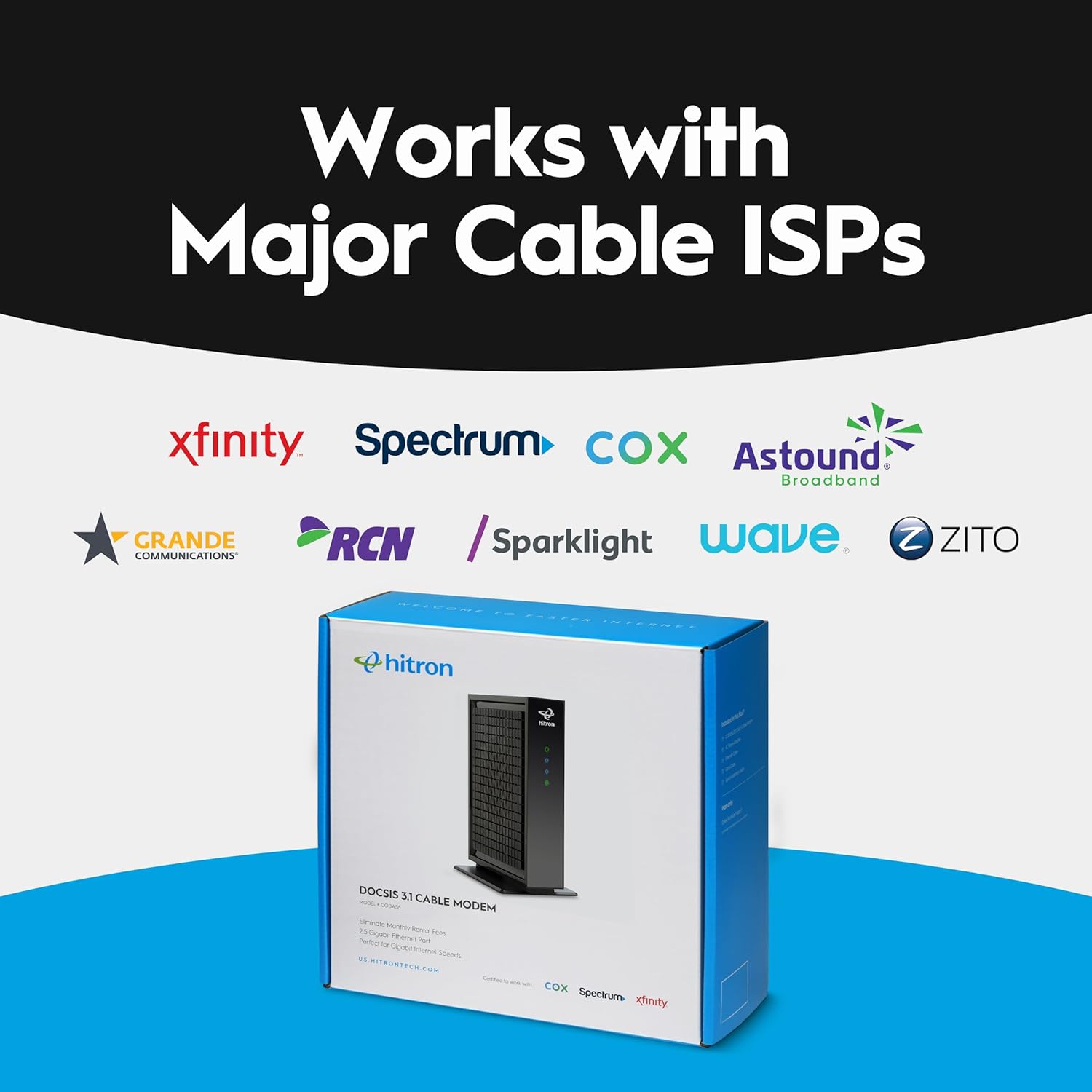
An image displaying the logos of various major cable internet service providers, including Xfinity, Spectrum, Cox, Astound Broadband, Grande Communications, RCN, Sparklight, Wave, and Zito, indicating compatibility with the Hitron CODA56 modem.
3.2 Prisijungimo žingsniai
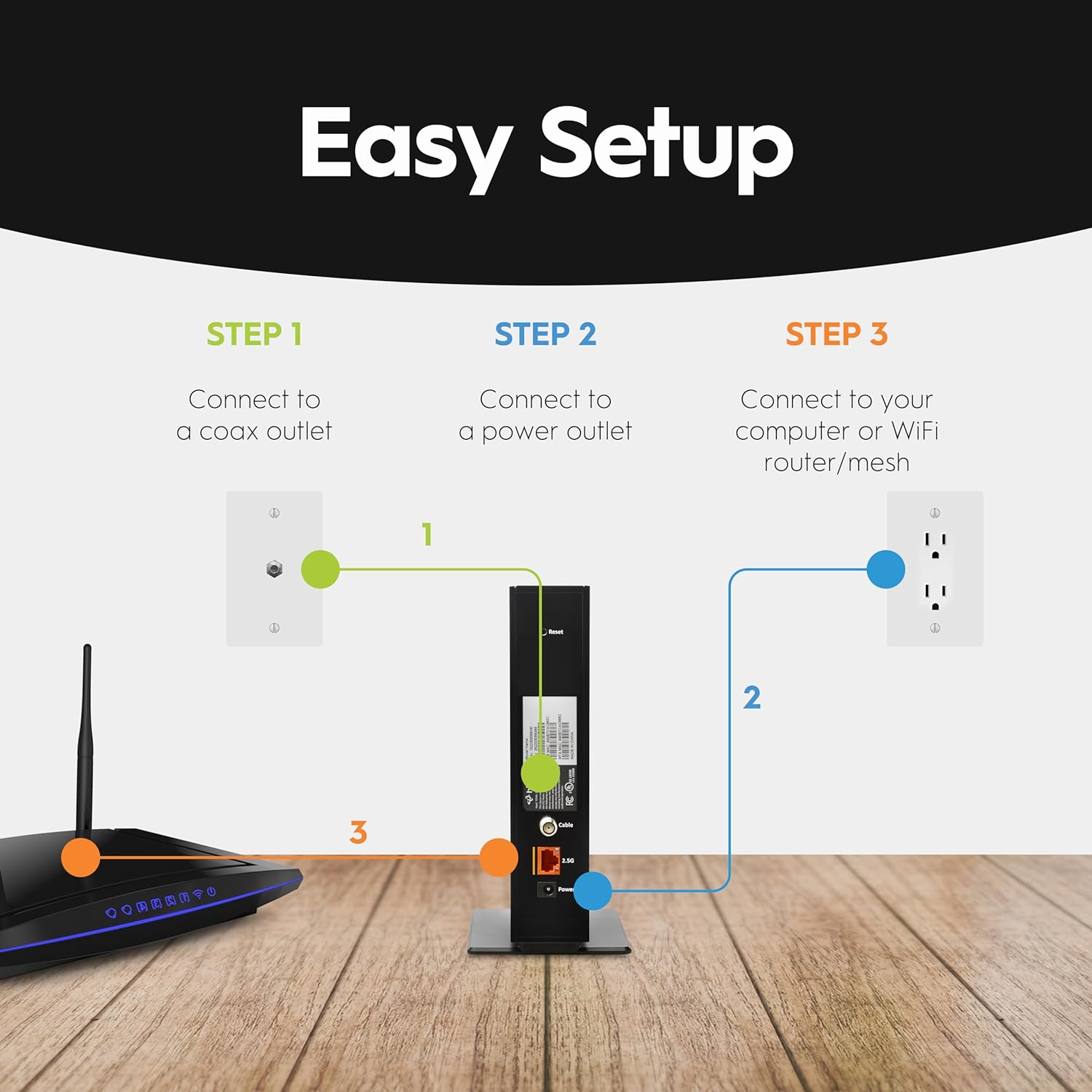
- Connect Coax Cable: Connect one end of the supplied coax cable to the cable wall outlet and the other end to the 'Cable' port on the back of your CODA56 modem. Ensure the connection is finger-tight.
- Prijunkite Ethernet kabelį: Connect one end of the supplied Ethernet cable to the 2.5 Gbps Ethernet port on the back of your CODA56 modem and the other end to the WAN (Internet) port of your WiFi router. If connecting directly to a computer, use the Ethernet cable to connect the modem to your computer's Ethernet port.
- Prijunkite maitinimo adapterį: Connect the power adapter to the 'Power' port on the back of your CODA56 modem and then plug the adapter into a power outlet. The modem will begin its startup sequence.

A visual guide illustrating the three simple steps for setting up the Hitron CODA56 modem: connecting to a coax outlet, connecting to a power outlet, and connecting to a WiFi router or computer.

An illustration demonstrating how the Hitron CODA56 modem connects to a separate WiFi router or mesh system via an Ethernet cable, highlighting the need for a 2.5 Gbps Ethernet port on the router for optimal performance.
3.3 Modemo aktyvinimas
After connecting the modem, you will need to activate it with your Internet Service Provider (ISP). The activation process typically involves:
- Contacting your ISP: Call your ISP's customer support line.
- Providing Modem Information: You will need to provide the MAC address (CM MAC) and Serial Number (S/N) of your CODA56 modem, which are usually found on a label on the bottom or back of the device.
- Following ISP Instructions: Your ISP will guide you through the activation process, which may include registering the modem on their network and configuring your service.
4. Operation and LED Indicators
The CODA56 modem features several LED indicators on the front panel that provide information about its operational status:
| LED indikatorius | Būsena | Aprašymas |
|---|---|---|
| Galia (⏻) | Tvirta žalia | Modemas įjungtas. |
| Downstream (⌂) | Tvirta mėlyna | DOCSIS 3.1 downstream channel is locked. |
| Tvirta žalia | DOCSIS 3.0 downstream channel is locked. | |
| Upstream (⌃) | Tvirta mėlyna | DOCSIS 3.1 upstream channel is locked. |
| Tvirta žalia | DOCSIS 3.0 upstream channel is locked. | |
| Internetas (@) | Tvirta žalia | The modem is online and connected to the internet. |
| Mirksi žaliai | Duomenys perduodami arba gaunami. |
Once the Internet LED is solid green, your modem is successfully connected to the internet. You can then connect your devices to your separate WiFi router to access the network.
5. Priežiūra
5.1 Bendroji priežiūra
- Vieta: Place the modem in a well-ventilated area, away from direct sunlight, heat sources, and moisture. Ensure adequate airflow around the device.
- Valymas: Use a soft, dry cloth to clean the modem's exterior. Avoid using liquid or aerosol cleaners, as they may damage the device.
- Maitinimo ciklas: If you experience connectivity issues, try power cycling the modem by unplugging the power adapter for 10-15 seconds and then plugging it back in.
5.2 Firmware atnaujinimai
Firmware updates for the Hitron CODA56 modem are managed and pushed by your Internet Service Provider (ISP). You do not need to manually update the firmware. Ensure your modem remains powered on and connected to the cable network to receive automatic updates.
6. Problemų sprendimas
If you encounter issues with your Hitron CODA56 modem, refer to the following common troubleshooting steps:
- Nėra galios: If the Power LED is off, ensure the power adapter is securely connected to the modem and a working electrical outlet. Try a different outlet.
- Nėra interneto ryšio:
- Check all cable connections (coax, Ethernet, power) to ensure they are secure.
- Verify that the Downstream, Upstream, and Internet LEDs are solid green or blue (for DOCSIS 3.1). If they are blinking or off, there might be an issue with your cable signal or ISP service.
- Power cycle the modem and your router.
- Contact your ISP to confirm service status and modem activation.
- Lėtas interneto greitis:
- Įsitikinkite, kad jūsų interneto planas palaiko jūsų laukiamą greitį.
- Confirm your router has a 2.5 Gbps Ethernet port to fully utilize the modem's capabilities.
- Test speeds with a wired connection directly to the modem (after disconnecting your router and restarting the modem) to rule out router or WiFi issues.
- Contact your ISP if speeds remain consistently below your subscribed plan.
- Modem Overheating: Ensure the modem is placed in a well-ventilated area and not covered. Excessive heat can affect performance and longevity.
7. Specifikacijos
| Funkcija | Detalė |
|---|---|
| Modelis | CODA56 |
| DOCSIS standartas | 3.1 (suderinama atgal su 3.0) |
| Max Internet Speed | Iki 2.5 Gbps |
| Ethernet prievadas | 1 x 2.5 gigabitų eternetas |
| Matmenys (I x P x A) | 7 x 1.77 x 8.13 colio |
| Prekės svoris | 1.02 svaro |
| Suderinami interneto paslaugų teikėjai | Xfinity, Spectrum, Cox, Charter Spectrum, Cox Gigablast, Cable One Sparklight, Zito Media |
| Ryšio technologija | Ethernet |
| Suderinami įrenginiai | Router, Personal Computer, Laptop, Gaming Console |
A graphic illustrating the performance advantage of DOCSIS 3.1 technology, indicating it is up to 10 times faster than the older DOCSIS 3.0 standard, which the Hitron CODA56 modem utilizes.
8. Garantija ir palaikymas
Hitron provides comprehensive support for its products. The CODA56 modem includes warranty coverage and technical support 7 days per week. For specific warranty terms, product registration, or technical assistance, please refer to the official Hitron websvetainėje arba susisiekite tiesiogiai su jų klientų aptarnavimo tarnyba.

An image depicting the Hitron CODA56 modem alongside a piggy bank, suggesting that purchasing this modem can lead to savings by eliminating monthly rental fees from internet service providers. Users are advised to check with their provider regarding current rental fees.
9. Produktų vaizdo įrašai
Šiame vadove nebuvo jokių oficialių pardavėjo produktų vaizdo įrašų, kuriuos būtų galima įterpti.


