1. Produktas baigtasview
The Xprinter XP-420B is a high-speed direct thermal label printer designed for various applications, including shipping labels. It offers a maximum print speed of 152 mm/s (6 inches/second) and a resolution of 203 DPI, ensuring clear and precise prints. Its robust double-walled clamshell design enhances durability, and the intelligent print head temperature control system ensures stable output. This printer is compatible with both Windows and Mac operating systems, making it a versatile solution for your labeling needs.
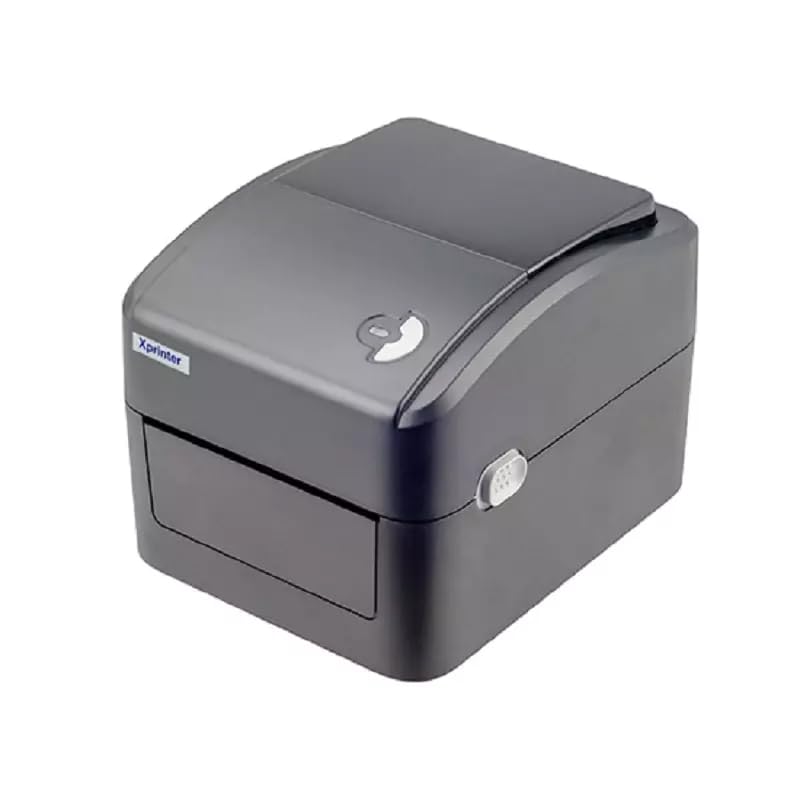
1 pav.: priekis view of the Xprinter XP-420B thermal label printer.
2. Sąrankos vadovas
2.1 Išpakavimas ir pradinė apžiūra
- Atsargiai išimkite spausdintuvą ir visus priedus iš pakuotės.
- Verify that all components are present: printer unit, power adapter, USB cable, and user manual.
- Inspect the printer for any visible damage that may have occurred during transit.
2.2 Spausdintuvo prijungimas
- Prijunkite maitinimo adapterį prie spausdintuvo maitinimo prievado, tada įjunkite jį į maitinimo lizdą.
- Connect one end of the provided USB cable to the printer's USB port and the other end to an available USB port on your computer.
- Power on the printer using the power switch, usually located on the side or rear.

Figure 2: Xprinter XP-420B showing USB connectivity.
2.3 Etikečių įkėlimas
- Open the printer's top cover by pressing the release latches on both sides.
- Place the roll of thermal labels onto the label spindle, ensuring the labels feed from the bottom of the roll.
- Feed the leading edge of the labels through the label guide until it extends slightly past the print head.
- Adjust the movable label guides to fit the width of your labels snugly, without pinching them.
- Close the top cover firmly until it latches securely.
- The printer will automatically calibrate and detect the label size.
2.4 Tvarkyklės diegimas
Before printing, you must install the appropriate printer drivers on your computer. Drivers are typically provided on a CD included with the printer or can be downloaded from the official Xprinter website. The XP-420B supports both Windows and Mac operating systems.
- „Windows“: Run the setup executable from the driver CD or downloaded file ir vykdykite ekrane pateikiamas instrukcijas.
- „Mac“: Download the Mac driver from the Xprinter website and follow the installation prompts.
3. Naudojimo instrukcijos
3.1 Pagrindinis spausdinimas
- Įsitikinkite, kad spausdintuvas įjungtas ir prijungtas prie kompiuterio.
- Open the document or application from which you wish to print (e.g., shipping software, word processor).
- Programos meniu pasirinkite „Spausdinti“.
- Choose "Xprinter XP-420B" as your printer.
- In the printer settings or preferences, ensure the correct label size is selected. The printer supports adjustable label sizes.
- Norėdami išsiųsti užduotį į spausdintuvą, spustelėkite „Spausdinti“.
3.2 Adjusting Label Size
The XP-420B allows for adjustable label sizes. This adjustment is primarily done through the printer driver settings on your computer and by physically adjusting the label guides within the printer.
- Software Adjustment: In your printing application or printer driver settings, navigate to the "Page Setup" or "Paper Size" options. Select or define the custom dimensions for your labels (e.g., 4x6 inches for shipping labels).
- Physical Adjustment: As described in Section 2.3, ensure the internal label guides are set correctly to the width of your loaded labels.
4. Priežiūra
4.1 Spausdinimo galvutės valymas
Regular cleaning of the print head is crucial for maintaining print quality and extending the printer's lifespan. It is recommended to clean the print head after every roll of labels or if print quality degrades.
- Išjunkite spausdintuvą ir atjunkite maitinimo laidą.
- Atidarykite viršutinį spausdintuvo dangtį.
- Jei spausdintuvas neseniai buvo naudotas, palaukite kelias minutes, kol spausdinimo galvutė atvės.
- Gently wipe the print head surface with an alcohol swab or a lint-free cloth lightly dampsu izopropilo alkoholiu.
- Prieš uždarydami dangtį ir vėl prijungdami maitinimą, leiskite spausdinimo galvutei visiškai išdžiūti.
4.2 Bendras valymas
- Spausdintuvo išorę nuvalykite minkštu, sausu skudurėliu.
- Remove any dust or label debris from the inside of the printer using a soft brush or compressed air.
- Nenaudokite abrazyvinių valiklių ar tirpiklių.
5. Problemų sprendimas
| Problema | Galima priežastis | Sprendimas |
|---|---|---|
| Spausdintuvas nereaguoja | Power off; USB cable disconnected; Driver issue. | Ensure power is on and connected. Check USB cable. Reinstall printer driver. |
| Prasta spausdinimo kokybė (išblukusios, linijos) | Dirty print head; Incorrect label type; Low print density setting. | Clean the print head (Section 4.1). Ensure you are using direct thermal labels. Adjust print density in driver settings. |
| Etiketės netinkamai tiekiamos | Labels improperly loaded; Label guides not adjusted; Sensor obstruction. | Reload labels correctly. Adjust label guides. Clean any dust or debris from sensors. |
| Printer prints blank labels | Labels loaded upside down; Not a direct thermal label. | Ensure labels are loaded with the printable side facing up. Verify labels are direct thermal. |
6. Gaminio specifikacijos
| Funkcija | Detalė |
|---|---|
| Prekės ženklas | Xprinteris |
| Modelio pavadinimas | XP-420B |
| Ryšio technologija | USB |
| Spausdinimo technologija | Tiesioginis terminis |
| Rezoliucija | 203 DPI |
| Maksimalus spausdinimo greitis | 152 mm/s (6 coliai/sekundė) |
| Atmintis | 8MB SDRAM, 8MB Flash |
| Spausdintuvo išvestis | Vienspalvis |
| Prekės svoris | 3 kilogramo |
| Gaminio matmenys | 20 gylio x 6 pločio x 10 aukščio centimetrų |
| Suderinamumas | Windows, Mac |
7. Garantija ir palaikymas
7.1 Informacija apie garantiją
The Xprinter XP-420B comes with a 1 metų garantija nuo įsigijimo datos. Ši garantija taikoma gamybos defektams ir gedimams įprasto naudojimo metu. Išsaugokite pirkimo įrodymą, jei galėtumėte pateikti pretenzijas dėl garantijos.
7.2 Pagalba klientams
For technical assistance, troubleshooting beyond this manual, or warranty service, please contact Xprinter customer support. Refer to the contact information provided with your product packaging or visit the official Xprinter websvetainę, kurioje rasite naujausią pagalbos informaciją.


