Įvadas
Thank you for choosing the Rapoo 9390M Wireless Multi-Mode Keyboard and Mouse Combo. This ultra-slim set offers versatile connectivity options, including 2.4 GHz wireless and Bluetooth 4.0/5.0, allowing seamless switching between multiple devices. Designed for efficiency and comfort, this combo features a full-size QWERTZ keyboard with multimedia keys and an ambidextrous optical mouse.
This manual provides essential information for setting up, operating, and maintaining your new Rapoo 9390M combo. Please read it carefully before use.
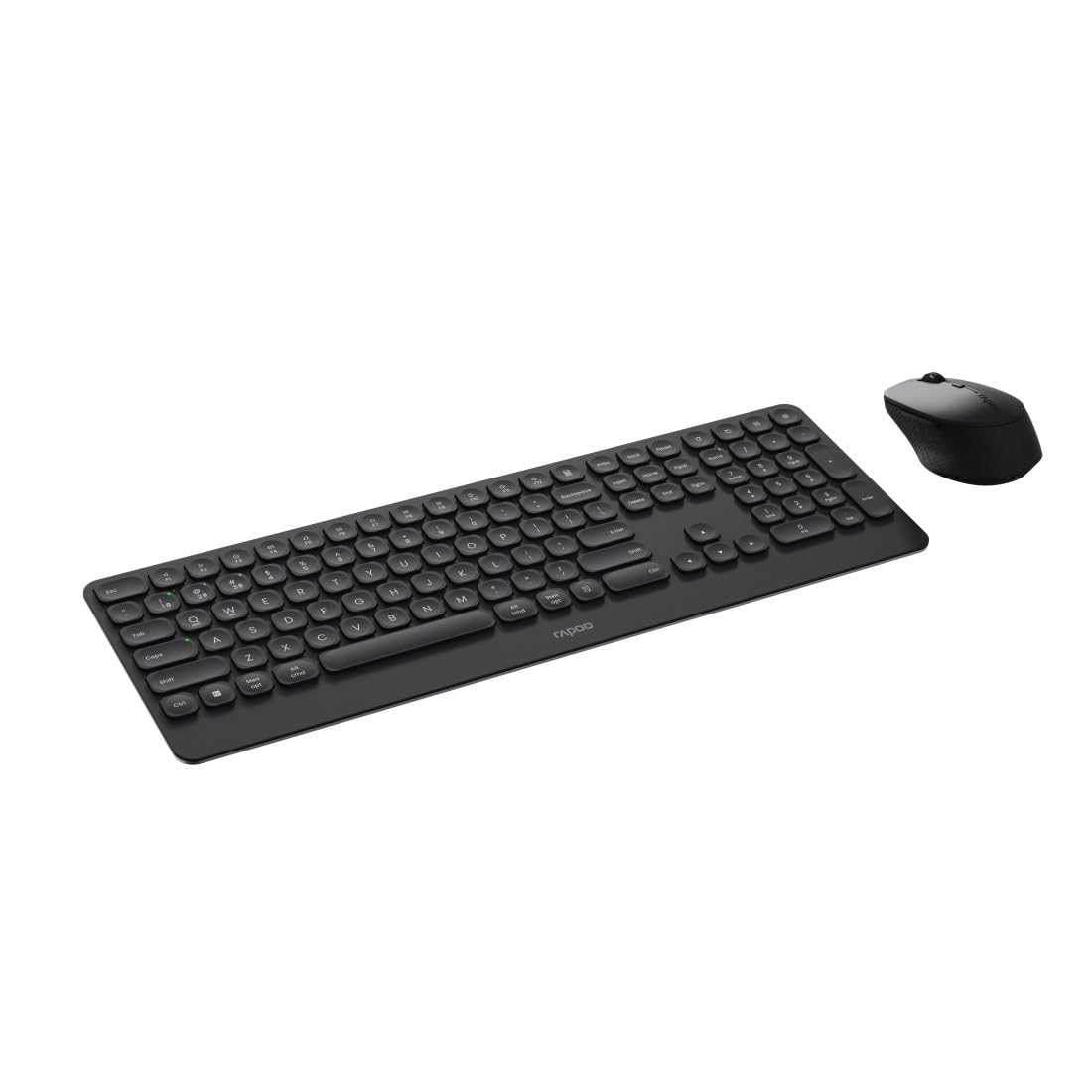
Image: The Rapoo 9390M wireless keyboard and mouse combo, showcasing its sleek design and full QWERTZ layout.
Sąranka
1. Akumuliatoriaus įdėjimas
The Rapoo 9390M combo requires batteries for operation. Ensure correct polarity when inserting.
- Klaviatūra: Requires 2 x AAA alkaline batteries.
- Pelė: Requires 1 x AA alkaline battery.
Batteries are included in the package.

Paveikslėlis: Šoninis profesionalasfile of the Rapoo 9390M keyboard and mouse, illustrating their ultra-slim design. Battery compartments are typically located on the underside of each device.
2. Įrenginių prijungimas
The Rapoo 9390M supports multi-mode connectivity: 2.4 GHz wireless via USB receiver and Bluetooth 4.0/5.0.
2.1. 2.4 GHz belaidis ryšys
- Insert the USB receiver into an available USB Type-A port on your computer or device.
- Įjunkite klaviatūrą ir pelę naudodami atitinkamus maitinimo jungiklius.
- Įrenginiai turėtų automatiškai prisijungti prie jūsų kompiuterio.
2.2. „Bluetooth“ ryšys
The keyboard can pair with up to 3 Bluetooth devices, and the mouse with up to 2.
Klaviatūros „Bluetooth“ susiejimas:
- Įjunkite klaviatūrą.
- Paspauskite ir palaikykite fn+1, fn+2, arba fn+3 for 3 seconds to select a Bluetooth channel. The indicator light will flash slowly.
- Open Bluetooth settings on your device (PC, laptop, tablet, TV).
- Ieškokite "Rapoo BT3.0 Keyboard" or "Rapoo BT5.0 Keyboard" and select to pair.
- Kai susiejimas bus atliktas, indikatoriaus lemputė nustos mirksėti.
Pelės „Bluetooth“ susiejimas:
- Įjunkite pelę.
- Press the Bluetooth pairing button on the underside of the mouse. The indicator light will flash slowly.
- Atidarykite „Bluetooth“ nustatymus savo įrenginyje.
- Ieškokite "Rapoo BT3.0 Mouse" or "Rapoo BT5.0 Mouse" and select to pair.
- Kai susiejimas bus atliktas, indikatoriaus lemputė nustos mirksėti.
Naudojimo instrukcijos
1. Perjungimas tarp prijungtų įrenginių
The Rapoo 9390M allows you to switch between multiple connected devices (up to 4 for keyboard, 3 for mouse, including 2.4 GHz).
- Klaviatūra: Paspauskite fn+1, fn+2, fn+3 (for Bluetooth devices) or fn+4 (for 2.4 GHz USB receiver) to switch between paired devices.
- Pelė: Press the mode switch button on the underside of the mouse to cycle between Bluetooth 1, Bluetooth 2, and 2.4 GHz modes.
2. Klaviatūros funkcijos
The keyboard features a full QWERTZ layout with 110 keys, including a numeric keypad and dedicated function keys.
- Multimedijos klavišai: Use the function keys (F1-F12) in combination with the Fn key to access multimedia controls (e.g., volume, play/pause, browser).
- Browser Buttons: Dedicated keys for browser functions may be present.

Vaizdas: Iš viršaus į apačią view of the Rapoo 9390M keyboard and mouse, highlighting the QWERTZ key layout and mouse button configuration.
3. Pelės funkcijos
The optical mouse features 5 buttons, including a scroll wheel, and adjustable DPI.
- DPI reguliavimas: The mouse supports a DPI range of up to 2400. A dedicated DPI button (often located near the scroll wheel) allows you to cycle through different sensitivity levels.
- Abipusis dizainas: The mouse is designed for comfortable use by both right-handed and left-handed users.
Priežiūra
1. Valymas
To ensure optimal performance and longevity, keep your keyboard and mouse clean.
- Šiek tiek naudokite minkštą, be pūkelių šluostę dampnuplauti vandeniu arba švelniu valymo tirpalu.
- Avoid harsh chemicals, abrasive cleaners, or excessive moisture.
- Klaviatūrai naudokite suslėgtą orą, kad pašalintumėte dulkes ir šiukšles iš tarpų tarp klavišų.
2. Baterijos keitimas
When the battery indicator light flashes or performance degrades, it's time to replace the batteries.
- Open the battery compartment on the underside of the keyboard (2x AAA) and mouse (1x AA).
- Išimkite senas baterijas ir atsakingai jas išmeskite laikydamiesi vietinių taisyklių.
- Insert new alkaline batteries, ensuring correct polarity.
- Saugiai uždarykite akumuliatoriaus skyrių.
Trikčių šalinimas
Ryšio problemos
- No connection (2.4 GHz): Ensure the USB receiver is securely plugged into a working USB port. Try a different USB port. Ensure the keyboard and mouse are powered on.
- No connection (Bluetooth): Ensure Bluetooth is enabled on your device. Re-initiate the pairing process as described in the Setup section. Ensure the keyboard/mouse is in Bluetooth mode and not 2.4 GHz mode.
- Pertraukiamas ryšys: Move the devices closer to the receiver/device. Avoid placing the devices near other wireless interference sources (e.g., Wi-Fi routers, other wireless peripherals).
Input Not Registering / Lag
- Patikrinkite baterijas: Low batteries can cause performance issues. Replace them if necessary.
- Perjungti režimus: Ensure the keyboard and mouse are set to the correct connection mode (2.4 GHz or Bluetooth) for the device you are using.
- Iš naujo paleiskite įrenginius: Turn off and on the keyboard, mouse, and your computer/device.
Specifikacijos
| Funkcija | Aprašymas |
|---|---|
| Modelis | 9390 mln |
| Ryšys | 2.4 GHz RF (USB Type-A receiver), Bluetooth 4.0, Bluetooth 5.0 |
| Klaviatūros išdėstymas | QWERTZ (vokiečių k.) |
| Klaviatūros klavišai | 110 keys, Scissor mechanism, Laser engraved keycaps |
| Klaviatūros ypatybės | Multimedia keys, Browser buttons, Ultra-slim design, Aluminum base |
| Pelės jutiklis | Optinis |
| Pelės DPI | Iki 2400 DPI |
| Pelės mygtukai | 5 buttons (including scroll wheel) |
| Pelės dizainas | Ambidextrous, High-quality plastic |
| Veikimo diapazonas | Iki 10 metrų |
| OS suderinamumas | „Windows XP“ / „Vista“ / 7 / 8 / 10 / 11 |
| Maitinimo šaltinis | Battery powered (Alkaline) |
| Baterijos įtrauktos | Yes (2x AAA for keyboard, 1x AA for mouse) |
| Klaviatūros matmenys (P x G x A) | 42.6 x 14.3 x 2 cm |
| Klaviatūros svoris | 409 g |
| Mouse Dimensions (W x D x H) | 6.6 x 10.4 x 3.7 cm |
| Pelės svoris | 60 g |
Garantija ir palaikymas
For warranty information and technical support, please refer to the warranty card included in your product packaging or visit the official Rapoo websvetainėje. Išsaugokite pirkimo įrodymą garantiniams reikalavimams.


