1. Įvadas
This manual provides essential information for the safe and efficient operation of your GooDee AC571 4K Smart Projector. Please read it thoroughly before use and retain it for future reference.
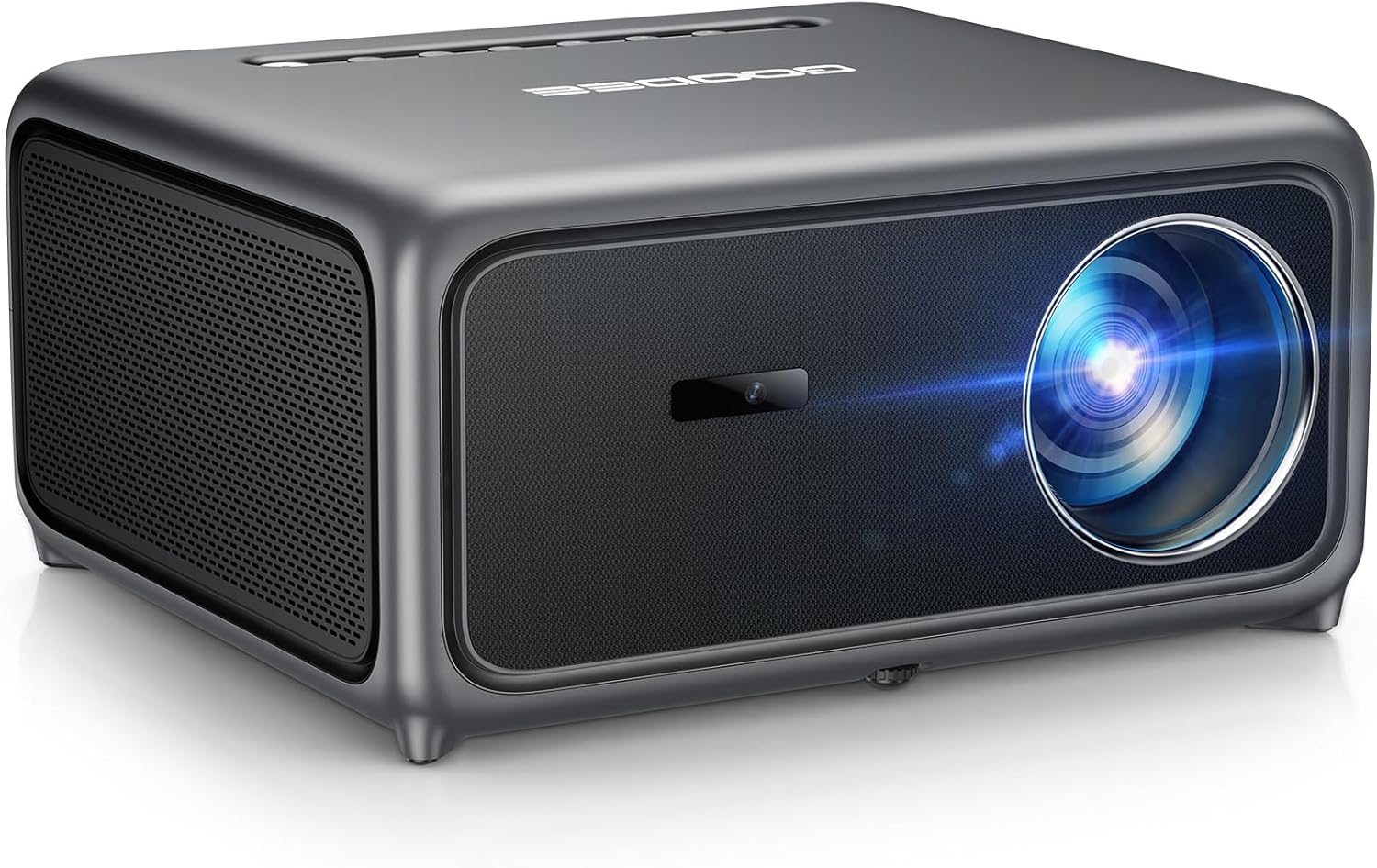
Image 1.1: The GooDee AC571 4K Smart Projector. This image displays the projector's front and side profile, highlighting its lens and speaker grille.
2. Kas yra dėžutėje
Išpakuodami patikrinkite, ar yra visi daiktai:
- GooDee AC571 4K Smart Projector
- Maitinimo laidas
- HDMI kabelis
- Nuotolinio valdymo pultas
- Valymo rinkinys
- Projektoriaus objektyvo dangtelis
- Vartotojo vadovas (šis dokumentas)
3. Sąrankos vadovas
3.1 Pradinis išdėstymas
Place the projector on a stable, flat surface. Ensure adequate ventilation around the device. For optimal viewprojektorių pastatykite tiesiai priešais projekcijos paviršių (sieną arba ekraną).
3.2 Maitinimo jungtis
- Prijunkite maitinimo laidą prie projektoriaus maitinimo įvesties.
- Kitą maitinimo laido galą prijunkite prie tinkamo elektros lizdo.
3.3 Išorinių įrenginių prijungimas
The projector supports various input sources. Refer to the port diagram below for connection points.

Image 3.1: Rear panel connections of the GooDee AC571 Projector. This image illustrates the available ports including HDMI, USB, and audio output, with labels indicating their functions.
- HDMI: Connect Blu-ray players, gaming consoles, or laptops using the provided HDMI cable.
- USB: Įkiškite USB atmintines medijos atkūrimui.
- 3.5 mm garso išvestis: Prijunkite išorines ausines arba garsiakalbius.
3.4 Automatic Calibration (ToF Auto Focus & Keystone)
The projector features advanced AI + ToF Smart Sensing for automatic image calibration. Upon power-on or movement, the projector will automatically adjust focus, keystone correction, and screen adaptation for a clear, rectangular image.

Image 3.2: The GooDee AC571 Projector demonstrating 1ms ultra-low latency ToF Smart Sensing and AI Precision for auto-calibration. The image shows the projector automatically adjusting the projected image on a wall, ensuring optimal focus and keystone correction.
This process includes:
- Automatinis fokusavimas: Ensures a sharp image.
- Auto Keystone: Koreguoja trapecijos formos iškraipymą.
- Automatinis kliūčių vengimas: Adjusts the image to avoid objects on the projection surface.
- Automatic Screen Adaptation: Fits the image to the available screen area.
4. Naudojimo instrukcijos
4.1 Maitinimo įjungimas/išjungimas
- Norėdami įjungti arba išjungti įrenginį, paspauskite projektoriaus arba nuotolinio valdymo pulto maitinimo mygtuką.
4.2 Išmaniosios OS naršymas
The GooDee AC571 features an intelligent operating system with built-in applications. Use the remote control to navigate the interface.

Image 4.1: The GooDee AC571's Smart OS interface, displaying various streaming app icons like Netflix, Prime Video, and YouTube. This image shows the user-friendly layout for accessing built-in entertainment.
- Pagrindinis ekranas: Access pre-installed apps like Netflix, Prime Video, and YouTube.
- App Store: Download additional applications for personalized entertainment.
- Nustatymai: Adjust display, audio, network, and system preferences.
4.3 Wireless Connectivity (WiFi & Bluetooth)
The projector supports WiFi 6 and Bluetooth 5.4 for seamless streaming and audio connections.

Image 4.2: The GooDee AC571 Projector demonstrating seamless streaming and effortless connectivity via WiFi 6 and Bluetooth 5.4. The image shows a smartphone mirroring content to the projector, highlighting its wireless capabilities.
- „WiFi“ ryšys: Eikite į Settings > Network > WiFi kad prisijungtumėte prie savo belaidžio tinklo.
- „Bluetooth“ ryšys: Eikite į Nustatymai > Bluetooth to pair with Bluetooth headphones or speakers.
- Ekrano dubliavimas: Use AirPlay (iOS) or Miracast (Android/Windows) for wireless screen sharing.
4.4 Audio Settings (Dolby Audio & AI SoundBalance)
The projector features Dolby Audio-certified 30W dual speakers and AI SoundBalance technology.

Image 4.3: The GooDee AC571 Projector with Dolby Audio. The image visually represents sound waves emanating from the projector, emphasizing its immersive audio capabilities.
- Garsumo valdymas: Adjust using the remote control.
- Garso režimai: Access audio settings to select different sound profiles or enable/disable AI SoundBalance.
5. Priežiūra
5.1 Objektyvo valymas
Use the provided cleaning kit to gently clean the projector lens. Avoid abrasive materials that could scratch the lens surface.
5.2 Apsauga nuo dulkių
The projector incorporates an advanced dust-shield triple-protection architecture. However, regular cleaning of the exterior with a soft, dry cloth is recommended to prevent dust buildup.

Image 5.1: Illustration of the GooDee AC571 Projector's advanced dust-shield triple-protection architecture. The image shows a transparent overlay highlighting the internal dust protection mechanisms, ensuring longevity and clear projection.
5.3 Saugykla
When not in use, cover the lens with the provided lens cap and store the projector in a cool, dry place away from direct sunlight and extreme temperatures.
6. Problemų sprendimas
Dažniausiai pasitaikančias problemas ir jų sprendimus žr. toliau pateiktoje lentelėje.
| problema | Galima priežastis | Sprendimas |
|---|---|---|
| Vaizdas nerodomas | Power not connected; Input source incorrect; Lens cap on | Patikrinkite maitinimo jungtį; Pasirinkite tinkamą įvesties šaltinį; Nuimkite objektyvo dangtelį |
| Vaizdas neryškus | Nefokusuota; Projektorius pajudintas | Allow auto-focus to recalibrate; Manually adjust focus if needed via settings |
| Vaizdas iškraipytas (trapecijos formos) | Keystone not corrected | Allow auto-keystone to recalibrate; Manually adjust keystone via settings |
| Nėra garso | Volume too low; External audio device not connected; Muted | Increase volume; Check external audio connections; Unmute projector |
| Nepavyksta prisijungti prie „Wi-Fi“ / „Bluetooth“ | Incorrect password; Device out of range; Network issue | Verify password; Move closer to router/device; Restart router/projector |
7. Specifikacijos
Key technical specifications for the GooDee AC571 4K Smart Projector:
| Funkcija | Specifikacija |
|---|---|
| Prekės ženklas | GooDee |
| Modelio numeris | AC571 |
| Ekrano raiška | 1920 x 1080 (Native 1080P, 4K Decoding) |
| Ryškumas | 3000 ANSI liumenai |
| Kontrasto santykis | 20,000:1 |
| Spalvų gama | 98% NTSC |
| Ypatingos savybės | ToF Auto Focus, Auto Keystone, Auto Obstacle Avoidance, Auto Screen Alignment, MEMC, Dolby Audio, AI SoundBalance Pro, AI Image Tech, Built-in Wi-Fi 6, Bluetooth 5.4, Built-in Speaker, Movin OS with Netflix/Prime Video/YouTube |
| Ryšio technologija | „Bluetooth“, HDMI, USB, „Wi-Fi“ |
| Rekomenduojami naudojimo būdai | Verslas, švietimas, žaidimai, namų kinas |
| Prekės svoris | 9.23 svaro |
| Pakuotės matmenys | 12 x 10 x 9.25 colio |
8. Garantija ir palaikymas
8.1 Informacija apie garantiją
Your GooDee AC571 4K Smart Projector is covered by a manufacturer's warranty. Please refer to the warranty card included in your product packaging for specific terms and conditions, including warranty duration and coverage details.
8.2 Pagalba klientams
For technical assistance, troubleshooting not covered in this manual, or warranty claims, please contact GooDee customer support. Contact information can typically be found on the GooDee official websvetainėje arba garantijos kortelėje.

Image 8.1: A customer support representative, symbolizing reliable service and professional support available for GooDee products.