1. Įvadas
The FIREBAT X3 Wired RGB Gaming Mouse is designed for precision and comfort, suitable for various computing tasks including gaming, office work, and general use. This manual provides detailed instructions for setting up, operating, and maintaining your mouse.

Baigėsiview of the FIREBAT X3 Wired RGB Gaming Mouse highlighting its main features.
2. Sąranka
2.1 Pelės prijungimas
The FIREBAT X3 Gaming Mouse features a simple plug-and-play design for easy setup.
- Locate an available USB-A port on your computer or laptop.
- Įkiškite pelės USB jungtį į USB-A prievadą.
- Jūsų operacinė sistema automatiškai aptiks ir įdiegs reikiamas tvarkykles. Norint naudotis pagrindinėmis funkcijomis, nereikia diegti jokios papildomos programinės įrangos.

The FIREBAT X3 mouse connects via a standard USB-A port for immediate use.
3. Operacija
3.1 Mygtukų funkcijos
The FIREBAT X3 Gaming Mouse is equipped with 6 programmable buttons for enhanced control.
- Kairysis mygtukas: Standartinė paspaudimo funkcija.
- Dešinysis mygtukas: Standartinė dešiniojo pelės mygtuko paspaudimo funkcija.
- Slinkties ratukas: Scrolls up and down. Can also be pressed for a middle-click function.
- DPI Adjustment Key: Changes the mouse sensitivity (DPI).
- Pirmyn mygtukas: Naviguoja pirmyn web naršyklės arba file tyrinėtojai.
- Atgal mygtukas: Naviguoja atgal web naršyklės arba file tyrinėtojai.

Illustration of the 6-button layout on the FIREBAT X3 Gaming Mouse.
3.2 DPI (jautrumo) reguliavimas
The mouse features 4 adjustable DPI levels to suit different tasks and preferences.
- Paspauskite DPI Adjustment Key (located behind the scroll wheel) to cycle through the preset DPI settings.
- The default DPI levels are 1200, 1800, 2400, and 3600.
- Each press will switch to the next DPI level, allowing you to find the optimal sensitivity for your current activity.

The DPI adjustment key allows for quick changes in mouse sensitivity.
3.3 RGB apšvietimo režimai
The FIREBAT X3 mouse features 7 dynamic RGB backlit modes to enhance your setup.
- The RGB lighting automatically cycles through its 7 distinct modes.
- There is no manual button to change the RGB mode; the mouse will continuously display various lighting effects.
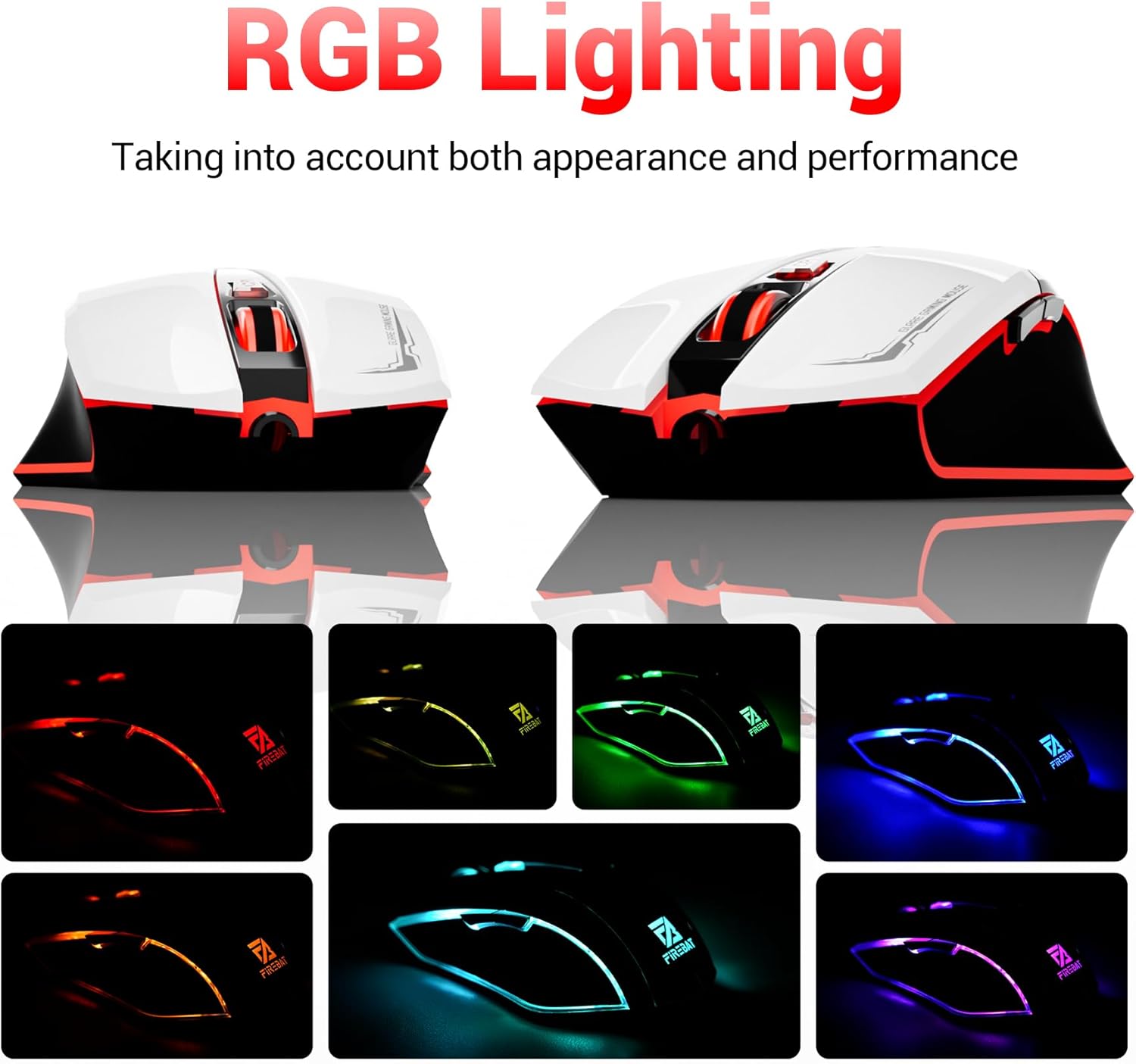
The mouse features vibrant RGB lighting with multiple dynamic modes.
3.4 Ergonomic Design and Comfort
The mouse is designed with an ergonomic shape to provide a comfortable grip and reduce hand fatigue during extended use, suitable for both right and left-hand users.

The ergonomic design ensures comfort during prolonged use.
3.5 Quiet Click Feature
The mouse incorporates a 'Heavy Bass Design' for its key sounds, ensuring soft clicks without excessive noise, which is beneficial in quiet environments.

The mouse features quiet clicks, minimizing noise during use.
4. Priežiūra
4.1 Valymas
To ensure optimal performance and longevity, keep your mouse clean.
- Prieš valydami atjunkite pelę nuo kompiuterio.
- Lengvai naudokite minkštą, nepūkuotą audinį dampnuvalykite pelės paviršių vandeniu arba švelniu valymo tirpalu.
- Venkite naudoti stiprias chemines medžiagas, abrazyvinius valiklius ar per didelę drėgmę, nes jos gali pažeisti pelę.
- For the optical sensor, use a cotton swab to gently remove any dust or debris.
4.2 Saugykla
Kai nenaudojate, laikykite pelę švarioje, sausoje vietoje, toliau nuo ekstremalių temperatūrų ir tiesioginių saulės spindulių.
5. Problemų sprendimas
5.1 Pelė nereaguoja
- Patikrinkite USB jungtį: Įsitikinkite, kad USB laidas tvirtai prijungtas prie veikiančio kompiuterio USB prievado. Išbandykite kitą USB prievadą.
- Iš naujo paleiskite kompiuterį: Kartais paprastas paleidimas iš naujo gali išspręsti ryšio problemas.
- Bandymas kitame kompiuteryje: If possible, test the mouse on another computer to determine if the issue is with the mouse or your computer's setup.
5.2 Žymeklio judėjimas yra netolygus arba trūkčiojantis
- Švarus optinis jutiklis: Dust or debris on the optical sensor can cause erratic movement. Refer to the cleaning instructions in the Maintenance section.
- Use a Mouse Pad: Ensure you are using the mouse on a suitable surface. Reflective, transparent, or uneven surfaces can interfere with the optical sensor.
5.3 RGB apšvietimas neveikia
- Patikrinkite USB maitinimą: Ensure the mouse is receiving sufficient power through the USB connection.
- Nėra rankinio valdymo: Remember that the RGB lighting cycles automatically and does not have a manual control button. If the mouse is functioning otherwise, the lighting should be active.
6. Specifikacijos
| Funkcija | Detalė |
|---|---|
| Modelio numeris | X3 Gaming Mouse |
| Prekės ženklas | FIREBAT |
| Ryšio technologija | USB laidinis |
| Judesio aptikimas | Optinis |
| DPI lygiai | 1200/1800/2400/3600 |
| Mygtukų skaičius | 6 (programuojamas) |
| Foninis apšvietimas | 7 RGB režimai |
| Gaminio matmenys | 5 x 3 x 0.1 colio (12.7 x 7.6 x 0.25 cm) |
| Prekės svoris | 5.1 uncijos (144.6 gramų) |
| Ergonomika | Right or Left Hand Use |
| Gamintojas | FIREBAT |
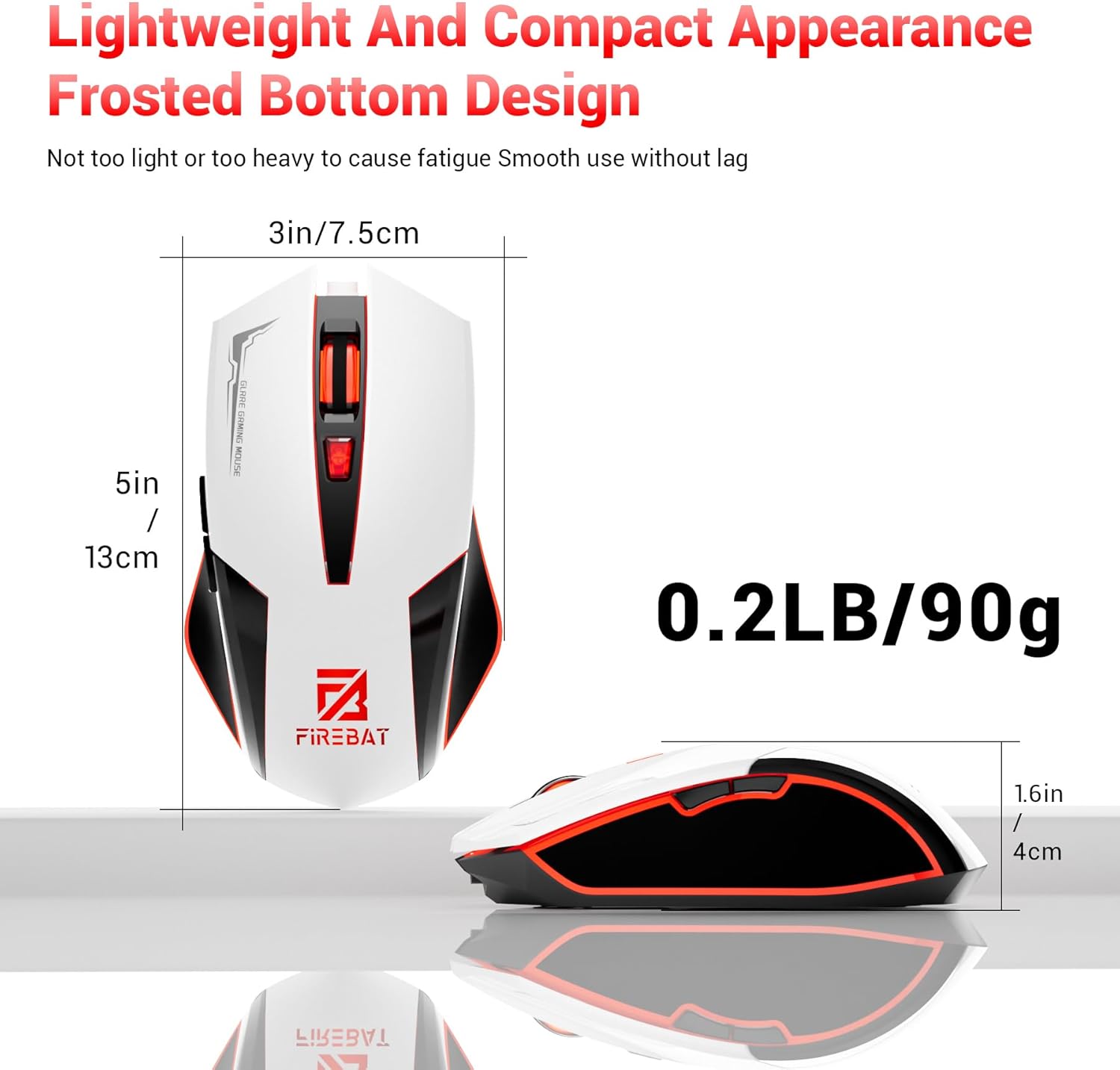
Physical dimensions and weight of the FIREBAT X3 Gaming Mouse.
7. Garantija ir palaikymas
7.1 Informacija apie garantiją
FIREBAT products are manufactured to high-quality standards. For specific warranty details, please refer to the warranty card included with your product or visit the official FIREBAT website. Typically, products come with a limited warranty covering manufacturing defects.
7.2 Pagalba klientams
If you encounter any issues or have questions regarding your FIREBAT X3 Gaming Mouse, please contact our customer support team:
- El. paštas: support@firebatpc.com
- Websvetainė: www.firebatpc.com
Please provide your product model number (X3 Gaming Mouse) and a detailed description of your issue when contacting support for faster assistance.


