1. Įvadas
This manual provides essential information for setting up, operating, and maintaining your Thunderobot Storm 17 5060 Gaming Laptop. Please read this guide thoroughly to ensure proper usage and to maximize your product's performance and longevity. Keep this manual for future reference.
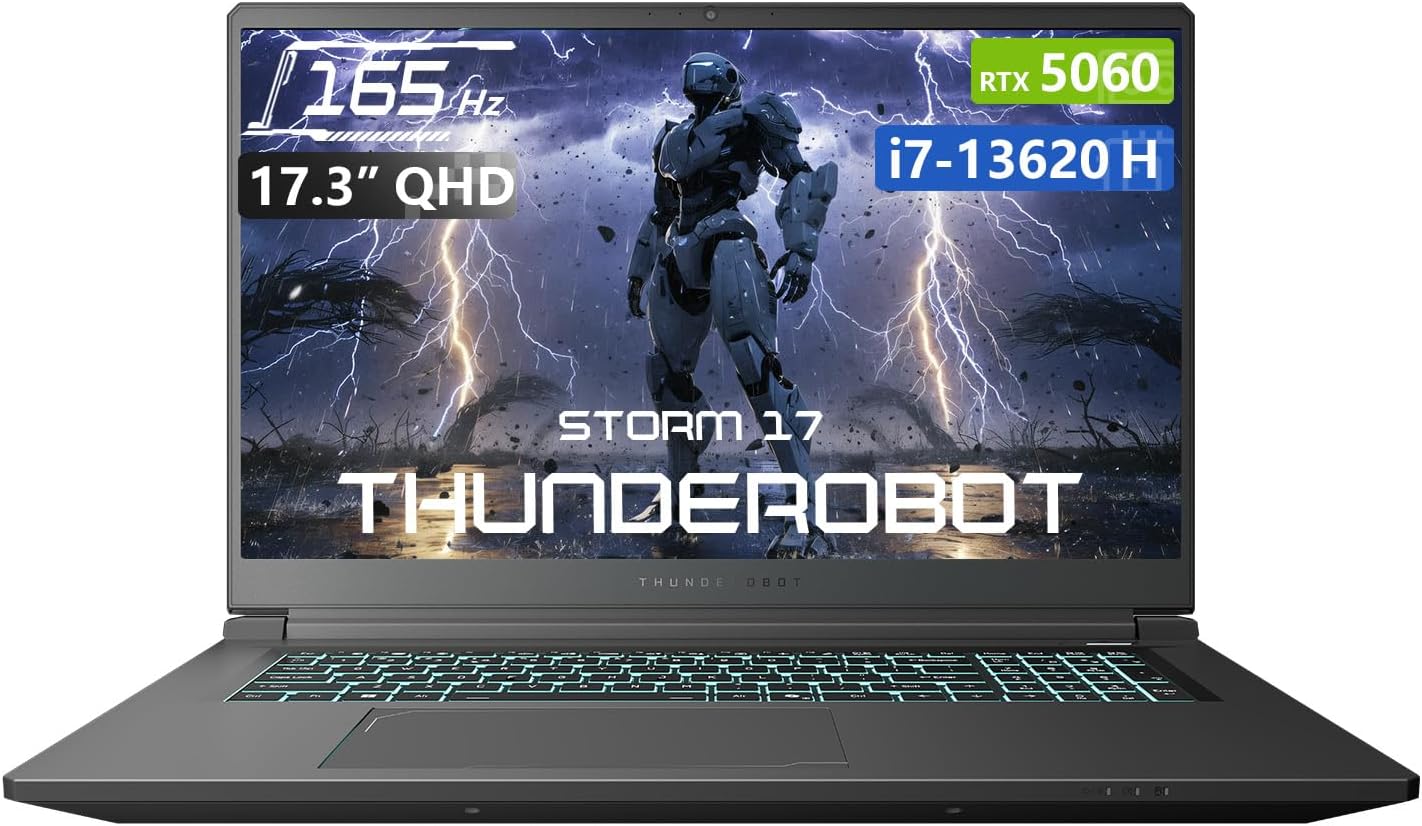
1.1 pav.: priekis view of the Thunderobot Storm 17 5060 Gaming Laptop.
2. Produktas baigtasview
The Thunderobot Storm 17 5060 is a high-performance gaming laptop designed for immersive experiences. It features advanced components and a robust cooling system.
2.1 Pagrindinės savybės
- Ekranas: 17.3-inch QHD (2560x1440) display with a 165Hz refresh rate, 100% sRGB color accuracy, and 1000:1 contrast ratio for crisp visuals.
- Procesorius: Intel Core i7-13620H processor, featuring 10 cores and 16 threads, with a base frequency of 1.80GHz and a max turbo frequency of up to 4.9GHz.
- Grafika: NVIDIA GeForce RTX 5060 dedicated graphics card for high-fidelity gaming and creative tasks.
- Atmintis: 16GB DDR5 RAM, providing fast multitasking capabilities.
- Saugykla: 1TB PCIe M.2 SSD for rapid boot times and ample saugojimo vieta.
- Aušinimo sistema: Advanced thermal design with ultra-thin 0.2mm copper fins (245pcs) and dual 12V turbofans (60mm, 164 LCP blades, 19.8CFM) for efficient heat dissipation. Features four omnidirectional outlets and a dual-zone air duct.
- Ryšys: Multiple ports including 3x USB 3.0 Type-A, 1x USB Type-C, 1x HDMI, 1x RJ-45 Ethernet, and 1x Audio Port. Supports Wi-Fi 6 and Bluetooth.
- Klaviatūra: RGB Backlit Keyboard with a full-size numeric keypad.
- Baterija: 53Wh battery with support for 100W PD fast charging.
2.2 Vizualiniai komponentai

Figure 2.1: Performance overview highlighting the RTX 5060 graphics and Intel Core i7-13620H processor capabilities.

2.2 pav. Išsamus view of the 17.3-inch QHD 165Hz display specifications.
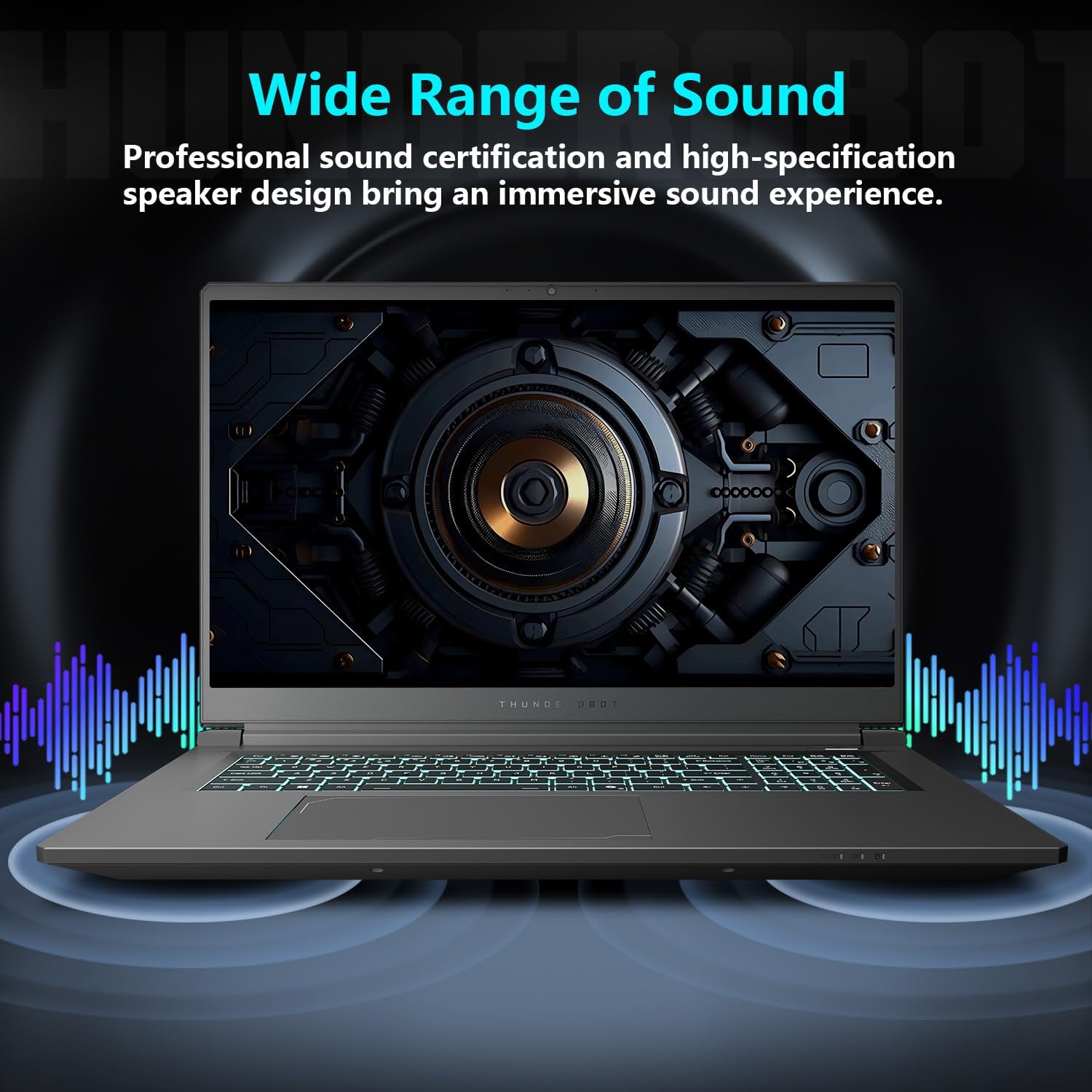
Figure 2.3: Diagram illustrating the various ports and slots on the Thunderobot Storm 17 laptop.

Figure 2.4: Illustration of the Direct-Flow Cooling Technology with pure copper heat pipes, high-speed fans, and four air outlets.
2.1 vaizdo įrašas: Viršview of the THUNDEROBOT Series Display, showcasing visual features and design.
Video 2.2: THUNDEROBOT Gaming Gear showcase, featuring various peripherals and laptops in a gaming setup.
Video 2.3: THUNDEROBOT Storm 17 product highlights, demonstrating key features and design elements.
3. Sąranka
3.1 Išpakavimas ir pirminė apžiūra
Carefully remove the laptop and its accessories from the packaging. Verify that all components listed in the "What's in the Box" section are present and undamaged. The box should contain:
- THUNDEROBOT Storm 17 Laptop
- Maitinimo adapteris ir laidas
- Vartotojo vadovas (šis dokumentas)
Jei trūksta kokių nors prekių arba jos pažeistos, nedelsdami susisiekite su klientų aptarnavimo tarnyba.
3.2 Maitinimo adapterio prijungimas
- Prijunkite maitinimo kabelį prie maitinimo adapterio.
- Įjunkite maitinimo adapterį į įžemintą elektros lizdą.
- Connect the DC-in plug from the adapter to the DC-in port on the laptop. The DC-in port is typically located on the side or rear of the laptop.
Prieš pirmąjį naudojimą rekomenduojama visiškai įkrauti nešiojamąjį kompiuterį.
3.3 Pradinis įjungimas ir „Windows“ sąranka
- Atidarykite nešiojamojo kompiuterio dangtį.
- Paspauskite maitinimo mygtuką, kuris paprastai yra klaviatūros bloke.
- Vykdykite ekrane pateikiamus nurodymus, kad užbaigtumėte „Windows 11 Home“ sąranką. Tai apima regiono, kalbos pasirinkimą, prisijungimą prie „Wi-Fi“ tinklo ir vartotojo paskyros sukūrimą.
4. Naudojimo instrukcijos
4.1 Energijos valdymas
- Maitinimas: Paspauskite maitinimo mygtuką.
- Miegojimo rezimas: Close the lid or press the power button briefly. You can also select "Sleep" from the Windows Start menu.
- Išjungti: „Windows“ meniu Pradėti pasirinkite „Išjungti“.
- Paleisti iš naujo: „Windows“ meniu Pradėti pasirinkite „Paleisti iš naujo“.
4.2 Klaviatūra ir jutiklinė planšetė
The laptop features an RGB backlit keyboard and a precision touchpad.
- Foninio apšvietimo valdymas: Naudokite Fn + tarpo klavišas combination to cycle through different backlight modes or turn it off.
- Skaitmeninė klaviatūra: The full-size numeric keypad is integrated for convenient data entry.
- Jutiklinė dalis: Palaiko kelių lietimų gestus naršymui. Norėdami tinkinti, žr. „Windows“ nustatymus.

Figure 4.1: The RGB backlit keyboard of the Storm 17 laptop.
4.3 Išorės jungtys
Prijunkite išorinius įrenginius naudodami turimus prievadus:
- USB A tipo prievadai: Skirta prijungti USB įrenginius, tokius kaip pelės, klaviatūros ir išoriniai diskai.
- C tipo USB prievadas: Skirta suderinamiems USB-C įrenginiams prijungti.
- HDMI prievadas: Prijunkite prie išorinio monitoriaus arba televizoriaus, kad galėtumėte ilgiau žiūrėti.
- RJ-45 eterneto prievadas: Laidinio tinklo jungtims.
- Garso prievadas: Skirta ausinėms arba išoriniams garsiakalbiams prijungti.
4.4 Belaidis ryšys
- „Wi-Fi 6“: Prisijunkite prie belaidžių tinklų, kad galėtumėte naudotis internetu. Tvarkykite „Wi-Fi“ nustatymus sistemoje „Windows“.
- Bluetooth: Pair with Bluetooth-enabled devices such as headphones, speakers, or game controllers. Manage Bluetooth settings through Windows.
4.5 Control Center Software
The Thunderobot Control Center software allows you to customize various laptop settings for optimal performance and user experience. This includes:
- System Performance Modes: Switch between performance, entertainment, and low-noise modes based on your usage. Note: System mode switching requires the device to be connected to a power source.
- LED Keyboard Customization: Adjust RGB lighting effects and colors.
- FlexiCharger: Manage battery charging settings to extend battery lifespan.
- Flexikey: Customize key and mouse functions.

Figure 4.2: Interface of the Thunderobot Control Center software.
5. Priežiūra
5.1 Nešiojamojo kompiuterio valymas
- Naudokite minkštą, nepūkuotą audinį dampekranui valyti naudokite vandenį arba specializuotą ekrano valiklį.
- Klaviatūrai ir korpusui valyti naudokite minkštą šluostę. Suslėgto oro balionėlis gali padėti pašalinti dulkes tarp klavišų ir ventiliacijos angų.
- Venkite naudoti stiprias chemines medžiagas, tirpiklius ar abrazyvines medžiagas.
5.2 Akumuliatoriaus priežiūra
- Venkite dažnai visiškai iškrauti akumuliatorių.
- If storing the laptop for an extended period, charge the battery to about 50-60% and store it in a cool, dry place.
- Utilize the FlexiCharger feature in the Control Center to optimize battery health.
5.3 Programinės įrangos ir tvarkyklių atnaujinimai
Reguliariai atnaujinkite operacinę sistemą ir tvarkykles, kad užtikrintumėte optimalų našumą ir saugumą.
- „Windows“ naujiniai: Eikite į Nustatymai > „Windows“ naujinimas kad patikrintumėte, ar yra atnaujinimų, ir juos įdiegtumėte.
- Tvarkyklės atnaujinimai: Visit the official Thunderobot support website for the latest drivers for your Storm 17 model. NVIDIA graphics drivers can also be updated via the GeForce Experience application.
5.4 Šiluminis valdymas
To maintain optimal cooling performance:
- Ensure the laptop's vents are unobstructed. Avoid placing the laptop on soft surfaces like beds or carpets during heavy use.
- Reguliariai valykite dulkes nuo ventiliacijos angų suslėgtu oru.
- Use the "One-click forced cooling" feature in the Control Center during intensive tasks if needed.
6. Problemų sprendimas
This section addresses common issues you might encounter with your Thunderobot Storm 17 laptop.
6.1 No Power or Laptop Not Turning On
- Įsitikinkite, kad maitinimo adapteris yra tvirtai prijungtas tiek prie nešiojamojo kompiuterio, tiek prie veikiančio elektros lizdo.
- Patikrinkite, ar maitinimo lizdas veikia, prijungdami prie jo kitą įrenginį.
- If the battery is completely drained, allow the laptop to charge for at least 30 minutes before attempting to power it on.
6.2 Ekrano problemos
- Ekrane nėra vaizdo: Prijunkite išorinį monitorių prie HDMI prievado, kad patikrintumėte, ar problema susijusi su nešiojamojo kompiuterio vidiniu ekranu.
- Mirgantis arba iškraipytas vaizdas: Atnaujinkite grafikos tvarkykles. Jei naudojate išorinį monitorių, patikrinkite ekrano kabelio jungtis.
- Neteisinga skiriamoji geba arba atnaujinimo dažnis: Adjust display settings in Windows (Nustatymai > Sistema > Ekranas).
6.3 Našumo problemos
- Lėtas veikimas: Close unnecessary applications. Check for background processes consuming high CPU/RAM in Task Manager. Ensure the laptop is in a high-performance mode via the Control Center (when plugged in).
- Perkaitimas: Ensure vents are clear. Use the forced cooling feature. Consider using a laptop cooling pad.
- Game stuttering: Update graphics drivers. Lower in-game graphics settings. Ensure the laptop is using the dedicated RTX 5060 GPU for games.
6.4 Connectivity Issues (Wi-Fi, Bluetooth, USB)
- „Wi-Fi“ neprisijungia: Iš naujo paleiskite maršrutizatorių ir modemą. Patikrinkite „Wi-Fi“ nustatymus sistemoje „Windows“. Įsitikinkite, kad „Wi-Fi“ įjungtas.
- „Bluetooth“ įrenginys nesusijungia: Ensure the Bluetooth device is in pairing mode. Check Bluetooth settings in Windows. Restart the laptop.
- USB įrenginys neatpažintas: Try a different USB port. Ensure the device drivers are installed.
For persistent issues, refer to the Thunderobot support websvetainėje arba susisiekite su klientų aptarnavimo tarnyba.
7. Specifikacijos
The following table outlines the key technical specifications for the Thunderobot Storm 17 5060 Gaming Laptop:
| Funkcija | Detalė |
|---|---|
| Modelio pavadinimas | 17 audra |
| Ekrano dydis | 17.3 colių |
| Ekrano raiška | 2560 x 1600 pikselių (QHD) |
| Maksimali ekrano skiriamoji geba | 2560x1440 |
| Procesorius | „Intel Core i7-13620H“ (iki 4.9 GHz) |
| RAM | 16 GB DDR5 (4800 MHz) |
| Kietasis diskas | 1 TB SSD (PCIE x 4) |
| Grafikos koprocesorius | GeForce RTX 5060 (Dedicated) |
| Operacinė sistema | Windows 11 Home |
| Belaidis tipas | 802.11ax („Wi-Fi 6“) |
| USB 3.0 prievadai | 4 (3x Type-A, 1x Type-C) |
| Prekės svoris | 11 svaro |
| Gaminio matmenys | 15.59 x 10.86 x 1.05 colio |
| Spalva | Pilka |
| Ypatinga funkcija | Skaitmeninė klaviatūra |
8. Garantija ir palaikymas
8.1 Gaminio garantija
Every Thunderobot laptop includes a 12 mėnesių garantija from the date of purchase. This warranty covers manufacturing defects and provides expert support, thorough diagnostics, and genuine parts for necessary repairs. Additionally, a 90 dienų garantija is provided on all warranty replacement parts, ensuring hassle-free repairs. Your complete satisfaction is our commitment.
8.2 Pagalba klientams
For technical assistance, warranty claims, or general inquiries, please visit the official Thunderobot support website or contact their customer service department. Keep your purchase receipt and product serial number readily available when seeking support.
Daugiau informacijos ir palaikymo išteklių galite rasti adresu Thunderobot Store on Amazon.

8.1 pav. Baigtaview of Thunderobot's warranty and service commitment.