1. Įvadas
This manual provides essential information for setting up, operating, maintaining, and troubleshooting your Thunderobot Storm 17 Gaming Laptop. Please read this manual thoroughly before using your device to ensure optimal performance and longevity.
2. Pakuotės turinys
Išpakuodami patikrinkite, ar yra šie elementai:
- Thunderobot Storm 17 Laptop
- Maitinimo adapteris ir laidas
- Vartotojo vadovas (šis dokumentas)
Jei trūksta kokių nors prekių arba jos pažeistos, susisiekite su klientų aptarnavimo tarnyba.
3. Produktas baigtasview
The Thunderobot Storm 17 is a high-performance gaming laptop designed for immersive gaming and demanding tasks. It features a 17.3-inch FHD 144Hz display, an Intel Core i5-12450H processor, and an NVIDIA GeForce RTX 3050 graphics card.
3.1. Išoriniai komponentai
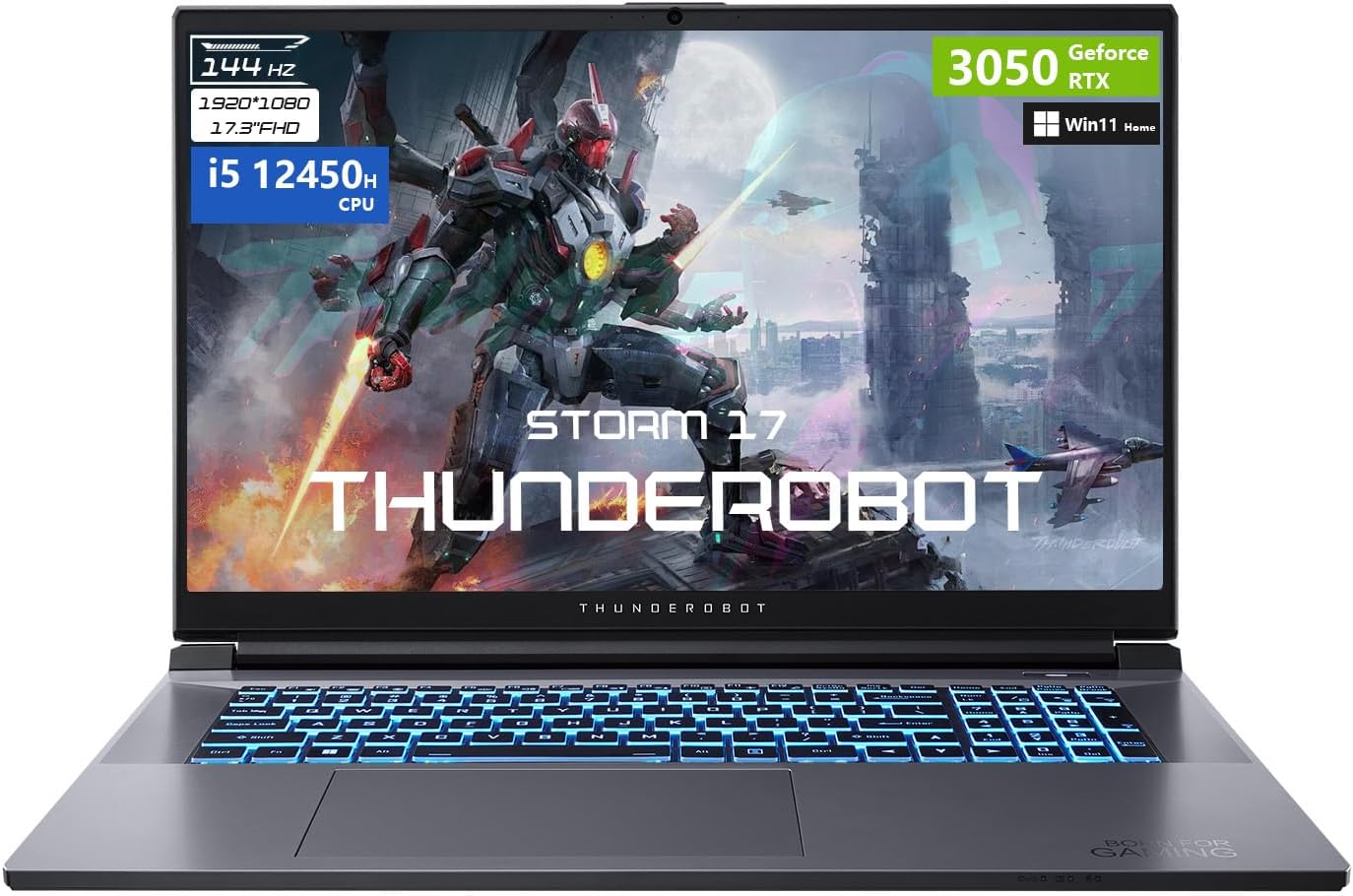
3.1 pav.: priekis view of the Thunderobot Storm 17 Gaming Laptop, showcasing the display and RGB backlit keyboard.
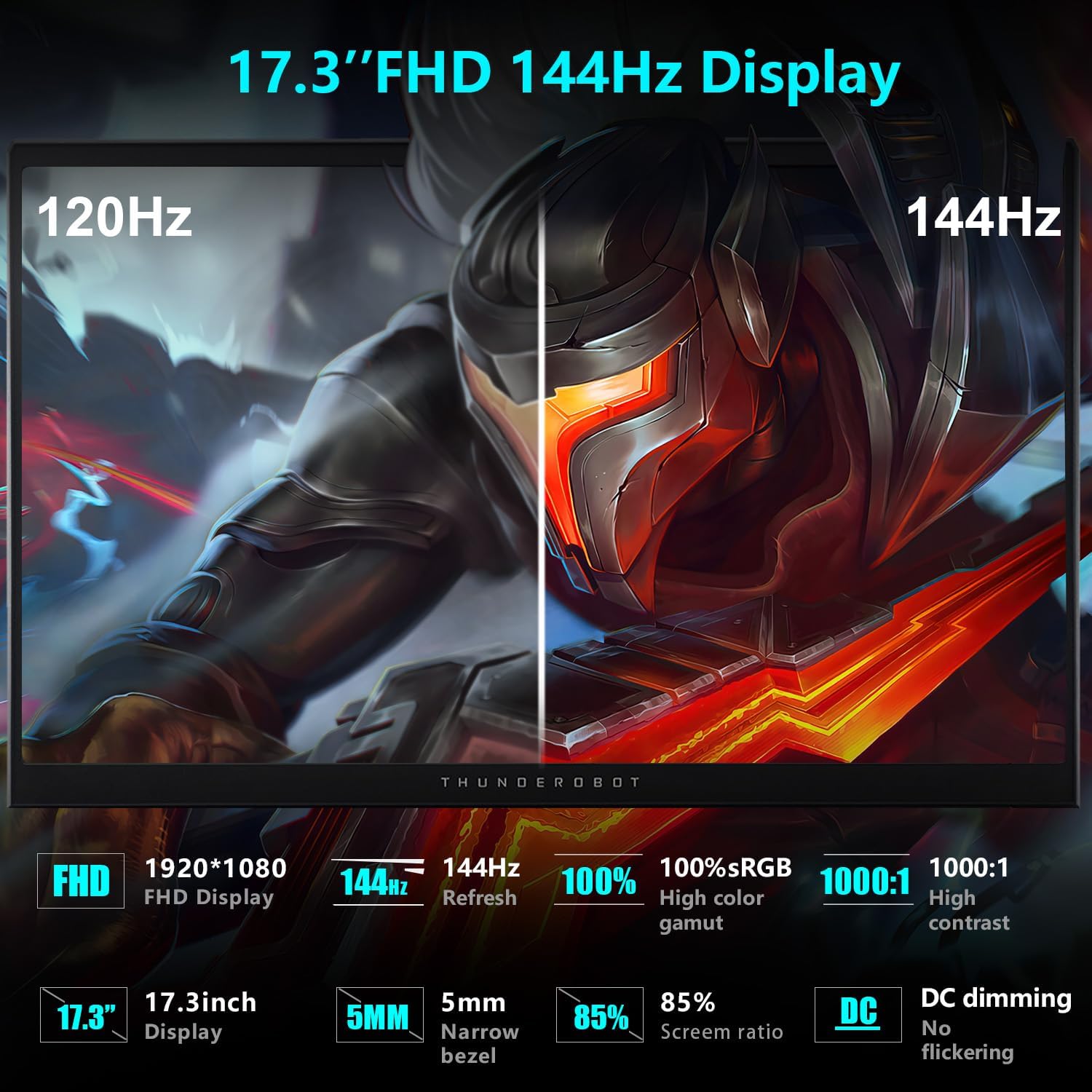
Figure 3.2: Diagram illustrating the various ports and slots on the Thunderobot Storm 17 Gaming Laptop.
- Ekranas: 17.3" FHD (1920x1080) 144Hz
- Klaviatūra: RGB Backlit Keyboard with Numeric Keypad
- Prievadai: 3x USB 3.2 Gen 1 Type-A, 1x USB Type-C, 1x HDMI, 1x RJ-45 Ethernet, 1x Audio Port, 1x Mini DisplayPort, 1x Kensington Lock Slot, 1x DC-in Jack.
4. Sąranka
4.1. Pradinis įjungimas
- Connect the power adapter to the DC-in jack on the laptop and then to a power outlet.
- Atidarykite nešiojamojo kompiuterio dangtį.
- Norėdami įjungti nešiojamąjį kompiuterį, paspauskite maitinimo mygtuką.
- Vykdykite ekrane pateikiamus nurodymus, kad užbaigtumėte „Windows 11 Home“ sąranką.
4.2. Išorinių įrenginių prijungimas
Utilize the available ports to connect external devices such as a mouse, keyboard, external monitor, or headset.
- USB įrenginiai: Use the USB Type-A or Type-C ports.
- Išorinis ekranas: Connect via the HDMI or Mini DisplayPort.
- Garsas: Use the 3.5mm combo jack for headphones or a headset.
- Tinklas: Prijunkite Ethernet kabelį prie RJ-45 prievado, kad galėtumėte prisijungti prie laidinio interneto.
5. Naudojimo instrukcijos
5.1. Klaviatūros funkcijos

Figure 5.1: Close-up of the RGB backlit keyboard on the Thunderobot Storm 17.
The keyboard features RGB backlighting and a full numeric keypad. Function keys (F1-F12) often have secondary functions when pressed in combination with the Fn key. Refer to the keycap icons for specific functions (e.g., volume control, brightness adjustment, Wi-Fi toggle).
5.2. Ekrano nustatymai

Figure 5.2: Visual comparison demonstrating the smoothness of a 144Hz display versus a lower refresh rate.
Your laptop features a 17.3" FHD 144Hz display. To ensure the 144Hz refresh rate is active:
- Dešiniuoju pelės mygtuku spustelėkite darbalaukį ir pasirinkite „Ekrano nustatymai“.
- Scroll down and click "Advanced display settings".
- Under "Choose a refresh rate", select "144 Hz".
5.3. Performance Modes (Control Center)

Figure 5.3: Screenshot of the Control Center software, showing various performance and fan adjustment options.
The Thunderobot Control Center software allows you to switch between different performance modes to optimize your laptop for various tasks. These modes typically include:
- Berserk Mode: Full performance release for demanding applications and gaming.
- Žaidimo režimas: Optimized for smooth gaming experience.
- Audio and Video Office Mode: Prioritizes battery life and quiet operation for productivity.
To access the Control Center, search for "Control Center" in the Windows search bar. Note that system mode switching in Control Center requires the device to be connected to a power source.
6. Priežiūra
6.1. Aušinimo sistema
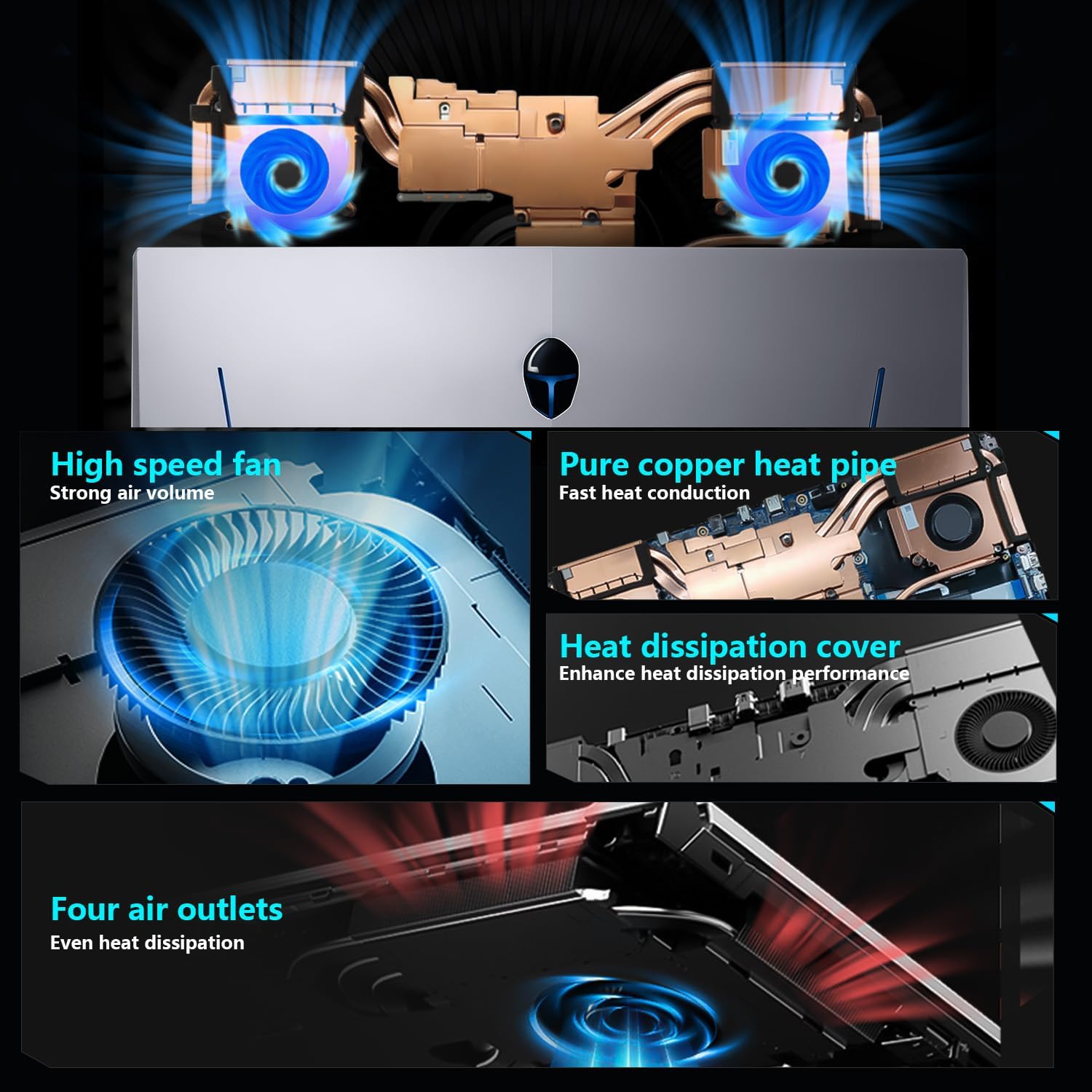
Figure 6.1: Diagram illustrating the internal cooling system with dual fans and heat pipes.
The Storm 17 features an efficient cooling system with dual turbofans and copper heat pipes. To maintain optimal cooling performance:
- Ensure the air vents (located on the sides and rear) are not obstructed.
- Nešiojamąjį kompiuterį naudokite ant kieto, lygaus paviršiaus, kad būtų užtikrintas tinkamas oro cirkuliavimas.
- Periodically clean dust from the vents using compressed air. Do not open the laptop chassis for cleaning unless you are a qualified technician.
6.2. Bendroji priežiūra
- Keep the laptop away from liquids and extreme temperatures.
- Ekraną valykite minkštu, nepūkuotu skudurėliu, specialiai skirtu elektronikai.
- Venkite dėti sunkių daiktų ant nešiojamojo kompiuterio.
- Reguliariai kurkite duomenų atsargines kopijas, kad išvengtumėte nuostolių.
7. Problemų sprendimas
| problema | Galima priežastis | Sprendimas |
|---|---|---|
| Nešiojamasis kompiuteris neįsijungia. | No power, battery drained, power adapter issue. | Įsitikinkite, kad maitinimo adapteris yra tvirtai prijungtas ir lizdas veikia. Prieš bandydami vėl įjungti, kraukite akumuliatorių bent 30 minučių. |
| Ekranas tuščias arba juodas. | Display settings, external monitor connected, system crash. | Paspauskite Fn + F1 (or corresponding display toggle key). Disconnect any external monitors. Restart the laptop. |
| Prastas žaidimų našumas. | Incorrect power mode, outdated drivers, overheating. | Ensure laptop is plugged in and set to "Berserk Mode" in Control Center. Update graphics drivers. Check cooling vents for obstructions. |
| Wi-Fi neprisijungia. | „Wi-Fi“ išjungtas, tvarkyklės problema, maršrutizatoriaus problema. | Check Wi-Fi toggle (Fn + Fx). Restart router. Update Wi-Fi drivers. |
If the issue persists after attempting these solutions, please contact Thunderobot customer support.
8. Specifikacijos
| Funkcija | Detalė |
|---|---|
| Prekės ženklas | Thunderobot |
| Modelio pavadinimas | 17 audra |
| Ekrano dydis | 17.3 colių |
| Ekrano raiška | 1920 x 1080 pikselių (Full HD) |
| Atnaujinimo dažnis | 144 Hz |
| Procesorius | „Intel Core i5-12450H“ (8 branduoliai, 12 gijų, iki 4.4 GHz) |
| RAM | 16 GB DDR4 (3200 MHz) |
| Kietasis diskas | 512 GB PCIe M.2 SSD |
| Grafikos koprocesorius | NVIDIA GeForce RTX 3050 (6 GB GDDR6) |
| Operacinė sistema | Windows 11 Home |
| Belaidis tipas | 802.11ac „Wi-Fi“, „Bluetooth“ |
| Uostai | 3x USB 3.2 Gen 1 Type-A, 1x USB Type-C, 1x HDMI, 1x RJ-45, 1x Audio Port, 1x Mini DisplayPort, 1x Kensington Lock Slot, 1x DC-in Jack |
| Klaviatūra | RGB foninio apšvietimo klaviatūra, skaitmeninė klaviatūra |
| Matmenys (IxPxH) | 15.62 x 10.35 x 1.01 colio |
| Prekės svoris | 11 svaro |
9. Garantija ir palaikymas
Every Thunderobot laptop includes a 12 mėnesių garantija, offering expert support, thorough diagnostics, and genuine parts if a repair is needed. We also provide a 90 dienų garantija on all warranty replacement parts, ensuring hassle-free repairs. Your complete satisfaction is our commitment.
For technical support, warranty claims, or service inquiries, please visit the official Thunderobot websvetainėje arba susisiekite su klientų aptarnavimo skyriumi.
10. Papildomi ištekliai
10.1. Produktų vaizdo įrašai
10.1 vaizdo įrašas: metimas per sekundęview of the Thunderobot Series Display, highlighting visual features and performance.
Video 10.2: A video demonstrating various Thunderobot gaming products and their design principles, including the Storm series.


