1. Svarbi saugos informacija
Please read all safety instructions before using the projector. Keep this manual for future reference.
- Neužblokuokite ventiliacijos angų. Užtikrinkite pakankamai vietos aplink projektorių tinkamam oro cirkuliavimui.
- Avoid direct exposure to the projector lens light.
- Do not place the projector near heat sources or in direct sunlight.
- Naudokite tik su prietaisu pateiktą maitinimo adapterį.
- Nebandykite patys atidaryti ar taisyti projektoriaus. Visus techninės priežiūros darbus patikėkite kvalifikuotiems specialistams.
- Projektorių laikykite atokiau nuo vandens ar kitų skysčių.
2. Pakuotės turinys
Patikrinkite, ar pakuotėje yra visi reikalingi daiktai:
- Aurzen Roku TV Smart Projector (D1R Cube)
- Maitinimo laidas
- Remote Control (2 AAA Batteries Required, not included)
- Vartotojo vadovas (šis dokumentas)
3. Produktas baigtasview
The Aurzen D1R Cube is a compact smart projector featuring built-in Roku TV for integrated streaming. It offers 1080P Full HD resolution, Dolby Audio, and a sealed optical engine for enhanced durability and clarity.
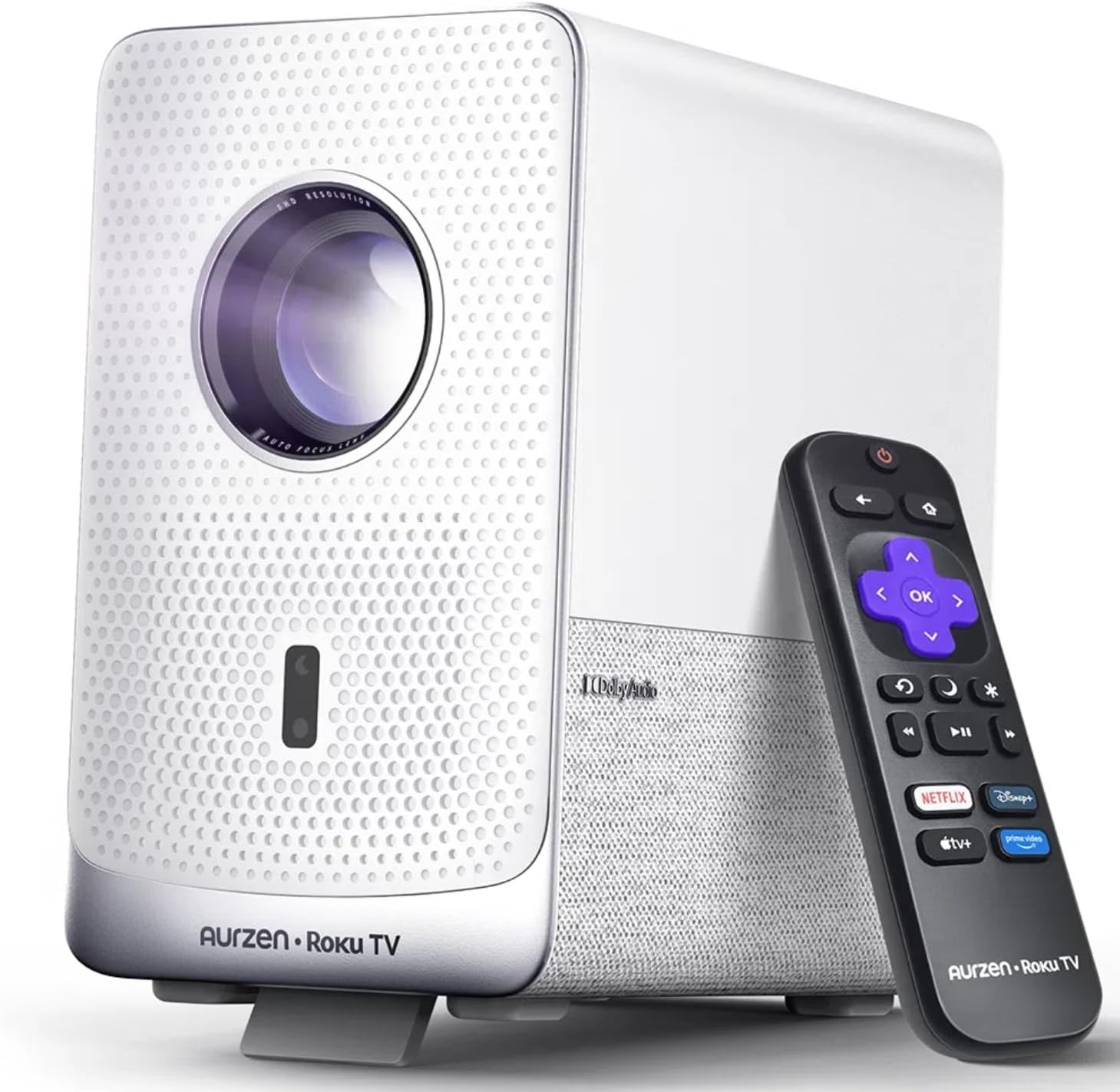
Image: The Aurzen D1R Cube Smart Projector shown with its remote control. The projector is white with a textured front panel and a visible lens.
Pagrindinės funkcijos:
- Roku TV Built-in: Access popular streaming services directly.
- Užsandarintas optinis variklis: Protects against dust, maintaining image quality and extending lifespan.
- 1080P FHD Resolution: Delivers crisp and clear visuals.
- Dolby Audio: Provides enhanced sound experience.
- Automatinis fokusavimas ir trapecijos korekcija: Automatic image adjustment for quick setup.
- Dual-band WiFi & Bluetooth 5.2: For seamless connectivity.
- Apple AirPlay: Effortless content sharing from Apple devices.
- Išmaniųjų namų suderinamumas: Works with Apple HomeKit, Siri, Alexa, and Google Assistant.

Image: An internal diagram illustrating the sealed optical engine of the Aurzen D1R Cube projector, highlighting its dust-proof design.
4. Sąranka
4.1 Pradinis išdėstymas
Padėkite projektorių ant stabilaus, lygaus paviršiaus. Optimaliam veikimui viewing, position it directly in front of your projection surface (wall or screen). The projector features automatic focus and keystone correction to adjust the image, but a relatively straight angle is recommended.

Image: A visual representation of the projector's auto-focus and auto-keystone correction features, showing how the image automatically adjusts to create a perfect rectangular display.
4.2 Maitinimo jungtis
- Prijunkite maitinimo laidą prie projektoriaus maitinimo įvesties prievado.
- Kitą maitinimo laido galą prijunkite prie tinkamo elektros lizdo.
- The projector will power on automatically or can be turned on using the power button on the device or remote.
4.3 Nuotolinio valdymo pulto sąranka
Insert two AAA batteries (not included) into the remote control. Ensure correct polarity. The remote is pre-paired with the projector.
4.4 Pradinė „Roku“ televizoriaus sąranka
Upon first power-on, follow the on-screen instructions to set up your Roku TV. This includes:
- Kalbos pasirinkimas.
- Connecting to a Wi-Fi network (a stable internet connection is required).
- Activating your Roku account. If you do not have one, you will be prompted to create a free account.
- Installing desired streaming channels.
5. Naudojimo instrukcijos
5.1 Įjungimas / išjungimas
Norėdami įjungti arba išjungti įrenginį, paspauskite projektoriaus arba nuotolinio valdymo pulto maitinimo mygtuką.
5.2 Roku Home Screen Navigation
Use the directional pad and OK button on the remote to navigate the Roku home screen. Access streaming channels, search for content, and adjust settings.

Image: A screenshot of the Roku TV home screen, displaying various streaming app icons and navigation options.
5.3 Srautinio perdavimo programos
The Roku TV platform provides access to a wide range of streaming applications such as Netflix, Prime Video, Disney+, Hulu, YouTube, and more. Select an app from the home screen to begin streaming.

Paveikslėlis: Grafinis demonstravimasasing various popular streaming service logos available on the Roku TV platform, including Netflix, Disney+, and Hulu.
5.4 Išorinių įrenginių prijungimas
The projector includes HDMI and USB ports for connecting external devices.
- HDMI: Connect gaming consoles, Blu-ray players, or other HDMI-enabled devices. Select the corresponding HDMI input from the Roku TV menu.
- USB: Leisti mediją file(nuotraukas, vaizdo įrašus, muziką) iš USB atmintinės.
5.5 „Bluetooth“ ryšys
Connect Bluetooth headphones or speakers for an enhanced audio experience.
- Go to the Roku TV settings menu.
- Select 'Remotes & devices' then 'Bluetooth devices'.
- Įjunkite „Bluetooth“ įrenginį į poravimo režimą.
- Pasirinkite savo įrenginį iš projektoriaus ekrane rodomo sąrašo, kad jį suporuotumėte.

Image: A diagram illustrating the Bluetooth connectivity of the Aurzen D1R Cube projector, showing it connecting to various external audio devices.
5.6 „Apple AirPlay“
Effortlessly share content from your Apple devices (iPhone, iPad, Mac) to the projector using Apple AirPlay.
- Ensure your Apple device and the projector are connected to the same Wi-Fi network.
- On your Apple device, open the content you wish to share (e.g., photos, videos).
- Bakstelėkite AirPlay piktogramą (usually a rectangle with an upward-pointing arrow).
- Select your Aurzen D1R Cube projector from the list of available devices.

Image: A family watching content projected from an Apple device onto a large screen via Apple AirPlay using the Aurzen D1R Cube projector.
5.7 Balso valdymas ir išmaniųjų namų integravimas
The projector supports voice control via the Roku mobile app and is compatible with Apple HomeKit, Siri, Alexa, and Google Assistant for broader smart home integration.
- „Roku“ mobilioji programėlė: Download the Roku mobile app to use voice commands, type easily, and control your projector from your smartphone.
- Smart Home Assistants: Link your Roku account to your preferred smart home ecosystem (Apple Home, Amazon Alexa, Google Home) to control the projector with voice commands.
6. Priežiūra
6.1 Sealed Optical Engine
The Aurzen D1R Cube features a sealed optical engine designed to prevent dust accumulation on internal components. This reduces the need for routine internal cleaning and helps maintain consistent image quality over time.

Image: A side-by-side comparison showing the difference in dust accumulation between a sealed optical engine (left) and an open optical engine (right) after a period of use.
6.2 Bendras valymas
- Išorė: Projektoriaus išorę nuvalykite minkštu, sausu skudurėliu. Nenaudokite abrazyvinių valiklių ar tirpiklių.
- Objektyvas: Gently clean the projector lens with a lens cleaning cloth or specialized lens cleaning solution. Avoid touching the lens with your fingers.
- Vėdinimas: Ensure ventilation openings are clear of dust and debris. Use a soft brush or compressed air to gently clean them if necessary.
6.3 Saugykla
When not in use for extended periods, store the projector in a cool, dry place, away from direct sunlight and extreme temperatures. Consider using a protective cover or case to prevent dust accumulation.
7. Problemų sprendimas
If you encounter issues with your Aurzen D1R Cube projector, refer to the following common solutions:
| Problema | Galimas sprendimas |
|---|---|
| Nėra galios | Įsitikinkite, kad maitinimo laidas yra tvirtai prijungtas prie projektoriaus ir elektros lizdo. Patikrinkite lizdą su kitu įrenginiu. |
| Nėra paveikslėlio | Check if the projector is powered on. Verify the input source (HDMI, USB) is correctly selected. Ensure the lens cap is removed. |
| Neryškus vaizdas | The projector has auto-focus. If the image remains blurry, try repositioning the projector or restarting it to trigger auto-focus again. Ensure the lens is clean. |
| Nėra garso | Check the volume level on the projector and any connected external audio devices. Ensure Bluetooth audio is correctly paired or external speakers are properly connected. |
| „Wi-Fi“ ryšio problemos | Ensure your Wi-Fi router is working. Restart the projector and your router. Verify the Wi-Fi password is correct in the Roku TV settings. |
| Nuotolinio valdymo pultas neatsako | Replace the AAA batteries in the remote control. Ensure there are no obstructions between the remote and the projector. |
For further assistance, please refer to the online support resources or contact Aurzen customer service.
8. Specifikacijos
Detailed technical specifications for the Aurzen D1R Cube Smart Projector:
| Funkcija | Specifikacija |
|---|---|
| Prekės ženklas | Aurzen |
| Modelis | D1R Cube |
| Maksimali ekrano skiriamoji geba | 1920 x 1080 (1080P FHD) |
| Ryšio technologija | WiFi (Dual-band 2.4G/5G), Bluetooth 5.2, HDMI, USB, Audio |
| Ypatingos savybės | Roku TV Smart Projector, Sealed Optical Engine, Dolby Audio, Apple AirPlay, Smart Home Compatibility |
| Prekės svoris | 5.68 svaro |
| Gaminio matmenys | 7.42 x 7 x 7.83 colio |
| Spalva | Baltas |
9. Garantija ir palaikymas
9.1 Gaminio garantija
Aurzen products are covered by a manufacturer's warranty. Please refer to the warranty card included with your product or visit the official Aurzen websvetainėje, kurioje pateikiamos konkrečios garantijos sąlygos.
9.2 Pagalba klientams
For technical support, troubleshooting assistance, or warranty claims, please contact Aurzen customer service through their official channels. You can find more information and contact options on the Aurzen Brand Store on Amazon.


