Įvadas
This manual provides comprehensive instructions for the setup, operation, and maintenance of your MEETION Director-C-3 Ergonomic Wireless Keyboard and Mouse Combo. Designed for comfort and efficiency, this combo offers multi-device connectivity and an ergonomic design to support natural hand and wrist posture during extended use.
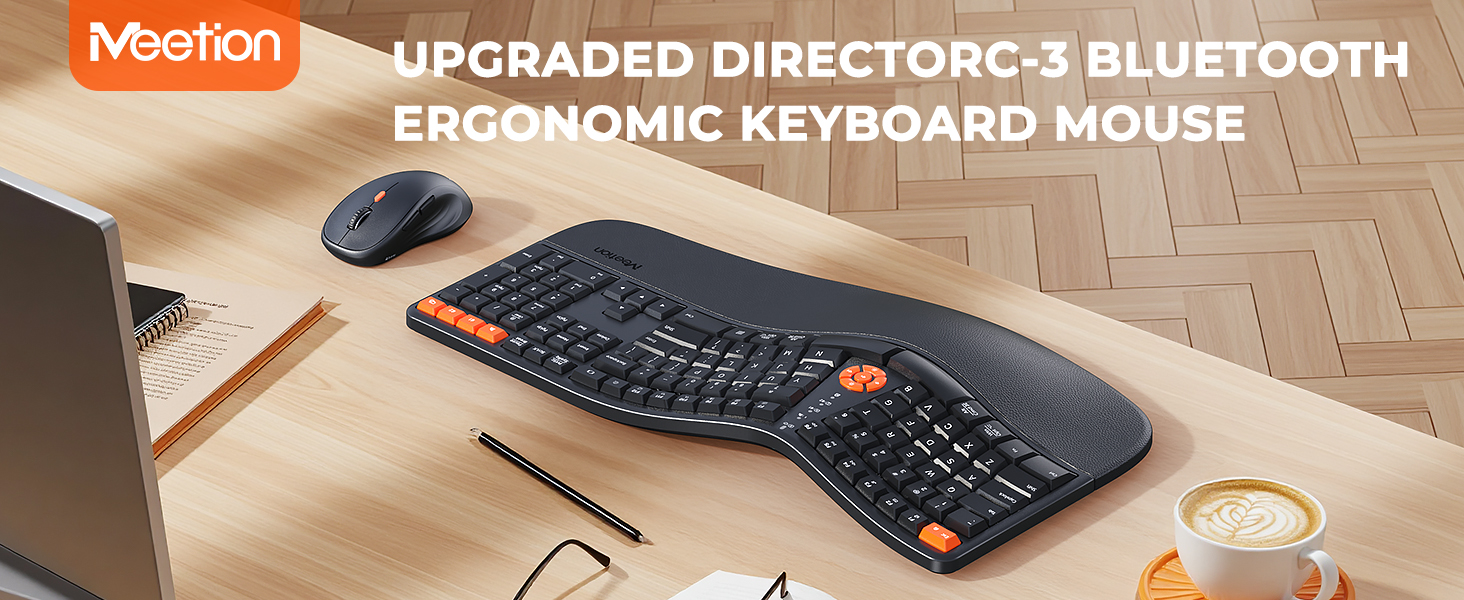
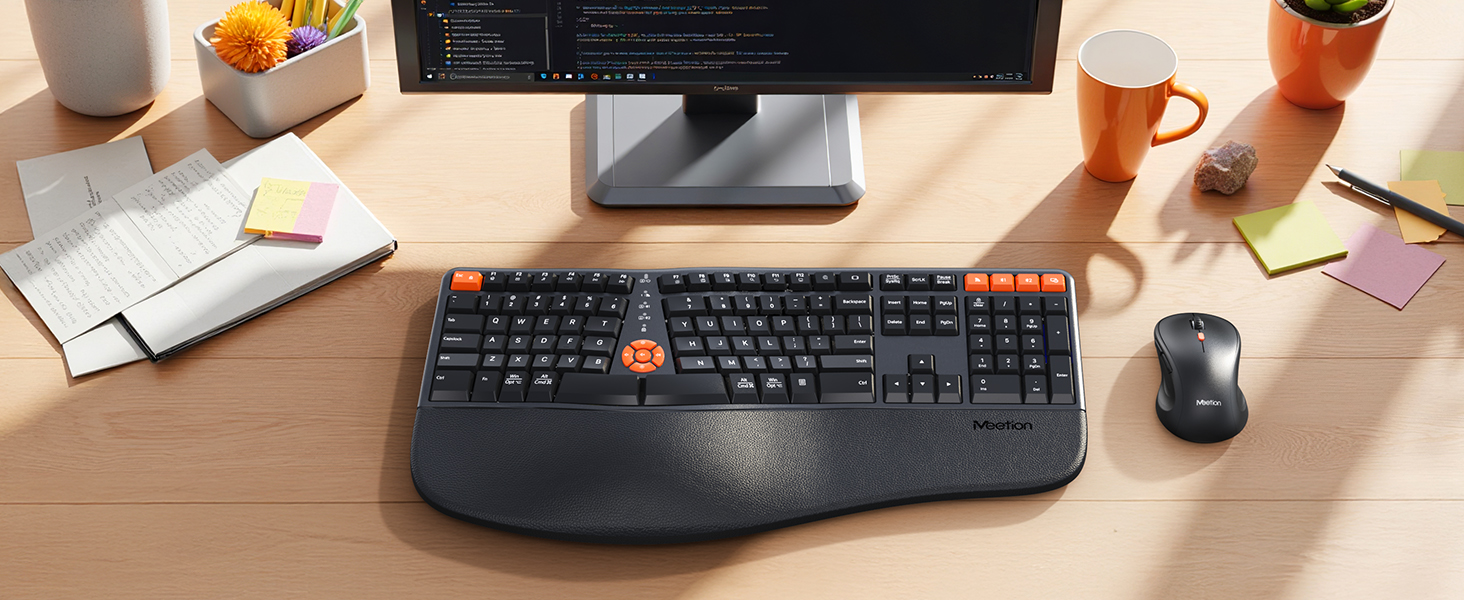
Image: The MEETION Director-C-3 ergonomic wireless keyboard and mouse combo displayed on a desk setup, highlighting its design and placement.
Pakuotės turinys
- MEETION Director-C-3 Ergonomic Wireless Keyboard
- MEETION Director-C-3 Wireless Mouse
- USB 2.4G imtuvas
- Vartotojo vadovas
Note: AAA batteries for the keyboard (2x) and AA battery for the mouse (1x) are not included and must be purchased separately.
Sąrankos instrukcijos
1. Akumuliatoriaus įdėjimas
The keyboard requires two AAA batteries, and the mouse requires one AA battery. Ensure correct polarity when inserting batteries.
Paveikslėlis: Apatinė pusė view of the keyboard and mouse, illustrating the battery compartments for 2xAAA batteries in the keyboard and 1xAA battery in the mouse.
2. 2.4G belaidis ryšys
- Locate the USB receiver in the accessory bag.
- Įkiškite USB imtuvą į laisvą kompiuterio USB prievadą.
- Klaviatūroje paspauskite 2.4G wireless mode button (indicated by a Wi-Fi icon) to switch to 2.4G mode. The corresponding indicator light will illuminate.
- On the mouse, ensure it is powered on and the mode is set to 2.4G (often indicated by a switch or button on the underside). The 2.4G indicator light on the mouse will light up green.
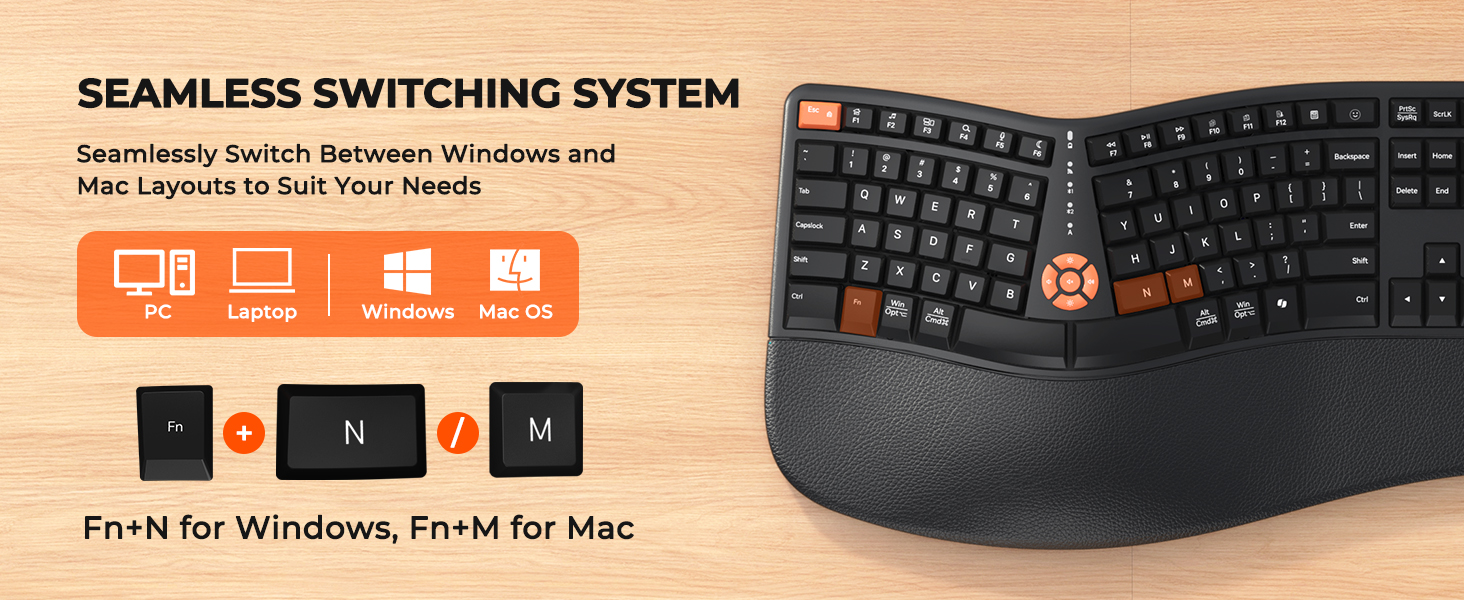
Image: Visual guide demonstrating the four steps to establish a 2.4G wireless connection for the keyboard and mouse, including inserting the USB receiver.
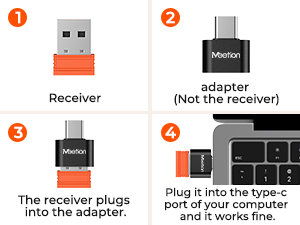
Image: A close-up showing the USB receiver and an optional USB-C adapter for compatibility with various ports.
3. „Bluetooth“ ryšys (BT1 / BT2)
The keyboard and mouse support two independent Bluetooth channels for multi-device connectivity.
- Klaviatūroje paspauskite BT1 or BT2 mode button. The corresponding Bluetooth indicator will light up blue and start blinking, indicating pairing mode.
- On your computer or tablet, open Bluetooth settings and search for devices. Find "Meetion KB BT1" or "Meetion KB BT2" and connect.
- For the mouse, press the Režimo perjungimo mygtukas (usually on the underside or top) to switch to Bluetooth 1 or Bluetooth 2 mode. The indicator will light up blue and start blinking.
- In your device's Bluetooth settings, find "Meetion MS BT1" or "Meetion MS BT2" and connect.
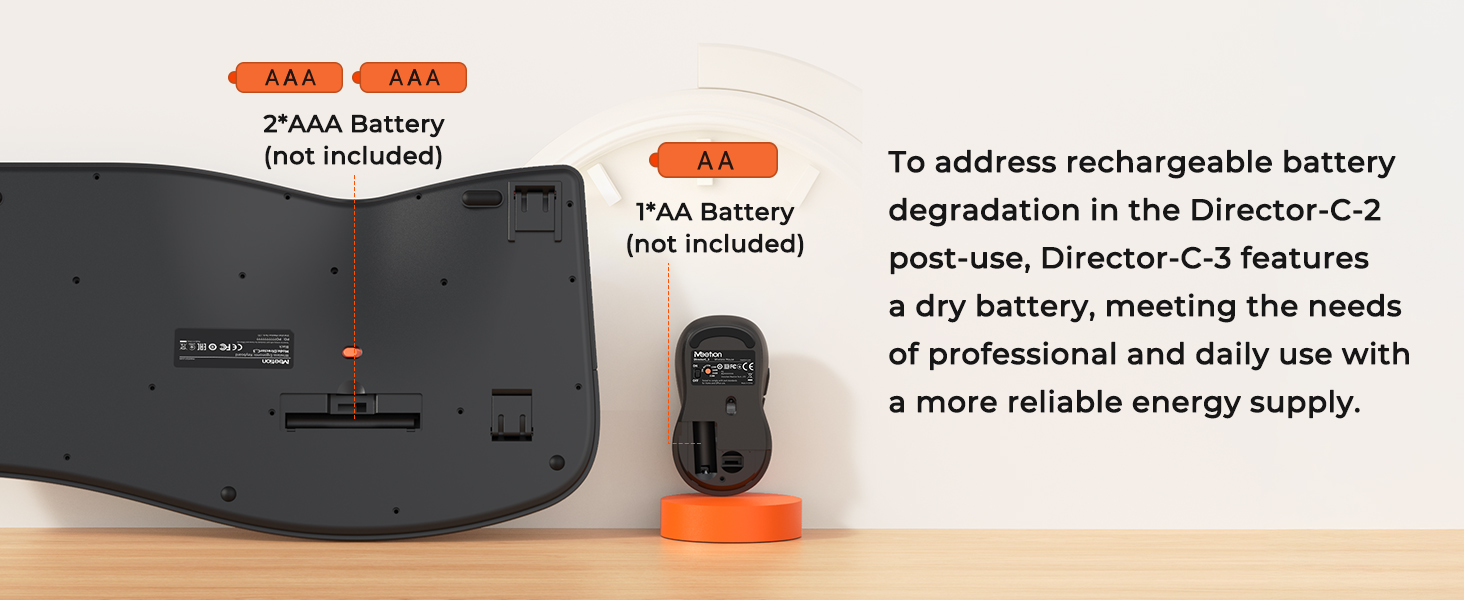
Image: A step-by-step visual guide for connecting the keyboard and mouse via Bluetooth to a laptop and a tablet.
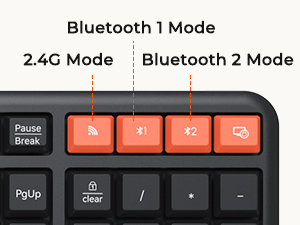
Image: Close-up of the orange mode buttons on the keyboard, indicating 2.4G, Bluetooth 1, and Bluetooth 2 connection options.
Naudojimo instrukcijos
1. Ergonomiškas dizainas ir patogumas
The Director-C-3 features a classic ergonomic design with a unique curved layout and a split key arrangement, promoting a natural typing posture. The integrated cushioned palm rest provides support for your wrists, reducing strain during prolonged use.
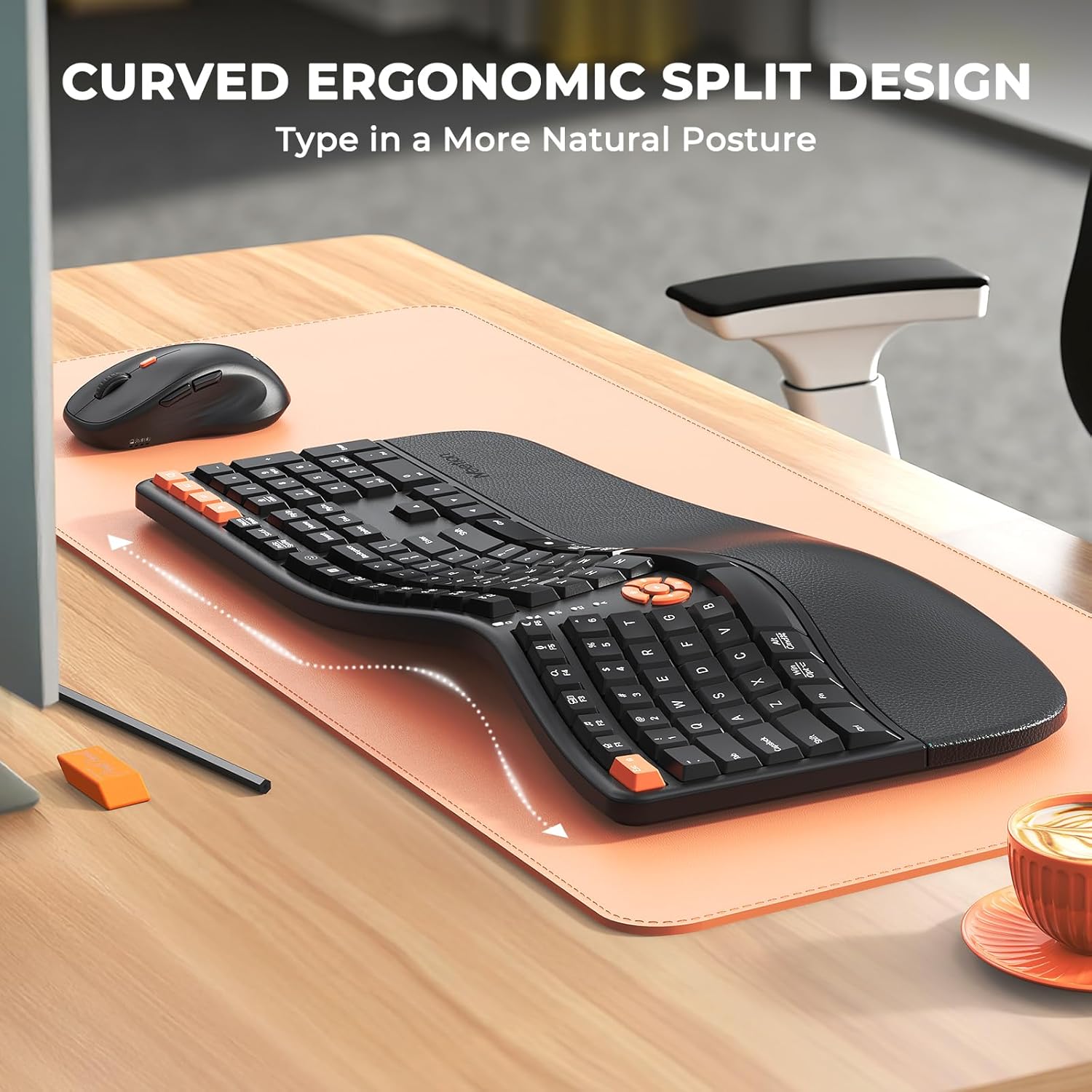
Paveikslėlis: Viršutinė dalis view of the curved ergonomic split keyboard on a desk, illustrating its natural typing posture design.
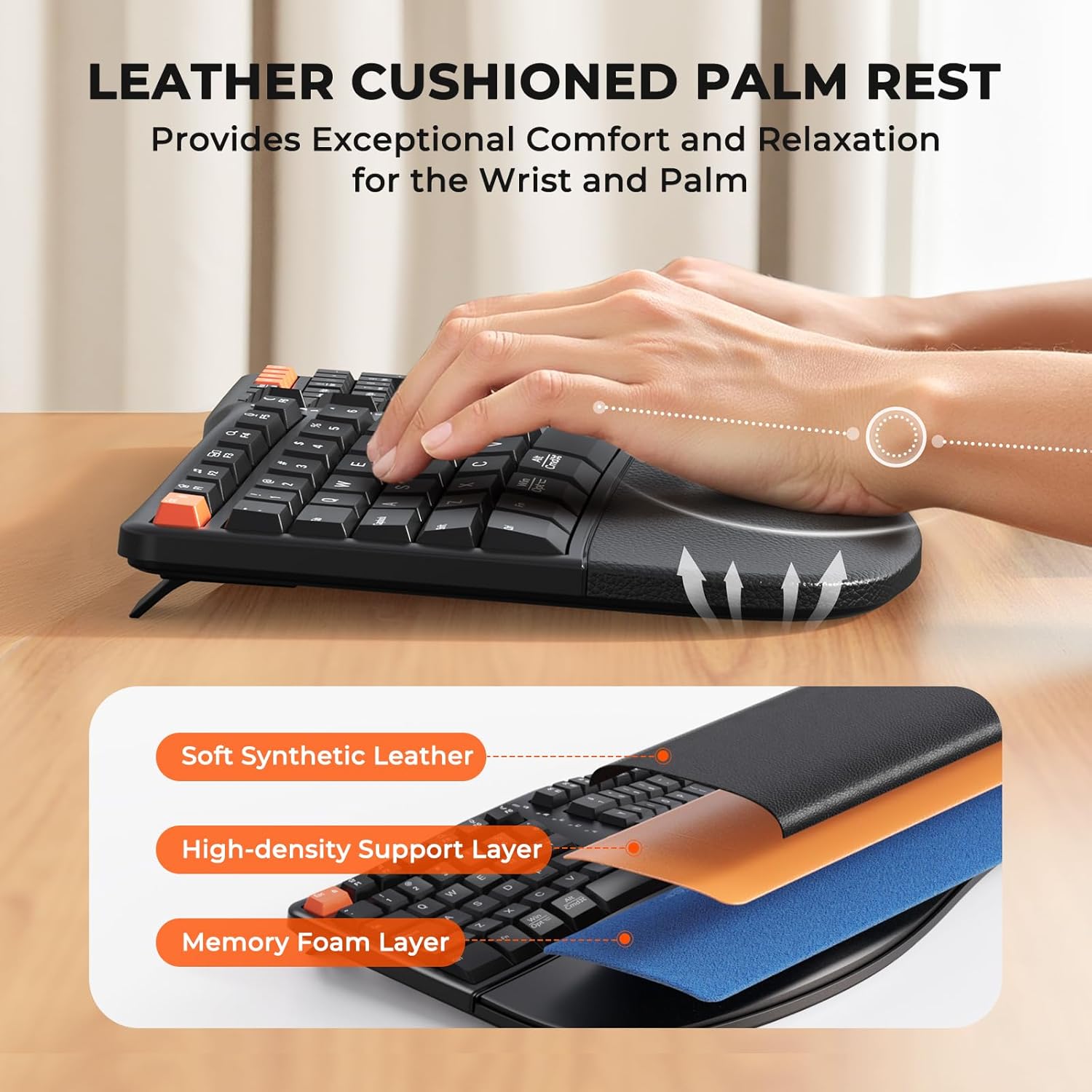
Image: A close-up showing the leather-like cushioned palm rest of the keyboard, emphasizing its soft and supportive texture.
2. Adjustable Tilt Legs
The keyboard is equipped with adjustable tilt legs on the underside, allowing you to customize the typing angle for optimal comfort and wrist alignment.

Paveikslėlis: Šoninė pusė view of the keyboard demonstrating the adjustable tilt legs, showing how they can be set to different angles for user preference.
3. Klaviatūros indikatoriai
The central lighting indicator provides visual feedback on the keyboard's status:
- Red blinking: Low battery warning.
- Green light always on: Caps Lock enabled.
- Blue light: Bluetooth connection mode (BT1 or BT2).
- Green light: 2.4G wireless connection mode.
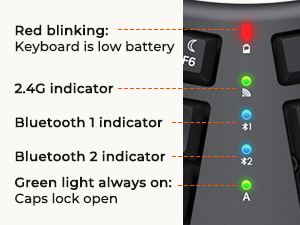
Paveikslėlis: detalus view of the keyboard's central indicator lights, explaining the meaning of each light for connection status and key functions.
4. Mouse DPI Adjustment
The mouse features 4 adjustable DPI levels (1200/1600/2400/3200) to customize cursor sensitivity. Press the DPI button on the top of the mouse to cycle through the settings.

Image: The wireless mouse highlighting its 4 adjustable DPI settings (1200, 1600, 2400, 3200) for customizable precision.
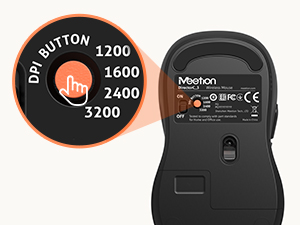
Image: A close-up of the mouse's underside, showing the DPI button and its corresponding sensitivity levels.
5. Kelių įrenginių perjungimas
Both the keyboard and mouse allow seamless switching between connected devices (2.4G, Bluetooth 1, Bluetooth 2) with a single press of their respective mode buttons.

Image: A desk setup showing the keyboard and mouse connected to a laptop, monitor (via 2.4G), and tablet (via Bluetooth), illustrating multi-device functionality.
6. OS Compatibility Switching
The keyboard supports both Windows and Mac layouts. Use the following key combinations to switch between operating system modes:
- Fn + N: For Windows operating systems.
- fn+m: For Mac operating systems.
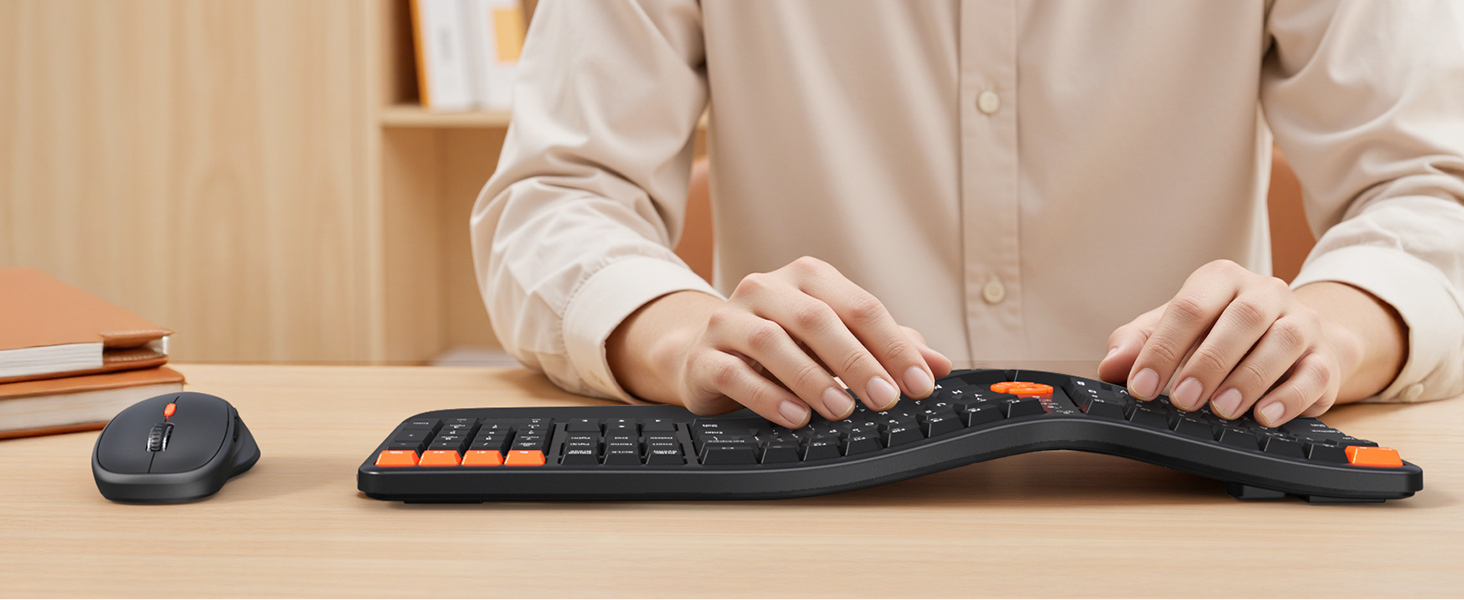
Image: The keyboard displaying the key combinations (Fn+N and Fn+M) for switching between Windows and Mac operating system layouts.
Energijos valdymas
The Director-C-3 keyboard and mouse utilize dry batteries for reliable power. To conserve battery life, the devices feature a smart power-saving mode with 20-minute auto-sleep functionality. Simply type or click any button to wake them up.
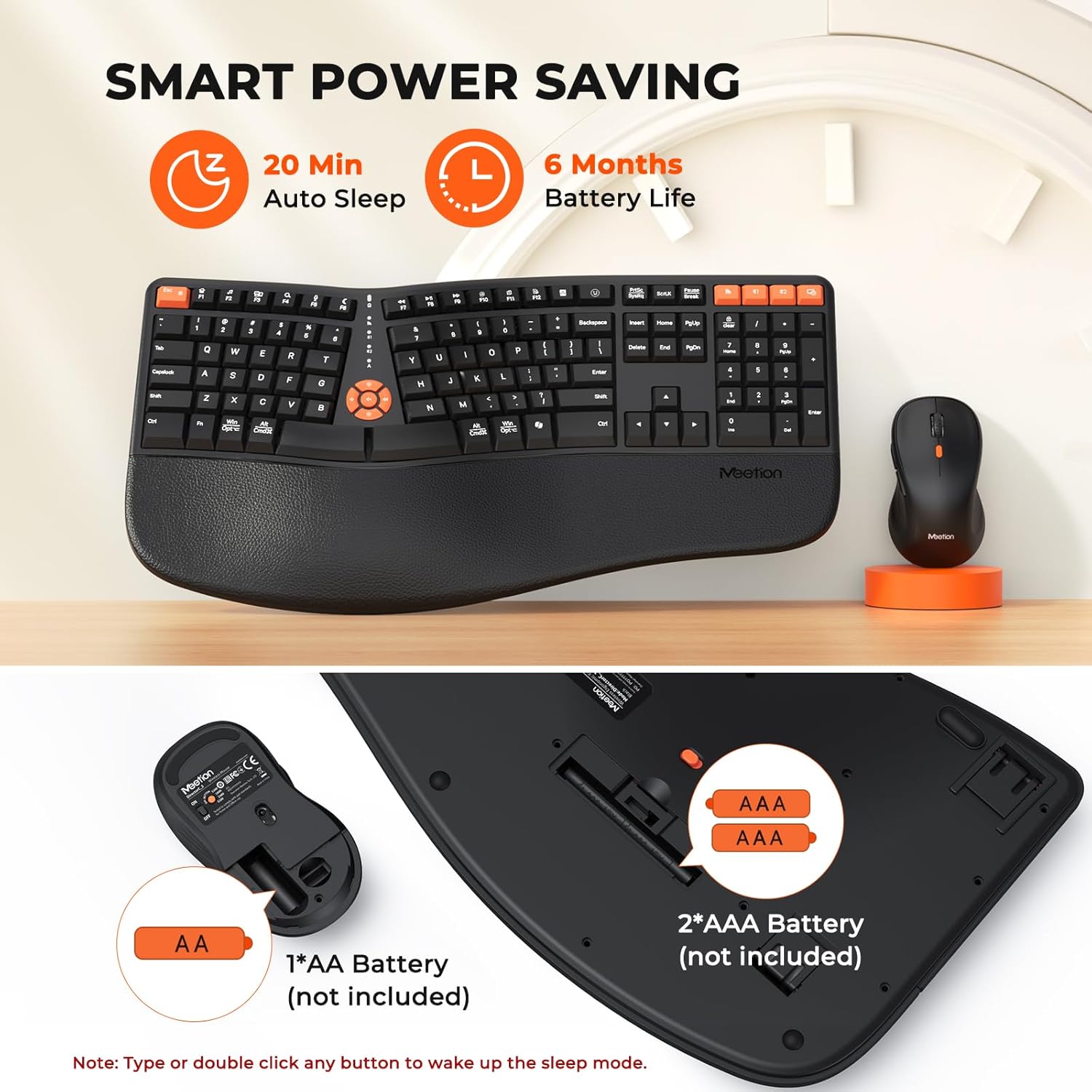
Image: An illustration highlighting the smart power-saving features, including 20-minute auto-sleep and an estimated 6-month battery life, along with battery type requirements.
Suderinamumas
The MEETION Director-C-3 combo is compatible with a wide range of devices and operating systems, including:
- Windows PCs and Laptops
- Mac OS devices
- Tabletės

Image: An image depicting the keyboard and mouse alongside various devices (PC, laptop, Windows, Mac OS icons), indicating broad compatibility.
Specifikacijos
| Funkcija | Detalė |
|---|---|
| Prekės ženklas | SUSITIKIMAS |
| Modelio numeris | Director-C-3 |
| Ryšio technologija | „Bluetooth“, 2.4G USB belaidis ryšys |
| Klaviatūros tipas | Ergonomic, Split, Full Size |
| Palmių poilsis | Cushioned, Integrated |
| Pelės DPI lygiai | 1200 / 1600 2400 / 3200 XNUMX / XNUMX XNUMX (reguliuojamas) |
| Klaviatūros baterija | 2 x AAA baterijos (į komplektą neįeina) |
| Pelės baterija | 1 x AA baterija (nepridedama) |
| Klaviatūros matmenys | 19.1 x 10 x 1.8 colio |
| Pelės matmenys | 4.7 x 2.6 x 1.6 colio |
| Prekės svoris | 2.97 svaro (kombinuotas) |
| Suderinami įrenginiai | Nešiojamasis kompiuteris, asmeninis kompiuteris, planšetinis kompiuteris |

Image: A visual representation of the keyboard and mouse with their key dimensions labeled in inches.
Trikčių šalinimas
- Ryšio problemos:
- Įsitikinkite, kad baterijos yra tinkamai įdėtos ir pakankamai įkrautos.
- Verify the keyboard/mouse is in the correct mode (2.4G, BT1, or BT2) for your connection type.
- For 2.4G, ensure the USB receiver is securely plugged into a working USB port.
- For Bluetooth, ensure your device's Bluetooth is enabled and the devices are paired correctly. Try re-pairing if issues persist.
- Move the devices closer to the receiver/computer to rule out range issues (connection distance within 33 feet).
- Keyboard Not Typing / Mouse Not Moving:
- Patikrinkite akumuliatoriaus lygį ir, jei reikia, pakeiskite.
- Wake the device from auto-sleep mode by pressing any key or clicking a mouse button.
- Ensure the device is powered on (check the ON/OFF switch on the underside).
- Incorrect Key Functions (Mac/Windows):
- Paspauskite Fn + N for Windows layout or fn+m for Mac layout.
- Pelės jautrumas:
- Adjust the DPI setting using the DPI button on the mouse to find your preferred sensitivity.
Garantija ir palaikymas
MEETION products are designed for reliability and performance. For warranty information, technical support, or any inquiries regarding your Director-C-3 Ergonomic Wireless Keyboard and Mouse Combo, please refer to the official MEETION websvetainėje arba susisiekite tiesiogiai su jų klientų aptarnavimo tarnyba. Išsaugokite pirkimo kvitą garantiniams reikalavimams.
Galite aplankyti MEETION Store on Amazon Norėdami gauti daugiau informacijos.


