1. Įvadas
This manual provides essential information for setting up, operating, maintaining, and troubleshooting your HP Omen 45L GT22 Gaming Desktop. Please read this manual thoroughly before using your new system to ensure proper functionality and longevity.
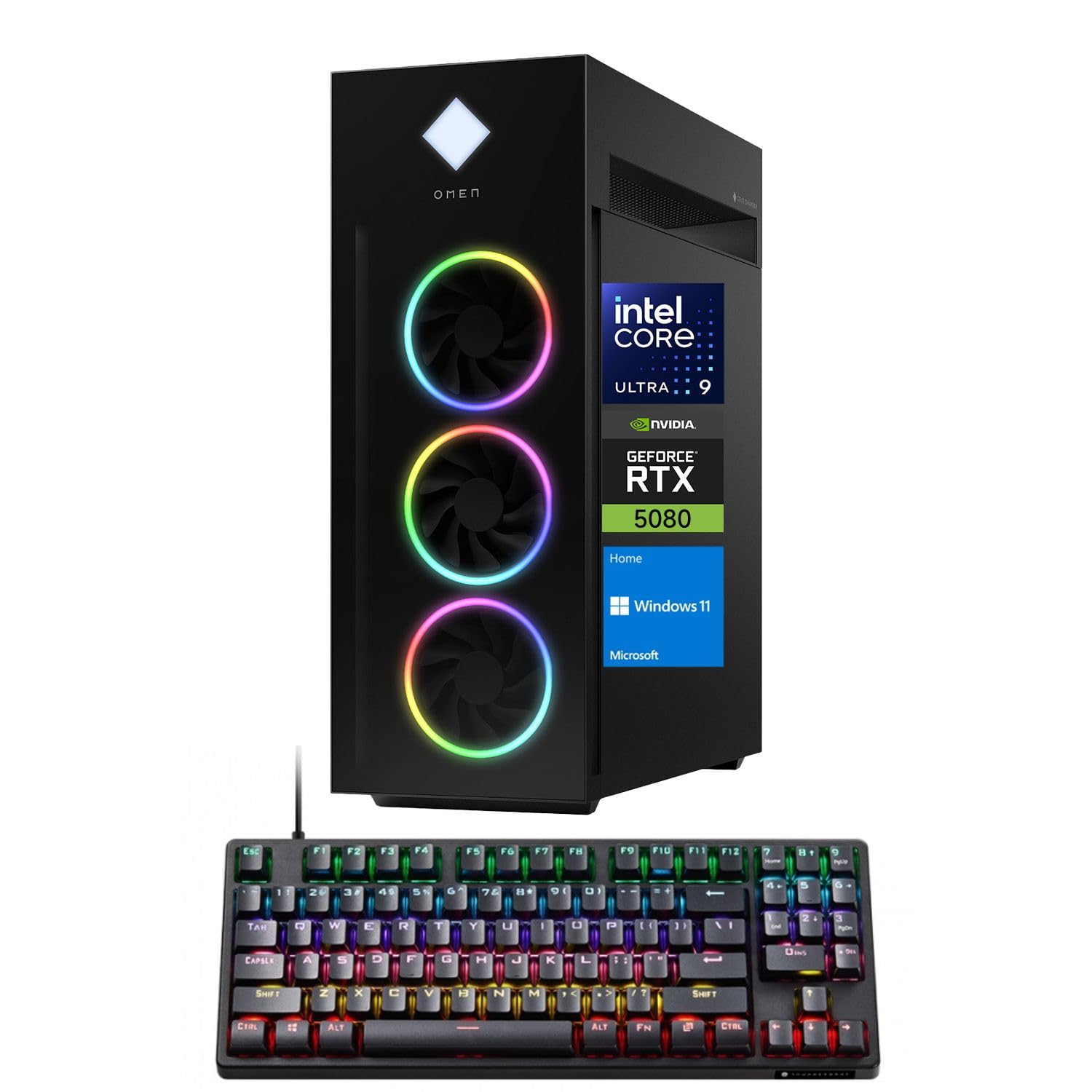
Figure 1: HP Omen 45L GT22 Gaming Desktop. This image displays the front and side of the desktop tower, highlighting its design and RGB lighting elements.
2. Kas yra dėžutėje
Patikrinkite, ar pakuotėje yra visi komponentai:
- HP Gaming Tower Desktop
- Thunderobot KG3089R Gaming Keyboard
- Maitinimo kabelis
- Dokumentacija (šis vadovas, garantijos informacija)
3. Sąrankos vadovas
3.1 Išpakavimas ir įdėjimas
- Atsargiai išimkite stalviršį ir visus priedus iš pakuotės.
- Place the desktop on a stable, flat surface with adequate ventilation around all sides. Avoid placing it in enclosed spaces or near heat sources.
3.2 Išorinių įrenginių prijungimas
Connect your monitor, keyboard, mouse, and other devices to the appropriate ports on the desktop.

Figure 2: Rear Ports of the HP Omen 45L GT22. This image illustrates the various input/output ports available on the back of the desktop, including USB, HDMI, DisplayPort, and Ethernet.
- Monitorius: Connect your monitor using an HDMI or DisplayPort cable to the dedicated graphics card ports.
- Klaviatūra ir pelė: Connect the Thunderobot KG3089R Gaming Keyboard and your mouse to any available USB Type-A ports.
- Tinklas: For a wired connection, connect an Ethernet cable to the RJ-45 port. For wireless, ensure Wi-Fi antennas are connected (if external) or that the internal Wi-Fi is enabled during software setup.
- Galia: Connect the power cable to the desktop's power supply port and then to a power outlet.
3.3 Pradinis įjungimas ir operacinės sistemos sąranka
- Paspauskite maitinimo mygtuką, esantį darbalaukio priekyje.
- Follow the on-screen instructions to complete the Windows 11 Home operating system setup. This includes setting up your user account, network connection, and privacy settings.
- Once Windows is set up, ensure all drivers are installed and updated. You can typically find driver updates through Windows Update or the HP support websvetainę.
4. Naudojimo instrukcijos
4.1 Energijos valdymas
- Maitinimas: Paspauskite maitinimo mygtuką, esantį darbalaukio priekyje.
- Išjungti: „Windows“ sistemoje spustelėkite mygtuką „Pradėti“, tada – „Maitinimas“ > „Išjungti“.
- Paleisti iš naujo: Click the Start button in Windows, then Power > Restart.
- Miegas: Click the Start button in Windows, then Power > Sleep.
4.2 Understanding Your System Components
Your HP Omen 45L GT22 is equipped with high-performance components for demanding tasks and gaming.

Figure 3: Intel Core Ultra 9 285K Processor. This image highlights the specifications of the Intel Core Ultra 9 285K CPU, including its cache, cores, and threads.
- Procesorius: Intel Core Ultra 9 285K (24 Cores, 24 Threads, 36MB L3 Cache, up to 5.70GHz). This powerful CPU handles complex computations and multitasking.
- Vaizdo plokštė: NVIDIA GeForce RTX 5080 (16GB GDDR7). This dedicated GPU is responsible for rendering high-fidelity graphics for gaming and creative applications.
- Atmintis: 32GB DDR5 RAM. High-speed memory ensures smooth operation when running multiple applications simultaneously.
- Saugykla: 2TB PCIe NVMe M.2 SSD. Provides fast boot times and rapid data access for your operating system and applications.
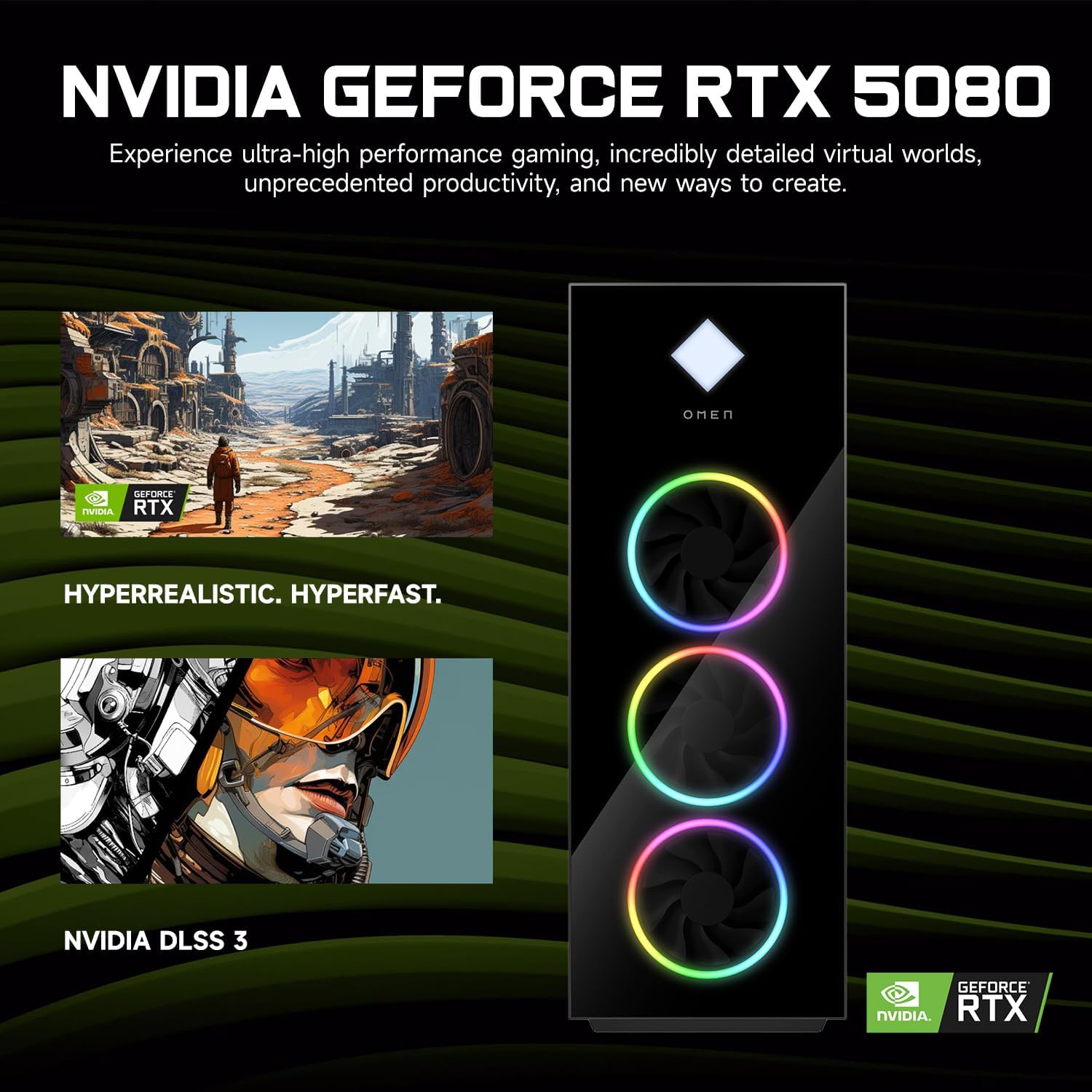
Figure 4: NVIDIA GeForce RTX 5080 Graphics. This image details the capabilities of the NVIDIA GeForce RTX 5080, emphasizing its performance for gaming and content creation.
4.3 RGB Light Studio
The HP Omen 45L GT22 features customizable RGB lighting. Use the pre-installed Omen Gaming Hub software to personalize the lighting effects on your desktop's fans and chassis. Refer to the Omen Gaming Hub's in-app help for detailed instructions on customization options.

Figure 5: Gaming Setup with HP Omen 45L GT22. This image shows the desktop integrated into a complete gaming station, including a monitor, keyboard, and mouse, demonstrating its aesthetic appeal.
5. Priežiūra
5.1 Darbalaukio valymas
- Išorė: Use a soft, lint-free cloth to wipe down the exterior surfaces. For stubborn marks, slightly dampNuplaukite šluostę vandeniu. Venkite stiprių cheminių medžiagų.
- Vėdinimas: Regularly check and clean the ventilation grilles and fan openings to prevent dust buildup, which can impede airflow and cause overheating. Use compressed air to gently clear dust from vents. Ensure the system is powered off and unplugged before cleaning.
5.2 Programinės įrangos naujiniai
Siekiant užtikrinti optimalų našumą ir saugumą, nuolat atnaujinkite operacinę sistemą ir tvarkykles.
- „Windows“ naujiniai: Regularly check for and install updates via Windows Settings > Update & Security > Windows Update.
- Tvarkyklės atnaujinimai: Update graphics drivers (NVIDIA GeForce Experience) and other system drivers (HP Support Assistant or HP website) periodically.
5.3 Duomenų atsarginė kopija
Reguliariai kurkite svarbių duomenų atsargines kopijas išoriniame diske arba debesies saugykloje, kad išvengtumėte duomenų praradimo.
6. Problemų sprendimas
This section addresses common issues you might encounter. For more complex problems, contact HP Support.
- Nėra galios:
- Įsitikinkite, kad maitinimo laidas yra tvirtai prijungtas tiek prie stalinio kompiuterio, tiek prie maitinimo lizdo.
- Patikrinkite, ar maitinimo lizdas veikia, prijungdami prie jo kitą įrenginį.
- Check the power supply unit (PSU) switch on the back of the desktop (if present) is in the 'ON' position.
- Nėra ekrano ekrane:
- Confirm the monitor is powered on and connected to the graphics card's HDMI or DisplayPort output, not the motherboard's integrated graphics ports (if applicable).
- Jei įmanoma, išbandykite kitą laidą arba monitorių.
- Įsitikinkite, kad monitoriuje pasirinktas teisingas įvesties šaltinis.
- Sistema lėta arba nereaguoja:
- Uždarykite nereikalingas programas, veikiančias fone.
- Patikrinkite užduočių tvarkytuvę (Ctrl+Shift+Esc), ar nėra didelio procesoriaus, RAM ar disko naudojimo.
- Įsitikinkite, kad „Windows“ ir tvarkyklės yra atnaujintos.
- Paleiskite virusų / kenkėjiškų programų nuskaitymą.
- Tinklo ryšio problemos:
- Jei jungiatės laidiniu būdu, įsitikinkite, kad eterneto kabelis tinkamai prijungtas ir veikia maršrutizatorius / modemas.
- For Wi-Fi, check if Wi-Fi is enabled in Windows settings and ensure you are connected to the correct network with the right password.
- Iš naujo paleiskite maršrutizatorių / modemą ir darbalaukį.
7. Specifikacijos
| Funkcija | Detalė |
|---|---|
| Modelio numeris | GT22 |
| Procesorius | Intel Core Ultra 9 285K (24 Cores, 24 Threads, 36MB L3 Cache, 3.20GHz base, up to 5.70GHz max turbo) |
| Grafika | NVIDIA GeForce RTX 5080 (16 GB GDDR7) |
| RAM | 32 GB DDR5 (4800 MHz) |
| Sandėliavimas | 2 TB PCIe NVMe M.2 SSD diskas |
| Operacinė sistema | Windows 11 Home |
| Belaidis ryšys | „Wi-Fi 6“ (802.11ax), „Bluetooth“ |
| Prievadai (priekyje) | 2 x USB Type-A 5Gbps (HP Sleep and Charge), 2 x USB 2.0 Type-A, 1 x headphone/microphone combo, 1 x microphone |
| Uostai (gale) | 1 x USB Type-C 10Gbps, 2 x USB Type-A 5Gbps, 4 x USB 2.0 Type-A, 1 x 3.5 mm audio jack, 1 x RJ-45, 1 x Thunderbolt 4 with USB Type-C 40Gbps, 1 x HDMI, 3 x DisplayPort, 5 x Audio Port |
| Matmenys (IxPxH) | 21.85 x 18.5 x 8.03 colio |
| Svoris | 49.8 svaro |
| Spalva | Juoda |
8. Garantija ir palaikymas
For warranty information, please refer to the documentation included with your product or visit the official HP support website. HP provides various support resources, including drivers, manuals, and troubleshooting guides.
HP palaikymas Websvetainė: support.hp.com
When contacting support, please have your product model number (GT22) and serial number ready.