1. Įvadas
Thank you for choosing the Transformers GM04 Lightweight Wireless Gaming Mouse. This manual provides essential information for setting up, operating, and maintaining your new gaming mouse. Designed for precision and comfort, the GM04 features a high-precision PAW3311 sensor, triple connection modes (2.4G wireless, Bluetooth 5.3, and USB-C wired), 5 programmable buttons, and up to 100 hours of battery life. Its ergonomic design and lightweight construction ensure a comfortable and responsive experience for gaming, work, and study.
2. Kas yra dėžutėje
- TF-GM04 Wireless Gaming Mouse x 1
- USB Wireless Dongle x 1
- USB-C kabelis x 1
- Vartotojo vadovas x 1
3. Produktas baigtasview
Familiarize yourself with the key features and components of your Transformers GM04 gaming mouse.
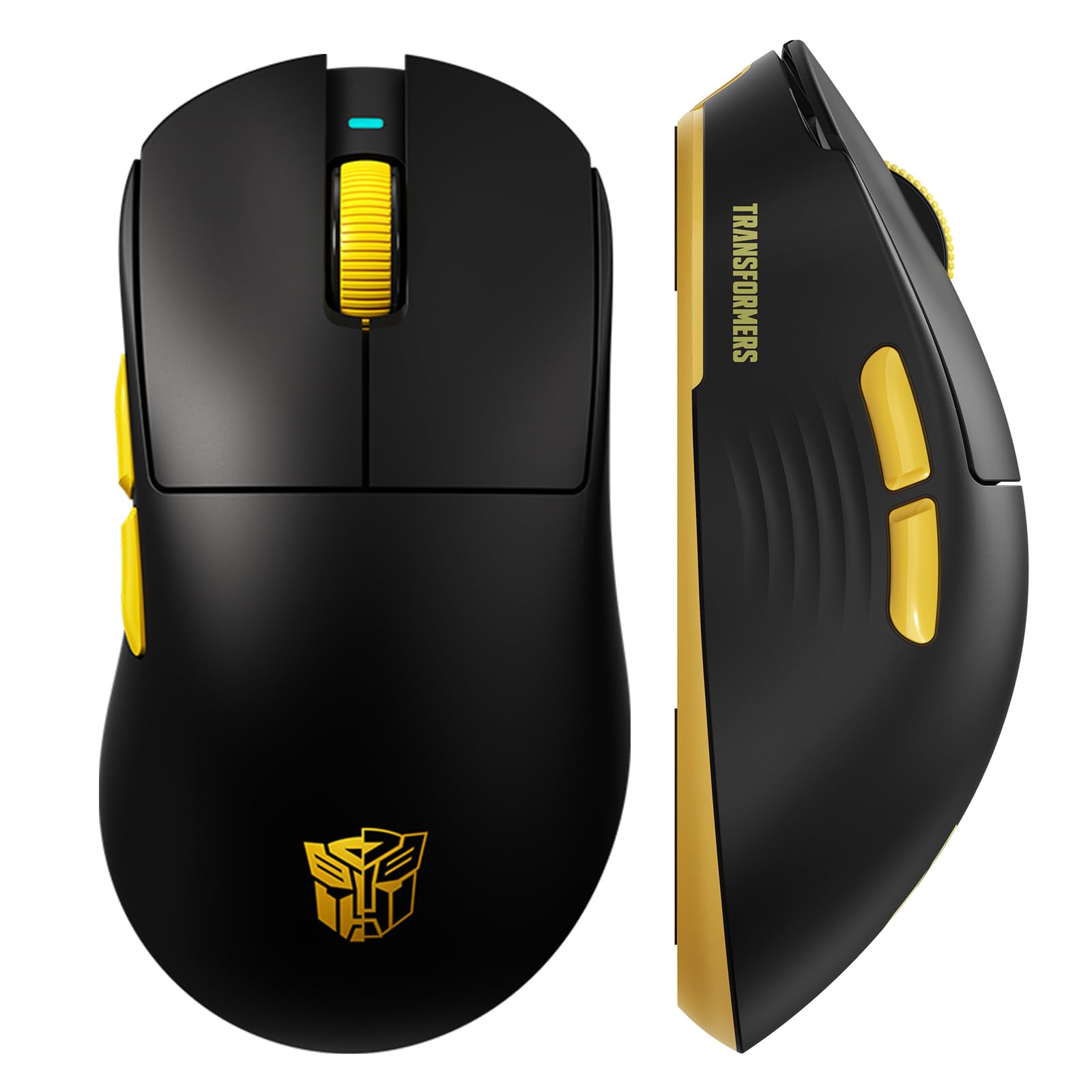
1 vaizdas: The Transformers GM04 Wireless Gaming Mouse, showcasing its sleek black and yellow design, along with icons highlighting its core features such as PixArt PAW3311 sensor, up to 12000 DPI, 1000Hz polling rate, 20 million clicks, Tri-Mode connectivity, custom macros, 63g lightweight design, and up to 100 hours of battery life. A USB wireless dongle is also visible next to the mouse.

2 vaizdas: A hand demonstrating the ergonomic design of the Transformers GM04 mouse. The image highlights how the mouse fits comfortably in the palm, promoting more comfort and less fatigue during extended use, thanks to its non-slip texture.

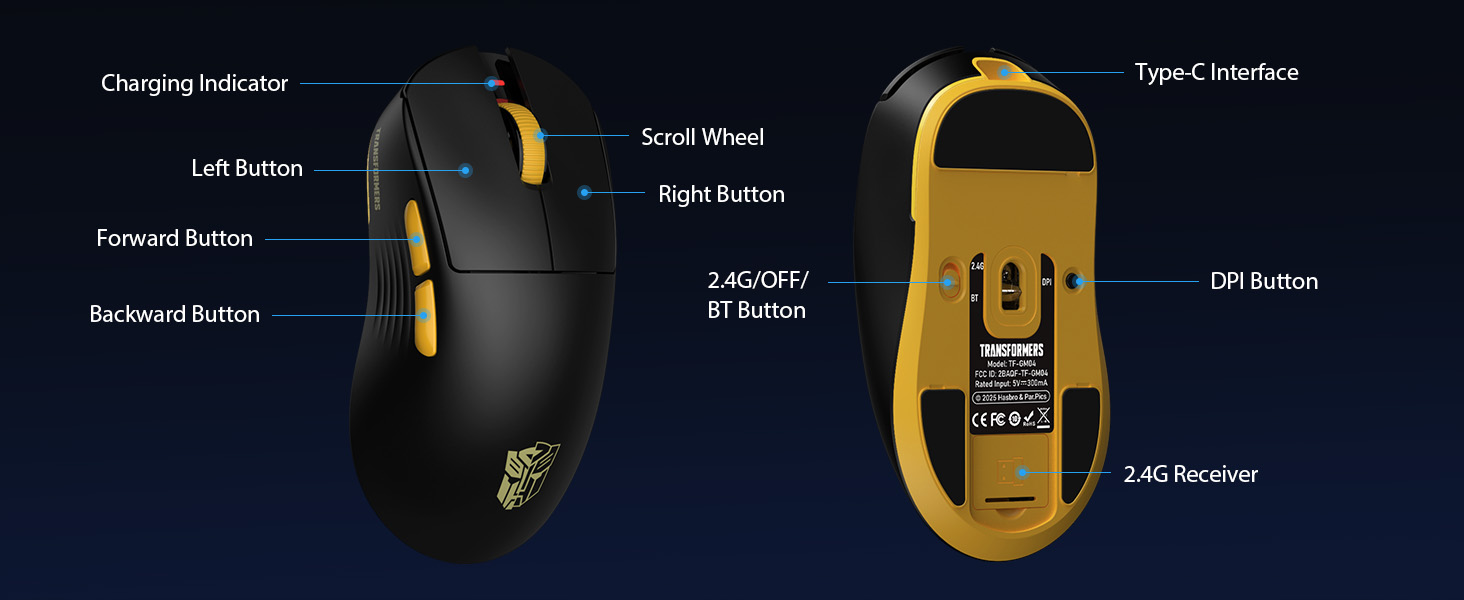
3 vaizdas: The underside of the Transformers GM04 mouse, detailing the 2.4G/OFF/BT switch for connection modes, the DPI button, and the storage compartment for the 2.4G wireless receiver. This view is crucial for understanding how to switch modes and adjust settings.

4 vaizdas: An illustration of the 6-level adjustable DPI settings for the Transformers GM04 mouse. It shows the DPI values (1200, 2400, 3200, 4800, 6400, 12000) and their corresponding LED indicator colors (Red, Green, Blue, Purple, Yellow, Cyan), which helps users identify the current DPI level.
5 vaizdas: Sprogo view diagram of the Transformers GM04 mouse, highlighting the HUANO micro switches. This image emphasizes the precision-engineered mechanical switches designed for crisp feedback and a lifespan of over 20 million clicks, ideal for rapid gaming actions.
„1“ vaizdo įrašas: An official product video from Transformers Keyboard showcasing the GM04 Lightweight Wireless Gaming Mouse. This short video provides a dynamic overview of the mouse's design and features.
4. Sąranka
4.1. Pelės įkrovimas
Before first use, it is recommended to fully charge your GM04 mouse. Connect the provided USB-C cable to the mouse's front port and the other end to a USB power source (e.g., computer USB port, USB wall adapter). The LED indicator will show charging status.
4.2. Pelės prijungimas
The GM04 mouse supports three connection modes: 2.4G Wireless, Bluetooth 5.3, and USB-C Wired. Use the switch on the bottom of the mouse to select your desired mode.
4.2.1. 2.4G belaidis režimas
- Remove the USB wireless dongle from its storage slot on the bottom of the mouse.
- Prijunkite belaidį USB adapterio adapterį prie laisvo kompiuterio USB-A prievado.
- Pelės apačioje esantį režimo jungiklį perjunkite į padėtį „2.4G“.
- Pelė turėtų automatiškai prisijungti prie kompiuterio.
4.2.2. „Bluetooth“ režimas
- Pelės apačioje esantį režimo jungiklį perjunkite į „BT“ padėtį.
- Kompiuteryje arba įrenginyje atidarykite „Bluetooth“ nustatymus ir ieškokite naujų įrenginių.
- Select "TF-GM04 BT" from the list of available devices to pair.
- The mouse should connect and be ready for use.
4.2.3. Laidinis USB-C režimas
- Connect the provided USB-C cable to the mouse's front port and the other end to a USB-A port on your computer.
- Pelė automatiškai persijungs į laidinį režimą ir pradės krautis.
5. Operacinis
5.1. DPI reguliavimas
The GM04 mouse offers 6 default DPI settings. To cycle through these settings, press the DPI mygtukas located on the bottom of the mouse. The LED indicator will change color to reflect the current DPI level:
- Raudona: 1200 DPI
- Žalia: 2400 DPI
- Mėlyna: 3200 DPI
- Violetinė: 4800 DPI
- Geltona: 6400 DPI
- Žalsvai mėlyna: 12000 DPI
5.2. Programuojami mygtukai
The mouse features 5 programmable buttons. To customize these buttons with macro commands, shortcut keys, or other functions, you will need to use the dedicated driver software. This software is typically available for Windows systems under 2.4G wireless and wired modes. Bluetooth mode may not support full software customization.
5.3. Connection Mode Switching
Easily switch between 2.4G Wireless, Bluetooth, and Wired modes using the dedicated switch on the bottom of the mouse. This allows for seamless transitions between multiple devices.
5.4. LED indikatoriai
- DPI indikatorius: Changes color according to the current DPI setting (see 5.1).
- Įkrovimo indikatorius: A green LED near the scroll wheel indicates charging. It turns off when fully charged.
6. Priežiūra
6.1. Valymas
Norėdami išlaikyti optimalų našumą ir išvaizdą, reguliariai valykite pelę. Paviršiui nuvalyti naudokite minkštą, sausą šluostę. Įsisenėjusiam purvui šiek tiek nuvalykite.amp galima naudoti šluostę, užtikrinant, kad į vidinius komponentus nepatektų drėgmės. Venkite stiprių cheminių medžiagų ar abrazyvinių medžiagų.
6.2. Akumuliatoriaus priežiūra
The GM04 mouse is equipped with a 500mAh high-capacity battery. To prolong battery life:
- Venkite dažnai visiškai iškrauti akumuliatorių.
- Kai ilgesnį laiką nenaudojate pelės, laikykite ją vėsioje, sausoje vietoje.
- If using wired mode, the mouse will charge automatically.
7. Problemų sprendimas
7.1. Pelė nereaguoja
- Patikrinkite akumuliatorių: Ensure the mouse is charged. Connect it via USB-C cable.
- Patikrinkite ryšio režimą: Verify the switch on the bottom is set to the correct mode (2.4G, BT, or Wired).
- Re-pair (2.4G/Bluetooth): For 2.4G, try plugging the dongle into a different USB port. For Bluetooth, unpair and re-pair the device in your computer's settings.
- Try Wired Mode: Connect the mouse directly via USB-C cable to see if it functions.
7.2. DPI nesikeičia
- Ensure you are pressing the correct DPI button on the bottom of the mouse.
- Observe the LED indicator for color changes to confirm DPI cycles.
- If using custom software, ensure settings are applied correctly.
7.3. Lag or Disconnection in Wireless Mode
- Sumažinti trukdžius: Move the mouse closer to the receiver/device. Avoid obstacles or other wireless devices that may cause interference.
- Patikrinkite akumuliatorių: Low battery can affect wireless performance.
- Atnaujinti tvarkykles: Ensure your computer's Bluetooth or USB drivers are up to date.
8. Specifikacijos
| Funkcija | Detalė |
|---|---|
| Gaminio matmenys | 4.68 x 2.52 x 0.1 colio |
| Prekės svoris | 2.22 uncijos (apie 63 g) |
| Prekės modelio numeris | TF-GM04 |
| Ryšio technologija | 2.4G belaidis ryšys, „Bluetooth 5.3“, USB-C laidinis ryšys |
| Judesio aptikimo technologija | Optinis (PAW3311 jutiklis) |
| DPI nustatymai | 1200/2400/3200/4800/6400/12000 (Adjustable) |
| Apklausos rodiklis | 1000Hz (1ms latency) |
| Stebėjimo greitis | „300 IPS“ |
| Pagreitis | 35G |
| Mygtukai | 5 programuojami mygtukai |
| Jungiklio tipas | HUANO Micro Switches (20 Million Clicks) |
| Baterijos talpa | 500 mAh |
| Baterijos veikimo laikas | Iki 100 valandų („Bluetooth“ režimu) |
| Suderinamumas | Windows, Mac OS, and other systems |
9. Garantija ir palaikymas
9.1. Informacija apie garantiją
The Transformers GM04 Lightweight Wireless Gaming Mouse comes with a standard manufacturer's warranty. Please refer to the packaging or the official Transformers webIšsamias garantijos sąlygas ir nuostatas rasite svetainėje. Išsaugokite pirkimo kvitą kaip pirkimo įrodymą bet kokiems garantiniams prašymams.
9.2. Pagalba klientams
For technical assistance, troubleshooting, or any questions regarding your Transformers GM04 mouse, please contact Transformers customer support. Contact details can typically be found on the product packaging or the official brand websvetainę.


