GERAI Amp„ligame SC8“ žaidimų garso maišytuvo naudotojo vadovas
Modelis: SC8
Prekės ženklas: FIFINE
1. Įvadas
FIFINE Ampligame SC8 is a versatile gaming audio mixer designed to enhance your audio experience for gaming, streaming, and voice chat. It features an XLR microphone preamp, 7.1 virtual surround sound, voice changer effects, customizable sound pads, and intuitive controls for managing multiple audio sources.

Image 1.1: The FIFINE Ampligame SC8 Gaming Audio Mixer, showcasing its control layout and RGB lighting.
2. Saugos informacija
- Prieš naudodami atidžiai perskaitykite visas instrukcijas.
- Saugokite įrenginį nuo vandens, drėgmės ir ekstremalių temperatūrų.
- Nebandykite patys ardyti ar taisyti įrenginio. Visus techninės priežiūros darbus patikėkite kvalifikuotiems specialistams.
- Naudokite tik gamintojo nurodytą maitinimo šaltinį.
- Nedėkite ant įrenginio sunkių daiktų.
- Užtikrinkite tinkamą vėdinimą, kad išvengtumėte perkaitimo.
3. Pakuotės turinys
Patikrinkite, ar pakuotėje yra visi reikalingi daiktai:
- GERAI Ampligame SC8 Gaming Audio Mixer
- USB laidas (C tipo į USB-A)
- 3.5–3.5 mm garso kabelis
- Naudotojo vadovas (šis dokumentas)
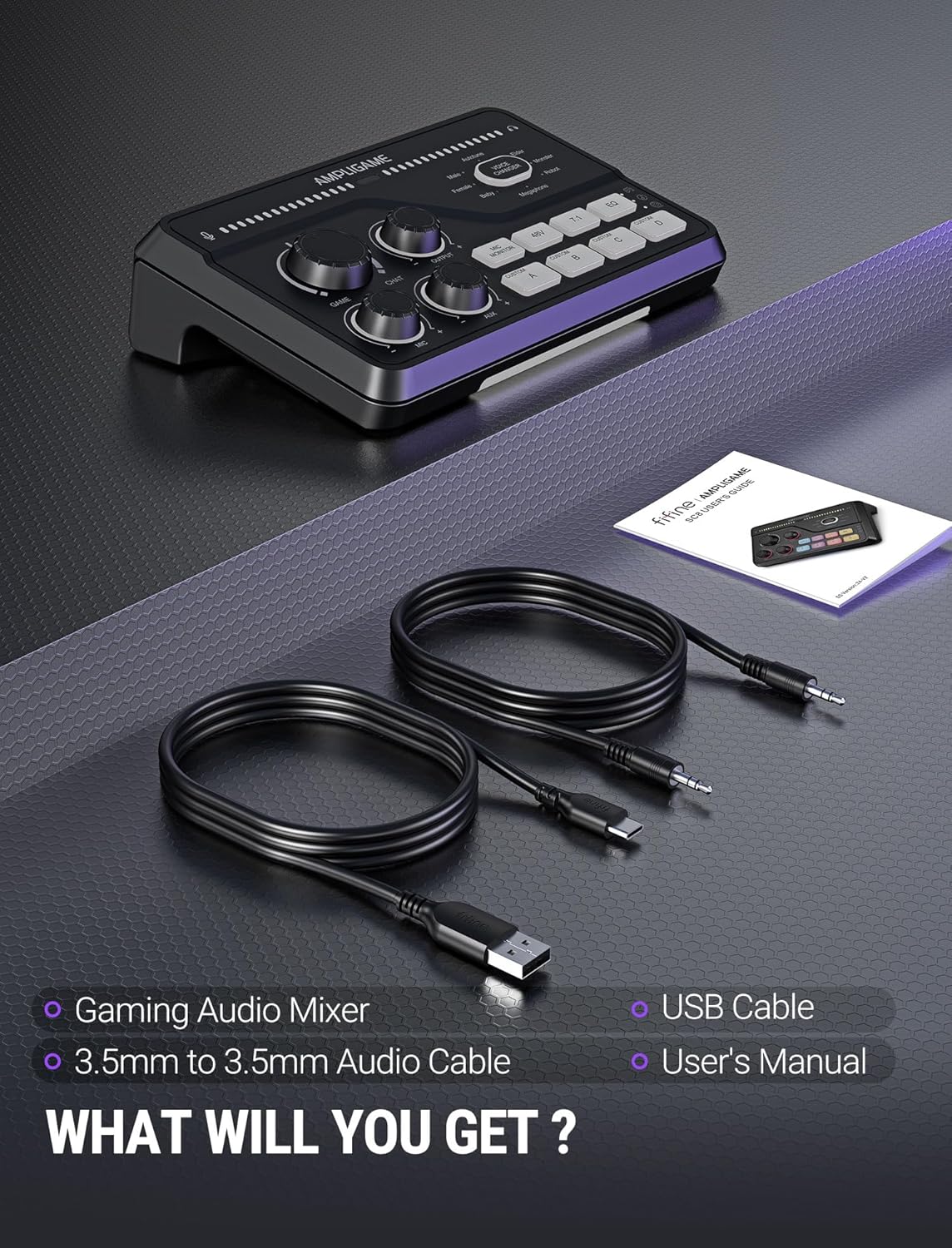
Image 3.1: Contents of the FIFINE Ampligame SC8 package, including the mixer, USB cable, 3.5mm audio cable, and user manual.
4. Produktas baigtasview (Komponentai)
Familiarize yourself with the various ports and controls on your Ampligame SC8 mixer.
Priekinio skydelio valdikliai:
- Game Knob: Adjusts the volume of the game audio.
- Chat Knob: Adjusts the volume of the chat audio.
- Output Knob: Valdo bendrą į ausines sklindančio garso stiprumą.
- Mikrofono rankenėlė: Adjusts the microphone input gain.
- AUX rankenėlė: Adjusts the volume of the AUX input.
- Mic Monitor Button: Toggles microphone monitoring (sidetone).
- 48V mygtukas: Activates/deactivates 48V phantom power for XLR microphones.
- 7.1 mygtukas: Toggles 7.1 virtual surround sound.
- EQ mygtukas: Cycles through 3 EQ presets (Game, Music, Movie).
- Balso keitiklio mygtukas: Activates and cycles through 8 voice changer effects.
- Pasirinktiniai mygtukai (A, B, C, D): Programmable buttons for custom sound samples or effects.
- RGB apšvietimas: Pritaikomi RGB apšvietimo efektai.

Image 4.1: Close-up of the FIFINE Ampligame SC8's front panel, highlighting the finely graduated knobs, quick press mute function, and game/chat balance control.
Galinio skydelio jungtys:
- USB-C prievadas: For connection to PC, PS5, Switch, or mobile devices.
- Optical AUX Input: For connecting PS4/TV.
- 3.5 mm AUX įvestis: For mixing commentary audio or other external audio sources.
- Ausinių išvestis: 3.5mm jack for connecting your gaming headset or headphones.
- XLR įvestis: For connecting XLR microphones.
- Dynamic/Condenser Toggle: Switch to match your microphone type.
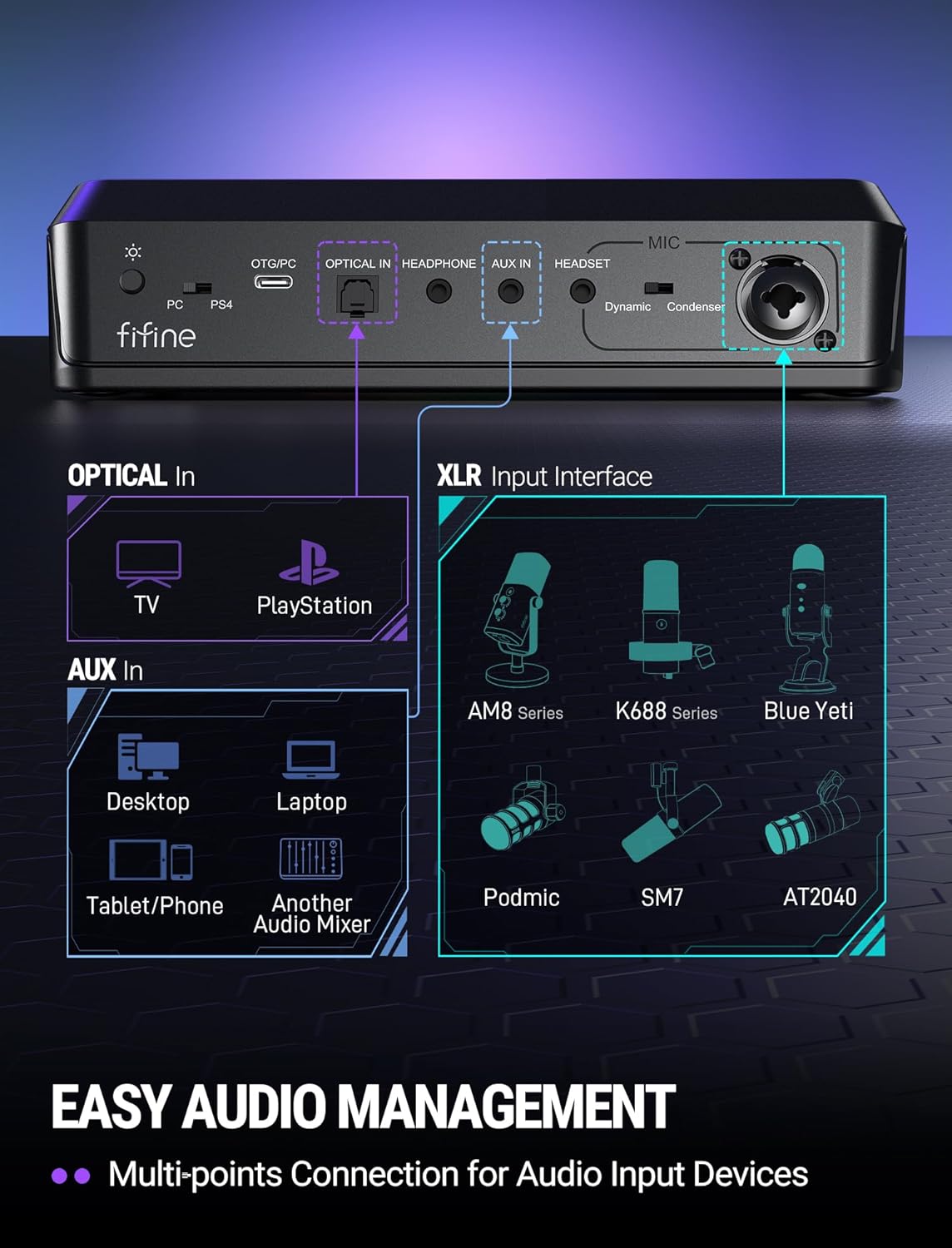
Image 4.2: Diagram of the FIFINE Ampligame SC8's rear panel, illustrating the various input and output ports and their typical connections.
5. Sąranka
5.1 Pradinis prisijungimas
- Connect the FIFINE Ampligame SC8 to your computer (PC/PS5/Switch) using the provided USB-C to USB-A cable. The device is Plug & Play and should be recognized automatically.
- Connect your gaming headset or headphones to the 3.5mm Headphone Output jack on the rear panel.
5.2 Mikrofono prijungimas
- Connect your XLR microphone to the XLR Input port on the rear panel.
- Nustatykite Dynamic/Condenser Toggle switch to match your microphone type.
- If using a condenser microphone that requires power, press the 48 V mygtukas to activate phantom power. The button will illuminate when active.
- Sureguliuokite Mikrofono rankenėlė on the front panel to set your microphone's input gain.

Image 5.1: Illustration of the XLR connection and 48V phantom power feature, emphasizing wide compatibility with various microphones.
5.3 Connecting External Audio Sources
- Optical AUX: For PS4/TV audio, connect an optical cable from your console/TV to the Optical AUX Input on the mixer.
- 3.5 mm AUX įvestis: For mobile devices, tablets, or other audio mixers, connect a 3.5mm audio cable from the device's output to the 3.5mm AUX-In on the mixer. Adjust its volume using the AUX rankenėlė.
6. Naudojimo instrukcijos
6.1 Volume Control and Muting
- Žaidimo apimtis: Pasukite Game Knob to adjust the volume of your game audio.
- Chat Volume: Pasukite Chat Knob to adjust the volume of your voice chat.
- Žaidimo / pokalbių balansas: The Žaidimas ir Pokalbis knobs allow you to prioritize game audio or chat audio as needed.
- Išvesties garsumas: Pasukite Išvesties rankenėlė to control the master volume for your headphones. Pressing this knob will mute/unmute the output.
- Mikrofono nutildymas: Paspauskite Mikrofono rankenėlė to mute/unmute your microphone.
- AUX Mute: Paspauskite AUX rankenėlė to mute/unmute the AUX input.
6.2 Microphone Monitoring
Paspauskite Mic Monitor Button to toggle microphone monitoring (sidetone). This allows you to hear your own voice through your headphones, which can help prevent shouting and ensure clear communication.
6.3 7.1 virtualus erdvinis garsas
Paspauskite 7.1 Mygtukas to activate or deactivate the 7.1 virtual surround sound feature. This can enhance spatial awareness in games, allowing you to better pinpoint the direction of sounds.
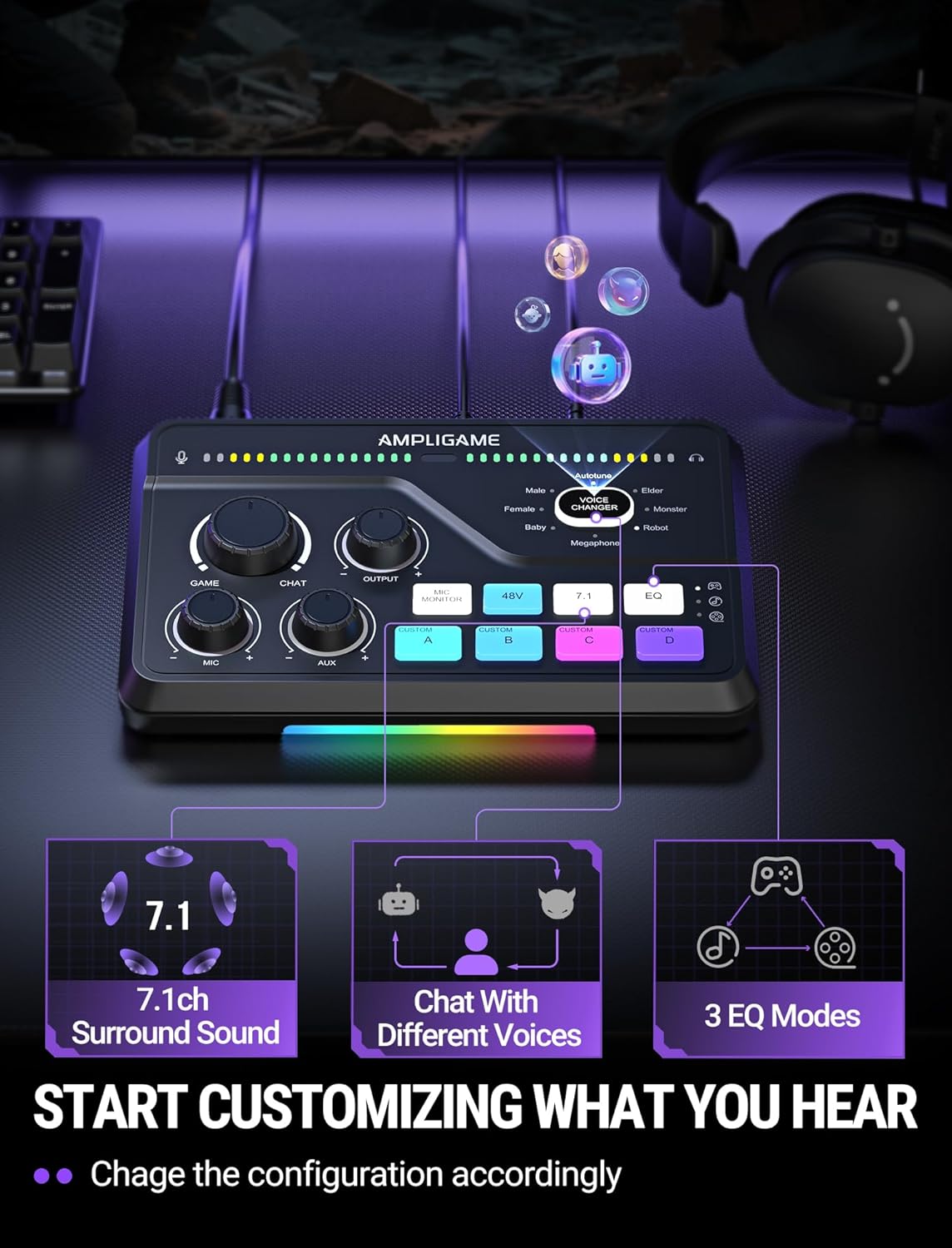
Image 6.1: Visual representation of the 7.1ch surround sound, voice chat, and 3 EQ modes features available on the mixer.
6.4 išankstiniai EQ nustatymai
Paspauskite EQ mygtukas to cycle through three distinct equalization presets:
- Žaidimo režimas: Optimized for in-game audio, enhancing footsteps and other critical sound cues.
- Muzikos režimas: Balanced audio for listening to music.
- Filmo režimas: Enhanced audio for cinematic experiences.
6.5 Balso keitiklis
Paspauskite Balso keitimo mygtukas to activate the voice changer and cycle through 8 different voice effects, such as Demon, Robot, Megaphone, etc. This feature can be used for entertainment during streams or voice chats.

Image 6.2: A user enjoying the voice changer function of the FIFINE Ampligame SC8, illustrating the playful aspect of the device's features.
6.6 Customizable Sound Pads (Custom A, B, C, D)
Keturi Custom Buttons (A, B, C, D) can be programmed to play custom sound samples or effects. Refer to the FIFINE website or support resources for detailed instructions on how to load and manage custom audio files for these buttons.
6.7 RGB apšvietimas
The Ampligame SC8 features dynamic RGB lighting. The lighting effects can synchronize with audio peaks, providing visual feedback. Specific controls for RGB customization may be available through dedicated software or by cycling through presets on the device itself (if applicable, consult FIFINE support for details).
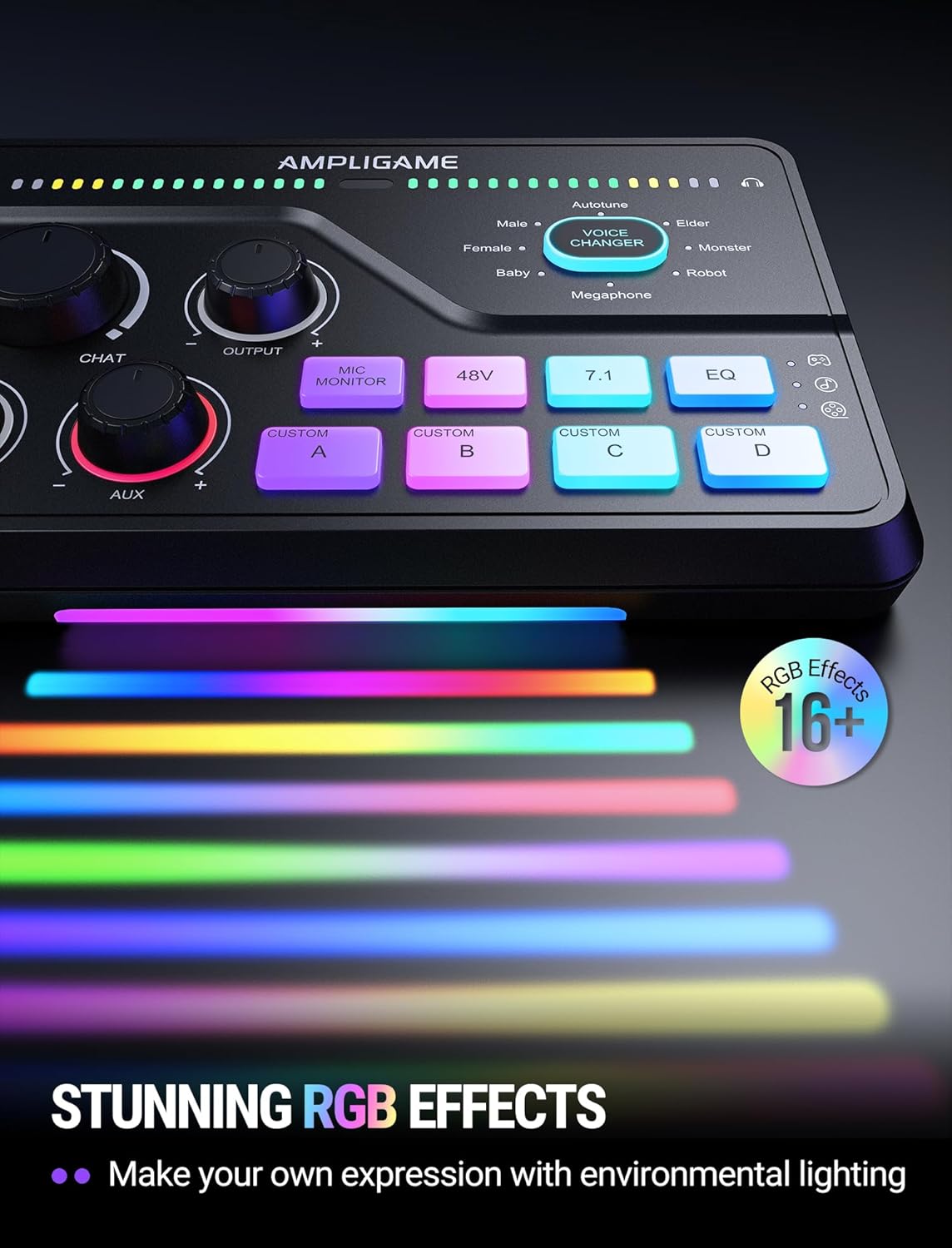
Image 6.3: The FIFINE Ampligame SC8 displaying its stunning RGB lighting effects, which can be customized to match environmental lighting.
7. Priežiūra
- Reguliariai valykite prietaisą minkštu, sausu skudurėliu. Nenaudokite skystų valiklių ar abrazyvinių medžiagų.
- Laikykite prievadus švarius nuo dulkių ir šiukšlių.
- Laikykite maišytuvą vėsioje, sausoje vietoje, kai nenaudojate.
8. Problemų sprendimas
| Problema | Galima priežastis | Sprendimas |
|---|---|---|
| No audio output from headphones. |
|
|
| Mikrofonas neveikia. |
|
|
| No game/chat audio. |
|
|
9. Specifikacijos
| Funkcija | Detalė |
|---|---|
| Modelio numeris | SC8 |
| Prekės svoris | 1.37 svaro |
| Pakuotės matmenys | 9.65 x 6.22 x 2.87 colio |
| Ryšio technologija | USB |
| Išvesties jungties tipas | USB |
| Kanalų skaičius | 5 |
| Maitinimo šaltinis | Su laidu elektra |
| Suderinami įrenginiai | Ausinės, Nešiojamas kompiuteris, Mikrofonas, Asmeninis kompiuteris, Išmanusis telefonas |
| Palaikoma programinė įranga | Discord, OBS, Twitch, Streamlabs |
10. Garantija ir palaikymas
FIFINE products are designed and manufactured to the highest quality standards. For information regarding warranty coverage, technical support, or service, please visit the official FIFINE websvetainėje arba susisiekite tiesiogiai su jų klientų aptarnavimo tarnyba. Išsaugokite pirkimo kvitą kaip pirkimo įrodymą garantijos pretenzijoms.
FIFINE Official Websvetainė: www.fifinemic.com


