1. Produktas baigtasview
The HP OmniDesk M02 Tower Desktop is a high-performance personal computer designed for business and productivity. It features an AMD Ryzen 7 8700G processor, ample DDR5 RAM, and fast SSD storage, running on Windows 11 Home. This manual provides essential information for setting up, operating, maintaining, and troubleshooting your device.
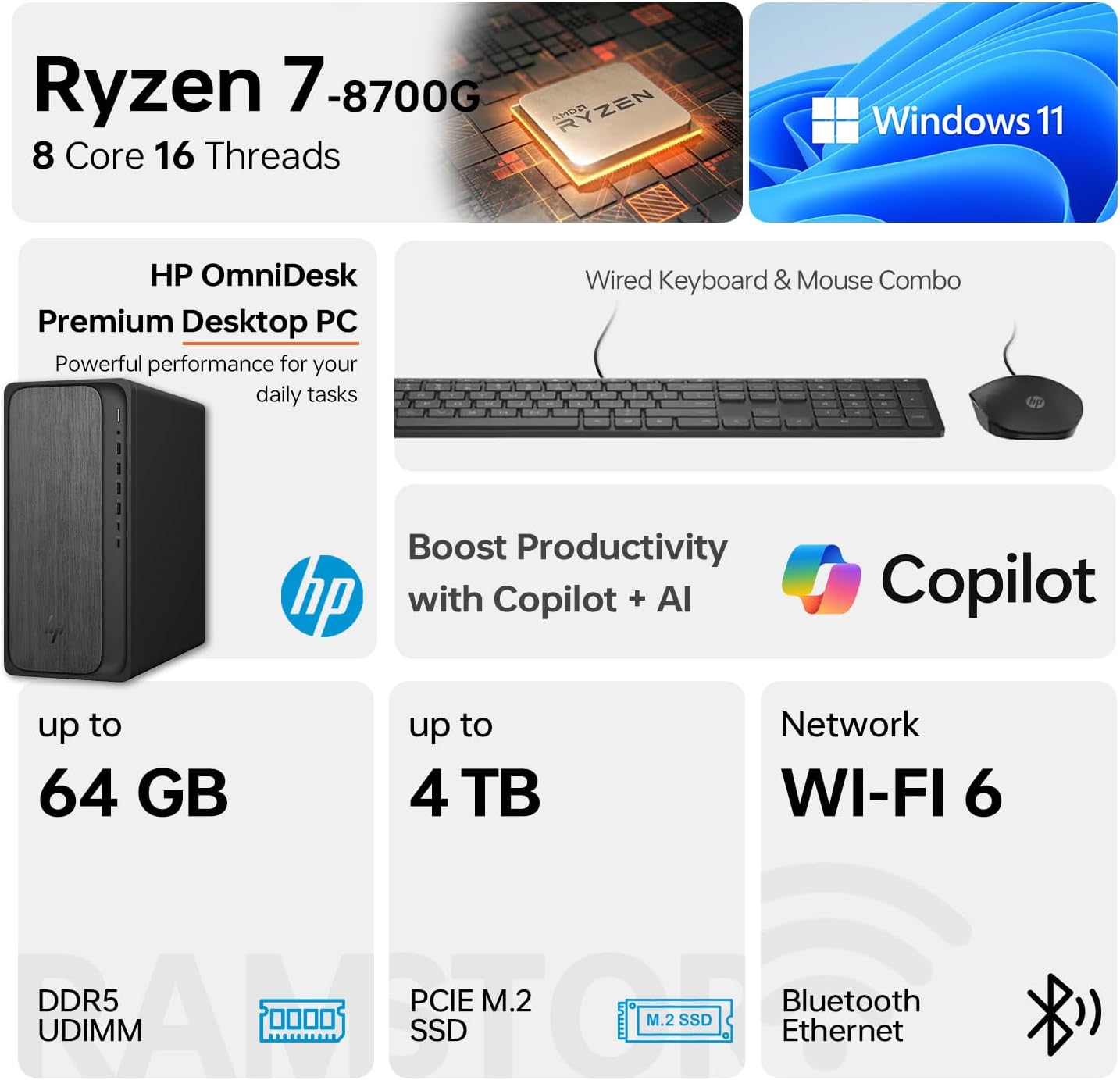
Image 1.1: HP OmniDesk M02 Tower Desktop highlighting its AMD Ryzen 7 8700G processor, Windows 11 operating system, Wi-Fi 6 connectivity, and memory/storage capabilities.
Pagrindinės funkcijos:
- Procesorius: AMD Ryzen 7 8700G (8 Cores, 16 Threads, up to 5.1GHz Max Boost)
- Atmintis: 16 GB DDR5 RAM (galima išplėsti iki 64 GB)
- Saugykla: 1TB PCIe M.2 SSD, bundled with ADATA 512GB External SSD
- Operacinė sistema: Windows 11 Home
- Grafika: Integruota AMD Radeon grafika
- Ryšys: Wi-Fi 6, Bluetooth, Ethernet (RJ-45)
- Prievadai: Multiple USB Type-A and Type-C ports, HDMI, DisplayPort, audio jacks
- Included Peripherals: Wired Keyboard & Mouse
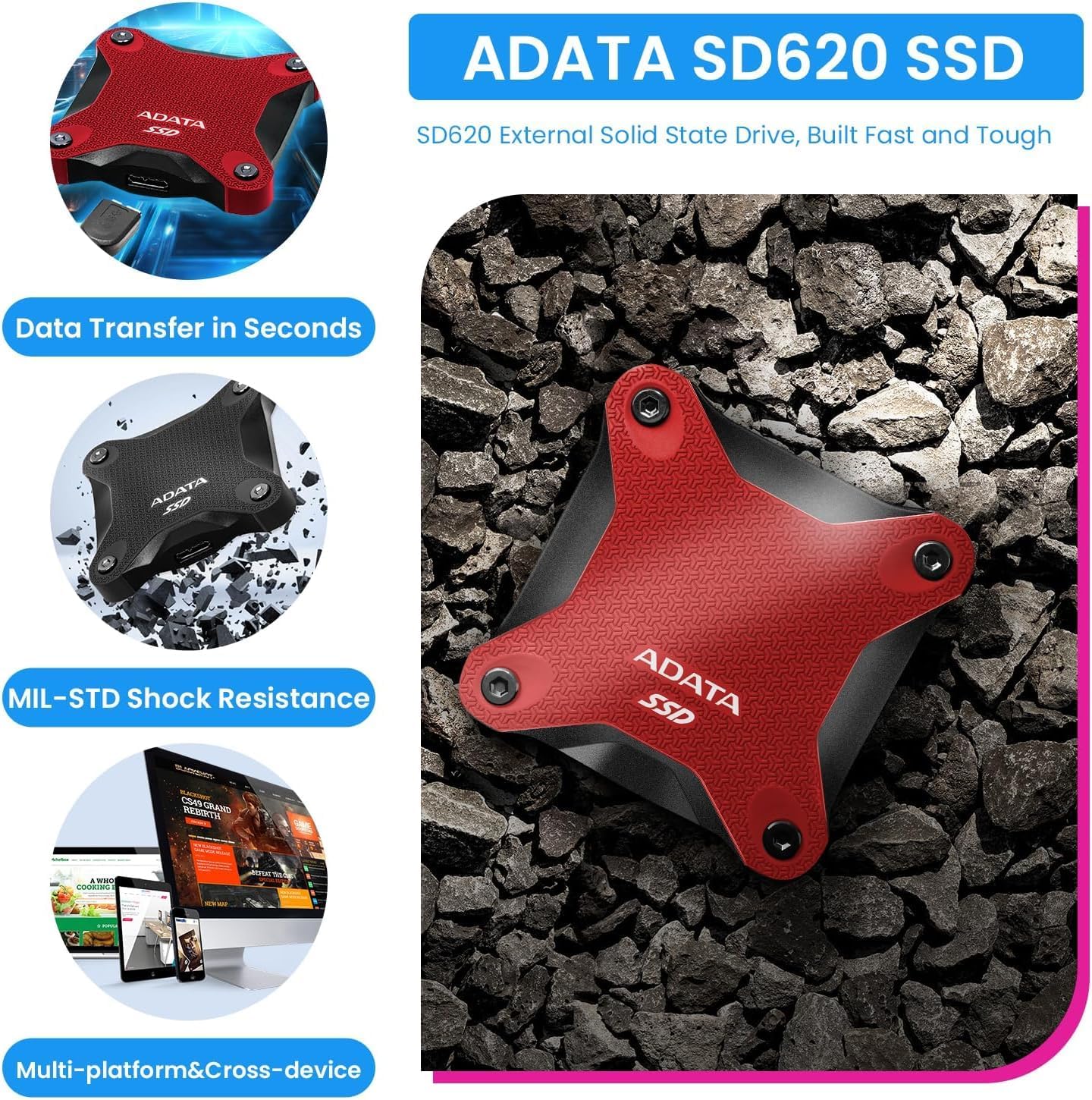
Image 1.2: The ADATA SD620 External SSD, included with the HP OmniDesk M02, highlighting its data transfer speed and MIL-STD shock resistance.
2. Sąrankos instrukcijos
Follow these steps to set up your HP OmniDesk M02 Tower Desktop.
2.1 Išpakavimas
- Atsargiai išimkite visus komponentus iš pakuotės.
- Verify that all items are present: HP OmniDesk M02 Tower Desktop, Wired Keyboard, Wired Mouse, Power Cable, and ADATA 512GB External SSD.
- Retain packaging materials for future transport or service.
2.2 Išorinių įrenginių prijungimas
Connect your monitor, keyboard, mouse, and other devices to the appropriate ports on the desktop.

2.1 pav.: Išsamus view of the front and rear ports on the HP OmniDesk M02 Tower Desktop, indicating their types and functions.
- Monitorius: Connect your monitor to either the HDMI or DisplayPort on the rear of the desktop.
- Klaviatūra ir pelė: Connect the wired keyboard and mouse to any available USB Type-A ports.
- Galia: Prijunkite maitinimo laidą prie stalinio kompiuterio maitinimo įvesties, o tada – prie sieninio lizdo.
- Išorinis SSD diskas: Connect the ADATA 512GB External SSD to an available USB port.
- Tinklas (neprivaloma): For a wired internet connection, connect an Ethernet cable to the RJ-45 port.
2.3 Pradinis paleidimas
- Paspauskite maitinimo mygtuką, esantį darbalaukio priekyje.
- Follow the on-screen instructions to complete the Windows 11 Home setup. This typically involves selecting your region, language, and creating a user account.
- Ensure an internet connection is established during setup for updates and account synchronization.
3. Naudojimo instrukcijos
This section covers basic operation of your HP OmniDesk M02.
3.1 Maitinimo įjungimas/išjungimas ir paleidimas iš naujo
- Maitinimas: Paspauskite maitinimo mygtuką, esantį darbalaukio priekyje.
- Išjungti: Click the Start button in Windows 11, then select Power > Shut down.
- Paleisti iš naujo: Spustelėkite mygtuką Pradėti, tada pasirinkite Maitinimas > Paleisti iš naujo.
3.2 Prisijungimas prie „Wi-Fi“ ir „Bluetooth“
- „Wi-Fi“: Click the Network icon in the taskbar, select your desired Wi-Fi network, enter the password, and click Connect.
- Bluetooth: Go to Settings > Bluetooth & devices, ensure Bluetooth is turned on, and then click "Add device" to pair new Bluetooth devices.
3.3 Using Windows 11 and AI Features
Your HP OmniDesk M02 comes with Windows 11 Home, offering a modern interface and integrated AI capabilities through Copilot.
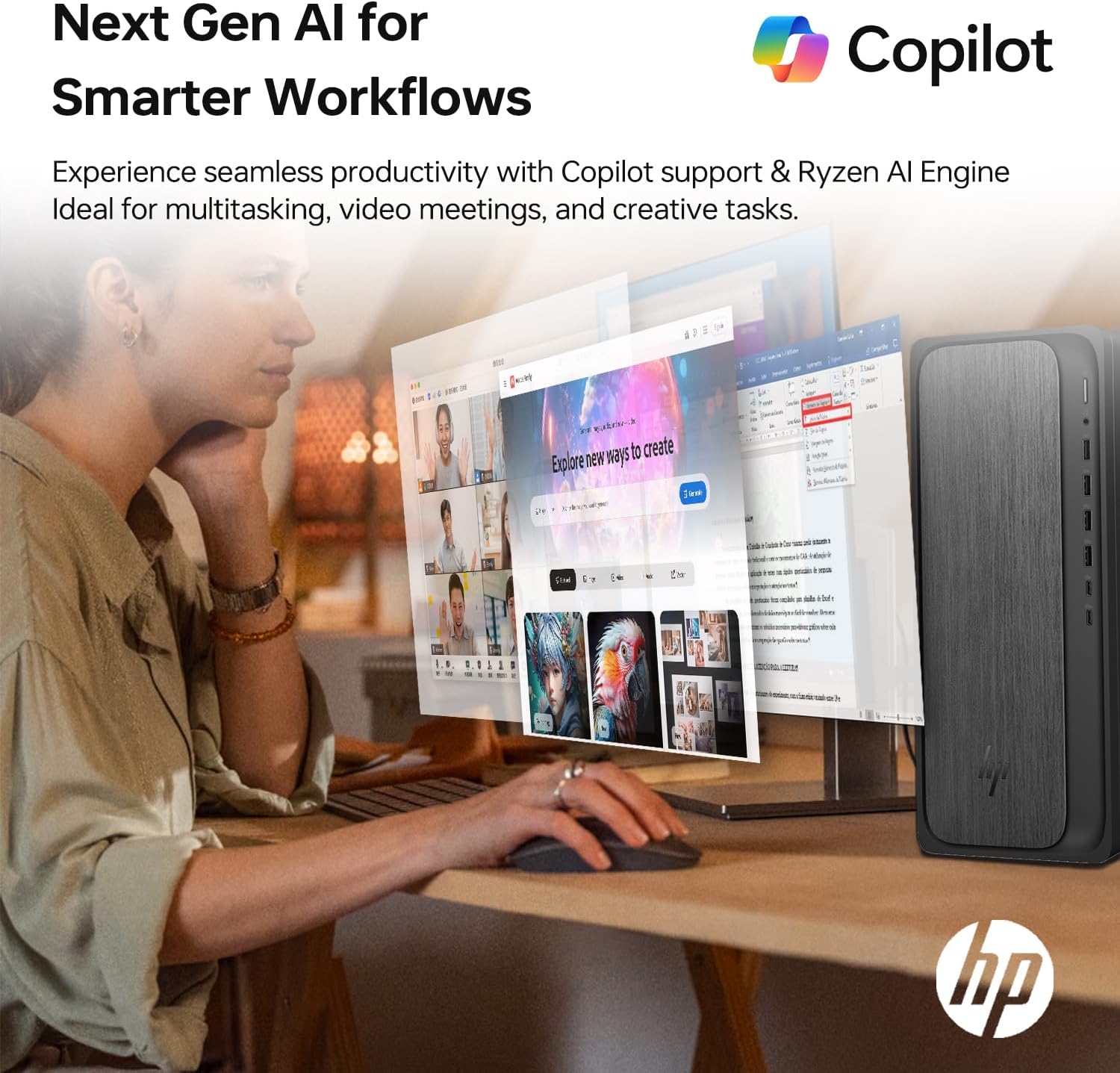
Image 3.1: A user interacting with the HP OmniDesk M02, demonstrating the integration of Copilot for enhanced productivity and AI-driven workflows.
- Pradžios meniu: Access applications, settings, and power options from the centered Start menu.
- Valdikliai: Personalize your desktop with widgets for news, weather, and more.
- Antrasis pilotas: Utilize the integrated Copilot AI for assistance with tasks, content creation, and system navigation. Access it via the taskbar icon.
4. Priežiūra
Tinkama priežiūra užtikrina jūsų stalinio kompiuterio ilgaamžiškumą ir optimalų veikimą.
4.1 Valymas
- Išorė: Šiek tiek naudokite minkštą, be pūkelių šluostę dampnuplaukite vandeniu arba švelniu valymo tirpalu. Venkite stiprių cheminių medžiagų.
- angos: Periodically clean dust from the ventilation grilles using compressed air to prevent overheating. Ensure the desktop is powered off before cleaning vents.
4.2 Programinės įrangos naujiniai
Reguliariai atnaujinkite operacinę sistemą ir tvarkykles, kad užtikrintumėte saugumą ir našumą.
- „Windows“ naujiniai: Eikite į „Nustatymai“ > „Windows“ naujinimas ir patikrinkite, ar yra galimų naujinimų.
- Tvarkyklės atnaujinimai: Apsilankykite oficialioje HP palaikymo svetainėje website for your model to download the latest drivers for components like graphics and chipset.
4.3 Hardware Upgrades
The HP OmniDesk M02 supports upgrades for RAM and internal storage.
- RAM: The system supports up to 64GB DDR5 UDIMM RAM.
- Vidinis SSD: The system supports up to 4TB PCIe M.2 SSD.
- Svarbu: Opening the chassis for upgrades may affect the original manufacturer's warranty. Consult the warranty section for details.
5. Problemų sprendimas
Šiame skyriuje aptariamos dažniausiai pasitaikančios problemos, su kuriomis galite susidurti.
5.1 Nėra galios
- Ensure the power cable is securely connected to both the desktop and a working power outlet.
- Patikrinkite, ar maitinimo lizdas veikia, prijungdami prie jo kitą įrenginį.
- Verify the power supply unit (PSU) switch (if present) is in the ON position.
5.2 Monitoriuje nėra vaizdo
- Confirm the monitor is powered on and its input source is correctly selected (HDMI/DisplayPort).
- Check that the video cable is securely connected to both the desktop and the monitor.
- Jei yra, pabandykite prijungti monitorių prie kito darbalaukio vaizdo prievado.
5.3 Tinklo ryšio problemos
- Laidinis: Įsitikinkite, kad Ethernet kabelis tinkamai prijungtas ir kad jūsų maršrutizatorius / modemas veikia.
- „Wi-Fi“: Verify Wi-Fi is enabled in Windows settings and you are connected to the correct network with the correct password. Restart your router/modem.
6. Specifikacijos
Detailed technical specifications for the HP OmniDesk M02 Tower Desktop.

6.1 paveikslėlis: Stambus planas view of the AMD Ryzen 7 8700G processor, highlighting its core count, thread count, clock speed, and L3 cache.
| Komponentas | Specifikacija |
|---|---|
| Modelio numeris | TPC-F134-MT |
| Procesorius | AMD Ryzen 7 8700G (8 Cores, 16 Threads, 4.2GHz base, up to 5.1GHz max turbo) |
| RAM | 16GB DDR5 UDIMM (4800 MHz), expandable to 64GB |
| Vidinė saugykla | 1TB PCIe M.2 SSD, expandable to 4TB |
| Išorinė saugykla | ADATA 512GB External SSD (bundled) |
| Grafika | Integruota AMD Radeon grafika |
| Operacinė sistema | Windows 11 Home |
| Belaidis ryšys | „Wi-Fi 6“ (802.11ax), „Bluetooth“ |
| Priekiniai prievadai | 1x USB Type-C 10Gbps, 1x USB Type-C 5Gbps, 2x USB Type-A 10Gbps, 2x USB Type-A 5Gbps, 1x Headphone/Microphone Combo |
| Galiniai uostai | 4x USB 2.0 Type-A, 1x RJ-45 (Ethernet), 3x 3.5mm Audio Jack Combo, 1x HDMI, 1x DisplayPort |
| Matmenys (IxPxH) | 6.10 colio x 13.27 colio x 12.40 colio (15.5 x 33.7 x 31.5 cm) |
| Svoris | 12.72 svarai (5.77 kg) |
| Spalva | Pilka |
7. Garantija ir palaikymas
7.1 Informacija apie garantiją
The HP OmniDesk M02 Tower Desktop comes with a manufacturer's warranty. For this specific configuration, a 1-year warranty on the upgraded RAM and SSD is provided by PCOnline US. All other original components retain the standard 1-year manufacturer's warranty from HP.
Išsaugokite pirkimo įrodymą, kad galėtumėte kreiptis dėl garantijos.
7.2 Techninė pagalba
For technical assistance, please refer to the official HP support website or contact their customer service. For issues related to the upgraded RAM or SSD, please contact PCOnline US directly.
HP Support: www.hp.com/support