1. Įvadas
This manual provides essential information for the safe and efficient use of your LG 34U530A-W UltraWide WFHD IPS Computer Monitor. Please read this manual thoroughly before operating the product and retain it for future reference.
The LG 34U530A-W monitor features a 34-inch 21:9 UltraWide Full HD (2560 x 1080) IPS display, offering a wide viewing experience. Key features include a 100Hz refresh rate, VESA DisplayHDR 400, up to sRGB 99% color coverage, and versatile connectivity options including HDMI, DisplayPort, and USB Type-C. It also integrates Waves MaxxAudio speakers and includes features like Reader Mode and the LG Switch App for enhanced productivity and comfort.
2. Saugos informacija
Observe the following safety precautions to prevent hazards or damage to the product.
- Nestatykite monitoriaus šalia šilumos šaltinių ar tiesioginiuose saulės spinduliuose.
- Užtikrinkite tinkamą vėdinimą aplink monitorių.
- Naudokite tik prie monitoriaus pridėtą maitinimo laidą ir adapterį.
- Do not attempt to disassemble or modify the monitor.
- Keep liquids away from the monitor to prevent electric shock or fire.
- Atjunkite monitorių nuo sieninio lizdo žaibuojant arba kai jis ilgą laiką nenaudojamas.
3. Kas yra dėžutėje
Verify that all components are included in your product package:
- Monitoriaus blokas
- Maitinimo kabelis
- HDMI kabelis
- Stovo pagrindas
- Stovi Kaklas
- Vartotojo vadovas (šis dokumentas)
4. Sąranka
4.1 Stovo surinkimas
- Padėkite monitorių ekranu žemyn ant minkšto, švaraus paviršiaus, kad nesusibraižytumėte.
- Pritvirtinkite stovo kaklelį prie monitoriaus galo, kol jis spragtelėdamas užsifiksuos.
- Pritvirtinkite stovo pagrindą prie stovo kaklelio naudodami pateiktą varžtą.
- Atsargiai pakelkite monitorių ir padėkite jį ant stabilaus, lygaus paviršiaus.
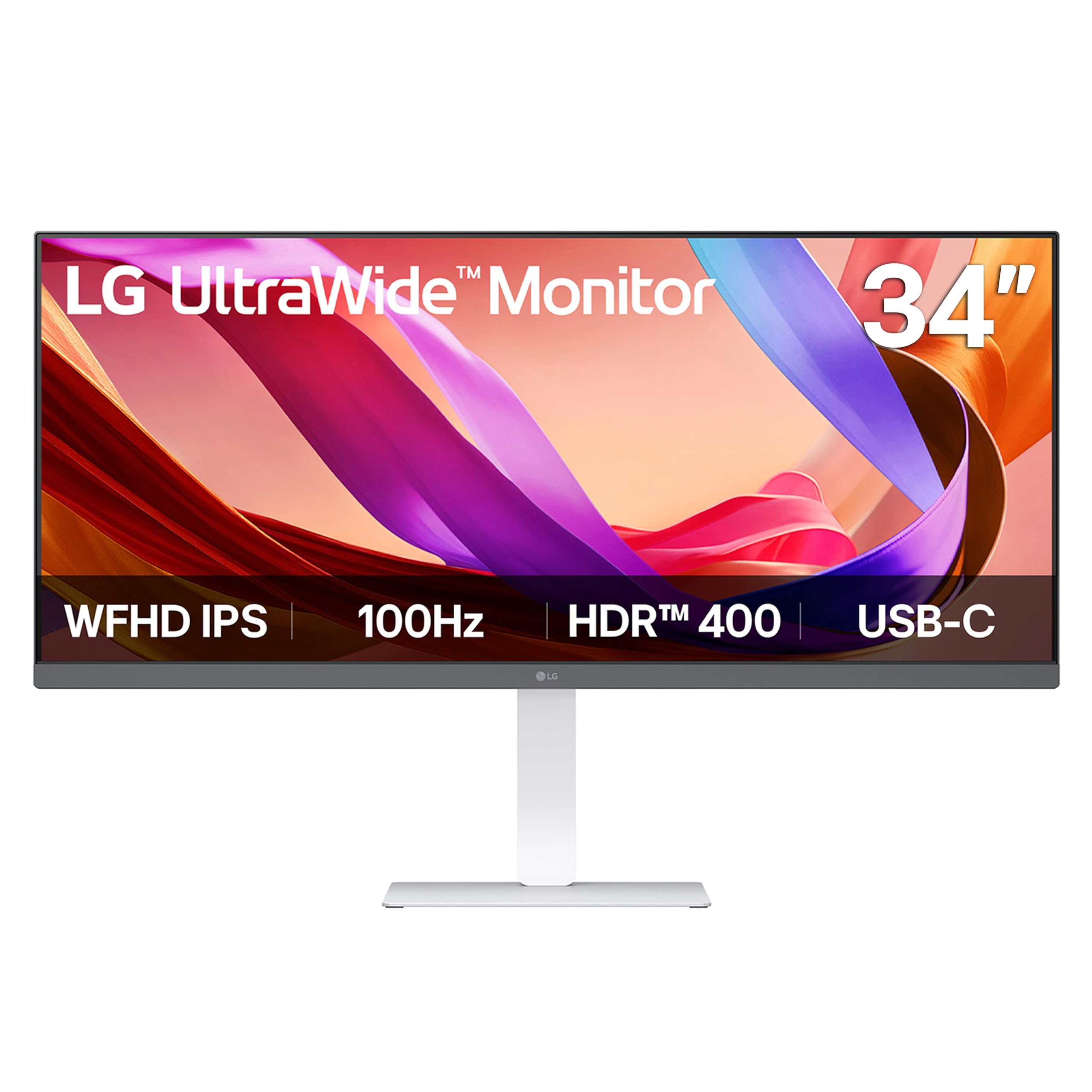
Vaizdas: priekis view of the LG 34U530A-W monitor with its stand assembled.
4.2 Monitoriaus prijungimas
Prijunkite monitorių prie kompiuterio vienu iš šių būdų:
- HDMI jungtis: Use the supplied HDMI cable to connect the HDMI port on the monitor to the HDMI port on your computer.
- „DisplayPort“ jungtis: Use a DisplayPort cable (not supplied) to connect the DisplayPort on the monitor to the DisplayPort on your computer.
- C tipo USB jungtis: Use a USB Type-C cable (not supplied) to connect the USB Type-C port on the monitor to the USB Type-C port on your computer. This connection supports both display output and data transfer.
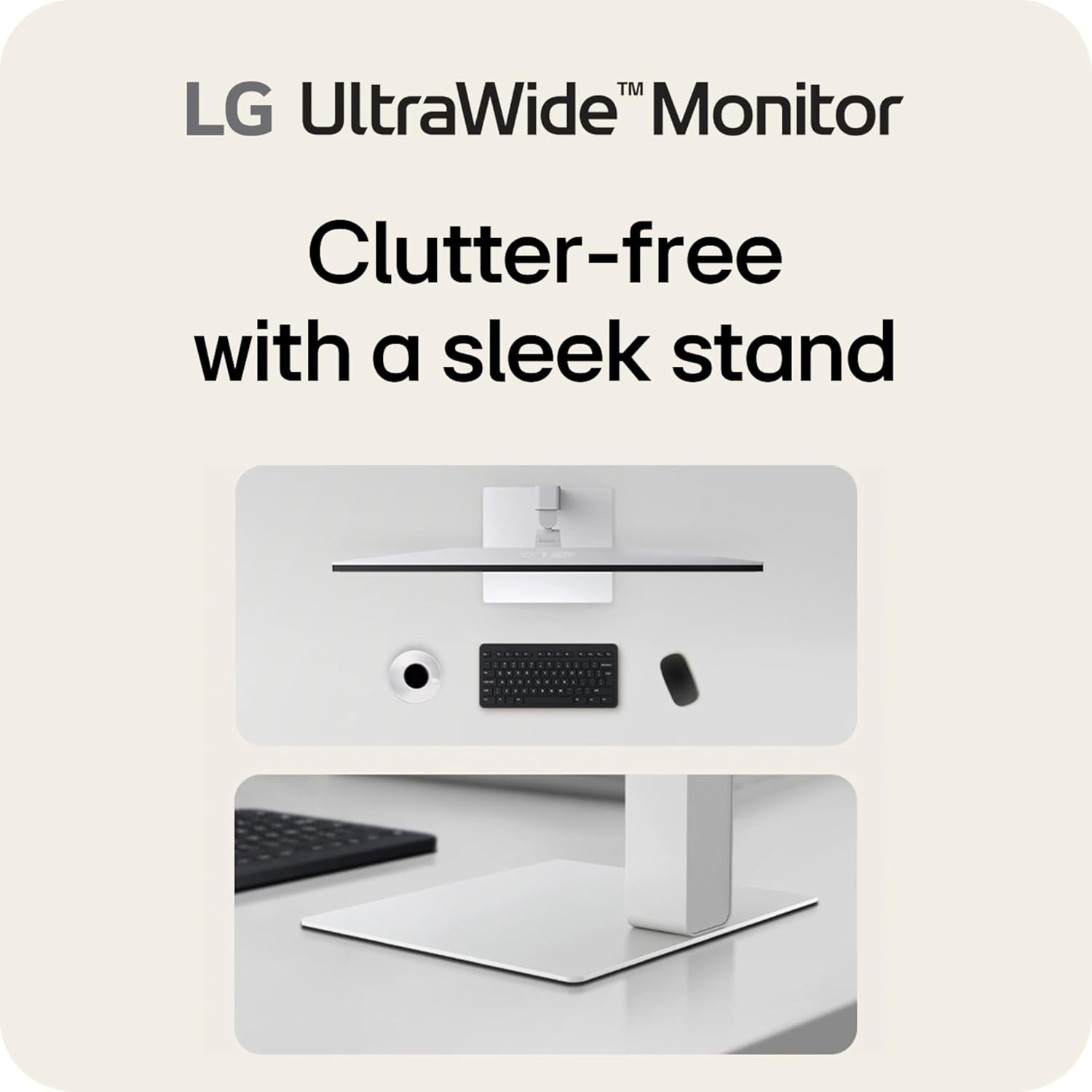
Vaizdas: Galinis view of the LG 34U530A-W monitor showing the various input ports including HDMI, DisplayPort, and USB Type-C.
4.3 Įjungimas
- Connect the power cable to the monitor and then to a wall outlet.
- Norėdami įjungti monitorių, paspauskite maitinimo mygtuką, esantį monitoriaus apačioje centre.
5. Monitoriaus valdymas
5.1 Ekrano meniu (OSD) valdikliai
The OSD menu allows you to adjust various settings of the monitor. Access the OSD menu by pressing the joystick button located on the bottom center of the monitor.
- Norėdami naršyti meniu parinktis, judinkite valdymo svirtį aukštyn / žemyn / kairėn / dešinėn.
- Paspauskite valdymo svirtelę, kad pasirinktumėte parinktį arba patvirtintumėte nustatymą.
5.2 Ekrano nustatymų reguliavimas
Within the OSD menu, you can modify settings such as:
- Ryškumas: Sureguliuokite bendrą ekrano šviesumą.
- Kontrastas: Control the difference between the brightest and darkest areas of the screen.
- Spalva: Fine-tune color temperature, gamma, and individual RGB values. The monitor supports up to sRGB 99% color coverage for accurate color reproduction.
Video: Demonstrates the LG UltraWide Monitor's sRGB 99% color feature, highlighting vivid and accurate color display.
5.3 Using Productivity Features
- „LG Switch“ programėlė: This software allows you to effortlessly split the screen into up to 6 sections, customize display layouts, and manage multiple windows for efficient multitasking. Software installation is required; visit LG.com parsisiųsti.
- Skaitytojo režimas: Adjusts the display to warmer tones and optimized brightness, reducing blue light emission for comfortable reading during extended sessions.
Video: Illustrates the 21:9 UltraWide screen of the LG monitor, showcasing its expanded workspace for multitasking.
5.4 Garso nustatymai
The monitor includes built-in stereo speakers with Waves MaxxAudio. You can adjust the volume and other audio settings through the OSD menu.
6. Priežiūra
6.1 Monitoriaus valymas
- Visada atjunkite monitorių prieš valydami.
- Šiek tiek naudokite minkštą, be pūkelių šluostę dampnuplaukite vandeniu arba švelniu, neabrazyviniu valikliu, specialiai skirtu ekranams.
- Nepurkškite valiklio tiesiai ant ekrano.
- Švelniai nuvalykite ekraną, kad nesubraižytumėte.
7. Problemų sprendimas
Jei kyla problemų dėl monitoriaus, žr. šias dažniausiai pasitaikančias problemas ir sprendimus:
| Problema | Galima priežastis | Sprendimas |
|---|---|---|
| Nėra galios | Power cable not connected or power outlet faulty. | Įsitikinkite, kad maitinimo laidas yra tvirtai prijungtas. Patikrinkite lizdą su kitu įrenginiu. |
| Ekrane nėra vaizdo | Vaizdo kabelis neprijungtas arba pasirinkta neteisinga įvestis. | Patikrinkite vaizdo kabelio jungtis. Pasirinkite tinkamą įvesties šaltinį per OSD meniu. |
| Vaizdas neryškus arba iškraipytas | Neteisinga skiriamoji geba arba atnaujinimo dažnis. | Set the display resolution to 2560 x 1080. Ensure the refresh rate is set to 100Hz. |
| Iš garsiakalbių nėra garso | Volume too low or muted, or audio cable not connected (if using external audio source). | Adjust volume via OSD or computer settings. Check audio cable connections. |
8. Specifikacijos
| Funkcija | Specifikacija |
|---|---|
| Modelio numeris | 34U530A-W.AUS |
| Ekrano dydis | 34 colių |
| Skydelio tipas | IPS |
| Rezoliucija | 2560 x 1080 (WFHD) |
| Krašto santykis | 21:9 |
| Atnaujinimo dažnis | 100 Hz |
| HDR palaikymas | VESA DisplayHDR 400 |
| Spalvų gama | sRGB 99 % (tipinis) |
| Ryšys | HDMI, DisplayPort, USB Type-C |
| Integruoti garsiakalbiai | Yes (with Waves MaxxAudio) |
| Stendo reguliavimas | Aukštis, pakreipimas, pasukimas |
| Matmenys (IxPxH) | 32.1 x 9.1 x 21 colio |
| Svoris | 19.4 svaro |
9. Garantija ir palaikymas
Informacijos apie garantiją ieškokite prie gaminio pridėtoje garantijos kortelėje arba apsilankykite oficialioje LG svetainėje. websvetainę. Dėl techninės pagalbos, produkto registracijos ar paslaugų klausimų apsilankykite LG palaikymas or contact LG customer service directly.