1. Įvadas
This user manual provides essential information for the setup, operation, and maintenance of your HP 24-inch FHD IPS Monitor. Designed for clarity and user comfort, this monitor features a 1920x1080 resolution, 5ms response time, anti-glare coating, flicker-free technology, and a low blue light mode to reduce eye strain. It includes HDMI and VGA connectivity options and integrated 2W speakers.
2. Saugos informacija
- Įsitikinkite, kad monitorius pastatytas ant stabilaus, lygaus paviršiaus, kad išvengtumėte atsitiktinio kritimo.
- Neužblokuokite ventiliacijos angų. Tinkamas oro srautas yra būtinas norint išvengti perkaitimo.
- Use only the power adapter and cables provided or approved by HP.
- Saugokite monitorių nuo drėgmės, lietaus ar ekstremalių temperatūrų.
- Disconnect the power cable from the outlet before cleaning or if the monitor will be unused for an extended period.
- Nebandykite patys atlikti monitoriaus techninės priežiūros. Visus techninės priežiūros darbus patikėkite kvalifikuotiems techninės priežiūros specialistams.
3. Pakuotės turinys
Patikrinkite, ar pakuotėje yra visi reikalingi daiktai:
- HP 24-inch FHD IPS Monitor
- Monitoriaus stovas (pagrindas ir kaklelis)
- Maitinimo kabelis
- HDMI kabelis
- VGA laidas
- Docztorm USB Port Expander (Special Edition Portable Docztorm Data Hub)
- Documentation (Quick Setup Guide, Warranty Information)
4. Produktas baigtasview
4.1 Priekis View
The front of the monitor features the 24-inch IPS display with a sleek, thin-and-light profile and a 3-sided borderless design.

1 pav.: priekis view of the HP 24-inch FHD IPS Monitor, showcasindėl savo ekrano ir plonų rėmelių.
4.2 pusė View
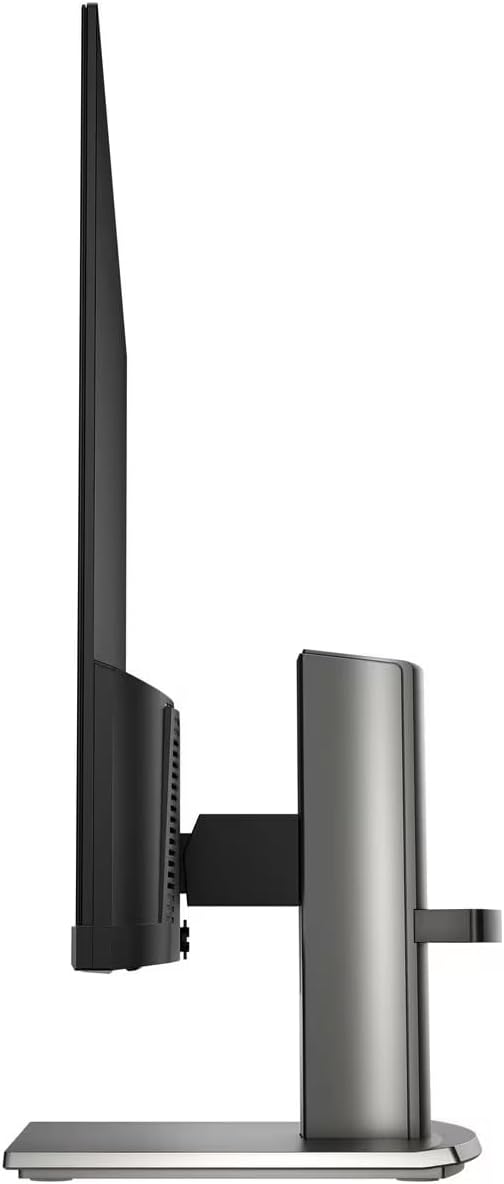
Pusė view highlights the monitor's slim design and the adjustable stand.

2 pav.: šonas view of the HP 24-inch FHD IPS Monitor, illustrating its thin profile ir stovėti.
4.3 Galinis View ir uostai
The rear of the monitor provides access to various input and output ports for connectivity.
3 pav.: galinis view of the HP 24-inch FHD IPS Monitor, displaying the HDMI, VGA, and audio ports.
Galimi prievadai:
- 1 x HDMI prievadas
- 1 x VGA prievadas
- Input/Output Audio Jack ports
- Maitinimo įvestis
5. Sąrankos instrukcijos
5.1 Stovo surinkimas
- Atsargiai išimkite monitoriaus ir stovo komponentus iš pakuotės.
- Pritvirtinkite stovo kaklelį prie monitoriaus skydelio, sulygiuodami skirtukus ir stumdami, kol jis užsifiksuos vietoje.
- Attach the stand base to the stand neck, securing it with the captive screw at the bottom of the base.
- Surinktą monitorių padėkite ant stabilaus, lygaus paviršiaus.

Figure 4: The HP 24-inch monitor fully assembled on its stand.
5.2 Jungiamieji kabeliai
- Maitinimo jungtis: Prijunkite maitinimo laidą prie monitoriaus maitinimo įvesties, o tada – prie sieninio lizdo.
- Vaizdo jungtis:
- HDMI jungtimi: vieną HDMI kabelio galą prijunkite prie monitoriaus HDMI prievado, o kitą – prie kompiuterio HDMI išvesties.
- VGA: Prijunkite vieną VGA kabelio galą prie monitoriaus VGA prievado, o kitą – prie kompiuterio VGA išvesties.
- Garso jungtis: Jei naudojate išorinius garsiakalbius arba ausines, prijunkite juos prie monitoriaus garso išvesties lizdo.
- Docztorm USB Port Expander: Connect the Docztorm USB Port Expander to an available USB port on your computer for additional connectivity.
6. Naudojimo instrukcijos
6.1 Įjungimas / išjungimas
Norėdami įjungti arba išjungti monitorių, paspauskite maitinimo mygtuką, esantį apatiniame dešiniajame jo krašte. Maitinimo indikatoriaus lemputė užsidegs, kai monitorius bus aktyvus.
6.2 Monitoriaus nustatymų reguliavimas
Use the OSD (On-Screen Display) menu buttons, typically located on the bottom bezel, to navigate and adjust settings such as:
- Ryškumas ir kontrastas: Pritaikykite juos pagal savo viewaplinką.
- Spalvų nustatymai: Pasirinkite iš įvairių viewing modes or customize color temperature and saturation.
- Įvesties pasirinkimas: Manually switch between HDMI and VGA inputs if auto-switch is off.
- HP Eye Ease (Low Blue Light): This monitor features an always-on low blue light filter that reduces blue light emission without impacting color accuracy, promoting eye comfort.
- Technologija be mirgėjimo: The monitor is designed to eliminate screen flickering, further reducing eye strain during prolonged use.

Figure 5: Illustration of the HP Eye Ease feature, demonstrating reduced blue light for eye comfort.
6.3 Monitoriaus padėties reguliavimas
Monitoriaus stovas leidžia ergonomiškai reguliuoti padėtį:
- Pakreipimo reguliavimas: The screen can be tilted from -5 to +25 degrees to find your optimal viewing kampas.
- Aukščio reguliavimas: The stand offers 3.9 inches of height adjustment for personalized comfort.
7. Priežiūra
7.1 Monitoriaus valymas
- Prieš valydami visada išjunkite monitorių ir atjunkite maitinimo laidą.
- Lengvai naudokite minkštą, nepūkuotą audinį dampnuplaukite vandeniu arba neabrazyviniu ekrano valikliu.
- Nepurkškite valiklio tiesiai ant ekrano.
- Venkite naudoti stiprias chemines medžiagas, tirpiklius ar abrazyvines medžiagas, nes jos gali pažeisti ekraną arbaasing.
7.2 Bendroji priežiūra
- Laikykite monitorių atokiau nuo tiesioginių saulės spindulių ir šilumos šaltinių.
- Užtikrinkite tinkamą vėdinimą aplink monitorių.
- Manage cables to prevent tangles and damage.
8. Problemų sprendimas
| Problema | Galima priežastis | Sprendimas |
|---|---|---|
| Ekrane nėra vaizdo |
|
|
| Prasta vaizdo kokybė (neryškus, iškraipytas) |
|
|
| Iš garsiakalbių nėra garso |
|
|
9. Specifikacijos
| Funkcija | Detalė |
|---|---|
| Gaminio matmenys | 7.9 x 21.09 x 18.1 colio |
| Prekės svoris | 7.7 svaro |
| Gamintojas | HP |
| Prekės modelio numeris | HP 24" FHD Monitor |
| Stovinčio ekrano dydis | 24 colių |
| Krašto santykis | 16:9 |
| Rezoliucija | 1920 x 1080 pikselių (FHD 1080p) |
| Vaizdo ryškumas | 300 nitų |
| Ekrano paviršiaus aprašymas | Matinis |
| Reagavimo laikas | 5 ms |
| Ryšys | 1 x HDMI, 1 x VGA, Audio Jack |
| Reguliuojamas pakreipimas | -5 į + 25 laipsnius |
| Ypatingos savybės | Anti Glare, Flicker Free, Low Blue Light, Built-in 2W Speakers |
10. Garantija ir palaikymas
Your HP 24-inch FHD IPS Monitor is covered by a standard manufacturer's warranty. For detailed warranty terms and conditions, please refer to the warranty documentation included in your product package or visit the official HP support websvetainę.
For technical assistance, troubleshooting, or to contact customer support, please visit the HP support portal or contact your local HP service center. Ensure you have your monitor's model number and serial number ready when seeking support.