1. Įvadas
This manual provides essential information for the safe and efficient use of your Fujitsu FMVF75K1BA FMV Desktop F 23.8-inch PC. Please read this manual thoroughly before operating the device and retain it for future reference. This desktop PC is designed for general computing tasks, featuring a 23.8-inch Full HD display, an Intel Core i7 processor, 16GB of RAM, and a 512GB storage drive, running Windows 11 Home.
2. Saugos informacija
Kad nesugadintumėte gaminio ir užtikrintumėte naudotojo saugumą, laikykitės šių saugos priemonių:
- Maitinimas: Use only the power adapter supplied with the device. Ensure the power outlet is properly grounded.
- Vėdinimas: Do not block ventilation openings. Maintain adequate space around the PC for proper airflow to prevent overheating.
- Aplinka: Avoid exposing the PC to extreme temperatures, humidity, dust, or direct sunlight. Operate in a stable, dry environment.
- Liquid and Foreign Objects: Keep liquids and foreign objects away from the PC. If liquid enters the device, immediately disconnect power and contact support.
- Aptarnavimas: Nebandykite patys taisyti kompiuterio. Visus techninės priežiūros darbus patikėkite kvalifikuotiems techninės priežiūros specialistams.
- Valymas: Prieš valydami atjunkite maitinimo laidą. Naudokite minkštą, sausą šluostę. Nenaudokite skystų ar aerozolinių valiklių.
3. Pakuotės turinys
Patikrinkite, ar pakuotėje yra visi reikalingi daiktai:
- Fujitsu FMVF75K1BA FMV Desktop F 23.8-inch PC
- Maitinimo adapteris ir maitinimo laidas
- Klaviatūra
- Pelė
- Greito paleidimo vadovas (jei pridėtas)
- Garantijos kortelė (jei yra)
4. Produktas baigtasview
The Fujitsu FMVF75K1BA is an all-in-one desktop PC featuring a 23.8-inch display. Key components include the integrated display, CPU, memory, storage, and various input/output ports.
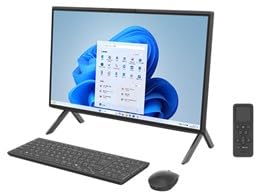
4.1 pav.: priekis view of the Fujitsu FMVF75K1BA FMV Desktop F PC. This image shows the integrated display and the sleek design of the all-in-one unit.
4.1 Priekinis skydelis
- Ekranas: 23.8-inch Full HD (1920x1080) screen.
- Maitinimo mygtukas: Located typically on the bottom right or side of the display bezel.
- Webkumštelis: Integrated at the top center of the display.
4.2 Rear/Side Panels
- USB prievadai: For connecting peripherals like keyboard, mouse, external drives.
- HDMI prievadas: For connecting an external monitor or TV.
- LAN prievadas: Laidinio tinklo ryšiui.
- Garso lizdai: For headphones, microphone, or external speakers.
- Maitinimo įvestis: Maitinimo adapterio prijungimui.
5. Sąranka
Atlikite šiuos pradinės sąrankos veiksmus:
- Išpakuoti: Atsargiai išimkite kompiuterį ir visus priedus iš pakuotės.
- Padėtis: Place the PC on a stable, flat surface with adequate ventilation space around it.
- Prijunkite klaviatūrą ir pelę: Plug the USB keyboard and mouse into the available USB ports on the PC.
- Prijunkite maitinimą: Connect the power adapter to the power input port on the PC, then plug the power cord into a grounded electrical outlet.
- Maitinimas: Norėdami įjungti kompiuterį, paspauskite maitinimo mygtuką.
- Pradinė „Windows“ sąranka: Follow the on-screen instructions to complete the Windows 11 Home initial setup, including language, region, network connection, and user account creation.
6. Naudojimo instrukcijos
6.1 Įjungimas / išjungimas
- Įjungti: Paspauskite maitinimo mygtuką.
- Norėdami išjungti: Spustelėkite mygtuką „Pradėti“, tada „Maitinimas“ ir pasirinkite „Išjungti“.
- Norėdami paleisti iš naujo: Spustelėkite mygtuką „Pradėti“, tada „Maitinimas“ ir pasirinkite „Paleisti iš naujo“.
- Miegoti: Click the Start button, then Power, and select "Sleep".
6.2 Prisijungimas prie tinklo
- Laidinis ryšys: Connect an Ethernet cable from your router/modem to the LAN port on the PC.
- Belaidis ryšys („Wi-Fi“):
- Užduočių juostoje spustelėkite „Wi-Fi“ piktogramą.
- Iš sąrašo pasirinkite norimą „Wi-Fi“ tinklą.
- Jei būsite paraginti, įveskite tinklo saugos raktą (slaptažodį).
- Click "Connect". The PC supports IEEE802.11ax (Wi-Fi 6E) for high-speed wireless connectivity.
6.3 Using Microsoft Office + 365
Your PC comes with Microsoft Office + 365. Follow the on-screen instructions upon first launch of any Office application (e.g., Word, Excel) to activate your subscription. An internet connection and a Microsoft account are typically required for activation.
7. Priežiūra
7.1 Valymas
- Ekranas: Naudokite minkštą, nepūkuotą šluostę, specialiai skirtą elektronikai. Įsisenėjusias dėmes lengvai nuvalykite.ampen the cloth with water or a screen cleaner. Do not spray cleaner directly onto the screen.
- Kėbulo tipas: Wipe the exterior surfaces with a soft, dry cloth. Avoid abrasive materials or harsh chemicals.
- Vėdinimas: Periodically check and gently clean the ventilation openings to prevent dust buildup, which can impede airflow.
7.2 Programinės įrangos naujiniai
Regularly update your Windows operating system and drivers to ensure optimal performance and security. Windows Update typically handles this automatically, but you can manually check by going to Nustatymai > „Windows“ naujinimas.
7.3 Duomenų atsarginė kopija
Rekomenduojama reguliariai kurti svarbių duomenų atsargines kopijas išoriniame diske arba debesies saugykloje, kad išvengtumėte duomenų praradimo.
8. Problemų sprendimas
| Problema | Galima priežastis | Sprendimas |
|---|---|---|
| Kompiuteris neįsijungia. | Atsilaisvinęs maitinimo laidas, problema su maitinimo lizdu, maitinimo adapterio gedimas. | Check all power connections. Try a different power outlet. Ensure the power adapter is functioning. |
| Ekrane nėra vaizdo. | PC is off, display brightness too low, external monitor not connected (if applicable). | Ensure PC is on. Adjust display brightness. If using an external monitor, check its power and cable connection. |
| Nepavyksta prisijungti prie „Wi-Fi“. | Incorrect password, Wi-Fi adapter off, router issue, out of range. | Verify Wi-Fi password. Check if Wi-Fi is enabled in Windows settings. Restart your router. Move closer to the router. |
| PC is running slow. | Too many programs open, low disk space, malware, outdated drivers. | Close unnecessary applications. Free up disk space. Run a virus scan. Update Windows and drivers. |
9. Specifikacijos
| Modelio pavadinimas | FMVF75K1BA |
| Prekės ženklas | Fujitsu |
| Ekranas | 23.8 colių, 1920x1080 raiška |
| Procesorius | Intel Core i7 |
| RAM | 16 GB |
| Sandėliavimas | 512 GB |
| Operacinė sistema | Windows 11 Home |
| Belaidis LAN | IEEE802.11ax (Wi-Fi 6E compatible)/ac/a/b/g/n |
| Uostai | USB, HDMI, LAN, Audio Jacks (specific number and type may vary) |
10. Garantija ir palaikymas
Your Fujitsu FMVF75K1BA PC is covered by a manufacturer's warranty. Please refer to the warranty card included in your package for specific terms and conditions, including the warranty period and coverage details.
For technical support, service, or warranty claims, please contact Fujitsu customer support through their official website or the contact information provided in your warranty documentation. Have your model number (FMVF75K1BA) and serial number ready when contacting support.
Palaikymas internetu: Visit the official Fujitsu support website for drivers, FAQs, and further assistance.


