1. Produktas baigtasview
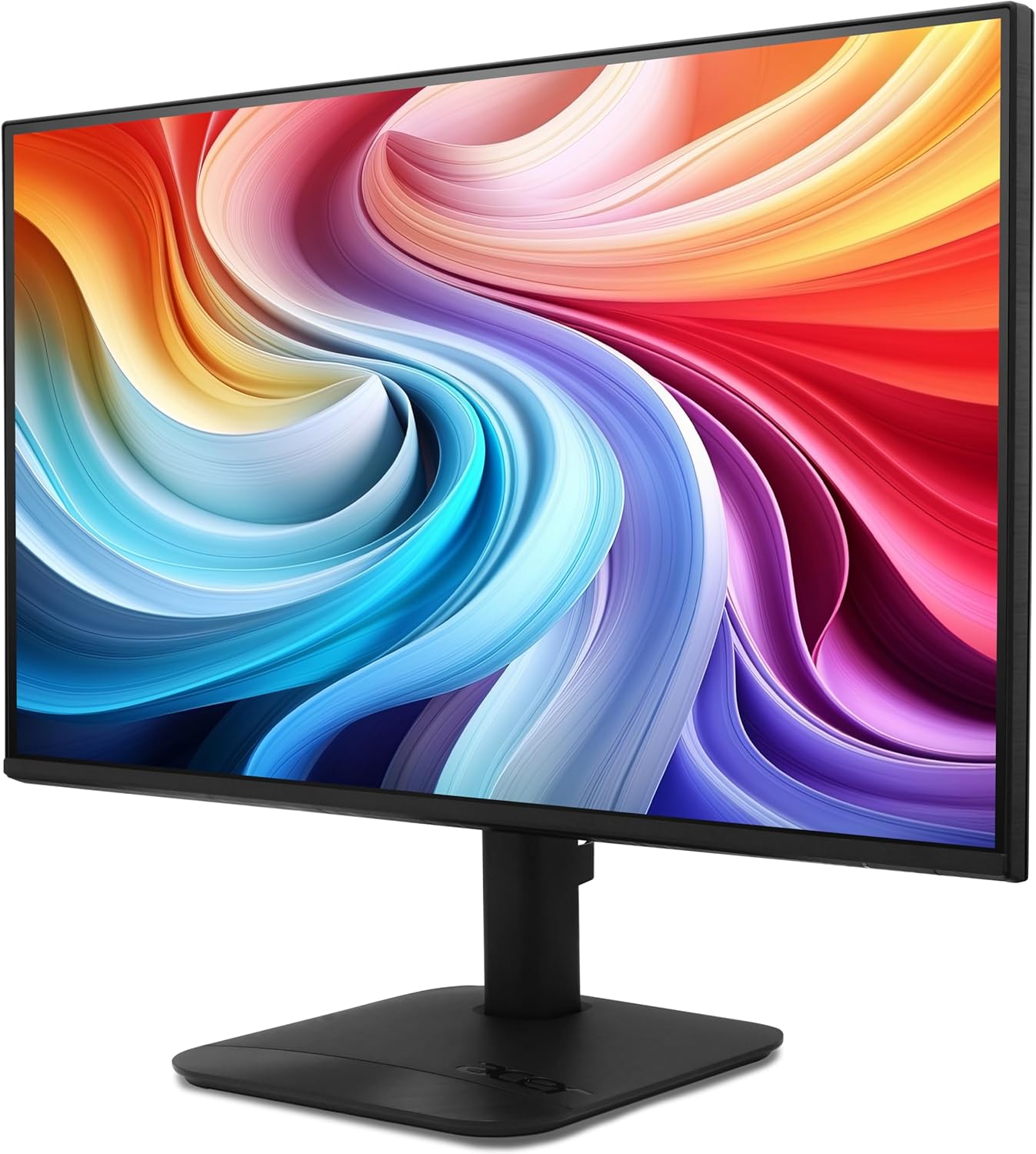
The Acer KB272 P6bi is a 27-inch IPS Full HD (1920 x 1080) monitor designed for both gaming and office use. It features a Zero-Frame design, AMD FreeSync Technology, up to a 144Hz refresh rate, and a 1ms Visual Response Boost (VRB) for smooth visuals. The IPS panel ensures accurate colors and wide viewkampų.

1 pav.: priekis view of the Acer KB272 P6bi monitor.
Pagrindinės funkcijos:
- Vibrant Full HD Display: Experience crisp, true-to-life colors with 1920x1080 resolution and a 16:9 aspect ratio.
- AMD FreeSync technologija: Eliminates screen tearing and stuttering by synchronizing the monitor's refresh rate with your graphics card's frame rate.
- Greito reagavimo laikas: A fast 1ms (VRB) response time ensures smooth rendering of fast-moving action without smearing or ghosting.
- Didelis atnaujinimo dažnis: Up to 144Hz refresh rate provides ultra-smooth 2D motion scenes.
- ZeroFrame dizainas: A near bezel-less design maximizes screen real estate and allows for seamless multi-monitor setups.
- IPS technologija: Delivers accurate colors and consistent image quality across wide viewing angles of up to 178 degrees.
2. Kas yra dėžutėje
Prieš tęsdami sąranką, įsitikinkite, kad yra visi komponentai.
- Acer KB272 P6bi Monitor Display
- Monitoriaus stovas (pagrindas ir kaklelis)
- Maitinimo laidas
- HDMI kabelis
3. Sąrankos instrukcijos
3.1 Monitoriaus stovo surinkimas
- Atsargiai padėkite monitorių ekranu žemyn ant minkšto, švaraus paviršiaus, kad nesubraižytumėte.
- Attach the stand neck to the back of the monitor until it clicks into place or is secured with screws (refer to the quick start guide for specific model details).
- Attach the stand base to the stand neck, ensuring it is firmly secured.
2 pav.: galinis view of the monitor with stand attachment area.
3.2 Monitoriaus prijungimas
- Connect one end of the provided HDMI cable to the HDMI port on your computer or graphics card.
- Connect the other end of the HDMI cable to the HDMI port on the Acer KB272 P6bi monitor. Alternatively, use a VGA cable if your system requires it.
- Prijunkite maitinimo laidą prie monitoriaus maitinimo įvesties, o tada – prie maitinimo lizdo.
- Norėdami įjungti monitorių, paspauskite maitinimo mygtuką.

Figure 3: Monitor connectivity ports (HDMI and VGA).
4. Monitoriaus valdymas
4.1 Maitinimo įjungimas/išjungimas
Press the power button, typically located on the back or bottom right of the monitor, to turn the display on or off.
4.2 Ekrano meniu (OSD)
The monitor features a joystick-style button, often integrated with the power button, for navigating the OSD menu. Press the button once to bring up the options, then tilt it in one of four directions to select and adjust settings such as brightness, contrast, color temperature, and input source.
4.3 Ekrano nustatymų reguliavimas
- Ryškumas / kontrastas: Koreguokite šiuos nustatymus pagal savo viewaplinką ir pageidavimus.
- Spalvų nustatymai: Modify color temperature or select preset modes for optimal visual experience.
- Įvesties šaltinis: Manually select between HDMI and VGA inputs if auto-detection does not work.
- Atnaujinimo dažnis: Ensure your computer's display settings are configured to utilize the monitor's maximum refresh rate (up to 144Hz) for the smoothest experience.
- AMD FreeSync: Enable FreeSync in both the monitor's OSD menu and your graphics card's control panel for tear-free gaming.

Figure 4: Visual representation of AMD FreeSync technology.
5. Priežiūra
5.1 Monitoriaus valymas
- Prieš valydami visada išjunkite monitorių ir atjunkite maitinimo laidą.
- Lengvai naudokite minkštą, nepūkuotą audinį dampnuplaukite vandeniu arba švelniu, neabrazyviniu ekrano valikliu.
- Švelniai valykite ekraną. Venkite per didelio spaudimo.
- Nenaudokite alkoholio, amoniako pagrindo valiklių ar abrazyvinių medžiagų, nes jos gali pažeisti ekrano paviršių.
5.2 Bendroji priežiūra
- Venkite dėti sunkių daiktų ant monitoriaus ar jo laidų.
- Laikykite monitorių atokiau nuo tiesioginių saulės spindulių, šilumos šaltinių ir per didelės drėgmės.
- Užtikrinkite tinkamą vėdinimą aplink monitorių, kad jis neperkaistų.
6. Problemų sprendimas
6.1 Nėra vaizdo / Juodas ekranas
- Check if the monitor is powered on and the power indicator light is illuminated.
- Ensure all video cables (HDMI/VGA) are securely connected to both the monitor and the computer.
- Patikrinkite, ar monitoriaus OSD meniu pasirinktas teisingas įvesties šaltinis.
- Test the monitor with another computer or a different video cable if possible.
6.2 Vaizdo mirgėjimas arba iškraipymas
- Patikrinkite vaizdo kabelį, ar nėra pažeistų ar atsilaisvinusių jungčių.
- Kompiuterio ekrano nustatymuose pakoreguokite atnaujinimo dažnį, kad jis atitiktų monitoriaus galimybes.
- Disable AMD FreeSync in the OSD menu and graphics card settings to see if it resolves the issue.
- Įsitikinkite, kad jūsų grafikos plokštės tvarkyklės yra atnaujintos.
6.3 Colors Appear Incorrect
- Atkurkite monitoriaus spalvų nustatymus į gamyklinius nustatymus per OSD meniu.
- Adjust the color temperature or individual RGB values in the OSD menu.
- Calibrate your display using your operating system's color calibration tools.
7. Specifikacijos
Detailed technical specifications for the Acer KB272 P6bi monitor:
| Funkcija | Specifikacija |
|---|---|
| Ekrano dydis | 27 colių |
| Skydelio tipas | IPS |
| Rezoliucija | 1920 x 1080 (Full HD) |
| Krašto santykis | 16:9 |
| Atnaujinimo dažnis | Iki 144Hz |
| Reagavimo laikas | 1 ms (VRB) |
| Adaptyvaus sinchronizavimo technologija | AMD FreeSync |
| Ryšys | HDMI, VGA |
| Viewing kampas | 178° (H/V) |
| Spalva | Juoda |
| Prekės svoris | 8.38 svaro |
| Gaminio matmenys | 8.26 x 27.36 x 18.29 colio |
8. Garantija ir palaikymas
Dėl garantijos informacijos ir techninės pagalbos žr. prie gaminio pridėtus dokumentus arba apsilankykite oficialioje „Acer“ pagalbos svetainėje. websvetainę. Išsaugokite pirkimo čekį garantiniams reikalavimams.


