1. Įvadas
Thank you for choosing the Luqeeg Bluetooth Thermal Label Printer. This compact, inkless printer is designed for convenience and portability, allowing you to print labels, memos, photos, and more directly from your smartphone or tablet. This manual provides essential information for setting up, operating, and maintaining your device.
Kas yra dėžutėje
- 1 x Luqeeg Thermal Printer
- 1x USB įkrovimo laidas
- 1 x Roll of Thermal Paper (pre-installed inside the machine)
- 1 x Vartotojo vadovas

Image: Contents of the Luqeeg Thermal Printer package, including the printer, USB cable, and a roll of thermal paper.
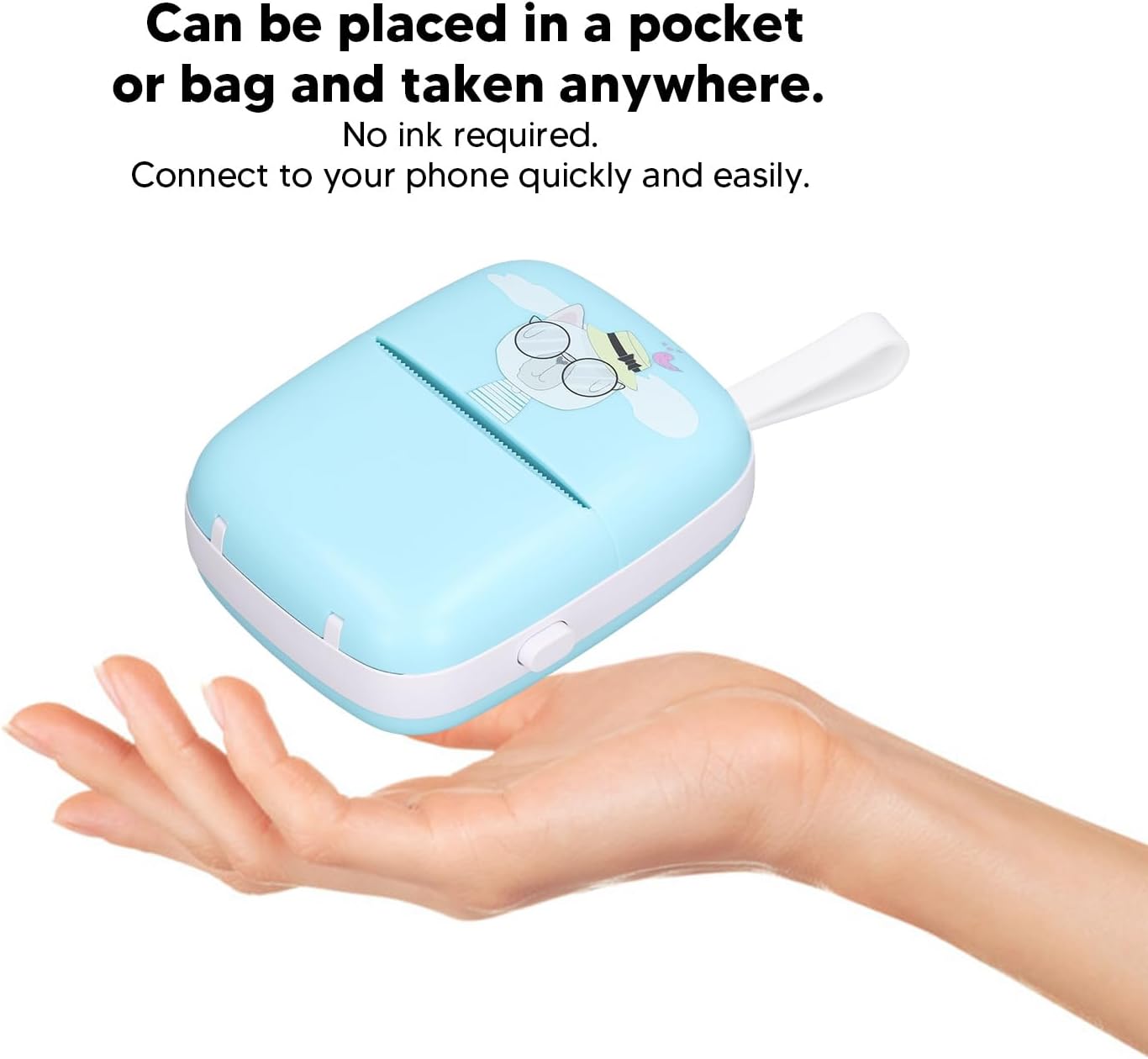
Image: The Luqeeg Thermal Printer shown held in a hand, illustrating its compact and portable design.
2. Sąranka
2.1 Pradinis įkrovimas
Before first use, ensure the printer is fully charged. Connect the provided USB cable to the printer's charging port and a standard USB power adapter (not included). The charging indicator light will typically show charging status and turn off or change color when fully charged. A full charge provides approximately 15 hours of standby time.
2.2 Terminio popieriaus įdėjimas
Your printer comes with one roll of thermal paper pre-installed. To replace or load new paper:
- Švelniai atidarykite popieriaus skyriaus dangtelį.
- Remove any empty paper roll or the protective sticker from a new roll.
- Insert the new thermal paper roll, ensuring the printing side faces outwards and the paper feeds correctly into the print mechanism. Refer to the diagram inside the compartment for correct paper direction.
- Tvirtai uždarykite popieriaus skyriaus dangtelį, kol jis spragtelėdamas užsifiksuos.

Image: The Luqeeg Thermal Printer with its paper compartment open, illustrating the correct direction for loading thermal paper.

Vaizdas: Stambus planas view of the open paper compartment of the Luqeeg Thermal Printer, showing the internal mechanism and paper roll placement.
2.3 Programėlės diegimas ir „Bluetooth“ ryšys
To use the printer, you need to download the iprint application on your mobile device.
- Ieškokite "iprint" in your device's app store (available for Android and iOS systems).
- Atsisiųskite ir įdiekite programą.
- Įsitikinkite, kad jūsų spausdintuvas įjungtas, o mobiliajame įrenginyje įjungtas „Bluetooth“ ryšys.
- Open the iprint app and follow the on-screen instructions to connect to your printer via Bluetooth 4.0 or above. The app should detect the printer automatically.

Image: The Luqeeg Thermal Printer, emphasizing its compatibility with Android and iOS operating systems for app control and printing.
3. Naudojimo instrukcijos
3.1 Maitinimo įjungimas/išjungimas
- To power on: Press and hold the power button located on the side of the printer until the indicator light illuminates.
- Norėdami išjungti: dar kartą paspauskite ir palaikykite maitinimo mygtuką, kol indikatoriaus lemputė užges.
3.2 Printing with the iprint App
The iprint app offers various functions for creating and printing content:
- Select Template: The app provides multiple templates for labels, lists, messages, and various material themes. Choose the template that suits your needs.
- Redaguoti turinį: Customize your chosen template with text, images, or other elements. The app supports printing black and white images, photos, memos, shopping lists, study notes, business plans, QR codes, and more.
- Spausdinti: Once your content is ready, use the "1-click printing" function within the app to send the job to your connected printer.

Image: The Luqeeg Thermal Printer, accompanied by text indicating basic usage instructions.
4. Priežiūra
4.1 Spausdinimo galvutės valymas
Norėdami užtikrinti optimalią spausdinimo kokybę, periodiškai valykite spausdinimo galvutę. Naudokite minkštą, nepūkuotą šluostę, lengvai nuvalytąampsuvilgyta izopropilo alkoholiu. Švelniai nuvalykite spausdinimo galvutės paviršių. Prieš uždarydami dangtį arba naudodami spausdintuvą, leiskite jam visiškai išdžiūti.
4.2 Akumuliatoriaus priežiūra
- Venkite dažnai visiškai iškrauti akumuliatorių.
- Charge the printer regularly, even if not in use, to maintain battery health.
- Kai spausdintuvo ilgesnį laiką nenaudojate, laikykite jį vėsioje, sausoje vietoje.
4.3 Thermal Paper Storage
Store thermal paper in a cool, dry place away from direct sunlight, heat, and humidity to prevent fading and degradation of print quality.
5. Problemų sprendimas
5.1 Printer Not Connecting via Bluetooth
- Ensure the printer is powered on and within range of your mobile device.
- Patikrinkite, ar jūsų mobiliajame įrenginyje įjungtas „Bluetooth“ ryšys.
- Iš naujo paleiskite spausdintuvą ir mobilųjį įrenginį.
- Check if the iprint app has Bluetooth permissions enabled in your device settings.
5.2 Prasta spausdinimo kokybė
- Check if the thermal paper is loaded correctly and is not old or damaged.
- Išvalykite spausdinimo galvutę, kaip aprašyta skyriuje „Priežiūra“.
- Ensure the printer battery is sufficiently charged. Low battery can affect print quality.
- Verify that the thermal paper specifications (57mm width, ≤ 30mm diameter) match the printer's requirements.
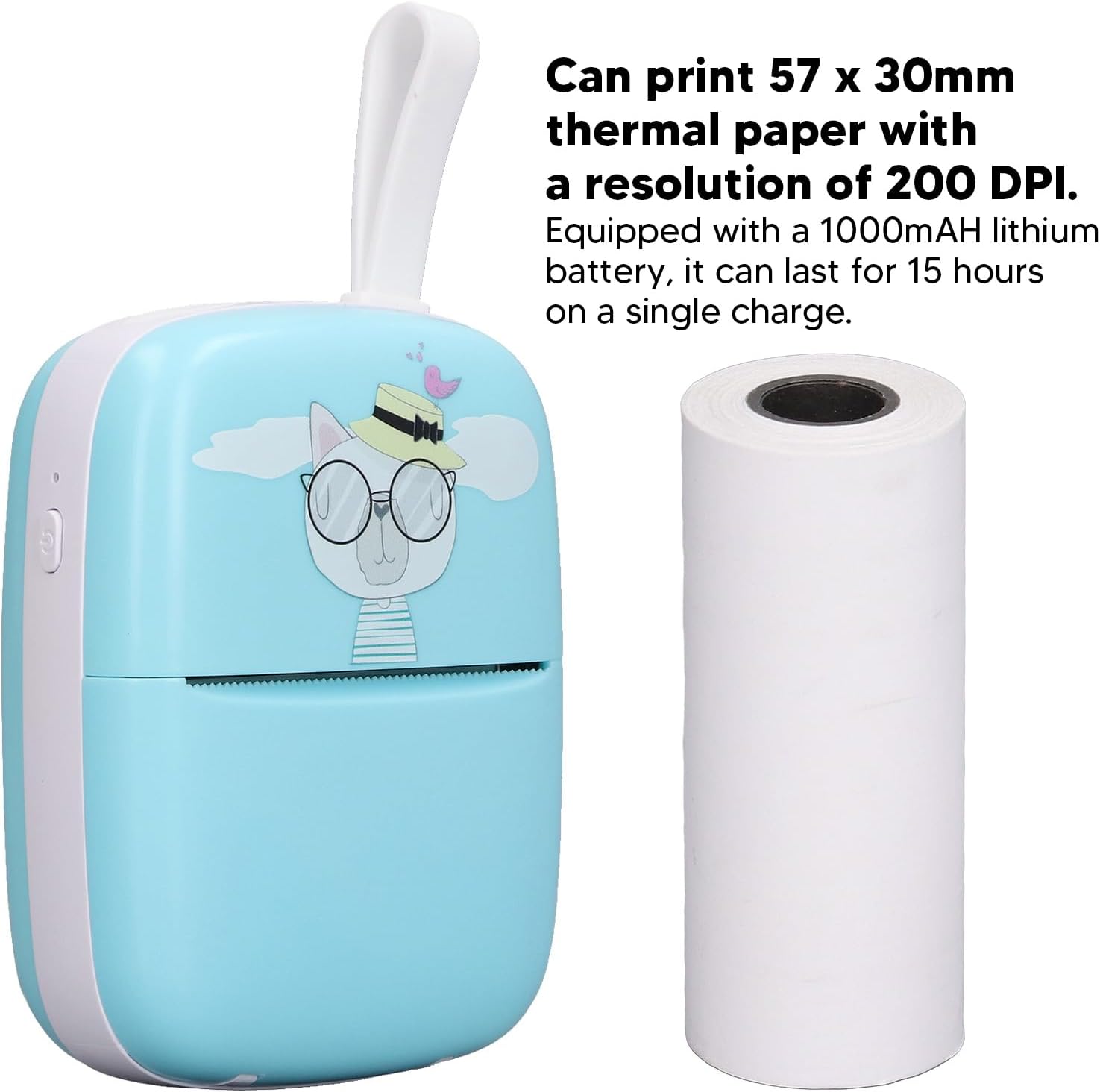
Image: The Luqeeg Thermal Printer alongside a roll of thermal paper, illustrating its capability to print 57 x 30mm paper with 200 DPI resolution.
5.3 Spausdintuvas nespausdina
- Confirm the printer is powered on and connected to the app.
- Check if there is thermal paper loaded and that the paper compartment is closed securely.
- Įsitikinkite, kad akumuliatorius yra pakankamai įkrautas.
- Restart the app and the printer.
6. Specifikacijos
| Funkcija | Specifikacija |
|---|---|
| Modelio numeris | Luqeegztx2krfq34 |
| Prekės tipas | Terminis spausdintuvas |
| Spausdinimo raiška | 200 DPI |
| Spausdinimo greitis | 40 mm/s |
| Baterija | 1 x 1000mAh Rechargeable Lithium Battery |
| Ryšys | Bluetooth 4.0 arba naujesnė versija |
| Programų palaikymas | iprint App (Android, iOS) |
| Applicable Paper Width | ≤ 57mm (2.24in) |
| Applicable Paper Diameter | ≤ 30mm (1.18in) |
| Gaminio matmenys | 4.33 x 3.54 x 1.97 colio |
| Prekės svoris | 6.9 uncijos |
| Gamintojas | Luqeeg |