1. Įvadas
This manual provides essential information for setting up, operating, and maintaining your Thunderobot Storm 15 4050 Gaming Laptop. Please read this manual thoroughly before using your device to ensure optimal performance and longevity.
2. Pakuotės turinys
Patikrinkite, ar jūsų prekės pakuotėje yra visi šie daiktai:
- Thunderobot Storm 15 4050 Gaming Laptop
- Maitinimo adapteris ir laidas
- Vartotojo vadovas (šis dokumentas)
- Garantijos kortelė
Note: Additional accessories may be included depending on your specific purchase configuration.
3. Fizinis viršusview
3.1. Laptop Exterior
Familiarize yourself with the external components of your laptop.
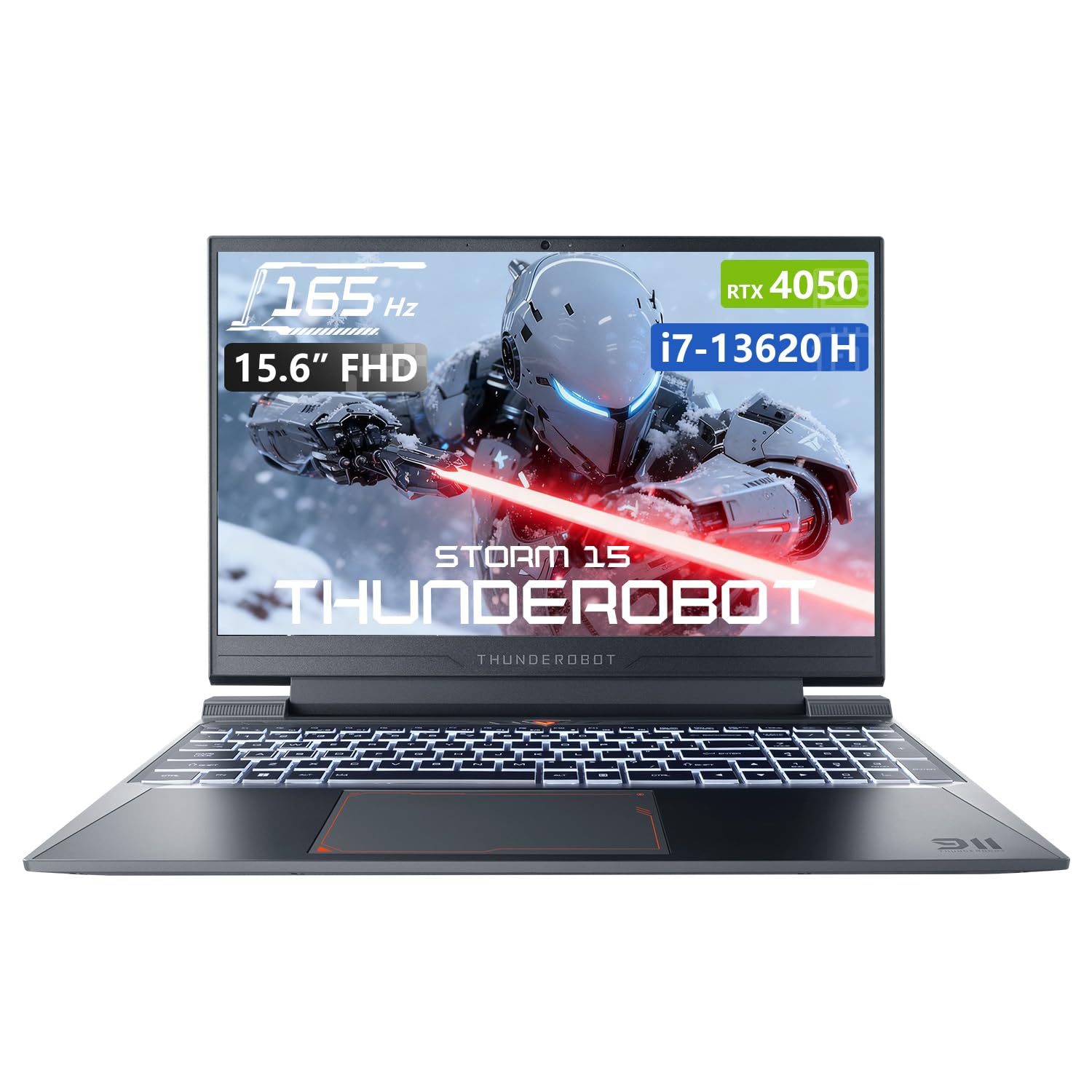
3.1 pav.: Iš viršaus į apačią view of the Thunderobot Storm 15 4050 Gaming Laptop.

3.2 pav.: Atidaryti view of the Thunderobot Storm 15 4050 Gaming Laptop, highlighting the keyboard and display.
3.2. Prievadai ir jungtys
The Thunderobot Storm 15 4050 is equipped with various ports for connectivity. Refer to the diagram below for port locations and functions.

Figure 3.3: Port layout of the Thunderobot Storm 15 4050 Gaming Laptop.
- USB 3.1 2 kartos C tipo: Didelės spartos duomenų perdavimui ir vaizdo išvesčiai.
- RJ-45 eterneto prievadas: Laidinio tinklo ryšiui.
- USB 3.1 A tipo (x3): Skirta USB įrenginiams prijungti.
- HDMI prievadas: Skirta prijungti išorinius ekranus.
- 3.5mm Combo Jack: Ausinėms arba laisvų rankų įrangai su mikrofonu.
- Maitinimo įvestis: Maitinimo adapterio prijungimui.
3.3. Klaviatūra ir jutiklinė planšetė
The laptop features a full-size backlit keyboard with a numeric keypad for enhanced usability. The touchpad supports multi-touch gestures.

3.4 pav. Išsamus view of the backlit keyboard.
4. Sąranka
4.1. Pradinis įjungimas
- Prijunkite maitinimo adapterį prie nešiojamojo kompiuterio maitinimo įvesties prievado, o tada – prie maitinimo lizdo.
- Atidarykite nešiojamojo kompiuterio dangtį.
- Norėdami įjungti nešiojamąjį kompiuterį, paspauskite maitinimo mygtuką.
- Vykdykite ekrane pateikiamus nurodymus, kad užbaigtumėte „Windows 11 Home“ sąranką.
4.2. Prisijungimas prie tinklo
You can connect to the internet via Wi-Fi or a wired Ethernet connection.
- „Wi-Fi“: After initial setup, click the Wi-Fi icon in the taskbar, select your network, and enter the password.
- Ethernet: Prijunkite maršrutizatoriaus arba modemo eterneto kabelį prie nešiojamojo kompiuterio RJ-45 prievado.
5. Nešiojamojo kompiuterio valdymas
5.1. Atlikimo režimai
The Thunderobot Storm 15 4050 features an Intelligent Control Center allowing you to switch between different performance modes to optimize for various tasks. These modes typically include:
- Berserk Mode: Full performance release for demanding applications and gaming.
- Žaidimo režimas: Optimized for smooth gaming performance.
- Audio and Video Office Mode: Balances performance with power efficiency for everyday tasks.
Access the Control Center by searching for "Control Center" in the Windows search bar or by using dedicated function keys (if available). Note: System mode switching in Control Center requires the device to be connected to a power source.

Figure 5.1: Intelligent Control Center interface.
5.2. Aušinimo sistema
The laptop incorporates an advanced Frost Cooling System designed for efficient heat dissipation, crucial during intensive use. This system includes multi-heat-pipe design, high-pressure turbine fans, and high-density copper fins.
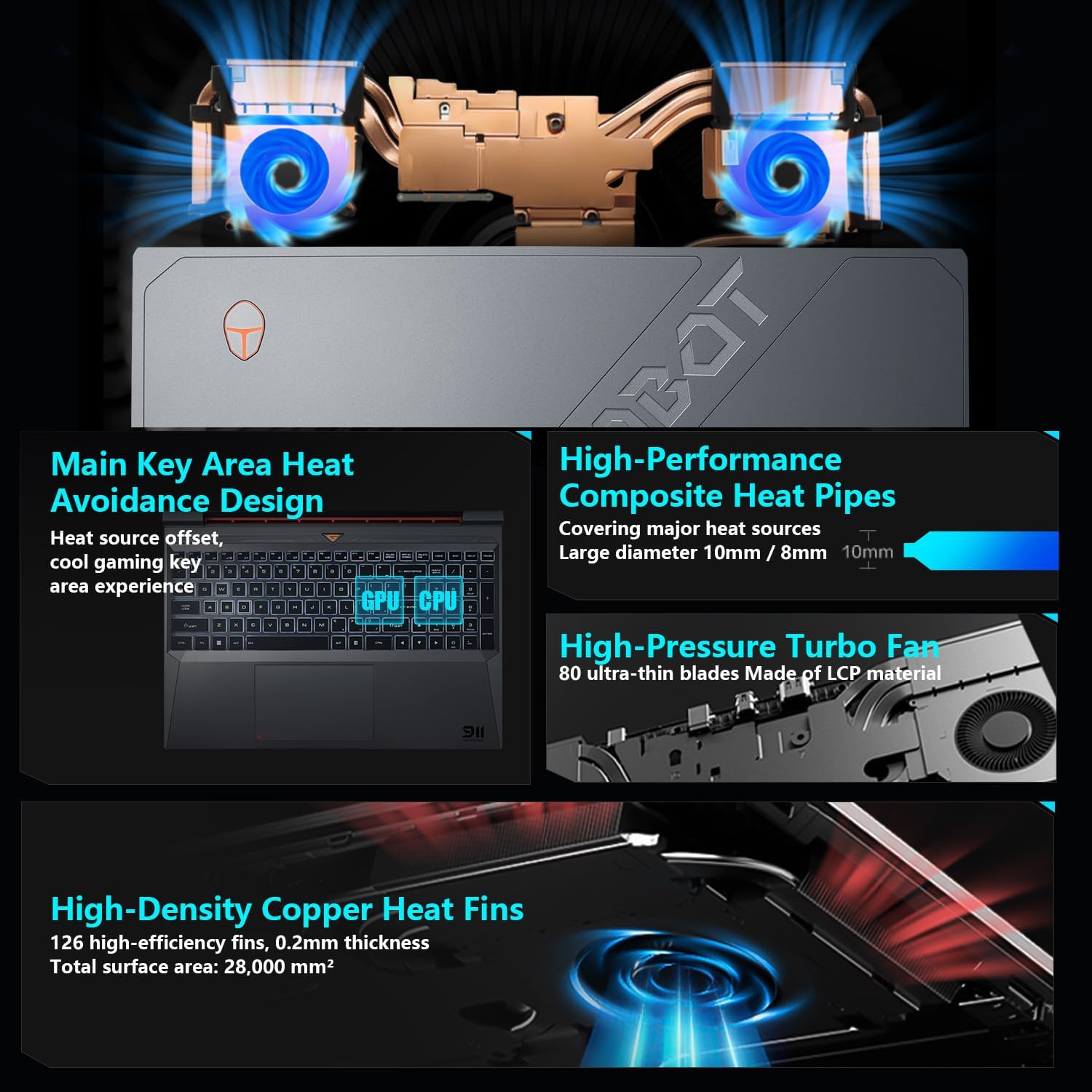
5.2 pav. Vidinis view of the Frost Cooling System.
Ensure that the air vents are not obstructed to maintain optimal cooling performance. Fan speed can be adjusted via the Control Center.
5.3. Ekrano nustatymai
Your laptop features a 15.6-inch Full HD (1920x1080) display with a 165Hz refresh rate. You can adjust display settings through Windows settings (Right-click on desktop > Display settings) to customize resolution, refresh rate, and color profiles.
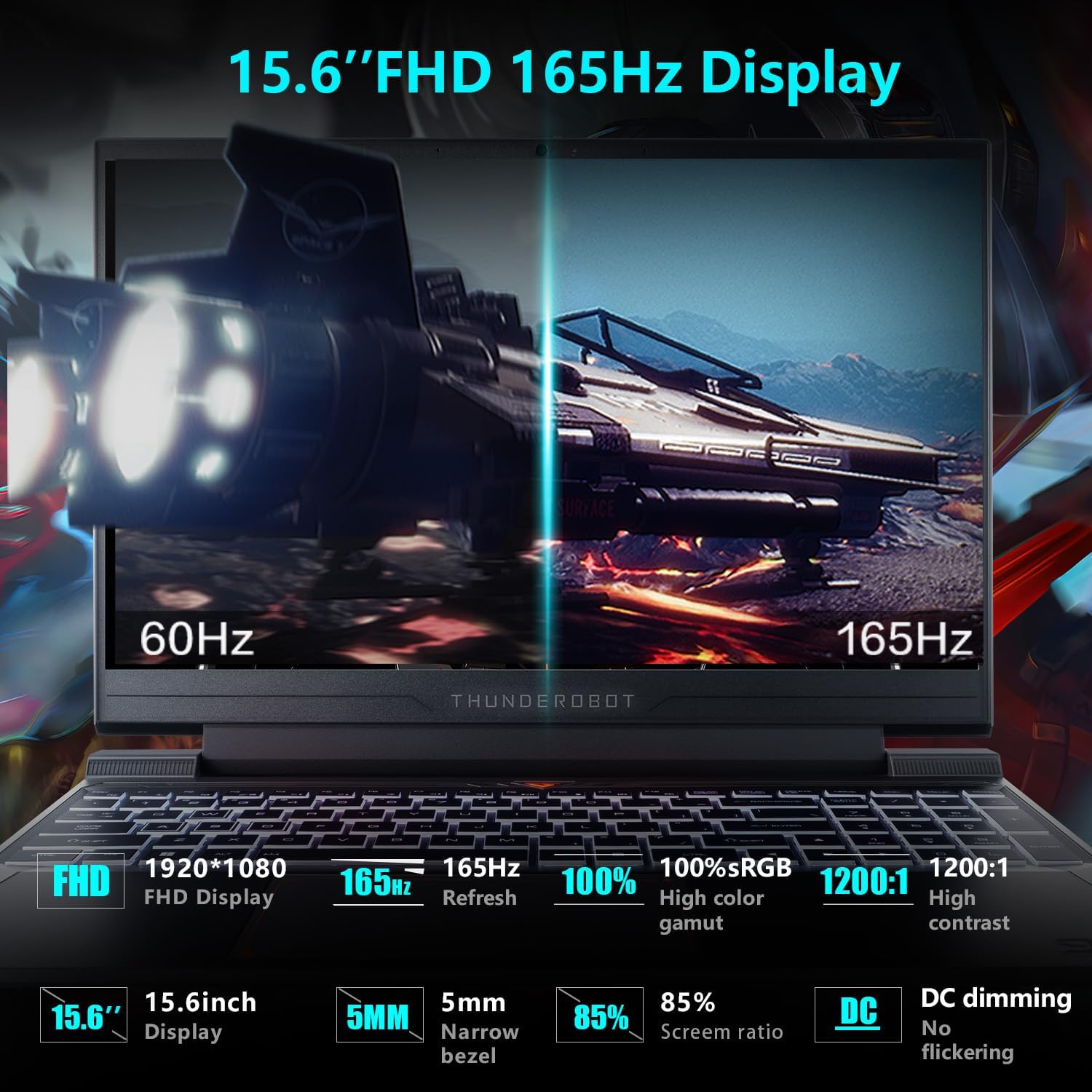
Figure 5.3: Display features of the Thunderobot Storm 15 4050.
5.4. Garso sistema
The laptop is equipped with a professional sound system for an immersive audio experience. Adjust volume and sound settings through the Windows sound control panel.
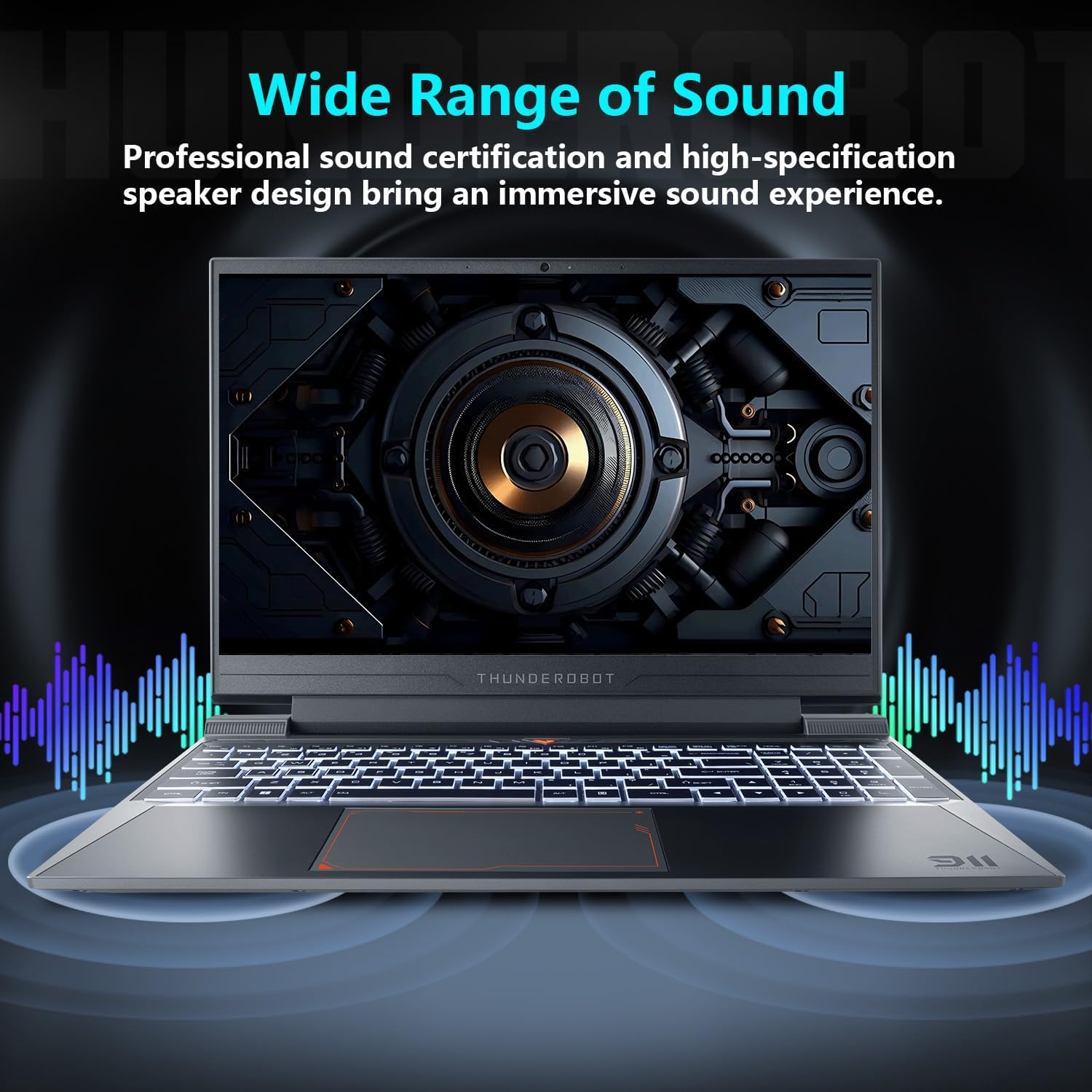
Figure 5.4: Audio system overview.
6. Priežiūra
Tinkama nešiojamojo kompiuterio priežiūra užtikrina jo ilgaamžiškumą ir našumą.
- Valymas: Use a soft, dry cloth to clean the screen and chassis. For stubborn marks, a slightly damp cloth with a mild cleaning solution can be used, ensuring no liquid enters the device.
- Vėdinimas: Regularly check and clean the air vents to prevent dust buildup, which can hinder cooling performance.
- Akumuliatoriaus priežiūra: Norėdami optimalaus akumuliatoriaus veikimo laiko, venkite nuolat visiškai iškrauti akumuliatorių arba ilgai laikyti jį įkrautą 100 %.
- Programinės įrangos atnaujinimai: Keep your operating system and drivers updated to ensure stability and security.
7. Problemų sprendimas
Šiame skyriuje aptariamos dažniausiai pasitaikančios problemos, su kuriomis galite susidurti.
| Problema | Galima priežastis | Sprendimas |
|---|---|---|
| Nešiojamasis kompiuteris neįsijungia. | Battery depleted, power adapter not connected properly. | Ensure the power adapter is securely connected and the laptop is charging. Try a different power outlet. |
| Įjungus maitinimą, ekranas lieka juodas. | External display connected, display driver issue. | Disconnect any external displays. Try pressing Fn + F1 (or the appropriate function key for display toggle) to switch display output. |
| „Wi-Fi“ ryšio problemos. | „Wi-Fi“ išjungtas, neteisingas slaptažodis, maršrutizatoriaus problema. | Ensure Wi-Fi is enabled in Windows settings. Verify the Wi-Fi password. Restart your router. |
| Laptop is running slow or overheating. | Too many applications running, obstructed vents, outdated drivers. | Close unnecessary applications. Clean air vents. Update drivers. Adjust fan speed in Control Center. |
Jei susiduriate su čia nepaminėtomis problemomis arba jei siūlomi sprendimai problemos neišsprendžia, susisiekite su klientų aptarnavimo tarnyba.
8. Specifikacijos
Detailed technical specifications for the Thunderobot Storm 15 4050 Gaming Laptop:
- Modelis: 15 audra
- Procesorius: „Intel Core i7-13620H“ (10 branduoliai, 16 gijų, iki 4.9 GHz)
- Grafika: NVIDIA GeForce RTX 4050 Laptop GPU (Dedicated)
- Ekranas: 15.6-inch Full HD (1920x1080) 165Hz
- RAM: 16GB DDR4 3200MHz
- Saugykla: 1TB PCIe M.2 SSD
- Operacinė sistema: Windows 11 Home
- Belaidis ryšys: 802.11ac „Wi-Fi“, „Bluetooth“
- Prievadai: USB 3.1 Gen 2 Type-C, 3x USB 3.1 Type-A, HDMI, RJ-45 Ethernet, 3.5mm Combo Jack, Power Input
- Klaviatūra: Viso dydžio klaviatūra su foniniu apšvietimu ir skaitmenine klaviatūra
- Matmenys: 14.12 x 10.14 x 0.94 colio
- Svoris: Maždaug 12 svaro
9. Garantija ir palaikymas
Every Thunderobot laptop includes a 12-month warranty, offering expert support, thorough diagnostics, and genuine parts if a repair is needed. We also provide a 90-day warranty on all warranty replacement parts, ensuring hassle-free repairs.
For technical support, warranty claims, or service inquiries, please visit the official Thunderobot website or contact their customer service department. Keep your purchase receipt and warranty card for reference.
9.1 vaizdo įrašas: trumpas įžanginis aprašymasview vaizdo demonstracijaasing the Thunderobot Storm 15 4050 Gaming Laptop's features and design. This video is provided by the seller and offers a quick visual overview produkto.
Video 9.2: Another short preview video highlighting the Thunderobot Storm 15 4050 Gaming Laptop's design elements and user interaction. This video is provided by the seller and offers a quick visual overview produkto.


