Įvadas
This manual provides essential information for setting up, operating, maintaining, and troubleshooting your Dell Pro Slim QCS1250 Small Form Factor (SFF) Desktop. Please read these instructions carefully before using your new computer.
Produktas baigtasview
The Dell Pro Slim QCS1250 SFF Desktop is a compact and powerful computing solution designed for various professional and personal applications. It features a 14th Gen Intel Core i5-14500 processor and runs on Windows 11 Pro.
Priekinis skydelis

1 pav.: priekis view of the Dell Pro Slim QCS1250 SFF Desktop with included keyboard and mouse.

2 pav. Išsamus view of the front panel ports.
Priekinis skydelis suteikia patogią prieigą prie dažnai naudojamų prievadų:
- 1x USB 3.2 Gen 1 (5 Gbps) Type-A: Dėl didelės spartos duomenų perdavimo.
- 1x USB 3.2 Gen 1 (5 Gbps) Type-C: Versatile port for data and charging compatible devices.
- 2x USB 2.0 (480 Mbps) Type-A: Skirta standartiniams USB įrenginiams prijungti.
- 1x Headphone / Microphone Combo Jack (3.5mm): Garso įvesties ir išvesties jungtims.
- Maitinimo mygtukas: Norėdami įjungti arba išjungti sistemą.
Galinis skydelis
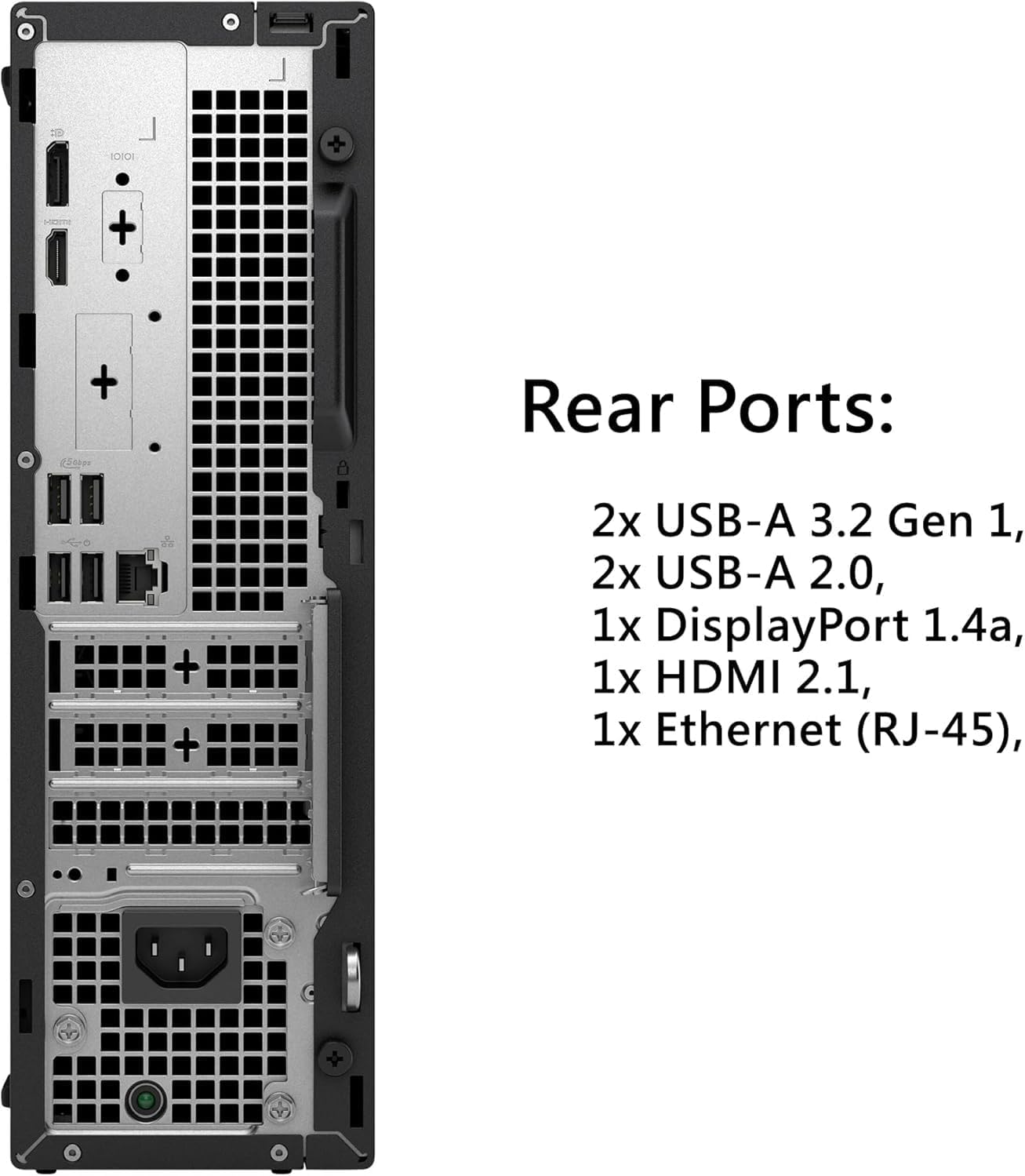
3 pav. Išsamus view of the rear panel ports.
The rear panel includes ports for essential connections:
- 2x USB 3.2 Gen 1 (5 Gbps) Type-A: Papildomi didelės spartos USB prievadai.
- 2x USB 2.0 (480 Mbps) Type-A with SmartPower On: Standard USB ports, some supporting SmartPower On feature.
- 1x DisplayPort 1.4a: Supports resolutions up to 4096 x 2304 @60Hz.
- 1 HDMI 2.1 jungtis: Supports resolutions up to 4096 x 2160 @60Hz.
- 1x Ethernet (RJ-45): Laidinio tinklo ryšiui.
- Maitinimo jungtis: Maitinimo kabelio prijungimui.
Sąrankos instrukcijos
Follow these steps to set up your Dell Pro Slim QCS1250 SFF Desktop:
1. Prijunkite periferinius įrenginius
- Connect the included keyboard and mouse to any available USB Type-A ports on the front or rear of the desktop.
- Connect your monitor(s) to the DisplayPort 1.4a and/or HDMI 2.1 ports on the rear panel. The system supports up to two monitors natively, and up to four with additional compatible hardware (not included).
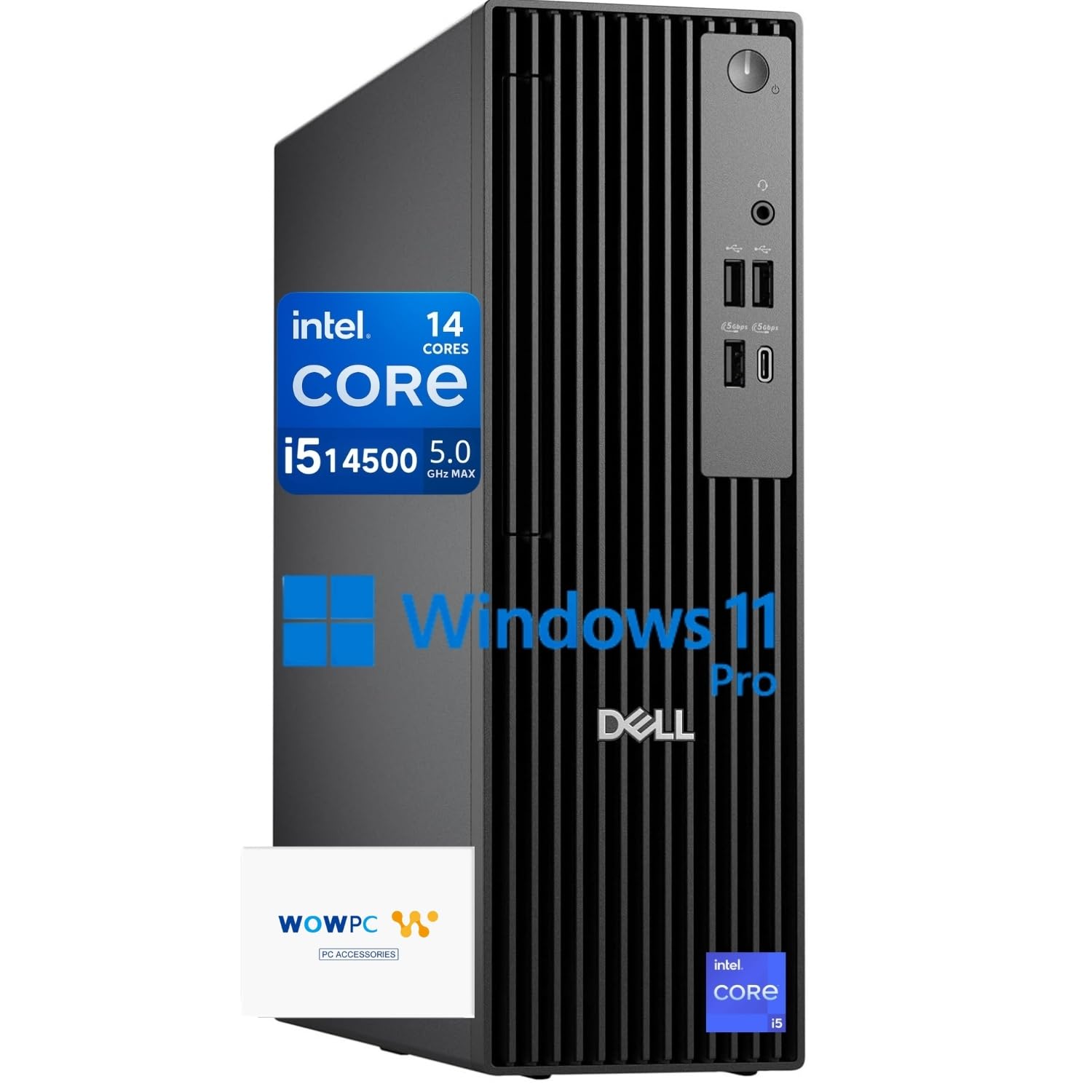
Figure 4: Desktop connected to two monitors for a multi-display setup.

Figure 5: The desktop is capable of supporting up to four displays for enhanced productivity.
2. Prisijunkite prie maitinimo
- Connect the power cable to the power connector on the rear of the desktop and then to a power outlet.
3. Įjunkite maitinimą
- Paspauskite maitinimo mygtuką, esantį darbalaukio priekiniame skydelyje.
- Vykdykite ekrane pateikiamus nurodymus, kad užbaigtumėte pradinę „Windows 11 Pro“ sąranką.
Naudojimo instrukcijos
Your Dell Pro Slim QCS1250 SFF Desktop comes pre-installed with Windows 11 Pro, offering a secure and efficient operating environment.
Tinklo ryšys
The desktop supports both wired and wireless network connections:
- Laidinis: Prijunkite Ethernet kabelį prie RJ-45 prievado galiniame skydelyje.
- Belaidis ryšys: The system features Wi-Fi 6E for high-speed wireless connectivity. Access Wi-Fi settings through the Windows 11 Pro operating system to connect to your preferred network.
USB-C Port Usage
The front USB-C port can be used for connecting various compatible devices, including external storage, docking stations, or charging mobile devices.
Priežiūra
Reguliarus darbas užtikrina jūsų kompiuterio ilgaamžiškumą ir optimalų veikimą.
Valymas
- Keep the desktop clean by regularly wiping the exterior with a soft, dry cloth.
- Ensure ventilation openings are free from dust and obstructions to maintain proper airflow.
- Do not use liquid cleaners directly on the components.
Programinės įrangos atnaujinimai
- Reguliariai tikrinkite, ar yra „Windows“ naujinimų, ir juos įdiekite, kad užtikrintumėte sistemos saugumą ir našumą.
- Update Dell drivers and firmware as recommended by Dell Support.
Sistemos atkūrimas
A complimentary system recovery USB drive is included with your product. This drive allows you to reinstall or restore Windows 11 Pro if needed, providing a convenient solution for system issues or fresh installations.
Trikčių šalinimas
If you encounter issues with your Dell Pro Slim QCS1250 SFF Desktop, consider the following basic troubleshooting steps:
- Nėra galios: Ensure the power cable is securely connected to both the desktop and a working power outlet. Try a different outlet if necessary.
- Nėra ekrano: Verify that the monitor cables are securely connected to both the desktop and the monitor. Ensure the monitor is powered on and set to the correct input source.
- Periferinis įrenginys neveikia: Check the connections of the keyboard, mouse, or other peripherals. Try connecting them to a different USB port.
- Sistema nereaguoja: Press and hold the power button for 10-15 seconds to perform a hard shutdown. Wait a few seconds, then press the power button again to restart the system.
- Programinės įrangos problemos: If software problems persist, consider using the included system recovery USB drive to reinstall Windows 11 Pro.
Dėl sudėtingesnių problemų kreipkitės į „Dell“ palaikymo tarnybą websvetainėje arba susisiekite su klientų aptarnavimo tarnyba.
Specifikacijos
| Funkcija | Specifikacija |
|---|---|
| Procesorius | Intel Core i5-14500 (14 Cores, 20 Threads, up to 5.0 GHz) |
| Operacinė sistema | Windows 11 Pro, 64-bit, English |
| Grafika | Intel UHD Graphics 770 |
| Atmintis (RAM) | 16 GB DDR5 RAM (galima išplėsti iki 64 GB) |
| Sandėliavimas | 1TB PCIe M.2 Solid State Drive (SSD) |
| Ryšys | Wi-Fi 6E, Bluetooth, Ethernet (RJ-45) |
| Priekiniai prievadai | 1x USB 3.2 Gen 1 Type-A, 1x USB 3.2 Gen 1 Type-C, 2x USB 2.0 Type-A, 1x Headphone/Mic Combo Jack |
| Galiniai uostai | 2x USB 3.2 Gen 1 Type-A, 2x USB 2.0 Type-A (with SmartPower On), 1x DisplayPort 1.4a, 1x HDMI 2.1, 1x Ethernet (RJ-45) |
| Matmenys (P x G x A) | 3.74 x 11.54 x 11.95 colio (9.5 x 29.3 x 30.3 cm) |
| Svoris | 8.61 svarai (3.9 kg) |
| Įtraukti periferiniai įrenginiai | Dell Black Wired Keyboard and Mouse, System Recovery USB Drive |
Informacija apie garantiją
This Dell Pro Slim QCS1250 SFF Desktop is covered by a one-year limited seller warranty. For specific terms and conditions, please refer to the warranty documentation provided with your purchase or contact the seller directly.
Palaikymas
For technical assistance, driver downloads, or further information regarding your Dell Pro Slim QCS1250 SFF Desktop, please visit the official Dell support website or contact Dell customer service. Keep your product's serial number or service tag readily available when seeking support.
Papildomų išteklių ir kontaktinės informacijos galite rasti adresu „Dell“ palaikymas Websvetainę.


