1. Įvadas
This manual provides essential information for the setup, operation, maintenance, and troubleshooting of your Thunderobot Zero 18 Pro Gaming Laptop. Please read this manual thoroughly before using your device to ensure optimal performance and longevity.
2. Sąranka
2.1 Išpakavimas ir pirminė apžiūra
Atsargiai išimkite visus komponentus iš pakuotės. Patikrinkite, ar yra visi skyriuje „Kas yra dėžutėje“ išvardyti elementai ir ar jie nepažeisti. Jei kokių nors elementų trūksta arba jie pažeisti, nedelsdami susisiekite su klientų aptarnavimo tarnyba.
- THUNDEROBOT Zero 18 Laptop
- Maitinimo adapteris
- Dokumentacija (šis vadovas)
2.2 Maitinimo adapterio prijungimas
Prijunkite maitinimo adapterį prie nešiojamojo kompiuterio maitinimo įvesties prievado, o tada įjunkite jį į sieninį lizdą. Prieš pirmą kartą naudojant, rekomenduojama visiškai įkrauti akumuliatorių.
Vaizdas: Galinis view of the Thunderobot Zero 18 Pro laptop showing the power input port and other connections.
2.3 Pradinis paleidimas ir „Windows“ sąranka
Paspauskite maitinimo mygtuką, kad įjungtumėte nešiojamąjį kompiuterį. Vykdykite ekrane pateikiamus nurodymus, kad užbaigtumėte „Windows 11 Home“ sąrankos procesą. Tai apima regiono, kalbos pasirinkimą, prisijungimą prie tinklo ir vartotojo paskyros sukūrimą.
3. Naudojimo instrukcijos
3.1 Klaviatūra ir jutiklinė planšetė
The laptop features a full-featured backlit keyboard with a numeric pad and a responsive touchpad. Refer to the image below for key layout and special function keys.
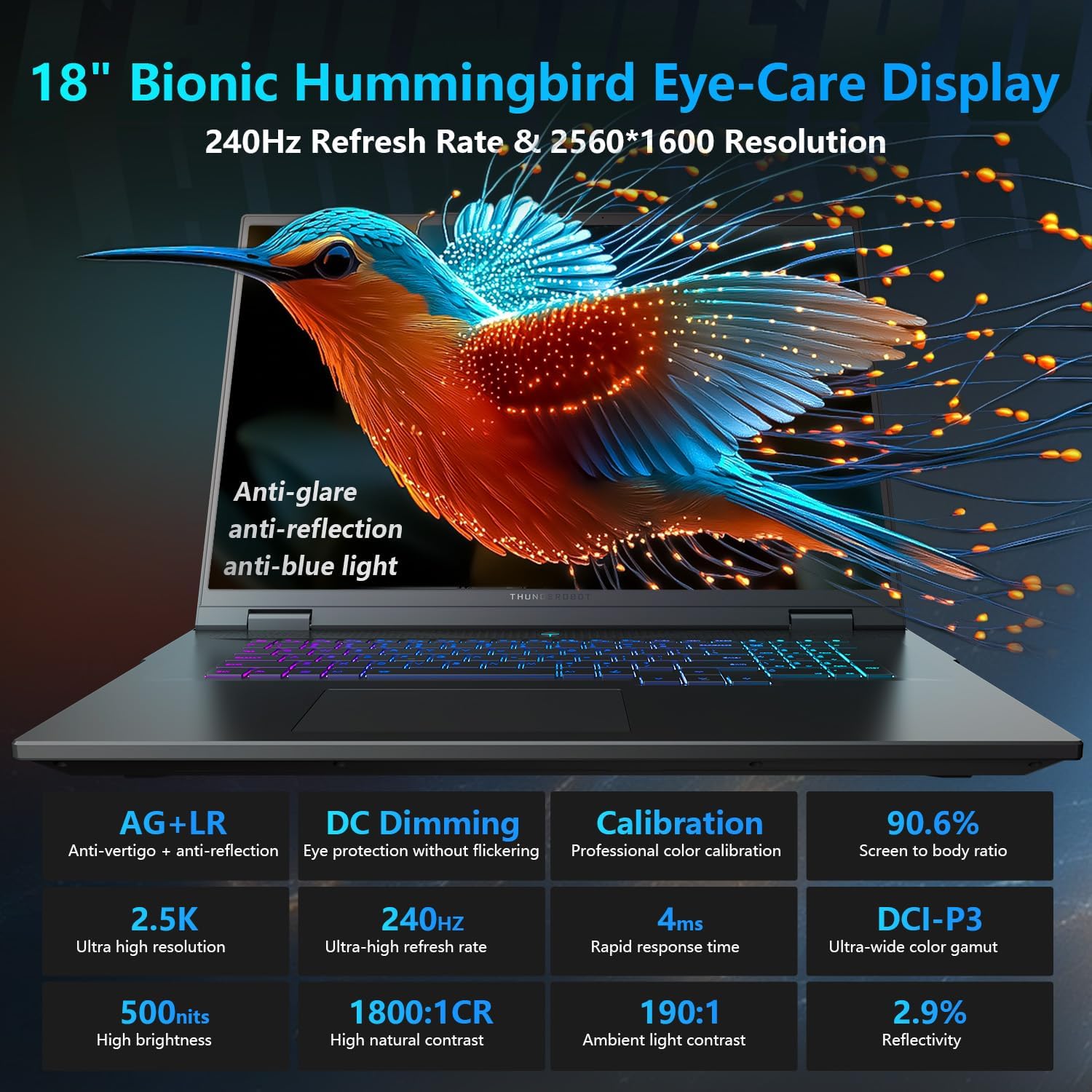
Image: Close-up of the Thunderobot Zero 18 Pro's per-key RGB backlit keyboard and touchpad.
Funkciniai klavišai: Naudokite Fn key in combination with the F1-F12 keys for various functions such as adjusting brightness, volume, and toggling Wi-Fi.
3.2 Ekrano funkcijos
Your laptop is equipped with an 18-inch QHD+ 2.5K Eye-Care display with a 240Hz refresh rate. This display offers anti-glare, anti-reflection, and blue-light reduction features for extended viewkomfortas.

Image: The Thunderobot Zero 18 Pro laptop display showcasing its vibrant QHD+ resolution and narrow bezels.
3.3 Ryšio prievadai
The laptop provides a range of ports for connecting peripherals and external devices:
- 3x SuperSpeed USB-A ports
- 2x USB-C ports (including Thunderbolt 5)
- HDMI prievadas
- RJ-45 Ethernet prievadas
- Garso lizdas

Vaizdas: Šoninė view of the Thunderobot Zero 18 Pro laptop highlighting the various connectivity ports.
3.4 AI Intelligent Control Center
Utilize the pre-installed AI Intelligent Control Center software to manage performance modes, RGB lighting, and monitor system status. System mode switching requires the device to be connected to a power source.
Image: Screenshot of the AI Intelligent Control Center software interface, showing options for performance tuning, intelligent light adjustment, and comprehensive system adjustments.
4. Priežiūra
4.1 Nešiojamojo kompiuterio valymas
Regularly clean the screen with a soft, lint-free cloth and a screen-safe cleaning solution. Use a soft brush or compressed air to remove dust from the keyboard and ventilation grilles. Avoid using harsh chemicals or abrasive materials.
4.2 Akumuliatoriaus priežiūra
To prolong battery life, avoid fully discharging the battery frequently. Store the laptop in a cool, dry place when not in use for extended periods. The laptop supports 100W PD charging.
4.3 Programinės įrangos naujiniai
Keep your operating system and drivers updated to ensure optimal performance and security. Check the Thunderobot official website for the latest driver updates for your specific model.
5. Problemų sprendimas
5.1 Nešiojamasis kompiuteris neįsijungia
- Įsitikinkite, kad maitinimo adapteris yra tvirtai prijungtas tiek prie nešiojamojo kompiuterio, tiek prie veikiančio maitinimo lizdo.
- Patikrinkite, ar maitinimo lizdas veikia, prijungdami prie jo kitą įrenginį.
- Jei akumuliatorius visiškai išsikrovęs, prieš bandydami įjungti, leiskite jam įkrauti bent 30 minučių.
5.2 Ekrano problemos
- If the screen is black, try adjusting the brightness using the function keys.
- Prijunkite išorinį monitorių, kad patikrintumėte, ar problema susijusi su nešiojamojo kompiuterio ekranu, ar su vaizdo plokšte.
- Update your graphics drivers via the AI Intelligent Control Center or Thunderobot's official websvetainę.
5.3 Našumo sulėtėjimas
- Check for background applications consuming high CPU or RAM resources using Task Manager.
- Ensure the laptop's cooling system is not obstructed and is functioning correctly. Use the AI Intelligent Control Center to monitor temperatures and fan speeds.
- Run a disk cleanup and defragmentation (for HDDs) or TRIM (for SSDs) to optimize storage.
6. Specifikacijos
| Funkcija | Detalė |
|---|---|
| Modelio pavadinimas | ZERO 18 Pro |
| Procesorius | „Intel Core Ultra 9 275HX“ (24 branduoliai, iki 5.40 GHz) |
| Grafika | GeForce RTX 5070 Ti (Dedicated) |
| RAM | 32 GB DDR5 (4800 MHz) |
| Sandėliavimas | 1TB PCIe M.2 SSD |
| Ekranas | 18-inch QHD+ (2560x1600) 240Hz Eye-Care Display |
| Operacinė sistema | Windows 11 Home |
| Belaidis ryšys | „Wi-Fi 6E“, „Bluetooth“ |
| Uostai | 3x USB-A, 2x USB-C (Thunderbolt 5), HDMI, RJ-45, Audio Jack |
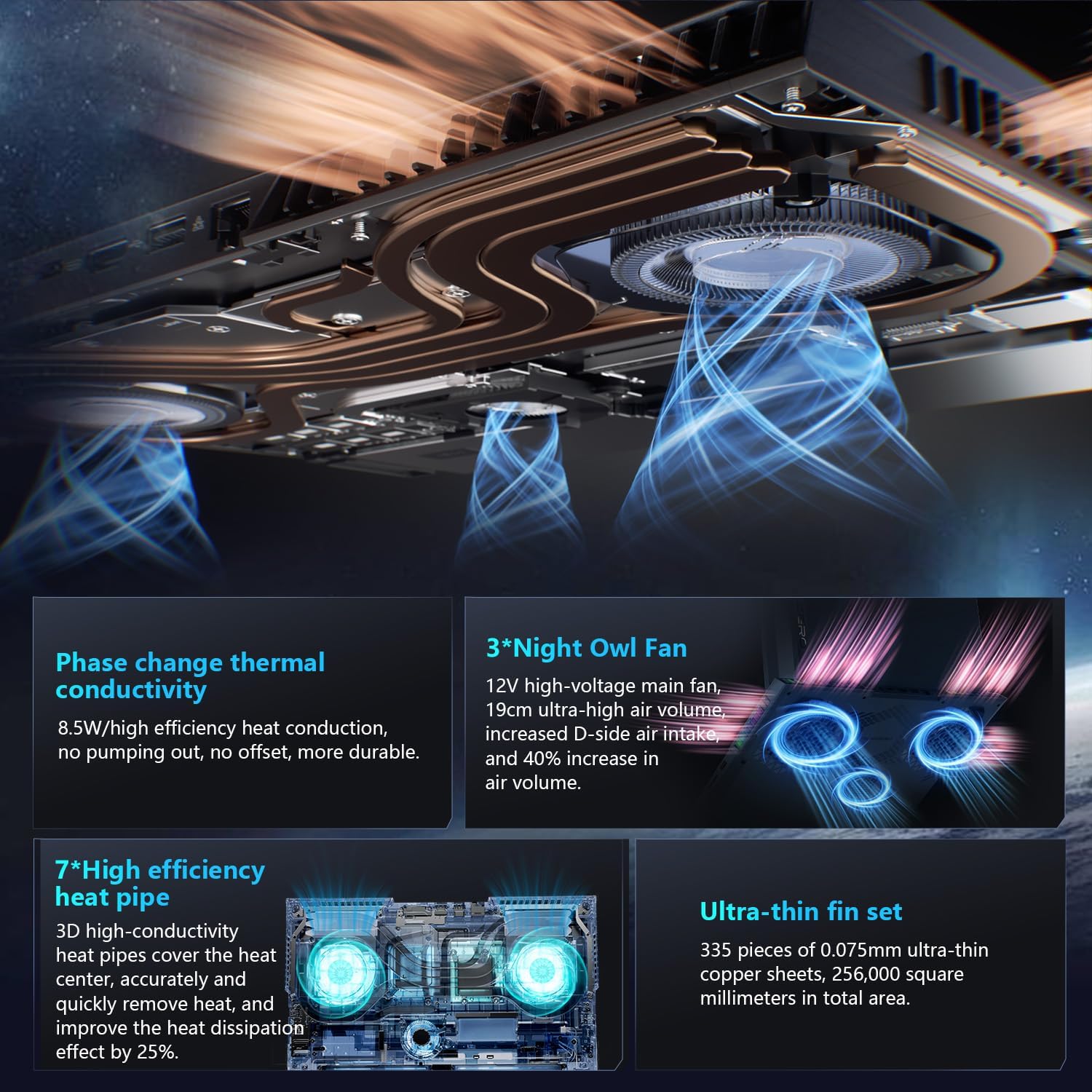
| Aušinimo sistema | 270W Thermal System with 3x Night Owl fans, 7x heat pipes |
| Matmenys (IxPxH) | 16.04 x 11.78 x 1.41 colio |
| Svoris | 15 svaro |
7. Garantija ir palaikymas
Every Thunderobot laptop includes a 12-month warranty, offering expert support, thorough diagnostics, and genuine parts if a repair is needed. A 90-day warranty is provided on all warranty replacement parts, ensuring hassle-free repairs.
For technical assistance, warranty claims, or further information, please visit the official Thunderobot support website or contact their customer service. Upgrading RAM or adding a second SSD may void the warranty; please consult with customer service before making such modifications.
Image: Graphic detailing Thunderobot's warranty and support policy.
8. Produktų vaizdo įrašai
8.1 THUNDEROBOT Gaming E-Sports Partner
Vaizdo įrašas: Viršijimasview of Thunderobot's involvement in e-sports and their commitment to gaming performance.
8.2 THUNDEROBOT Series Display
Video: A demonstration of the display features and visual quality of the Thunderobot Zero series laptops.
8.3 Thunderobot RGB lights
Video: A showcase of the customizable RGB lighting features on Thunderobot laptops, including keyboard and chassis lighting.


