1. Įvadas
This manual provides detailed instructions for the cudinham X6 Print Pod Mini Thermal Printer. This compact, inkless printer is designed for various uses, including creating stickers, notes, and labels directly from your smartphone or tablet. Please read this manual thoroughly before use to ensure proper operation and longevity of your device.
2. Kas yra dėžutėje
Patikrinkite, ar pakuotėje yra visi reikalingi daiktai:
- cudinham X6 Mini Thermal Printer
- 10 Rolls Printing Paper (Thermal Paper & Sticker Paper)
- C tipo maitinimo laidas
- Vartotojo vadovas

2.1 pav. Pakuotės turinys
3. Produktas baigtasview
The cudinham X6 Mini Thermal Printer features a simple and intuitive design. Key components include:
- Popieriaus išleidimo anga: Where printed paper exits.
- Maitinimo mygtukas: Used to turn the printer on/off and initiate feeding.
- Maitinimo indikatorius: Shows the device's power status.
- USB prievadas: Prietaiso įkrovimui.
- Cover Opening Button: Atleidžia viršutinį dangtį popieriaus įdėjimui.
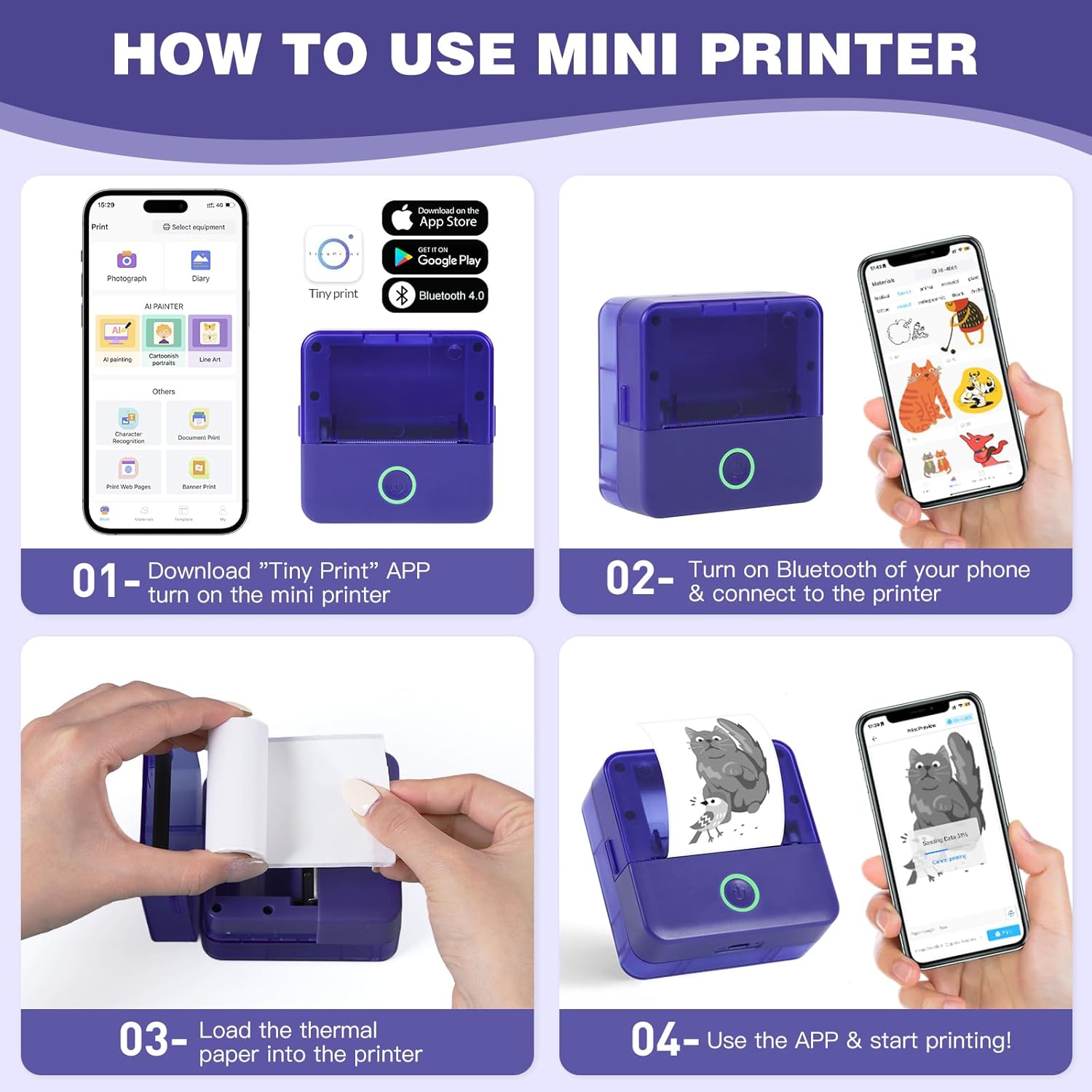
Figure 3.1: Printer Components and How to Use
4. Sąranka
4.1 Spausdintuvo įkrovimas
Before first use, ensure the printer is fully charged. Connect the provided Type-C power cord to the printer's USB port and a suitable power adapter (not included). The power indicator light will show charging status.
4.2 Terminio popieriaus įdėjimas
- Press the cover opening button to open the top cover of the printer.
- Remove any existing paper roll or the adjuster from the right side if present.
- Load a new thermal paper roll into the paper compartment. Ensure the printing side (smooth side) is facing up and aligned with the print head.
Tip: To distinguish the printing side, gently scratch the paper surface with your nail; the side that leaves a mark is the printing side. - If removed, install the adjuster on the right side to secure the paper roll.
- Pull out a small portion of the paper (approximately 1cm) beyond the paper outlet.
- Tvirtai uždarykite viršutinį dangtelį, kol jis spragtelėdamas užsifiksuos vietoje.

Figure 4.1: Opening the Paper Compartment

Figure 4.2: Loading the Paper Roll

Figure 4.3: Closing the Cover after Paper Loading
4.3 Programėlės atsisiuntimas ir „Bluetooth“ ryšys
- Download the "Tiny Print" app from the App Store (iOS) or Google Play Store (Android).
- Turn on the mini printer by pressing and holding the power button until the indicator light illuminates.
- Įjunkite „Bluetooth“ išmaniajame telefone ar planšetiniame kompiuteryje.
- Open the "Tiny Print" app and follow the in-app instructions to connect to your printer via Bluetooth. Look for a device named "X6H-XXXX" or similar.
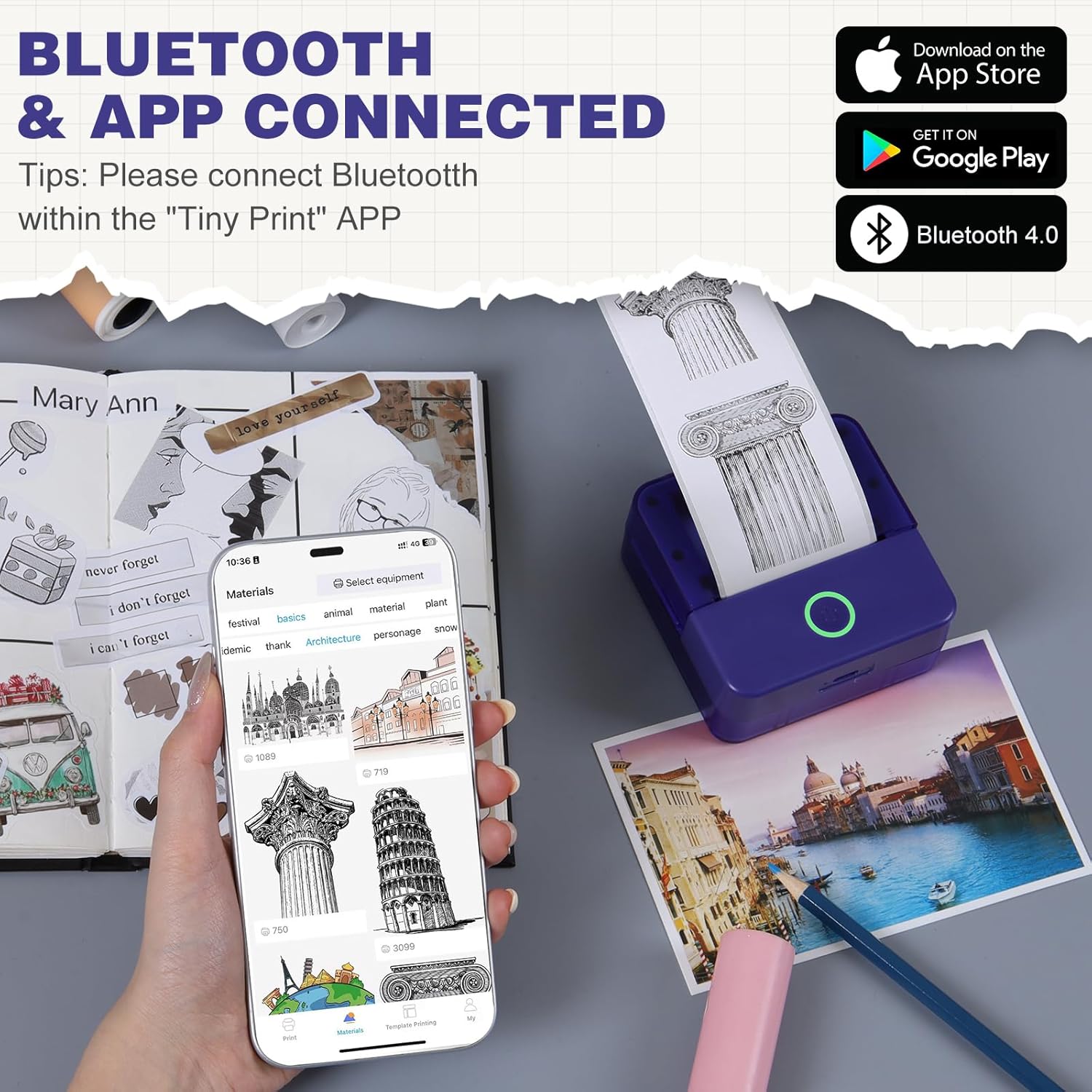
4.4 pav.: Programėlės sąsaja ir „Bluetooth“ ryšys
Video 4.1: Demonstrating the setup and connection process for the cudinham X6 Mini Thermal Printer.
5. Naudojimo instrukcijos
The "Tiny Print" app offers various functions for printing. Ensure your printer is connected via Bluetooth before proceeding.
5.1 Pagrindinis spausdinimas
- Nuotraukų spausdinimas: Select "Photo Printing" in the app, choose an image from your gallery, adjust as needed, and tap "Print."
- Teksto spausdinimas: Select "Text Printing" or a template, input your text, customize fonts and sizes, and tap "Print."
- Šablonai: The app provides multiple free templates for notes, to-do lists, labels, and more. Select a template, customize it, and print.

Figure 5.1: Multi-functionality of the Tiny Print App

Figure 5.2: Image Printing Settings

Figure 5.3: Text Printing Settings
5.2 Adjusting Print Settings
Within the app, you can adjust the print depth for both images and text. For optimal results, especially with images, it is recommended to use the high-definition printing mode and set the print depth between 4 and 7. Experiment with settings to achieve your desired print quality.
5.1 vaizdo įrašas: Viršview of the cudinham X6 Print Pod Mini Printer's features and printing capabilities.
6. Priežiūra
6.1 Spausdinimo galvutės valymas
Norėdami išlaikyti spausdinimo kokybę, reguliariai valykite spausdinimo galvutę. Naudokite minkštą, nepūkuotą šluostę, lengvai nuvalytą.ampened with alcohol. Gently wipe the print head to remove any dust or paper residue. Ensure the printer is turned off and disconnected from power before cleaning.
6.2 Popieriaus laikymas
Store thermal paper in a cool, dry place away from direct sunlight and heat to prevent premature fading or damage. Avoid touching the printing surface of the paper with bare hands as oils can affect print quality.

Figure 6.1: Different Types of Thermal Paper
7. Problemų sprendimas
| Problema | Galima priežastis | Sprendimas |
|---|---|---|
| Spausdintuvas neįsijungia | Išsikrovusi baterija; netinkamai paspaustas maitinimo mygtukas. | Įkraukite spausdintuvą; paspauskite ir 3 sekundes palaikykite nuspaudę maitinimo mygtuką. |
| Poor print quality (faint/blurry) | Print head dirty; Incorrect print depth setting; Low battery. | Clean the print head; Adjust print depth in the app (recommended 4-7); Charge the printer. |
| Spausdintuvas neprisijungia per „Bluetooth“ | Bluetooth off on phone/printer; App not recognizing printer. | Ensure Bluetooth is enabled on both devices; Restart the app and printer; Re-pair the device in the app. |
| Popieriaus strigtis | Paper loaded incorrectly; Foreign object in paper path. | Open the cover, remove jammed paper, re-load correctly; Check for obstructions. |
8. Specifikacijos
| Funkcija | Detalė |
|---|---|
| Modelio pavadinimas | X6 |
| Prekės ženklas | cudinham |
| Spausdinimo technologija | Šiluminis |
| Ryšio technologija | Bluetooth |
| Spausdintuvo išvestis | Thermal (Monochrome) |
| Maksimalus spausdinimo greitis (vienspalvis) | 20 ppm |
| Spausdinimo laikmena | Terminis popierius |
| Lapo dydis | 57x22 Millimeters |
| Maksimalus laikmenos dydis | 52x350mm |
| Gaminio matmenys | 3.35 x 1.77 x 3.35 colio |
| Prekės svoris | 13.2 uncijos |
| Baterijos | 1 nestandartinė baterija (į komplektą įeina) |
| Techninės įrangos sąsaja | USB |
9. Garantija ir palaikymas
For warranty information and customer support, please refer to the warranty card included in your package or contact cudinham customer service directly. Keep your purchase receipt for warranty claims.
Kontaktinė informacija:
- Gamintojas: Cudinham
- Pardavėjas: Cudinham Home
- Please refer to the product packaging or official websvetainėje rasite naujausią palaikymo kontaktinę informaciją.


