1. Įvadas
This manual provides essential information for the proper setup, operation, and maintenance of your MESWAO 15.6-inch Android 14 Tablet (Model MES-B3). Please read this manual thoroughly before using the device to ensure optimal performance and longevity. Keep this manual for future reference.
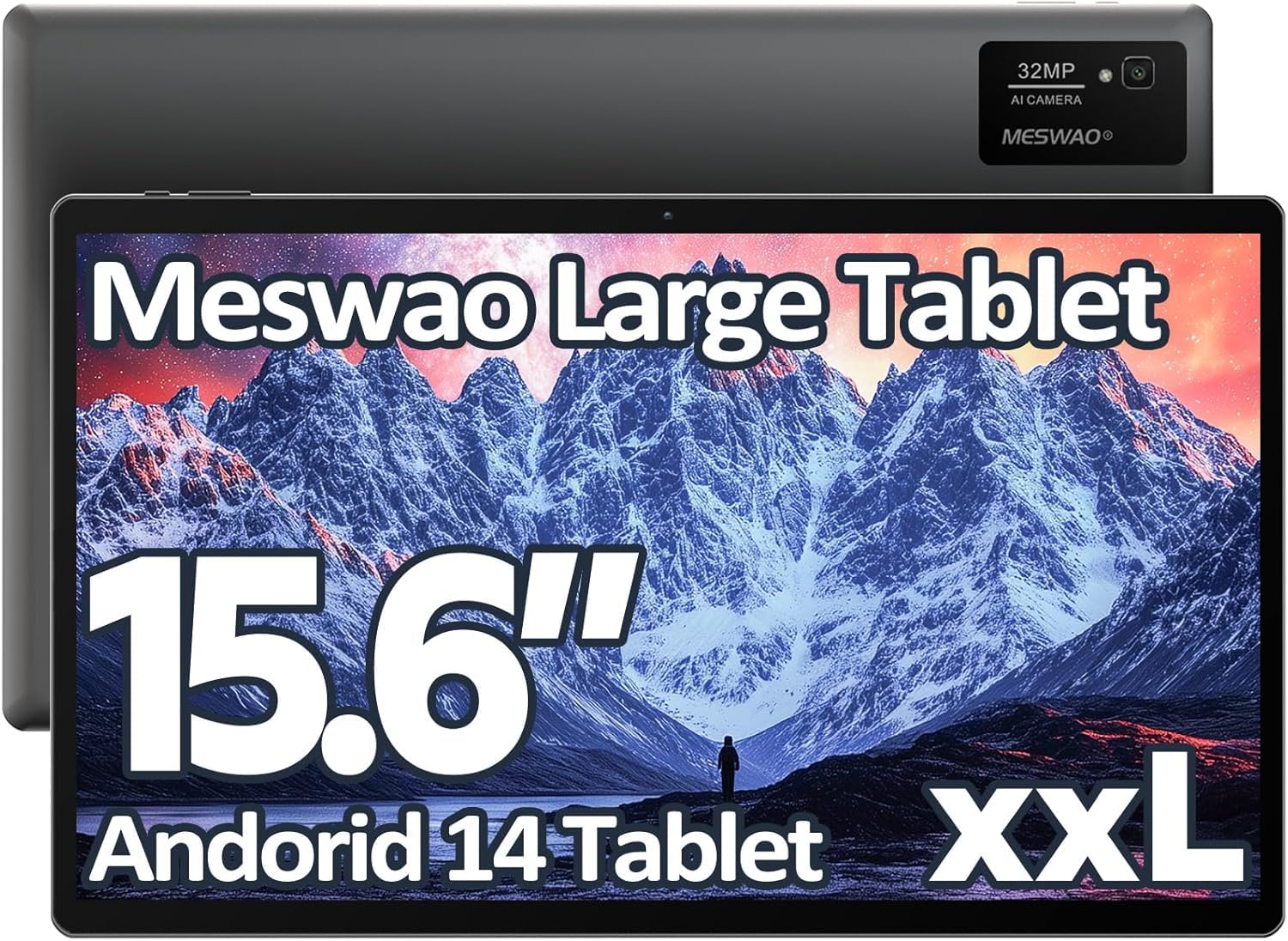
Image: The MESWAO 15.6-inch Android 14 Tablet, showcasindėl didelio ekrano ir elegantiško dizaino.
2. Sąranka
2.1 Išpakavimas ir pirminė apžiūra
Atsargiai išimkite visus komponentus iš pakuotės. Patikrinkite, ar yra visi pakuotės turinyje išvardyti elementai ir ar jie nepažeisti. Jei kokių nors elementų trūksta arba jie pažeisti, nedelsdami susisiekite su klientų aptarnavimo tarnyba.
2.2 Planšetinio kompiuterio įkrovimas
Before first use, fully charge the tablet. Connect the provided USB-C cable to the tablet's charging port and the other end to the power adapter. Plug the power adapter into a wall outlet. The charging indicator will illuminate. A full charge typically takes approximately 3 hours with the 30W fast charging capability.
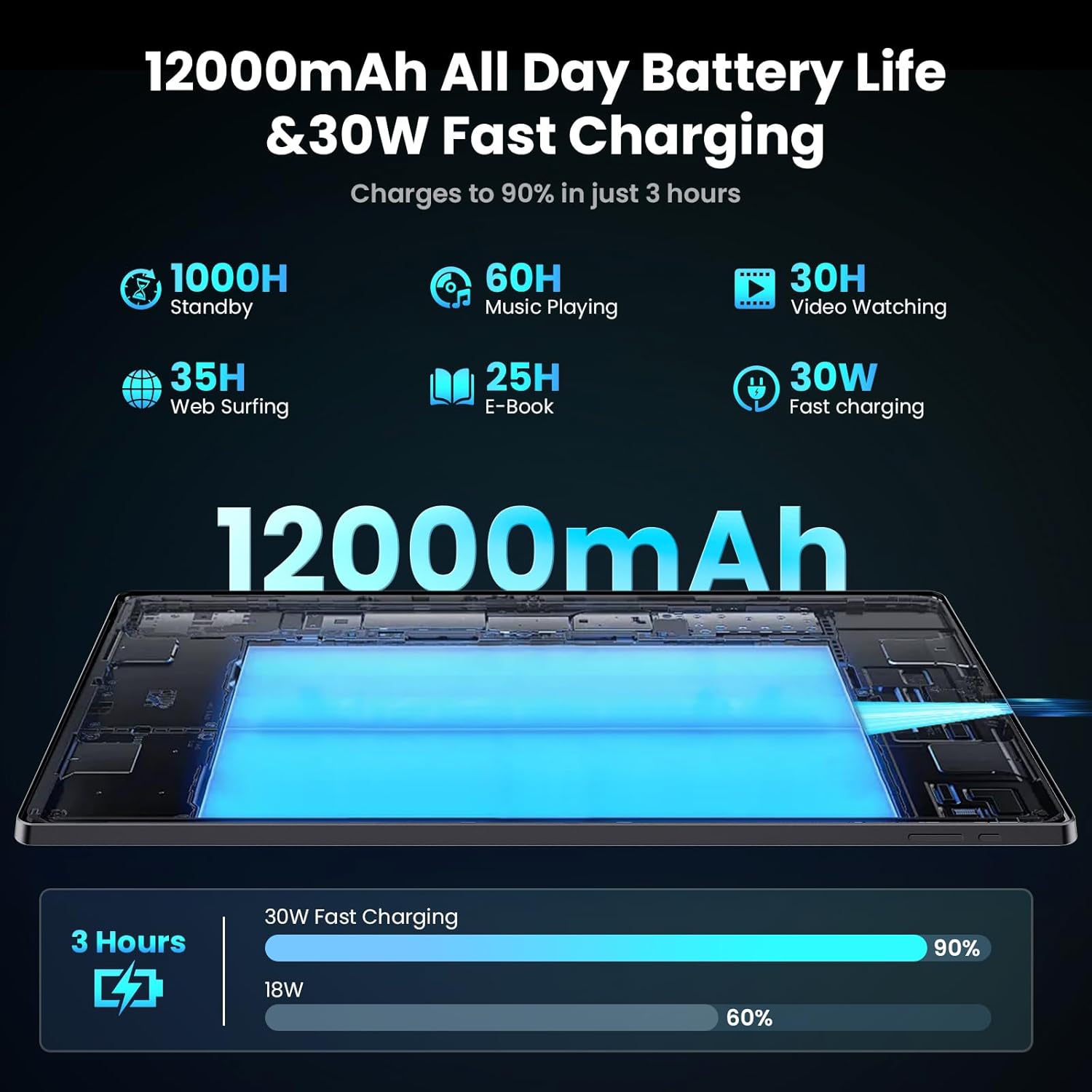
Image: Diagram illustrating the 12000mAh battery capacity and 30W fast charging feature, showing a charge to 90% in 3 hours.
2.3 Įjungimas ir pradinė konfigūracija
- Press and hold the Power button until the MESWAO logo appears.
- Vykdykite ekrane pateikiamus nurodymus, kad pasirinktumėte kalbą, regioną ir prisijungtumėte prie „Wi-Fi“ tinklo.
- Prisijunkite naudodami „Google“ paskyrą arba sukurkite naują, kad galėtumėte pasiekti „Google Play“ parduotuvę ir kitas paslaugas.
- Complete any remaining setup steps, such as setting up a screen lock (PIN, pattern, or password) and reviewprivatumo nustatymų.
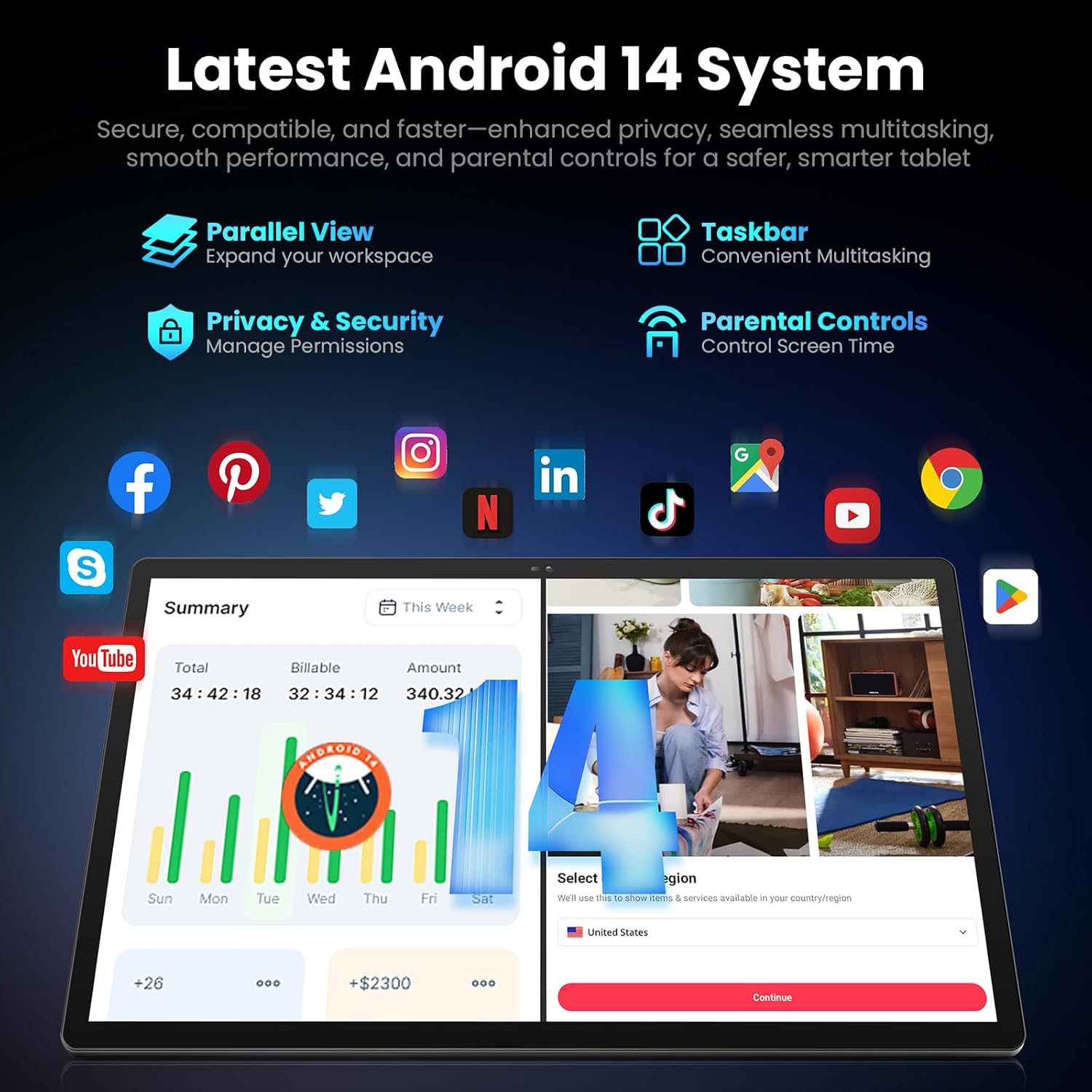
Image: Screenshot of the Android 14 system interface on the MESWAO tablet, highlighting features like Parallel View, Taskbar, Privacy & Security, and Parental Controls.
3. Naudojimo instrukcijos
3.1 Pagrindinė navigacija
- Lietimo gestai: Palieskite, kad pasirinktumėte, braukite, kad slinktumėte, suspauskite, kad priartintumėte.
- Pagrindinis ekranas: Pasiekite programas, valdiklius ir pranešimus.
- Pranešimų skydelis: Braukite žemyn nuo ekrano viršaus iki view pranešimai ir greitieji nustatymai.
- Programėlių stalčius: Braukite aukštyn nuo ekrano apačios, kad pasiektumėte visas įdiegtas programas.
3.2 Ekranas ir vaizdinė patirtis
The 15.6-inch Full HD (1920x1080) IPS display offers vivid colors and wide viewing angles. Adjust brightness and display settings in the Settings menu under "Display" for optimal viewing comfort. The large screen is ideal for multitasking and immersive media consumption.

Image: The MESWAO tablet displaying a high-definition image, emphasizing the 1920x1080P Full HD IPS display with eye protection features.
3.3 Našumas ir saugykla
Equipped with an Octa-Core Helio G99 processor and Android 14, the tablet provides smooth performance for various applications. It includes 8GB RAM and 256GB internal storage, expandable up to 1TB via a TF (microSD) card. To insert a TF card, locate the card slot on the side of the tablet, open the tray, and carefully place the card into the designated slot before reinserting the tray.
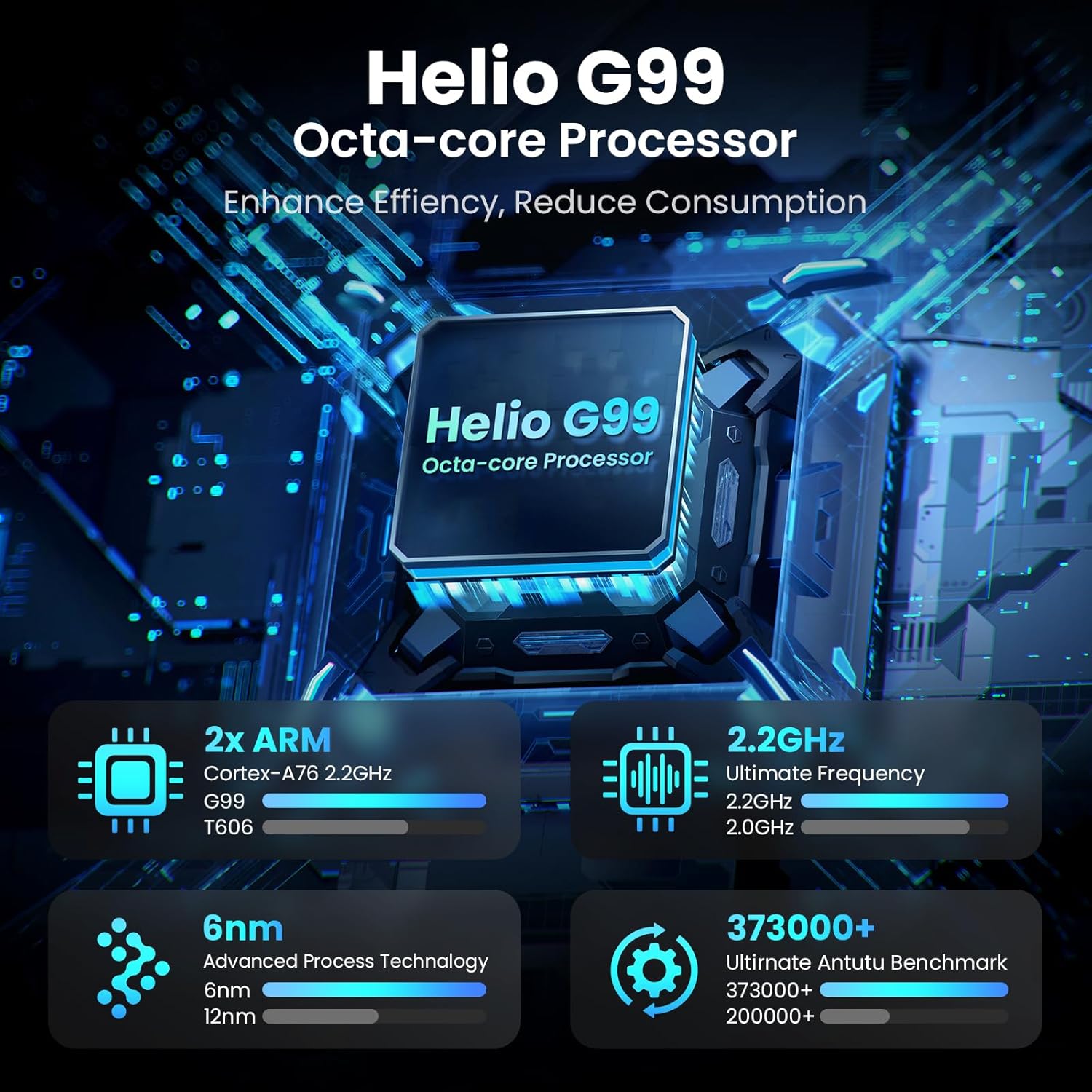
Image: Visual representation of the Helio G99 Octa-core Processor, detailing its architecture and performance metrics like 2.2GHz frequency and 6nm process technology.

Image: The MESWAO tablet screen showing multiple open applications and storage capacity details: 8GB RAM, 256GB ROM, and support for up to 1TB external storage.
3.4 Kameros naudojimas
The tablet features a 32MP rear camera with flash and a 5MP front camera. Open the Camera application to capture photos, record videos, or engage in video calls. Ensure good lighting for best results.

Image: A visual demonstrating the MESWAO tablet's 5MP front camera and 32MP rear camera, showing a family photo being taken and a video call in progress.
3.5 Ryšys
The tablet supports dual-band Wi-Fi (2.4GHz & 5GHz) for stable internet connectivity. Bluetooth is also available for connecting wireless accessories. Access these settings via the Notification Panel or the main Settings app.
4. Priežiūra
4.1 Planšetinio kompiuterio valymas
Planšetinio kompiuterio ekraną ir korpusą valykite minkštu, nepūkuotu audiniu. Įsisenėjusias dėmes šiek tiek nuvalykite.ampNuvalykite šluostę vandeniu arba ekranui saugiu valymo tirpalu. Venkite naudoti stiprias chemines medžiagas ar abrazyvines medžiagas.
4.2 Programinės įrangos naujiniai
Reguliariai tikrinkite, ar yra sistemos naujinimų, ir juos įdiekite, kad planšetiniame kompiuteryje būtų įdiegtos naujausios funkcijos, saugos pataisymai ir našumo patobulinimai. Eikite į Nustatymai > Sistema > Sistemos naujinimas norėdami patikrinti, ar nėra atnaujinimų.
4.3 Akumuliatoriaus priežiūra
- Venkite ekstremalių temperatūrų, nes jos gali pabloginti akumuliatoriaus veikimo laiką.
- Neleiskite baterijai dažnai visiškai išsikrauti.
- Naudokite tik pateiktą įkroviklį arba sertifikuotą suderinamą įkroviklį.
5. Problemų sprendimas
5.1 Planšetinis kompiuteris neįsijungia
- Įsitikinkite, kad planšetinis kompiuteris yra pakankamai įkrautas. Prijunkite jį prie įkroviklio bent 30 minučių, prieš bandydami vėl įjungti.
- Paspauskite ir palaikykite maitinimo mygtuką 10–15 sekundžių, kad atliktumėte priverstinį paleidimą iš naujo.
5.2 „Wi-Fi“ ryšio problemos
- Check if Wi-Fi is enabled in the Quick Settings or Settings menu.
- Iš naujo paleiskite „Wi-Fi“ maršrutizatorių ir planšetinį kompiuterį.
- Pamirškite tinklą „Wi-Fi“ nustatymuose ir prijunkite iš naujo.
- Įsitikinkite, kad esate „Wi-Fi“ signalo diapazone.
5.3 Lėtas veikimas
- Uždarykite nereikalingas fonines programas.
- Clear cache data for frequently used apps (Nustatymai > Programos > [Programos pavadinimas] > Atmintis ir talpykla > Išvalyti talpyklą).
- Ensure sufficient free storage space. Delete unused files arba programas.
- Periodiškai paleiskite planšetinį kompiuterį iš naujo.
5.4 Ekranas nereaguoja
- Perform a forced restart (hold Power button for 10-15 seconds).
- Įsitikinkite, kad ekranas yra švarus, be drėgmės ar šiukšlių.
6. Specifikacijos
| Funkcija | Detalė |
|---|---|
| Modelio pavadinimas | ŠMM-B3 |
| Ekrano dydis | 15.6 colių |
| Maksimali ekrano skiriamoji geba | 1920 x 1080 Pixels (Full HD IPS) |
| Operacinė sistema | Android 14 |
| Procesorius | Octa-Core Helio G99 (up to 2.2 GHz) |
| RAM | 8 GB |
| Vidinė atmintis (ROM) | 256 GB |
| Išplečiama saugykla | Iki 1 TB (TF kortelė) |
| Baterijos talpa | 12000 mAh |
| Įkrovimas | 30W greitas įkrovimas |
| Galinė kamera | 32 MP su blykste |
| Priekinė kamera | 5 MP |
| Ryšys | Dual-band Wi-Fi (2.4GHz & 5GHz), Bluetooth |
| Matmenys (IxPxH) | 14.53 x 8.78 x 0.43 colio |
| Prekės svoris | 3.84 svaro |
7. Garantija ir palaikymas
7.1 Informacija apie garantiją
MESWAO products are covered by a limited warranty. Please refer to the warranty card included in your product packaging for specific terms and conditions. Keep your proof of purchase for warranty claims.
7.2 Pagalba klientams
For technical assistance, troubleshooting, or warranty inquiries, please contact MESWAO customer support. Contact information can typically be found on the official MESWAO websvetainėje arba garantijos kortelėje.
Online resources such as FAQs and support forums may also be available on the MESWAO websvetainę.


